WP Residence Help WP Residence Help

  • WpEstate
  • WPRESIDENCE
  • Video Tutorials
  • Client Support
  • API
Home / 30. WPResidence Translate Plugin / Rewrite Rules & Query Vars — User Guide

Rewrite Rules & Query Vars — User Guide

11 views 0

Behind every /es/properties/modern-loft/ URL is a small piece of WordPress magic called a rewrite rule. It tells WordPress: “When the URL starts with /es/, treat the rest of the path as a normal request in Spanish.” The WPResidence Translate plugin adds these rules automatically whenever you configure a language. This article explains what rules get added, when you might need to refresh them, and how to recover from the classic “everything shows a 404” issue after changing languages. It is the companion to the URL and Detection articles in this series; together, they cover the routing layer of your multi-language real estate website.

What Are Rewrite Rules, Briefly

WordPress uses pretty URLs instead of ?p=123. To make that work, it keeps a table of rewrite rules mapping URL patterns to internal query arguments. WPResidence Translate adds one extra rule per active language so the language prefix is parsed before the rest of the URL is matched to a post, page, or archive.

What WPResidence Translate Adds

When you have, say, three active languages (English default, Spanish, French), the plugin adds rules for the non-default languages — the default language keeps WordPress’s normal rules because it has no prefix. In plain English, the added rules say:

  • A URL that begins with /es/ means “Spanish language, followed by the real path”.
  • A URL that begins with /fr/ means “French language, followed by the real path”.

The language part is captured into an internal value the plugin reads to set the active language, and the rest of the URL is then handled by WordPress normally. You do not see any of this — you just visit the pretty URL.

When Do Rewrite Rules Need a Refresh?

WordPress rebuilds its rewrite table only at specific moments:

  • When you save the Settings → Permalinks page.
  • When a theme or plugin asks for a flush (activation hooks, etc.).
  • When you switch permalink structures.

WPResidence Translate requests a flush the first time it is activated. After that, most day-to-day activities (publishing a translation, editing a slug) do not need a flush. But there are four moments where a manual flush is a good idea:

  1. After adding a new language on the Languages page.
  2. After deleting or renaming the slug of an existing language.
  3. After restoring the plugin from a backup.
  4. After moving the site to a new domain.

How to Flush Rewrite Rules

You do not need the command line. Simply:

  1. Log in to wp-admin.
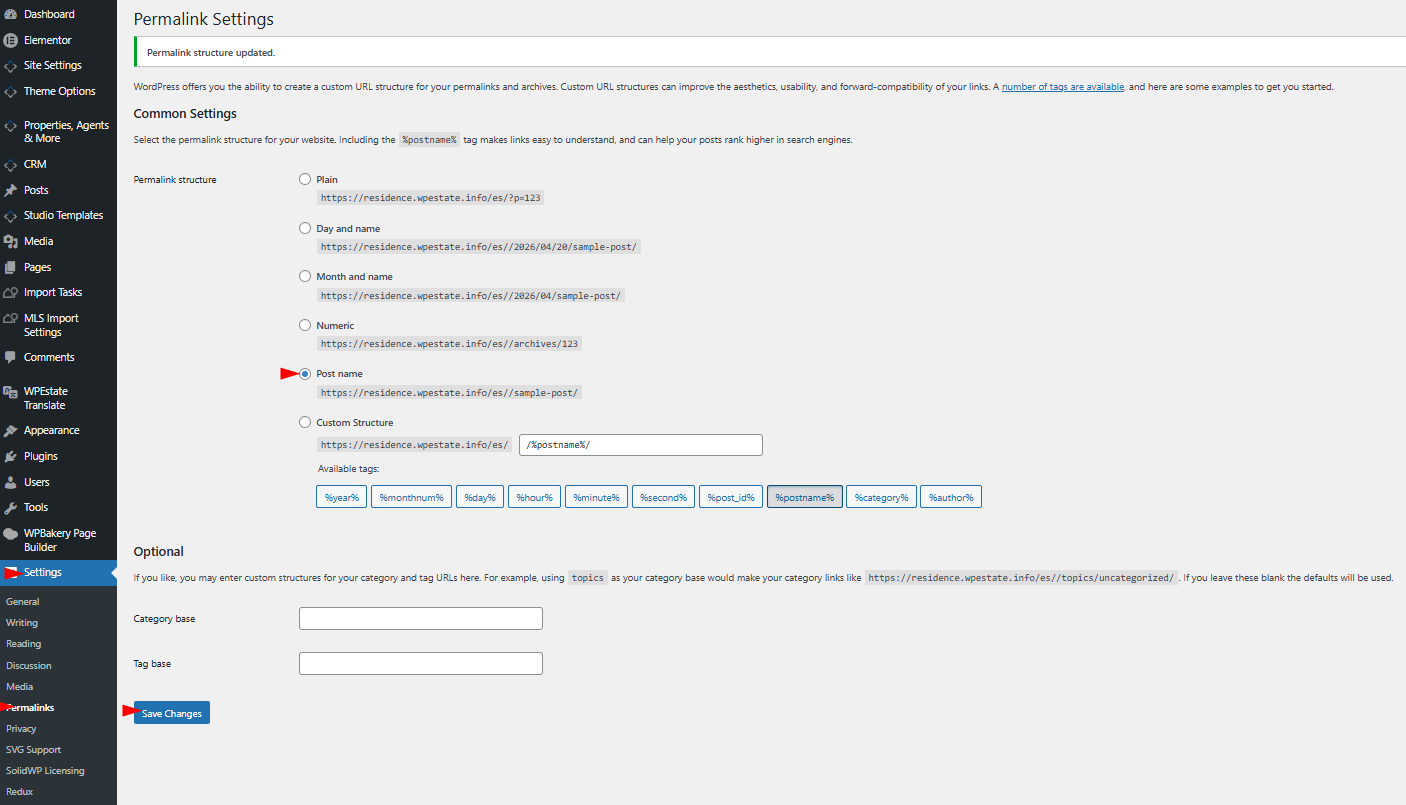
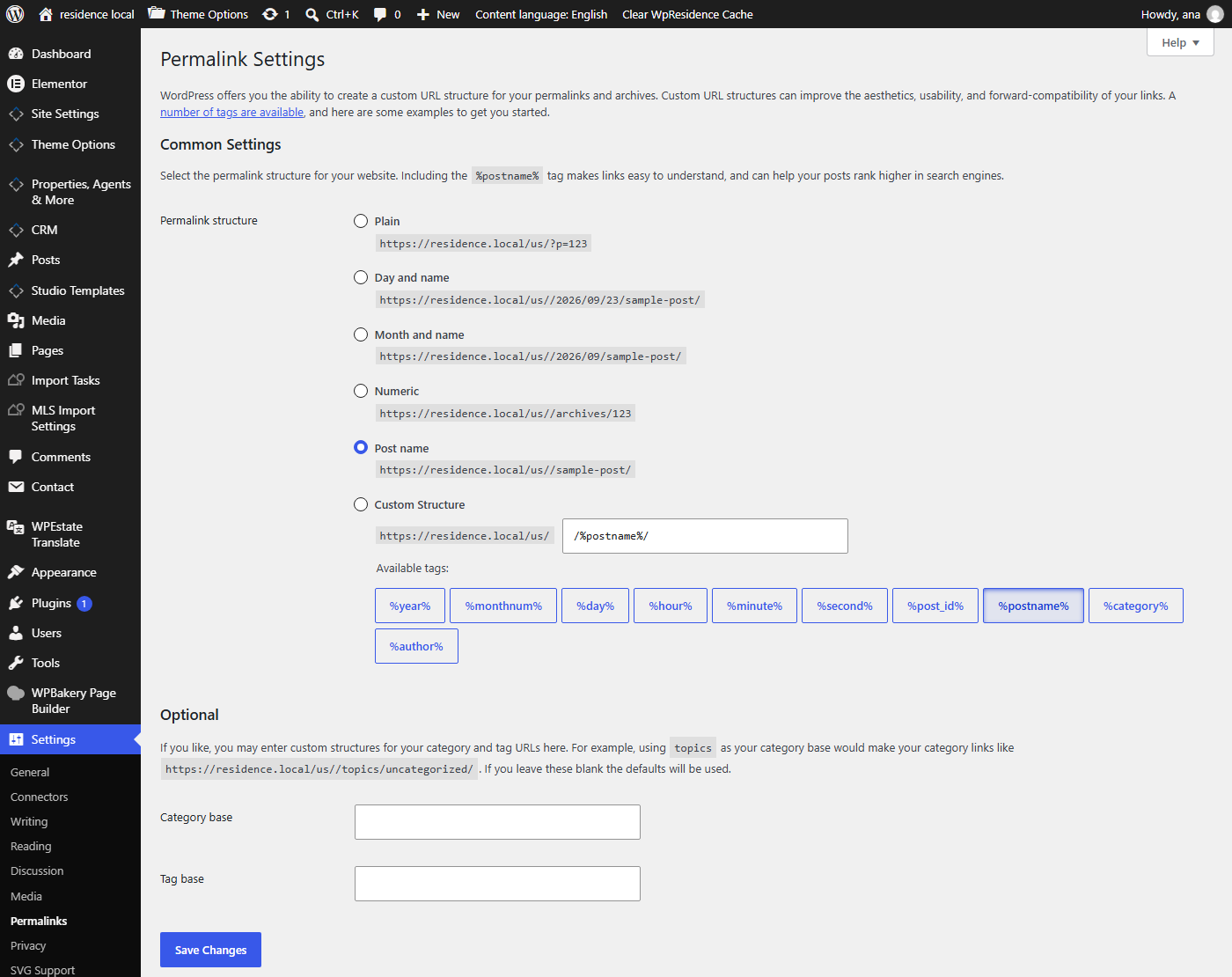
  2. Go to Settings → Permalinks.
  3. Do not change any options — just scroll to the bottom and click Save Changes.

That single click rebuilds the rewrite table. Your new language prefixes start resolving immediately.

The Classic 404 After Adding a Language

The most common symptom of a missing flush is this:

  • You added a new language, say German, with slug de.
  • You visit /de/ and the browser shows a WordPress 404 page.
  • The admin shows the language as active.

The fix is always the same: visit Settings → Permalinks and click Save. The 404 clears on the next reload.

Query Parameters & Language

The plugin introduces two internal query parameters — wpr_lang and wpr_lang_path — that WordPress uses while routing. You will not see these in your URLs; they are internal plumbing. Do not add them by hand to URLs you paste into menus or share on social media — always use the normal pretty URL with the language slug.

Compatibility With Other Plugins

WPResidence Translate’s rewrite rules are inserted at the top of WordPress’s rule list so they run first. This is the correct spot — other plugins that also add rules (caching plugins, custom-endpoint plugins, sitemap plugins) generally register their rules in the same way and will not conflict. If you install a caching plugin like W3 Total Cache or WP Rocket, clear its cache after a rewrite flush so the old URLs are not served from disk.

Permalink Structure Choice

WPResidence Translate needs pretty permalinks to do its job. Make sure Settings → Permalinks is set to any option other than “Plain”. Recommended choices:

  • Post name — most common for real estate sites.
  • Day and name — sometimes preferred for news-heavy sites.

Either works with the plugin.

Troubleshooting Checklist

  • 404 on /fr/— save Settings → Permalinks.
  • 404 on a translated property — confirm the translation is published and has a slug; then save Permalinks.
  • Cached 404 stays after fix — clear your caching plugin and your browser cache.
  • URL shows ?wpr_lang= — your permalinks are set to Plain; switch to Post name.

What To Read Next

  • URL Structure & Permalinks — how the URL is built.
  • Language Detection & Redirects — how the language is picked per request.
  • Rewrite Rules & Query Vars (Developer) — the code-level view for custom endpoints.

For more on running WPResidence across languages, see the multi-language real estate website guide.

30. WPResidence Translate Plugin

Related Articles

  • String Scanner — Developer Guide
  • The String Scanner
  • Gettext Pipeline & MO Files — Developer Guide
  • Gettext & MO Files — Making Translations Appear on the Front End

WP Residence Documentation

  • 01. Getting Started
    • How to Get Support
    • Get your buyer license code.
    • Use SSL / https
    • Server / Theme Requirements
  • 02. Installation & Setup
  • 03. Installation FAQ
  • 06. Search & Filtering
    • Advanced Search Display Settings
    • Advanced Search Form
    • Geolocation Search for Half Map
    • Save Search Theme Options
    • Advanced Search Colors
  • 09. Agent, Agency & Developers
  • 08. Property Pages & Layouts
  • 07. Property Lists, Categories & Archive
  • 13. WPResidence Elementor Studio
  • 10. Blog Posts & Blog List
  • 11. Shortcodes
    • Contact Form
    • Featured Agency/Developer
    • Membership Packages
    • Testimonials
    • Google Map with Property Marker
    • Listings per Agent, Agency or Developer
    • Display Categories
    • Agent List
    • Recent Items Slider
    • Recent items
    • List Properties or Articles by ID
    • Featured Agent
    • Featured Article
    • Featured Property
    • Login & Register Form
    • Icon Content Box Shortcode
  • 12. Widgets
  • 04. Theme Options & Global Settings
    • General Settings
    • User Types Settings
    • Appearance
    • Logos & Favicon
    • Header
    • Footer Style and Colors
    • Price & Currency
    • Property Custom Fields
    • Features & Amenities
    • Listing Labels
    • Theme Slider
    • Permalinks
    • Splash Page
    • Social & Contact
    • Map Settings
    • Pin Management
    • How read from file works
    • General Design Settings
    • Custom Colors Settings
    • Header Design & Colors
    • Mobile Menu Colors
    • User Dashboard Colors
    • Print PDF Design
    • Property, Agent, Blog Lists Design Settings
    • Sidebar Widget Design
    • Font management
    • How to add custom CSS
    • Custom Property Card Unit – Beta version
    • Email Management
    • Import & Export theme options
    • reCaptcha settings
    • YELP API Integration
    • iHomefinder Optima Express IDX
    • MEMBERSHIP & PAYMENT Settings
    • Property Submission Page
    • PayPal Setup
    • Stripe Setup
    • Wire Transfer Payment Method
  • 20. Translations & Languages
  • 26. FAQ
  • 10. Pages
  • 11. Header
  • 12. Footer
  • 05. Maps & Location Settings
  • 18. Payments & Monetization
  • Plugins
    • 19. Included Plugins
    • 22. Third Party Plugins – IDX Compatibility
    • 21. Third-Party Plugins – Multi-Language
    • 23. Third party Plugins – Other
  • Technical
    • 24. Technical how to | Custom Code Required
    • 25. Technical: Child Theme

Join Us On

Powered by WP Estate - All Rights Reserved
  • WpEstate
  • WPRESIDENCE
  • Video Tutorials
  • Client Support
  • API