
Real estate sites live and die by their taxonomies — property categories, actions (For Sale, For Rent), cities, areas, counties, and features. On a multilingual site, those terms need to exist in every language, and the right ones need to show up on the right pages. WPEstate Translate gives you a taxonomy translation system that keeps terms linked, mirrors hierarchy across languages, and can auto-create missing variants. For the broader context of running a multi-language real estate website, see the main guide.
Automatic Duplication
What “Translatable” Means For a Taxonomy
A taxonomy in WPEstate Translate is in one of two modes:
| Mode | Behavior |
|---|---|
| Translatable | Terms are cloned per language. Each language sees only its own terms on the front end. Category pages, archives, and search filters show the correct translation automatically. |
| Not translatable | Terms are shared across all languages as-is. Useful for internal-only taxonomies where translation is not meaningful. |
Configuring Taxonomies
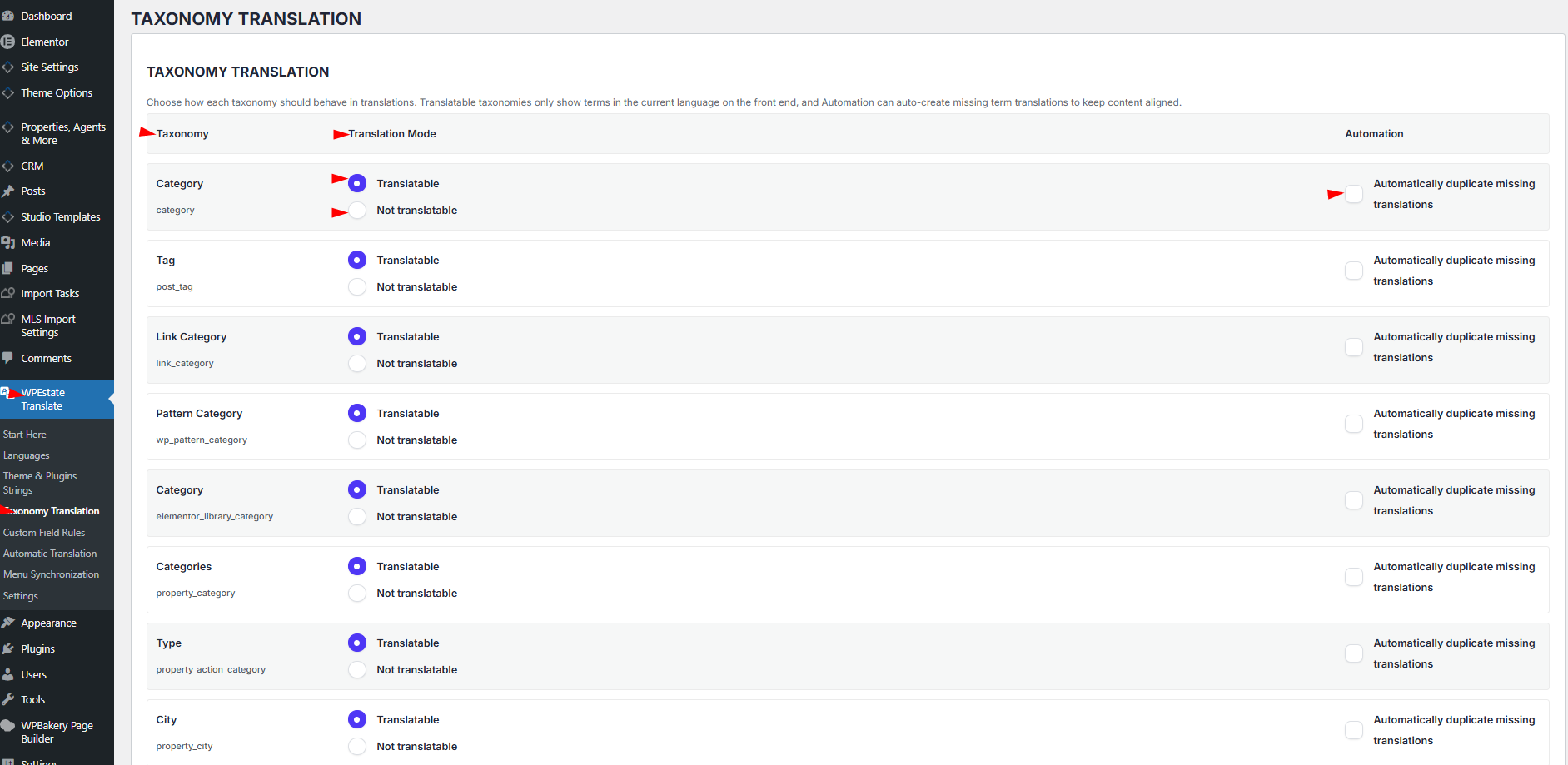
- Open WPEstate Translate > Taxonomy Translation.
- For each taxonomy in the table, choose either Translatable or Not translatable using the radio buttons.
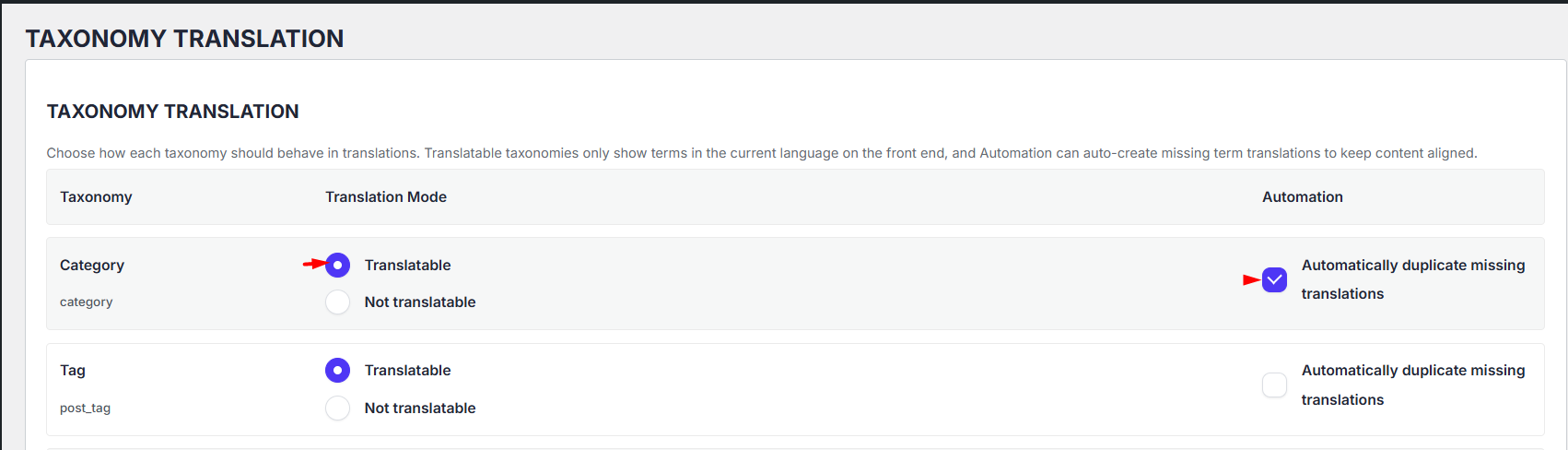
- Turn on Automatically duplicate missing translations in the Automation column if you want the plugin to seed empty variants as soon as you create a term.
- Click Save Settings.
Creating a Term Translation
Once a taxonomy is marked translatable, the standard WordPress taxonomy screen (for example Property Categories or Property Locations) gains two new things:
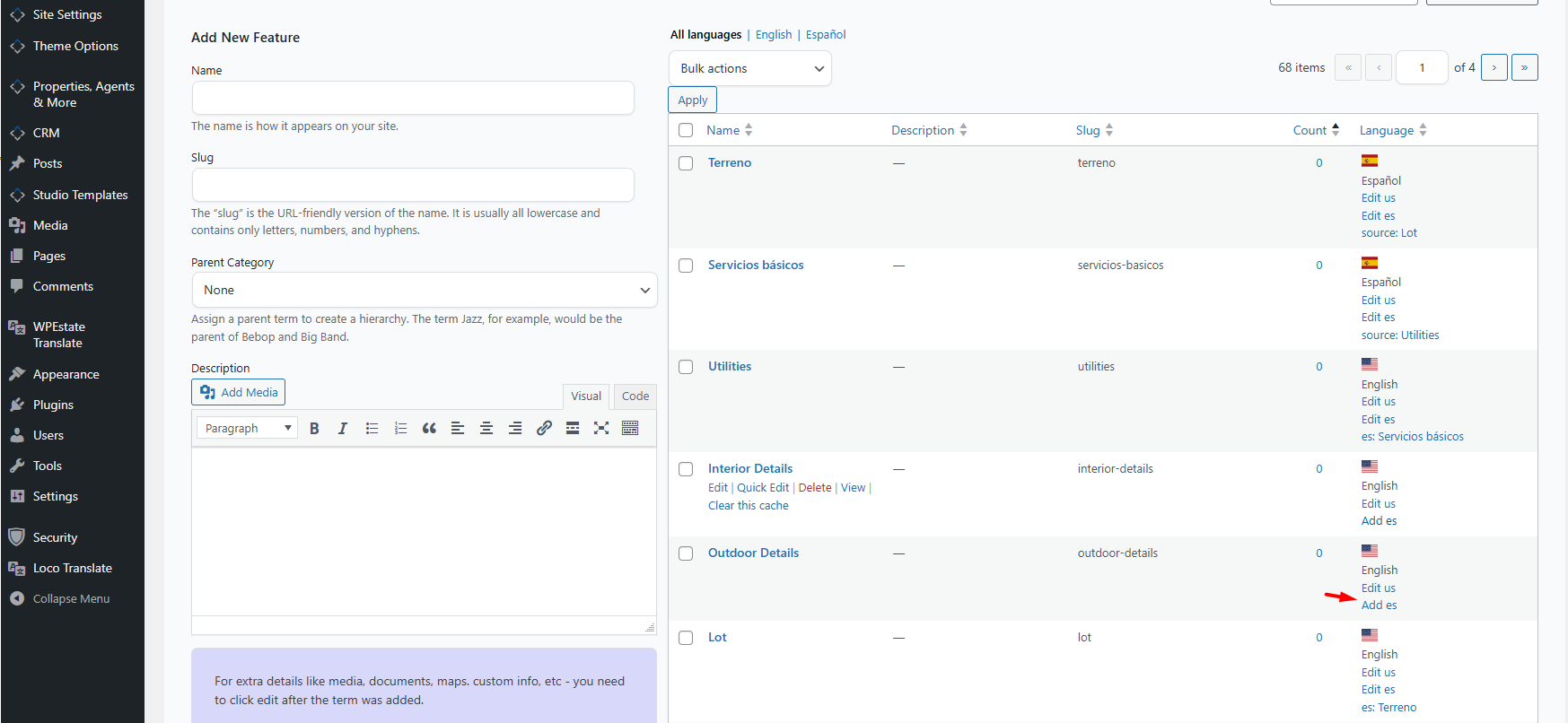
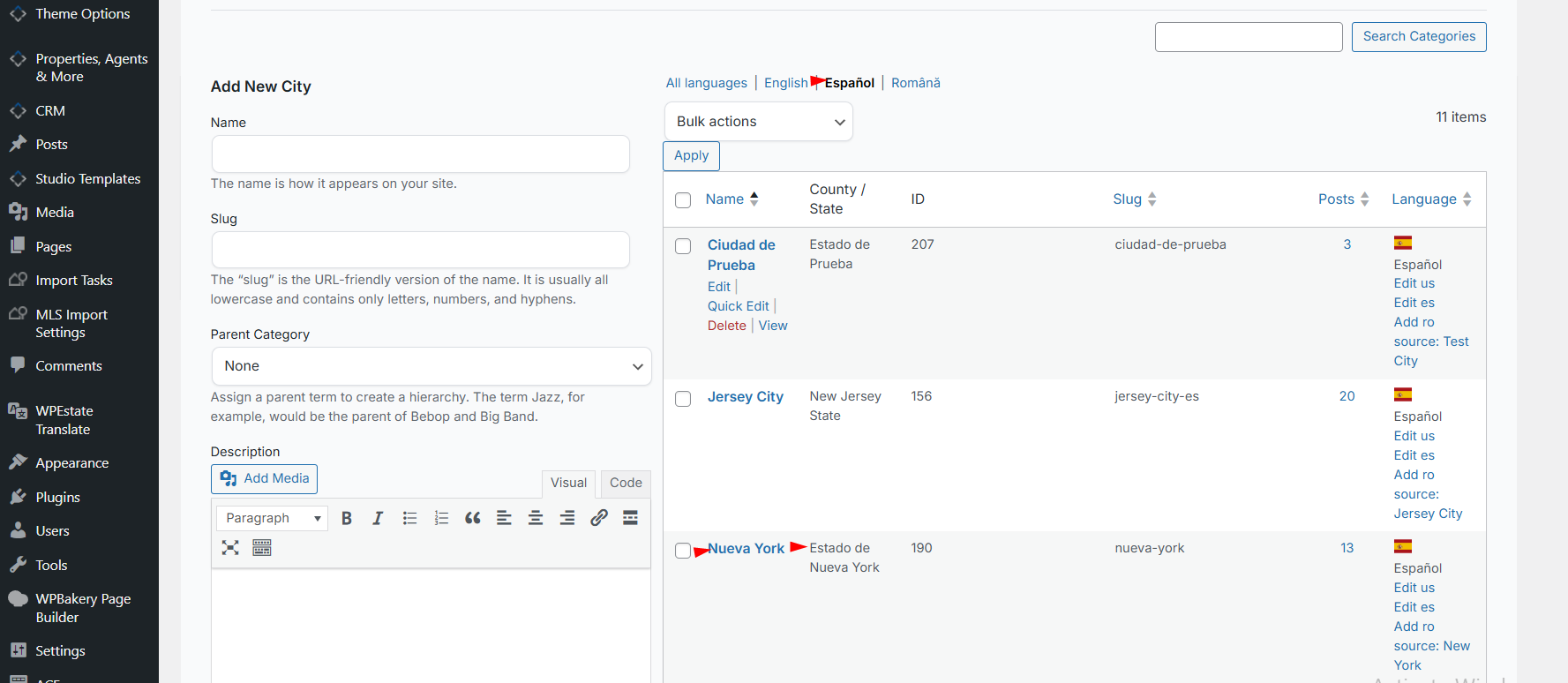
- Language filter views at the top of the list table — click All languages, English, Français, etc. to filter the term list.
- A language panel on the term edit screen, where you pick the term’s language and link it to its source term in another language.
To translate an existing term:
- Open the taxonomy list (e.g. Properties > Property Categories).
- Edit the term in the source language.
- In the language panel, trigger Add translation for the target language. The plugin creates a new term in that language, links it to the original, and copies the term meta.
- Edit the new term’s name, slug, and description in the target language.
Automatic Duplication
When Automatically duplicate missing translations is on for a taxonomy, every time you create a new term in any language the plugin immediately creates an empty linked variant for every other active language. Translators then only have to fill in names and descriptions — the linking is already done.
You can turn automation on or off per taxonomy at any time without losing existing translations.
Important Note About Empty Categories
Automatic duplication creates the linked taxonomy terms for each language, but it does not automatically translate the term name, slug, or description.
This is especially important for empty categories or parent/grouping terms, such as Features and Amenities. Even if these terms do not contain properties directly, they are still used to organize other terms on the website, so they must be translated manually from the taxonomy edit screen.
After the duplicate term is created, edit the term in the target language and manually update the name, slug, and description.
Hierarchy Is Mirrored Across Languages
If your taxonomy is hierarchical (like Property Locations: Country > State > City > Area), the plugin keeps the parent relationships aligned across languages. When you change a term’s parent in one language, its siblings in other languages are updated to point at the translated equivalent of that parent — no manual re-parenting required.
What Visitors See
On the front end, term listings — category clouds, taxonomy menus, property card badges, map filters, the advanced search dropdowns — all show only terms in the visitor’s current language. If a term has no translation yet for the visitor’s language, it can either fall back to the original or be hidden, depending on the taxonomy’s mode. By default the plugin falls back to the canonical term so content never silently disappears.
Non-Latin Alphabets
Term names and slugs preserve UTF-8 characters end-to-end. You can translate categories into Cyrillic (Russian, Bulgarian, Ukrainian), Arabic, Hebrew, Chinese, Japanese, Korean, Thai, Greek, and any other alphabet supported by WordPress. Slugs that start life as non-Latin text are kept as-is or transliterated only if your site already does so.
Tips
- Turn on automatic duplication before you start creating hundreds of locations — it saves enormous amounts of time.
- Set top-level taxonomies like Action Category (For Sale / For Rent) to Translatable so search buttons match each language.
- Internal tagging taxonomies (e.g. private admin tags) can stay Not translatable.
- When you delete the original of a translation set, the plugin automatically promotes one of the remaining translations to be the new original, so the group stays intact.
What To Read Next
- Translating Posts & Pages — the parallel workflow for content.
- Meta Sync Across Language Variants — the custom field rule engine for property meta.
- WP_Query Language Filtering — how archives filter terms automatically.
For a product tour of how this fits a multi-language real estate website, see the WPResidence landing page.