Where to Manage Agent Contact and Schedule Tour Options
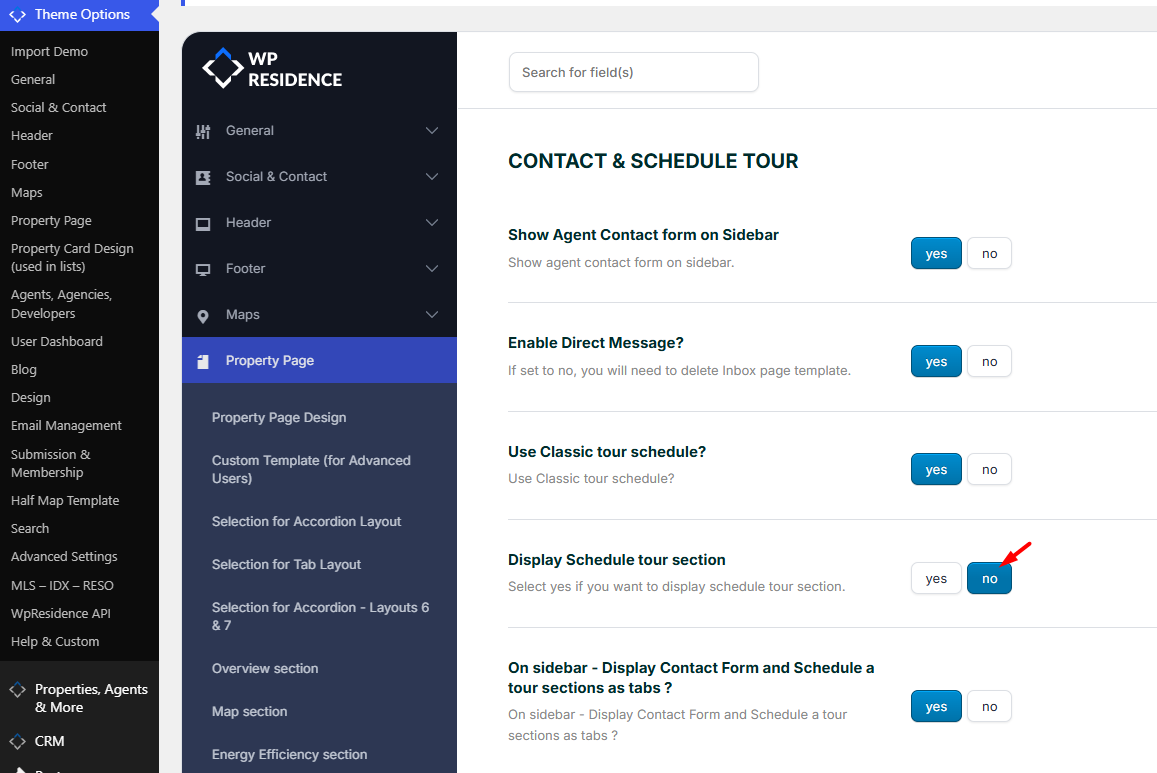
The options for the Agent sidebar contact form and Schedule Tour section can be found in:
Theme Options > Property Page > Contact & Schedule Tour
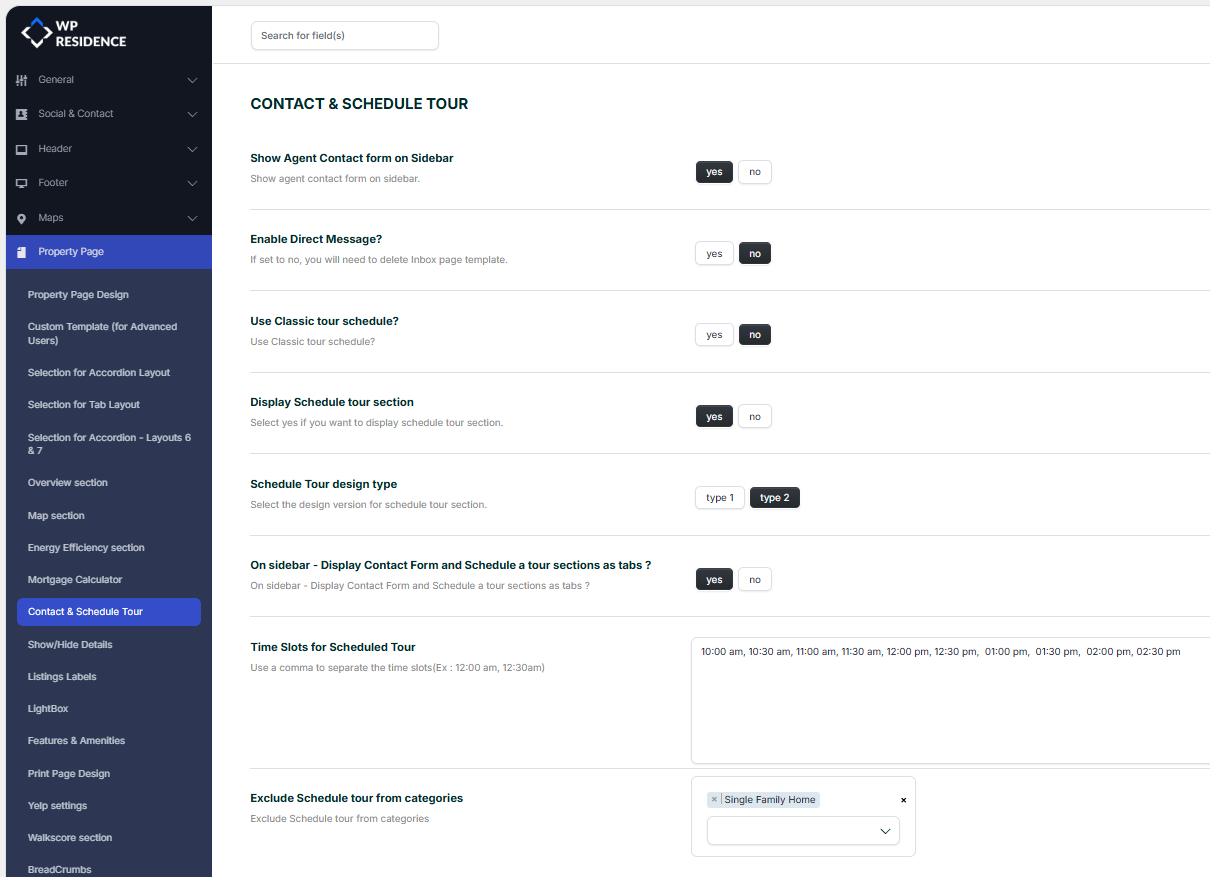
Show Agent Contact Form on Sidebar
This option enables the contact form on the property page sidebar, as long as the property page is set to display a sidebar.
The contact form can show only when the property has an assigned agent, agency, developer, or user.
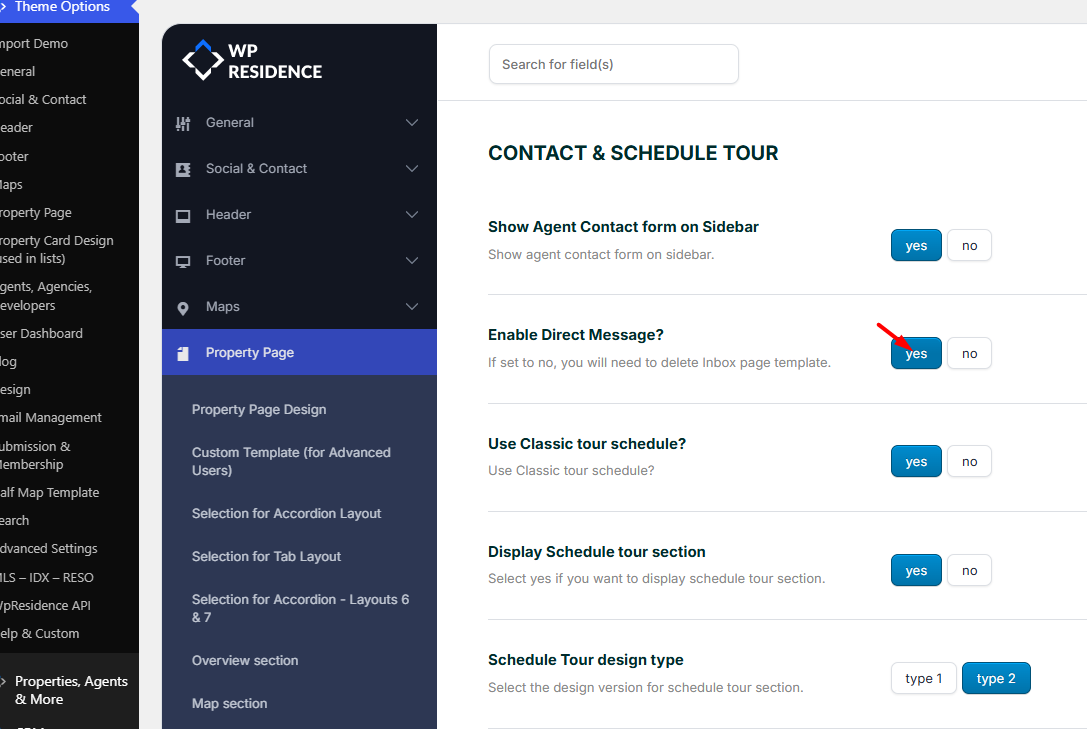
Enable Direct Message
If this option is enabled, the agent can receive messages in the My Inbox section from the User Dashboard.
You can read more about the inbox and private message system here:
How to work with Inbox private message system
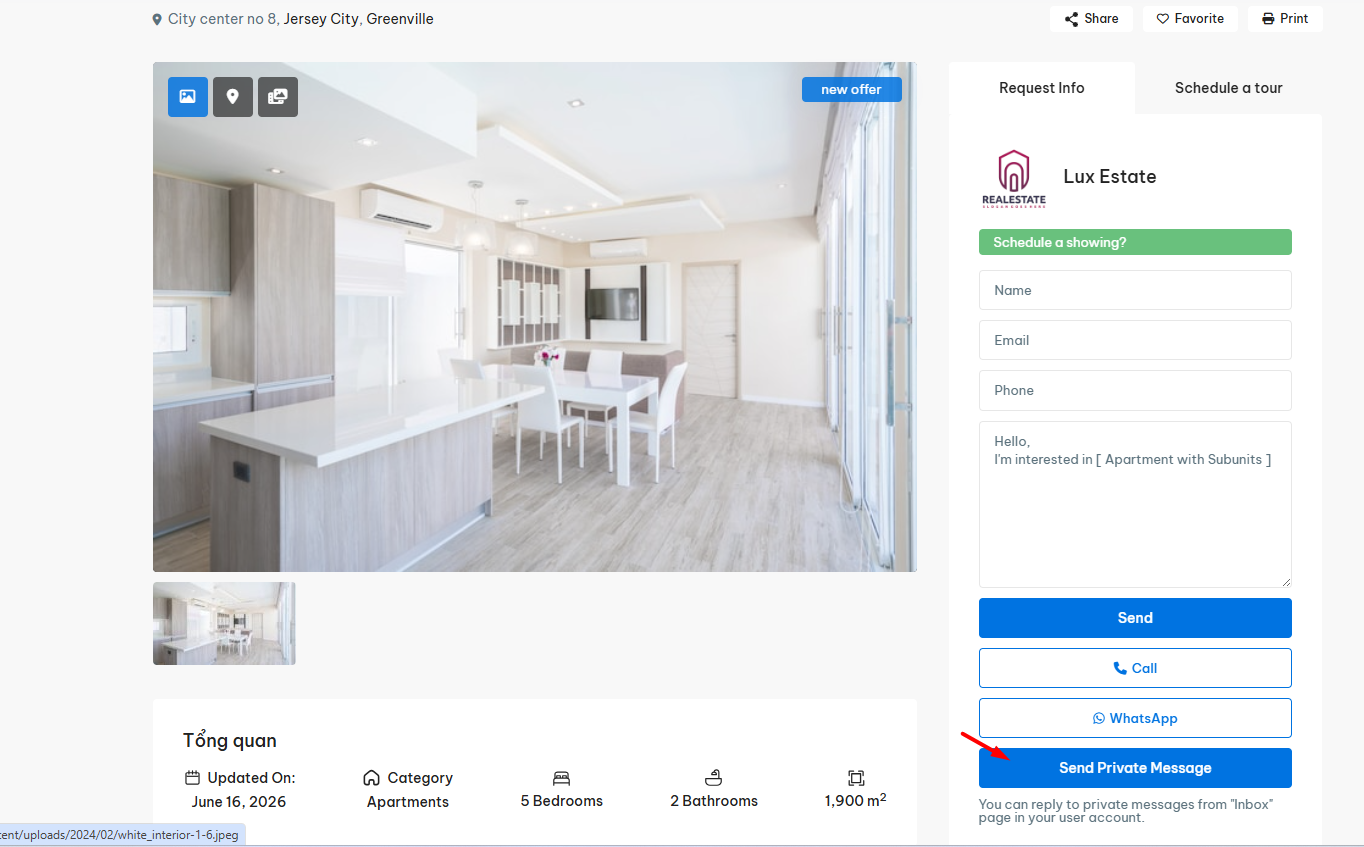
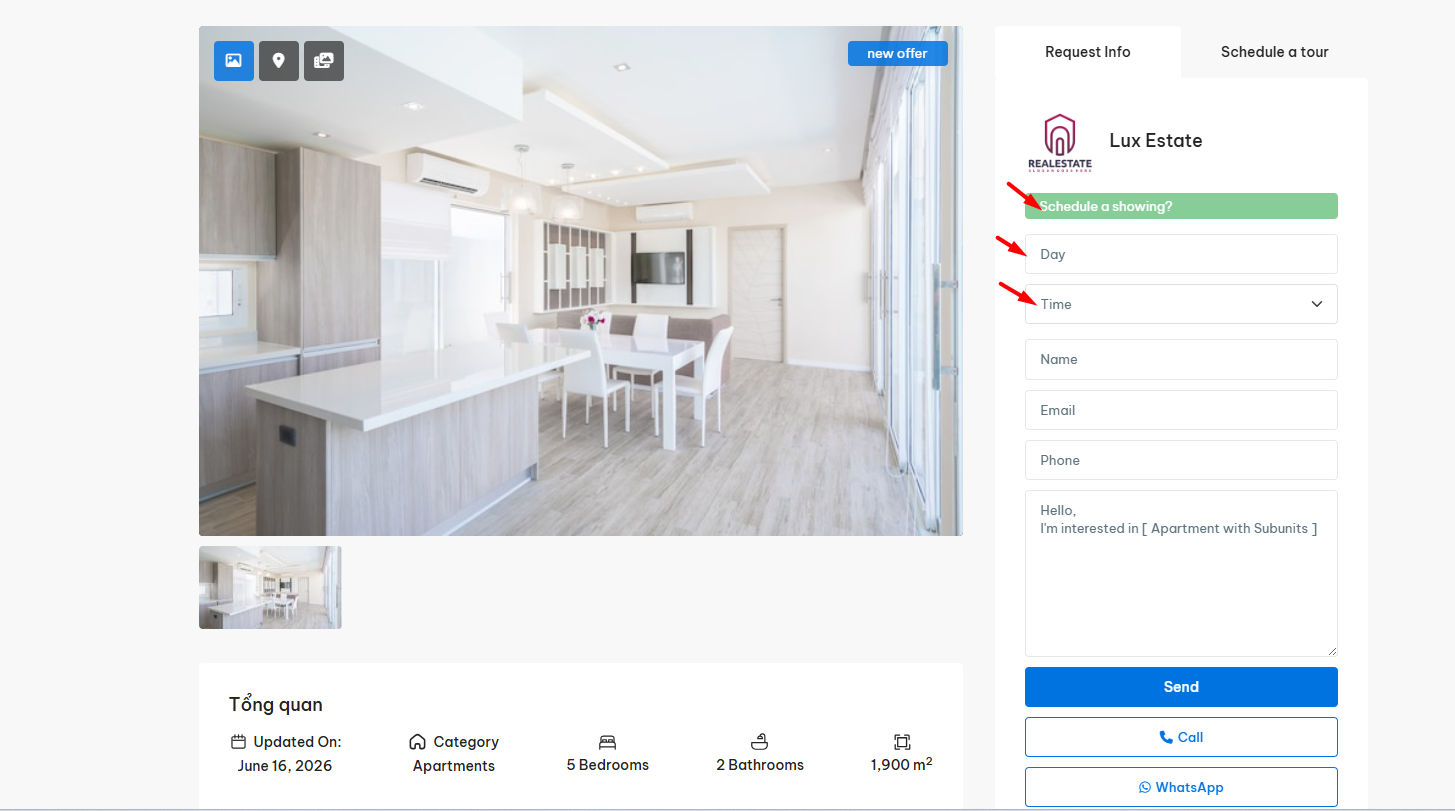
Use Classic Tour Schedule
If enabled, the agent sidebar contact form will show a simple Schedule a Showing? button.
When the visitor clicks that button, the options to select the day and time will appear inside the same contact form area.
Display Schedule Tour Section
If this option is set to Yes, a separate Schedule Tour form will appear under the agent sidebar contact form.
This gives visitors a dedicated section to choose the tour details.
If you want to disable the Schedule Tour form, set this option to No and save the settings.
After saving, clear the website cache and check the property page again.
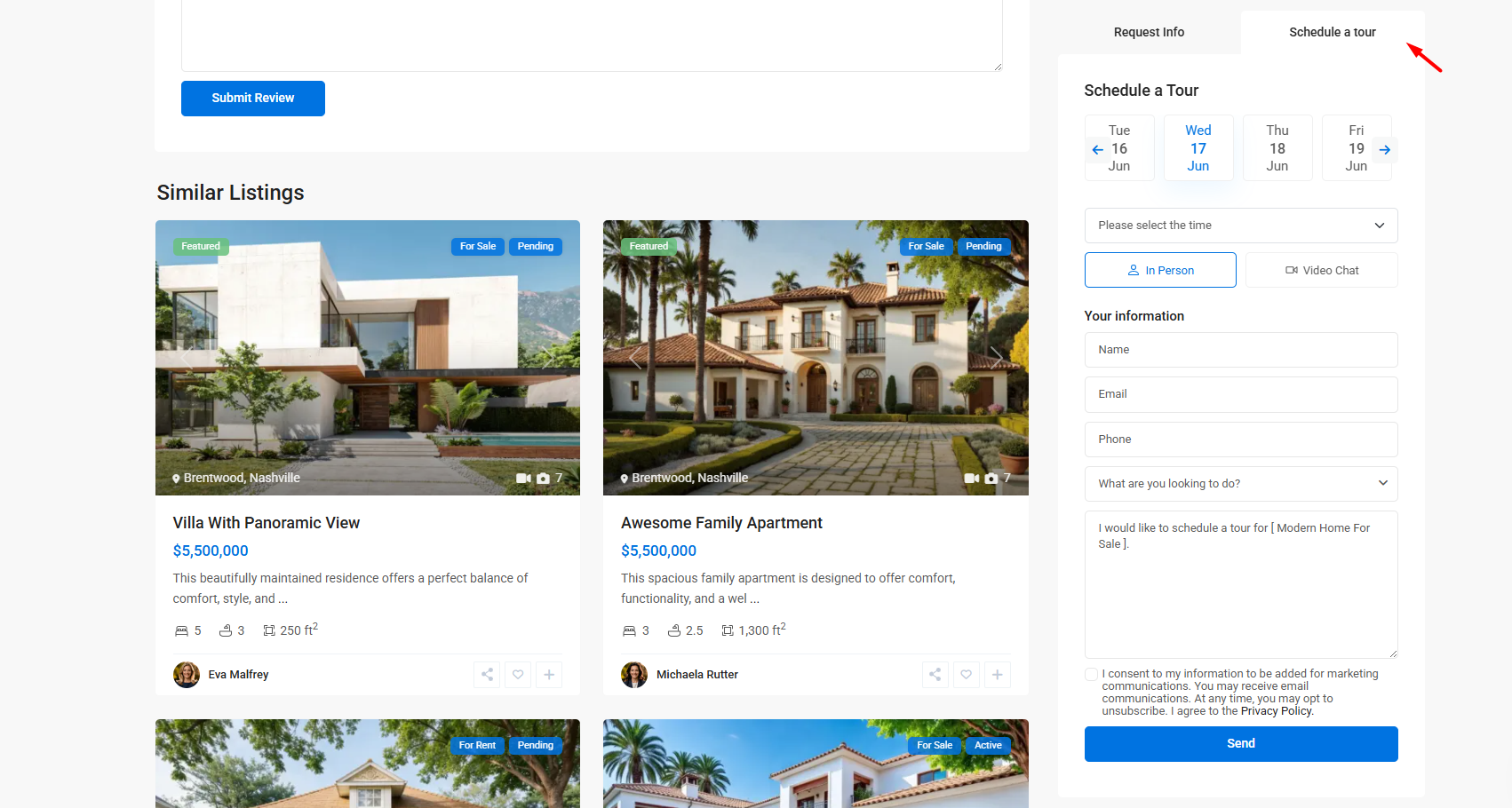
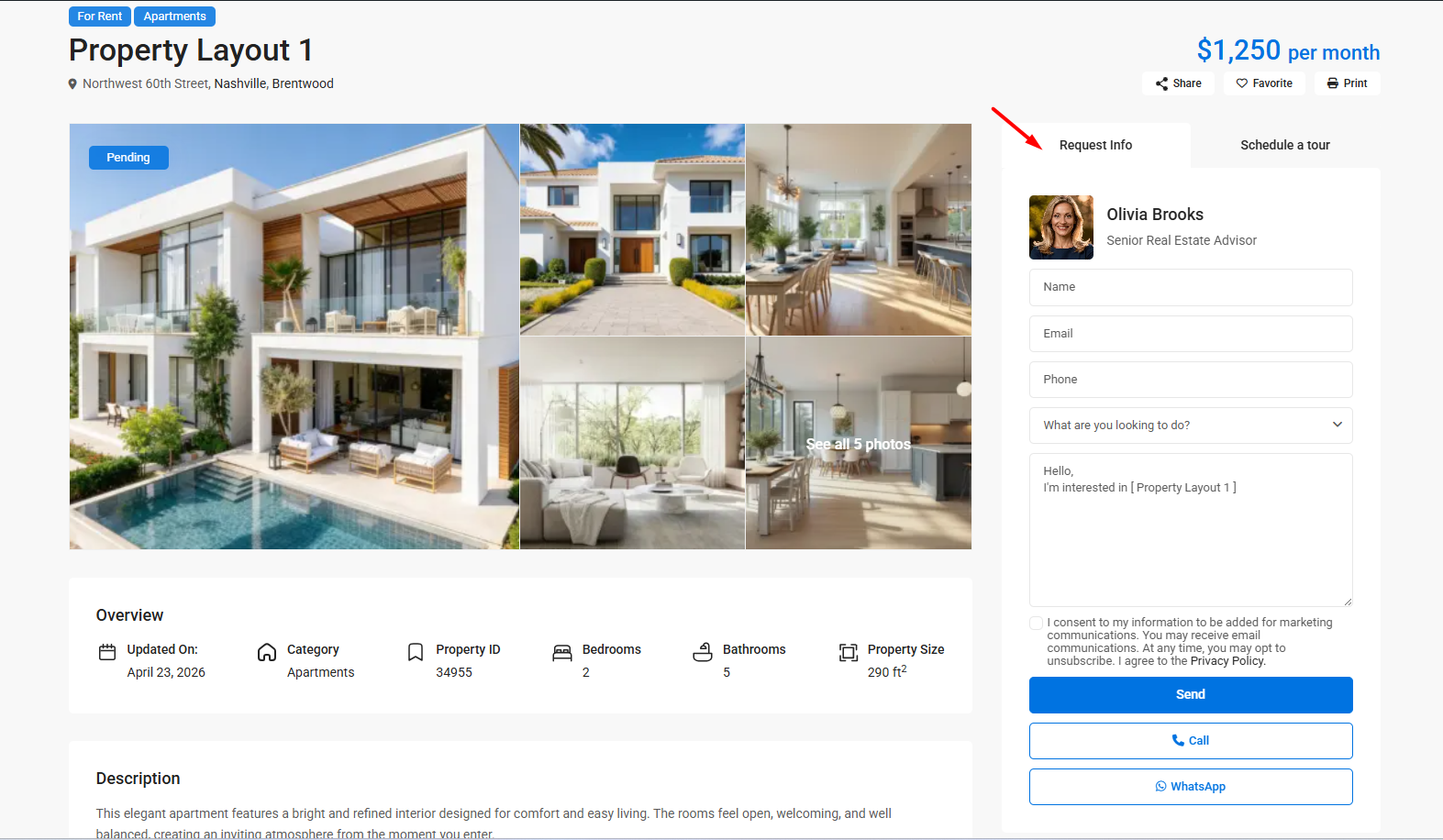
Show Contact Form and Schedule Tour as Tabs
If this option is set to Yes, and the Schedule Tour section is also enabled, the sidebar form will display both sections as tabs.
This means visitors can switch between:
- Request Info
- Schedule a Tour
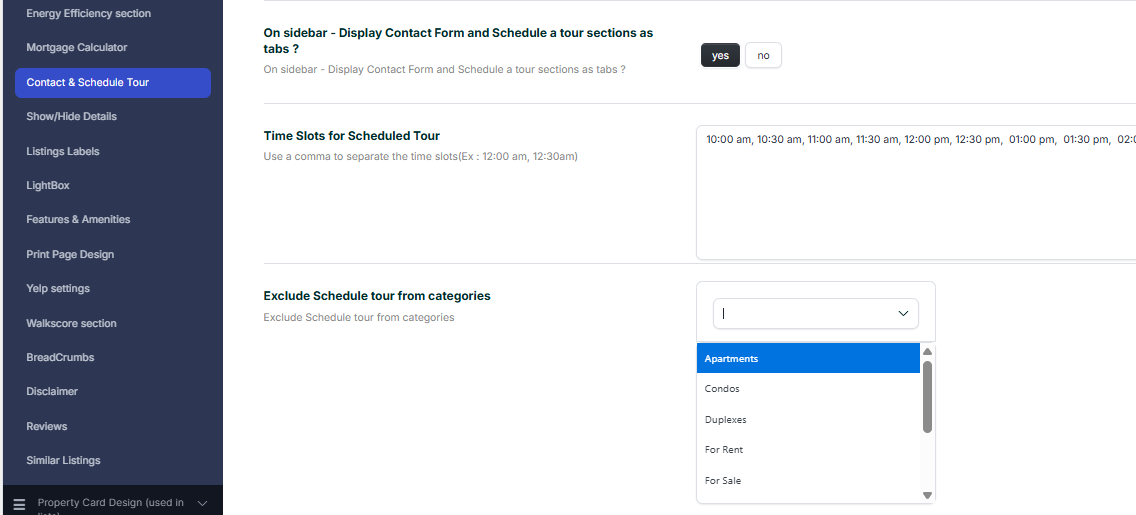
Time Slots for Scheduled Tour
This option applies when Display Schedule Tour Section is enabled.
It lets you define the available hours that visitors can choose for a scheduled tour.
Exclude Schedule Tour from Categories
You can exclude the Schedule Tour section from properties assigned to specific categories.
For example, if Condos is selected in this setting, then properties assigned to the Condos category will not display the Schedule Tour section.
If Only Schedule a Tour Is Showing
If the property page shows only Schedule a Tour and the normal agent contact form is not showing, it usually means the property does not have an agent, agency, developer, or user assigned.
The normal contact form is connected to the contact details of the assigned agent, agency, developer, or user. If no contact profile is assigned to the property, WPResidence cannot show the contact form.
To fix this:
- Go to Properties > All Properties.
- Edit the property.
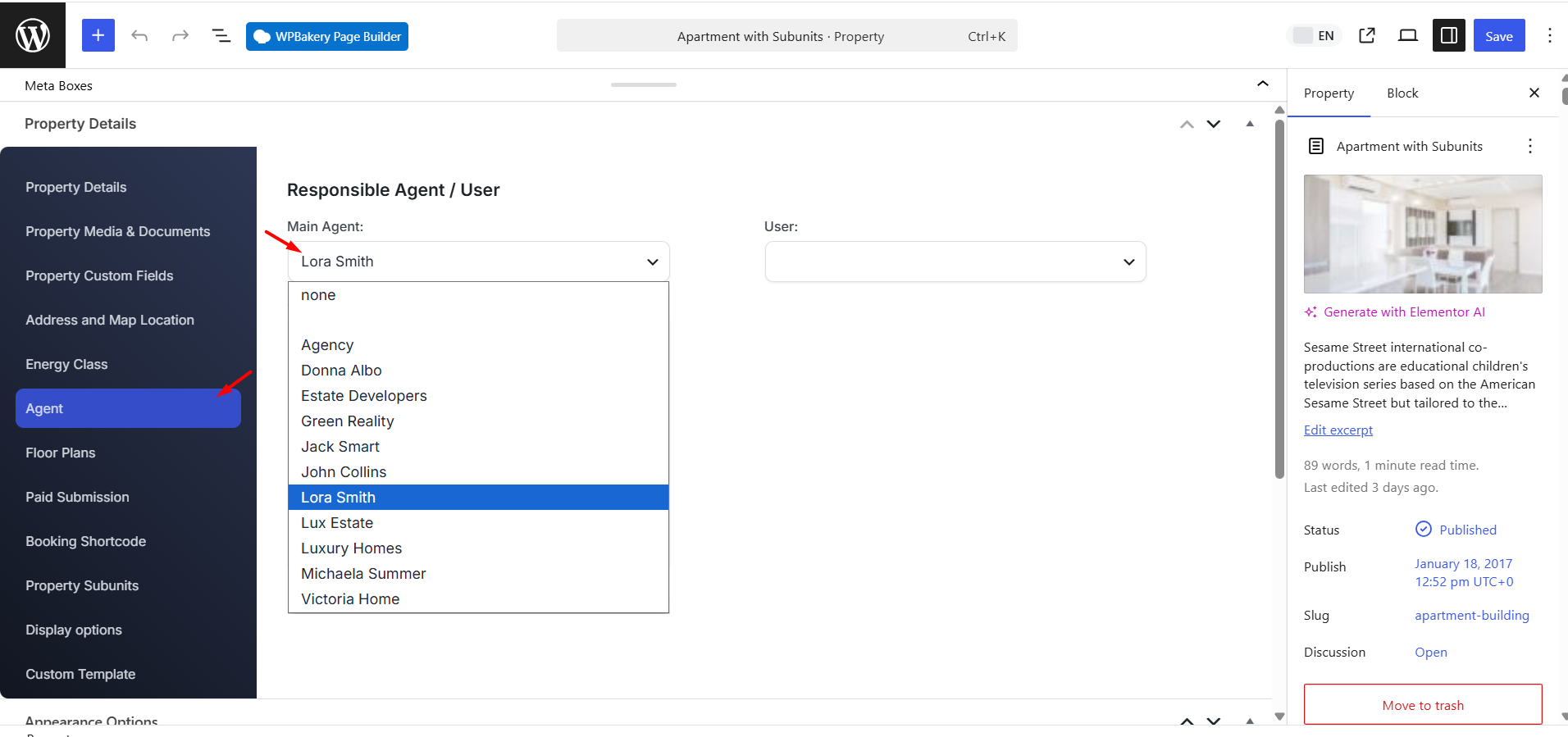
- Check the agent, agency, developer, or user assignment area.
- Assign the correct contact profile to the property.
- Update the property.
- Check the property page again.
After the property has an assigned contact profile, the normal contact form can show based on the contact form settings from this page.
If you do not want to show Schedule a Tour, disable it from:
Theme Options > Property Page > Contact & Schedule Tour > Display Schedule Tour Section
Set the option to No and save.