
WPResidence includes a built-in webhook system that forwards contact form submissions to any external URL as an HTTP POST request. You can connect your site to Zapier, Make (formerly Integromat), HubSpot, or any custom CRM or automation endpoint — without installing additional plugins.
What This Feature Does
When a visitor submits a contact form on your site, WPResidence can immediately send the form data to a URL you specify. The data is sent as a JSON payload (for the global webhook) or as a standard form-encoded payload (for Elementor per-form webhooks). Each form type can be enabled or disabled independently, so you have full control over which submissions trigger the webhook.
Two independent webhook channels are available:
- Global webhook — one URL configured in Theme Options that covers all standard contact forms. Each form type has its own enable/disable toggle.
- Elementor per-form webhook — a separate URL configured inside each individual Elementor Contact Form Builder widget. This fires independently of the global webhook.
How to Configure
Global Webhook
- In the WordPress admin, go to Theme Options (the top-level WPResidence menu item).
- Navigate to the Webhook URL subsection (found inside the Email / Forms settings area).
- Enter your endpoint URL in the Webhook URL field.
- For each form type listed below the URL field, click yes to enable webhook delivery for that form. The default for every toggle is no.
- Save changes. From this point on, every enabled form submission will POST a JSON body to the URL you entered.
Screenshot: Theme Options panel open at the Webhook URL subsection, showing the URL text field and the form toggle buttons below it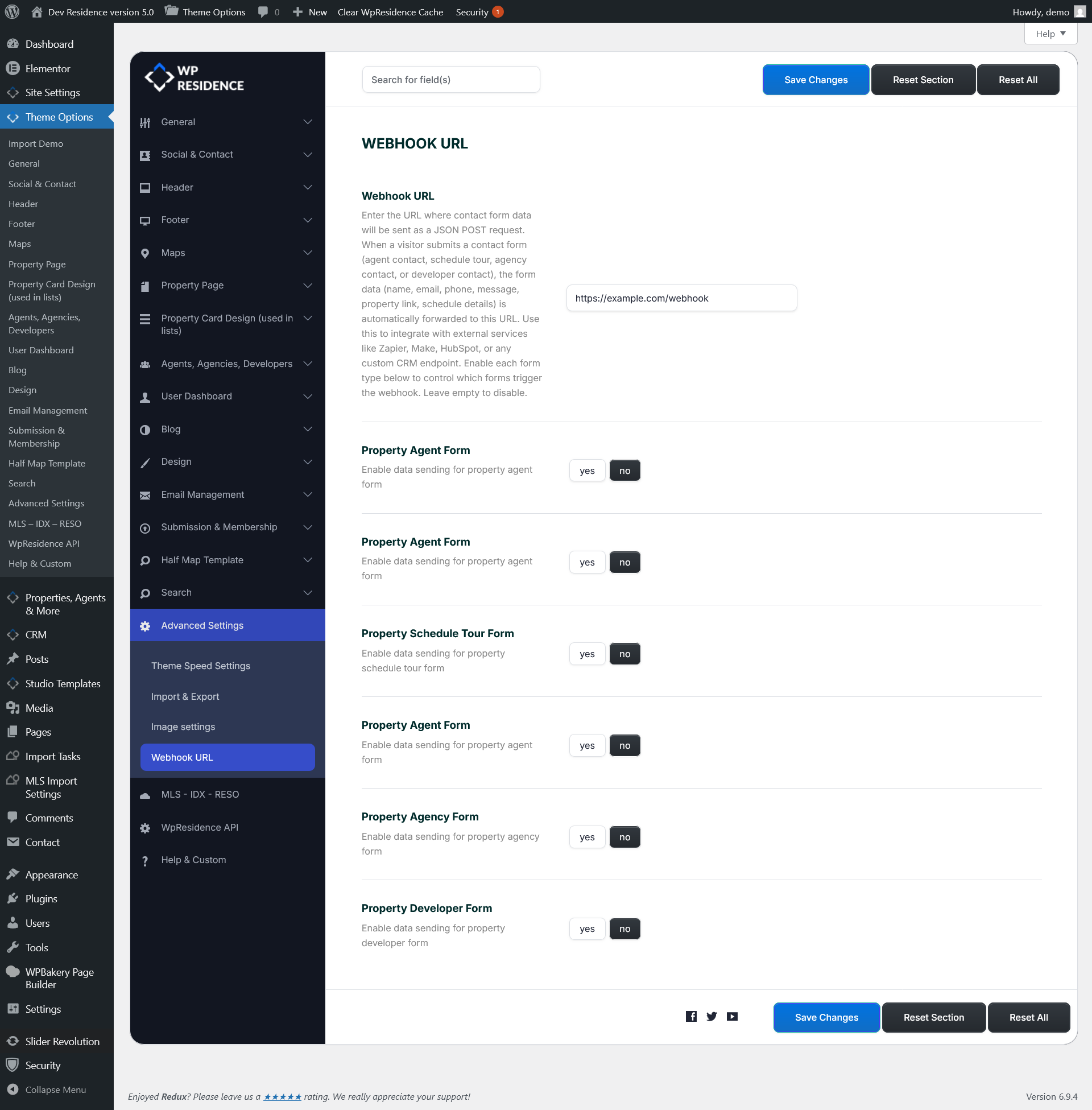
Elementor Per-Form Webhook
- Open the page containing your Elementor Contact Form Builder widget in the Elementor editor.
- Click the widget to select it, then open the Email Settings tab in the left panel.
- Enter a URL in the Webhook URL field.
- Save and publish. Submissions from this specific form will now POST to that URL as a form-encoded request.
The Elementor per-form webhook fires independently of the global webhook. A single form submission can trigger both if both are configured.
Available Settings
Theme Options — Webhook URL Subsection
| Option ID | Label | Type | Default | Description |
|---|---|---|---|---|
wp_estate_webhook_url |
Webhook URL | Text field | empty | The endpoint URL that receives all enabled form submissions. Leave empty to disable all global webhook activity. |
wp_estate_contact_form |
Property Agent Form | Button set (yes / no) | no | Enable webhook delivery for the standard property agent contact form. |
wp_estate_property_form |
Property Agent Form (property context) | Button set (yes / no) | no | Enable webhook delivery for forms submitted from within a property listing page. |
wp_estate_schedule_tour_form |
Property Schedule Tour Form | Button set (yes / no) | no | Enable webhook delivery when a visitor submits a schedule tour request (schedule_hour and schedule_day are present). |
wp_estate_agent_contact_form |
Property Agent Form (agent page) | Button set (yes / no) | no | Enable webhook delivery for forms submitted from an agent profile page. |
wp_estate_agency_contact_form |
Property Agency Form | Button set (yes / no) | no | Enable webhook delivery for forms submitted from an agency profile page. |
wp_estate_developer_contact_form |
Property Developer Form | Button set (yes / no) | no | Enable webhook delivery for forms submitted from a developer profile page. |
Elementor Contact Form Builder Widget — Email Settings Tab
| Field | Description |
|---|---|
| Webhook URL | A per-form URL that receives the submission as a form-encoded POST. Fires only for this specific widget instance. Independent of the global webhook. |
JSON Payload Reference
Global Webhook Payload (JSON POST)
The global webhook sends a Content-Type: application/json POST request. The body is a JSON object containing the following fields. Fields whose value is empty at submission time are automatically removed from the payload before it is sent — the receiving endpoint will only see fields that have actual values.
| Field | Type | Present when | Description |
|---|---|---|---|
name |
string | Always | Visitor’s full name as entered in the form. |
email |
string | Always | Visitor’s email address. |
phone |
string | When provided | Visitor’s phone number. |
subject |
string | Always | Auto-generated subject line (e.g. “Inquiry from https://yoursite.com”). |
message |
string | Always | The visitor’s message text. |
permalink |
string | When submitted from a property or profile page | URL of the page the form was submitted from (property, agent, agency, or developer). |
schedule_hour |
string | Schedule Tour forms only | Requested tour time (e.g. “14:00”). |
schedule_day |
string | Schedule Tour forms only | Requested tour date (e.g. “2026-04-15”). |
schedule_mode |
string | Schedule Tour forms only | Tour mode: “In Person” or “Via Video Chat”. |
contact_intent |
string | When visitor selects an intent option | Value from the “What are you looking to do?” dropdown (e.g. “Buy”, “Rent”). |
All string values are sanitized with sanitize_text_field() before being included in the payload. This function preserves UTF-8 characters, including Cyrillic, Arabic, Chinese, and other non-Latin scripts.
Elementor Per-Form Webhook Payload (form-encoded POST)
The Elementor per-form webhook sends a Content-Type: application/x-www-form-urlencoded POST with a 5-second timeout in non-blocking mode (it does not delay the visitor’s page response). The body includes:
name,email,phone,subject,message,contact_intent,form_idschedule_hour,schedule_day,schedule_mode— included only when non-empty- Any additional fields submitted as
extra_fields[key]in the POST data (e.g. dropdown values, number inputs added to the Elementor form). Core field names cannot be overwritten by extra fields.
Examples
Connect to Zapier
- Create a new Zap in Zapier and choose Webhooks by Zapier as the trigger.
- Select Catch Hook and copy the provided webhook URL.
- Paste that URL into Theme Options > Webhook URL.
- Enable the form types you want to forward (e.g. set Property Agent Form to yes).
- Submit a test form on your site. Return to Zapier and click Test trigger — Zapier will show all the received JSON fields.
- Map those fields to any Zapier action (Google Sheets, Mailchimp, Slack, etc.).
Connect to Make (Integromat)
- Create a new scenario and add a Webhooks > Custom webhook module.
- Copy the generated webhook URL and paste it into Theme Options > Webhook URL.
- Enable the relevant form toggles and submit a test form.
- Make will detect the JSON structure automatically and let you map fields to downstream modules.
Send schedule tour data to a CRM
Enable the Property Schedule Tour Form toggle. The webhook payload will include schedule_hour, schedule_day, and schedule_mode in addition to the contact fields. In your CRM or automation tool, map these fields to appointment or calendar fields.
Use a per-form webhook for a standalone contact page
Place an Elementor Contact Form Builder widget on a dedicated contact page. In the widget’s Email Settings tab, enter a different webhook URL than the global one (for example, a separate Zapier Zap for that page’s leads). This fires independently from the global webhook setting.
Troubleshooting
The webhook is not receiving any data
- Confirm that the Webhook URL field in Theme Options is not empty.
- Confirm that the toggle for the specific form type is set to yes, not no (all toggles default to no).
- Test the URL independently using a tool like Postman or webhook.site to confirm it is reachable from an external server.
Some fields are missing from the payload
Empty fields are intentionally stripped before sending. If a visitor did not fill in their phone number, the phone key will not appear in the payload at all. This is by design.
Schedule tour fields are not in the payload
The schedule_hour, schedule_day, and schedule_mode fields are only present when both schedule_hour and schedule_day were submitted with the form. Ensure the visitor is using the schedule tour form, not the standard contact form.
The global webhook fires but the Elementor per-form webhook does not
Verify that the Webhook URL field inside the specific Elementor widget’s Email Settings tab contains a valid URL. The Elementor per-form webhook only fires when the form has an elementor_wpresidence_form_id POST field (set automatically by Elementor widgets) and a non-empty webhook_url value in its saved options.
The payload contains garbled characters for non-Latin text
WPResidence sanitizes all values with sanitize_text_field(), which preserves UTF-8 encoding. If characters appear garbled on the receiving end, the issue is with the receiving service’s encoding configuration, not with WPResidence. Ensure your CRM or automation platform is set to accept UTF-8 encoded JSON.
Webhook errors are not visible in the WordPress error log
By default, webhook transport errors (returned by wp_remote_post()) are suppressed. To enable error logging during development, locate the wpestate_webhook_send() function in wpresidence-core/misc/webhookfunctions.php and uncomment the error_log() line inside the is_wp_error block.
Extending the Webhook via a Child Theme
The global webhook is sent by the function wpestate_webhook_send( $data, $formType ) located in wp-content/plugins/wpresidence-core/misc/webhookfunctions.php. It is called from wpestate_send_contact_email() in wpresidence-core/misc/emailfunctions.php.
Because the function performs an existence check before calling (function_exists('wpestate_webhook_send')), you can override it from a child theme or a custom plugin by declaring your own version of wpestate_webhook_send() before the core plugin loads — for example, using a must-use plugin (MU plugin).
To add custom fields to the payload without modifying core files, use the WordPress add_filter or add_action hooks in your child theme’s functions.php. If you need to intercept the data array before it is sent, wrap the wpestate_webhook_send call by hooking into the wp_remote_post arguments through a custom transport filter, or contact the WPResidence support team for guidance on a hook-based extension point.
Reading global webhook options in custom code
Always use the cached accessor to read theme options in custom code:
$webhook_url = wpresidence_get_option( 'wp_estate_webhook_url' );
$contact_enabled = wpresidence_get_option( 'wp_estate_contact_form' ); // 'yes' or 'no'
Do not call get_option('wpresidence_admin') directly — use wpresidence_get_option() to benefit from the built-in cache.