
Property Slider V3 for Elementor
The Property Slider V3 widget lets you display a property slider with an editorial-style layout in Elementor.
This design combines a large property image with the listing details shown next to it, which makes it a good choice for homepage highlights and curated listing sections.
This widget is useful when you want to:
- highlight selected listings in a more visual layout
- create a homepage property showcase
- show featured properties only
- filter the properties shown by category, action, city, area, county/state, or status
How to open and edit the slider with Elementor
To work with Property Slider V3, first edit the page with Elementor.
- Go to the page where you want to add the slider.
- Click Edit with Elementor.
- Search for the property slider widget in the Elementor panel.
- Add the widget to the page.
In the screenshot example, the widget title in Elementor is Edit Property Slider V3.
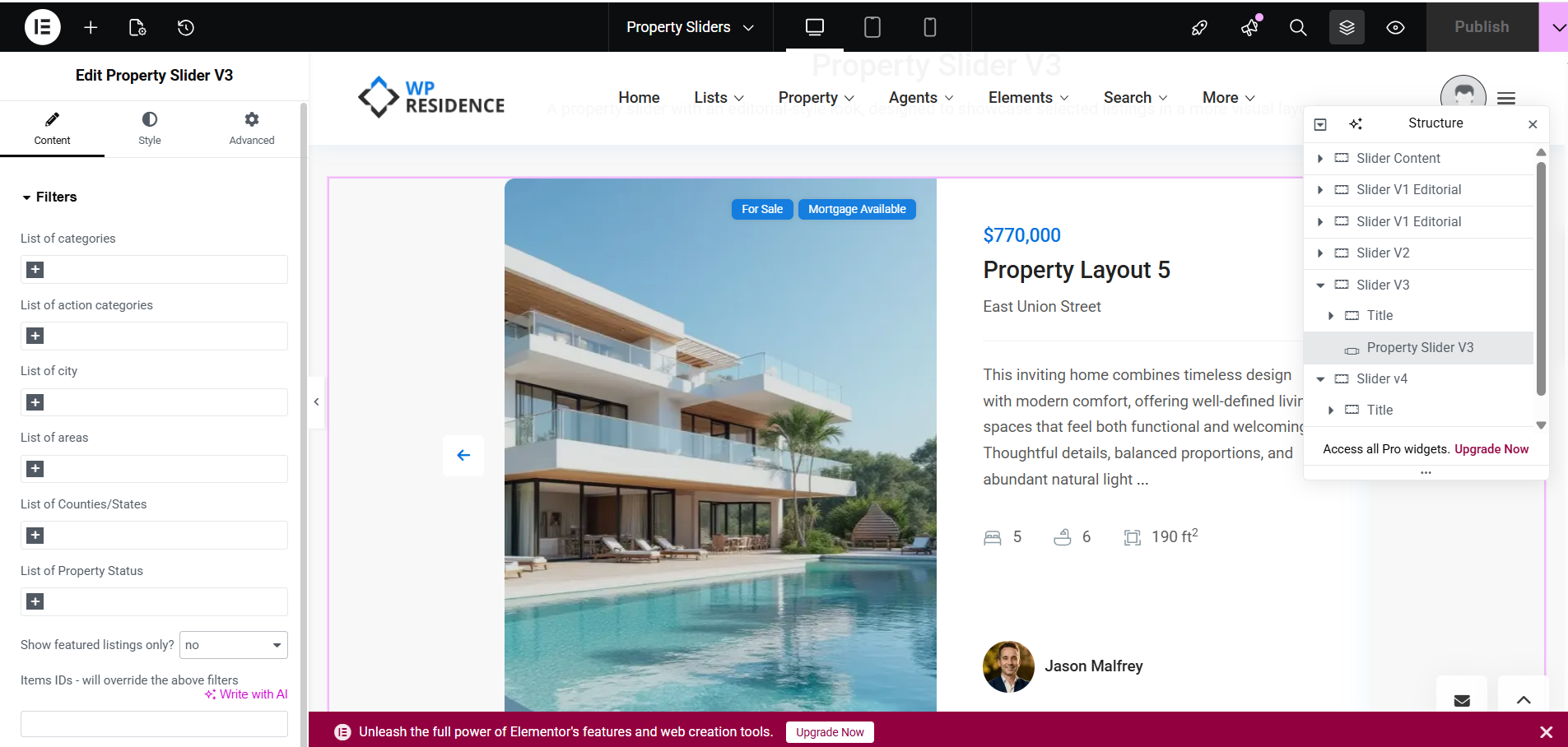
How to add the Property Slider V3 widget
After opening the page in Elementor:
- Add the Property Slider V3 widget to the page.
- Open the Content tab to define which listings should appear.
- Use the Style tab to control typography, colors, border radius, icon size, and other visual settings.
- Publish or update the page when finished.
Content tab settings
The widget content settings for Property Slider V3 are focused on the Filters section.
Filters section
The Filters section lets you control which properties are pulled into the slider.
Available filter fields include:
- List of categories
- List of action categories
- List of city
- List of areas
- List of Counties/States
- List of Property Status
You can use one or several of these filters depending on how specific you want the selection to be.
If you leave the filters broad, the widget can show more listings. If you combine several filters, the results become more specific.
Show featured listings only?
This option lets you choose if the slider should display only properties marked as Featured.
- yes = only featured listings are shown
- no = the slider can show listings that match the other filters, even if they are not marked as featured
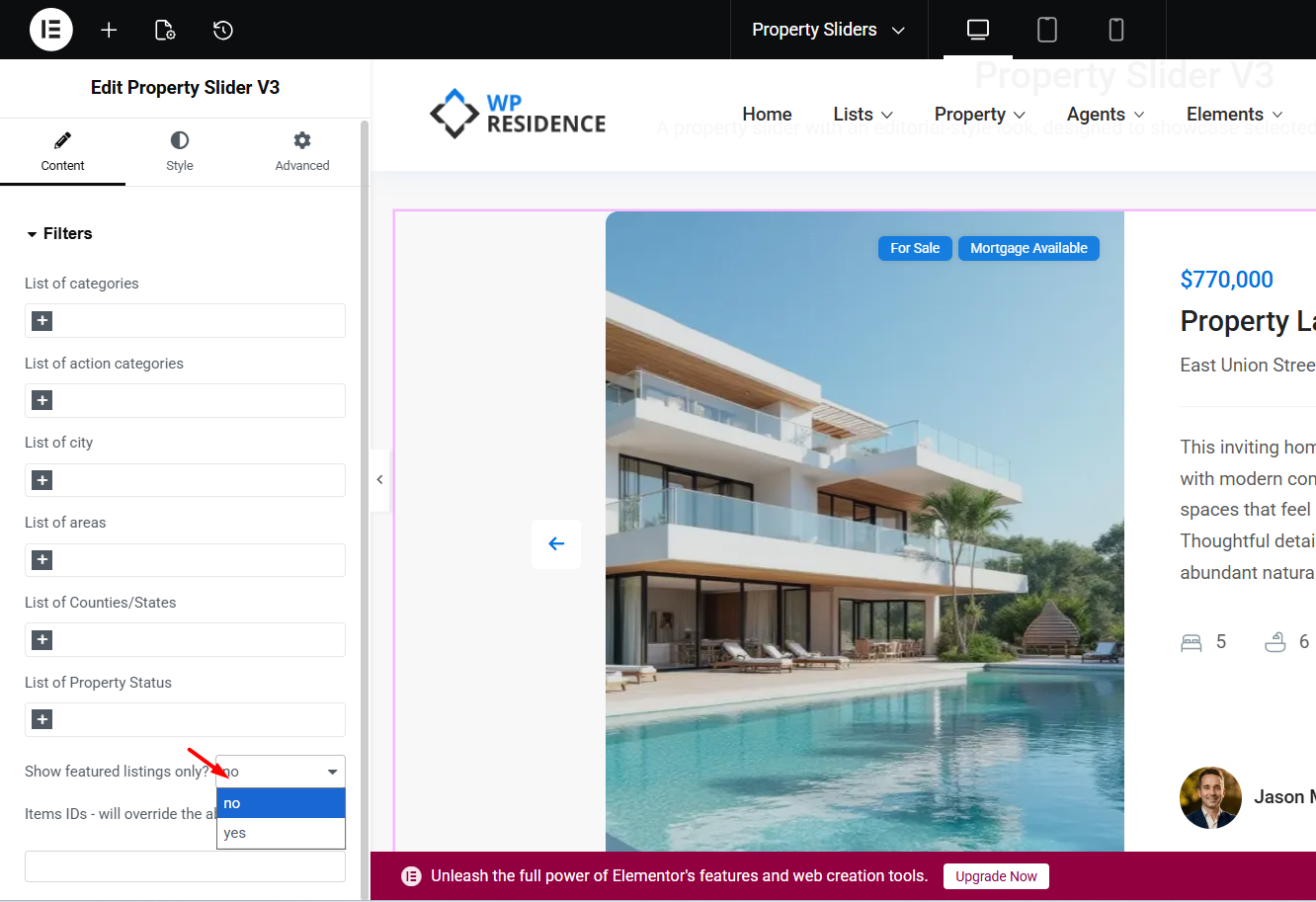
Items IDs – will override the above filters
This field lets you manually define which properties should appear in the slider by entering their property IDs.
If you use this field, it will override the other filters above.
This means the slider will display the exact properties you specify, instead of using category or location filters.
How to get the Property IDs correctly
If you want to use the Items IDs field, you need the correct numeric property IDs from the admin properties list.
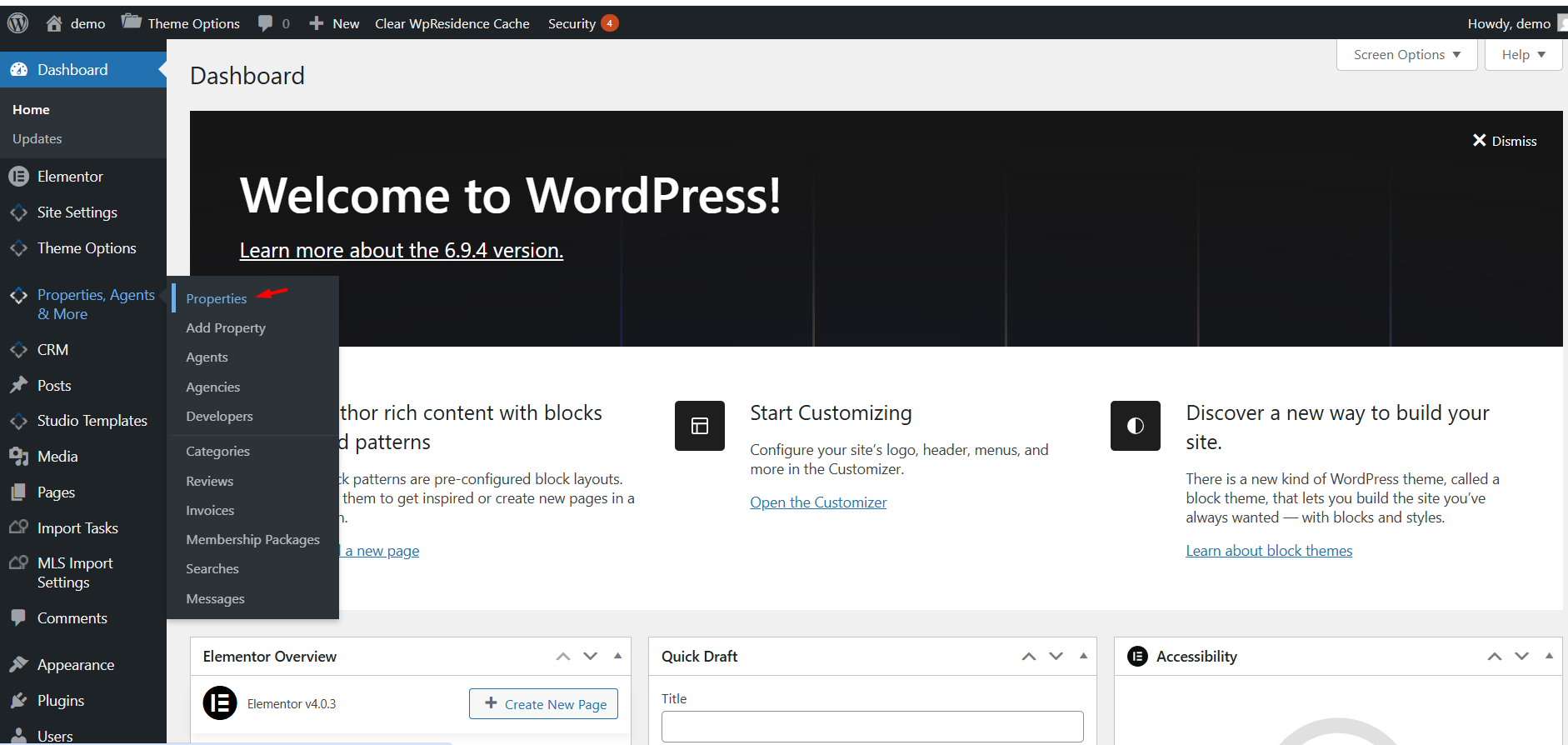
- Go to Properties, Agents & More > Properties in wp-admin.
- Open the properties list.
- Look for the ID column on the right side of the list table.
- Copy the numeric ID of each property you want to include.
- Add those IDs in the Items IDs field in the slider widget.
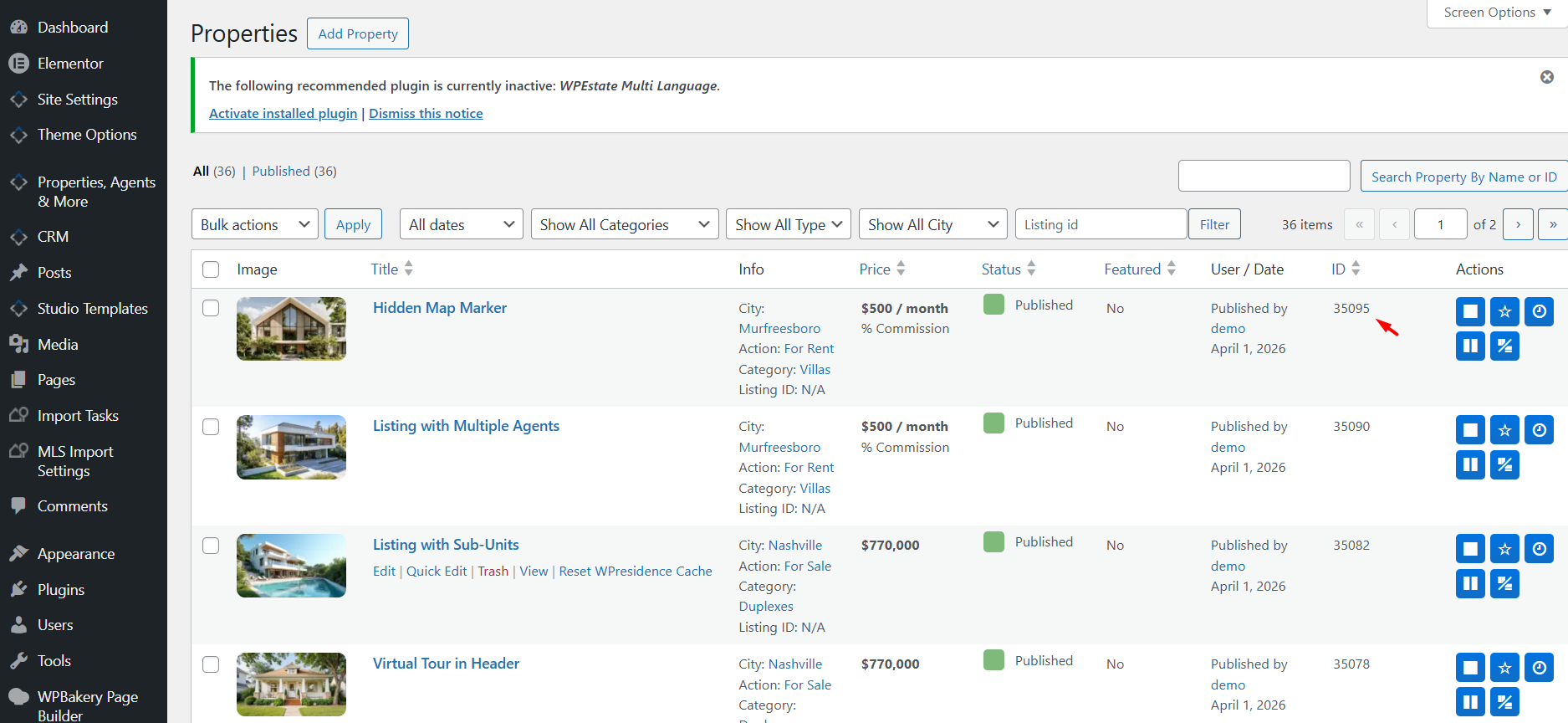
If you want to show multiple specific properties, add their IDs as a comma-separated list in the Items IDs field.
Example:
35095,35090,35082
Style tab settings
In the Style tab, you can customize how the slider looks.
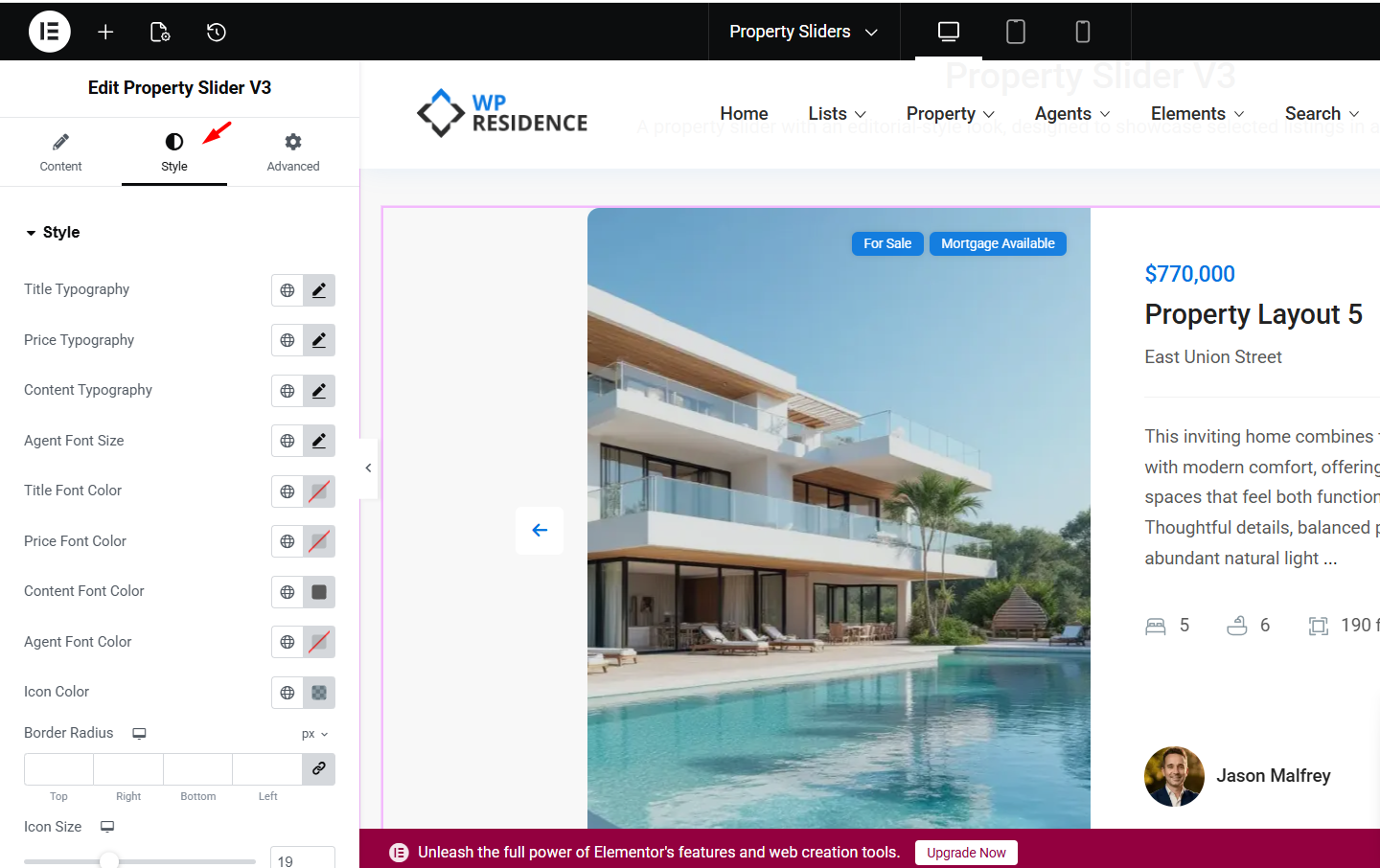
The style options shown in the screenshot include:
- Title Typography
- Price Typography
- Content Typography
- Agent Font Size
- Title Font Color
- Price Font Color
- Content Font Color
- Agent Font Color
- Icon Color
- Border Radius
- Icon Size
Typography
You can customize the typography for the title, price, and content text shown in the slider.
This helps you match the slider design to your website typography settings.
Agent Font Size
This option controls the size of the agent text shown in the slider design.
Colors
You can control the title, price, content, agent, and icon colors to better match your design.
Border Radius
This option lets you adjust the corner roundness of the slider elements.
Icon Size
This setting controls the size of the icons used for the property meta details.
How the slider works
The widget pulls property data from the listings that match your selected filters or from the property IDs entered manually.
The final result depends on:
- the filters you set in the widget
- whether Show featured listings only is enabled
- whether you use the Items IDs field
- the styling options set in the Style tab
If you want a curated slider with only a few selected properties, use the Items IDs field.
If you want the slider to update automatically based on listing terms, use the filter fields instead.