
Where to Find Mobile Menu Colors
You can manage the mobile menu colors from Theme Options > Header > Mobile Menu Colors.
These settings control the colors used in the mobile header and the mobile slide-out menu shown on phones and tablets.
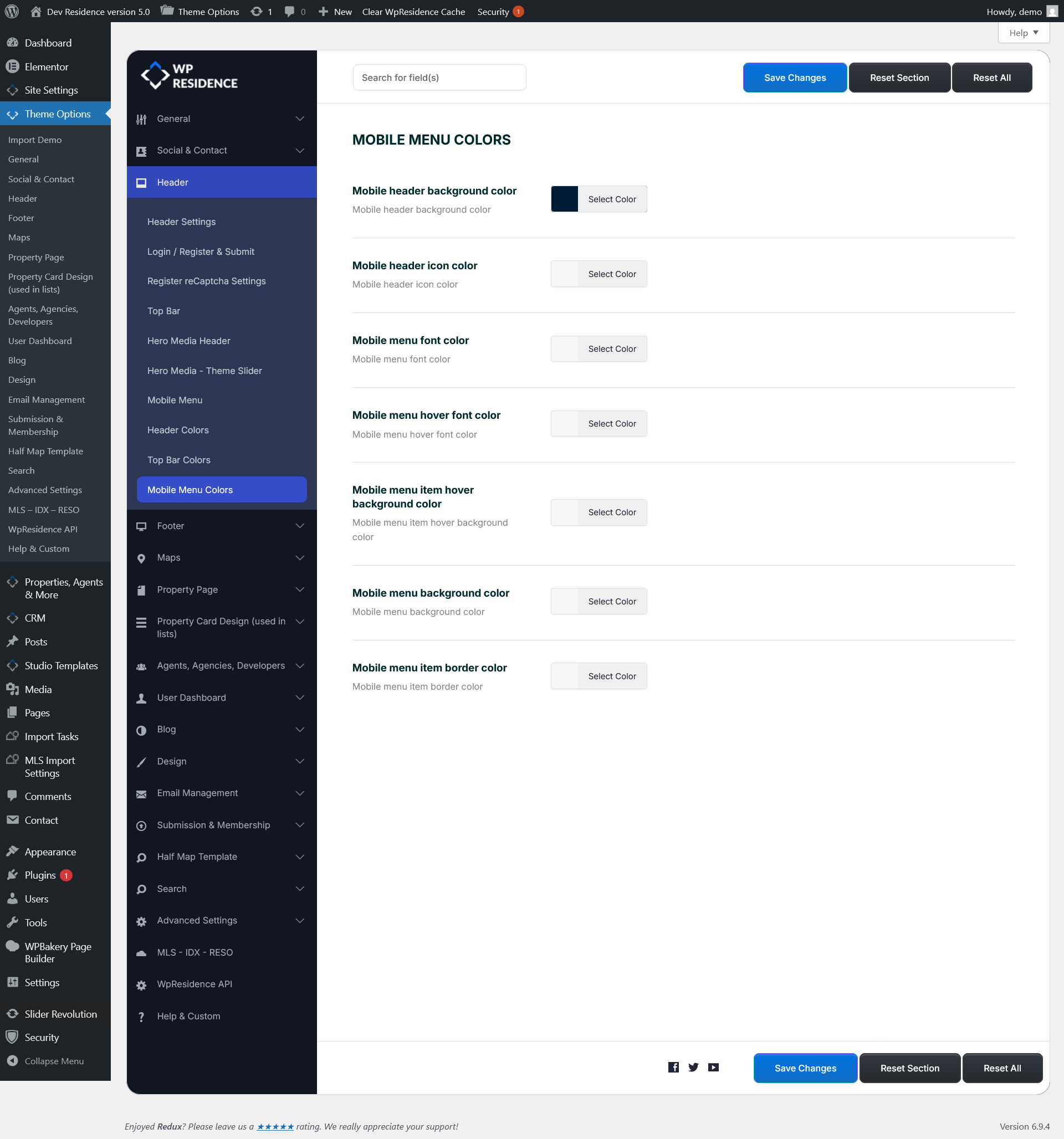
Mobile Header Background Color
This option controls the background color of the mobile header bar.
The mobile header is the top area shown on smaller screen sizes, where the mobile menu icon appears.
Mobile Header Icon Color
This option controls the color of the icons shown in the mobile header.
This usually affects the mobile menu icon and other header icons displayed on mobile devices.
Mobile Menu Font Color
This option controls the text color of the menu items inside the mobile menu.
Use this setting to make sure the menu labels are easy to read against the selected mobile menu background color.
Mobile Menu Hover Font Color
This option controls the text color of the mobile menu items when the user hovers over them or when the item becomes active, depending on the device behavior.
This helps highlight the selected or hovered menu item.
Mobile Menu Item Hover Background Color
This option controls the background color shown behind a menu item when that item is hovered or active in the mobile menu.
You can use it to create a stronger visual contrast for the selected menu item.
Mobile Menu Background Color
This option controls the main background color of the mobile menu panel.
This is the large background area behind all mobile menu items once the menu is opened.
Mobile Menu Item Border Color
This option controls the border color between the menu items in the mobile menu.
It helps separate each item visually and can make the menu look cleaner and easier to scan.
Save Changes and Clear Cache
After making changes to the mobile menu colors, click Save Changes.
If the new colors are not visible right away on the front end, clear the theme cache from the top admin bar by clicking Clear WpResidence Cache.
You may also need to clear any additional cache used by:
- cache plugins
- server-side cache
- Cloudflare or CDN cache
- your browser cache
If the changes still do not appear immediately, refresh the page in an incognito window or test from a mobile device after clearing the cache.