WP Residence Help WP Residence Help

  • WpEstate
  • WPRESIDENCE
  • Video Tutorials
  • Client Support
  • API
Home / 05. Maps & Location Settings / Google Maps: Why pins don’t show / not working on the map?

Google Maps: Why pins don’t show / not working on the map?

15305 views 18
  • Why Property Pins May Not Show Immediately
  • Google Maps Cache Is Enabled
  • Read from File Is Enabled
  • Categories or Actions Were Added or Edited
  • Pin Image Requirements
  • Add Pins for Categories, Actions, and Combinations
  • Retina Pins
  • Multiple Categories Selection

Why Property Pins May Not Show Immediately

If property pins do not appear on the map, please check whether one of the situations below applies to your setup.

Google Maps Cache Is Enabled

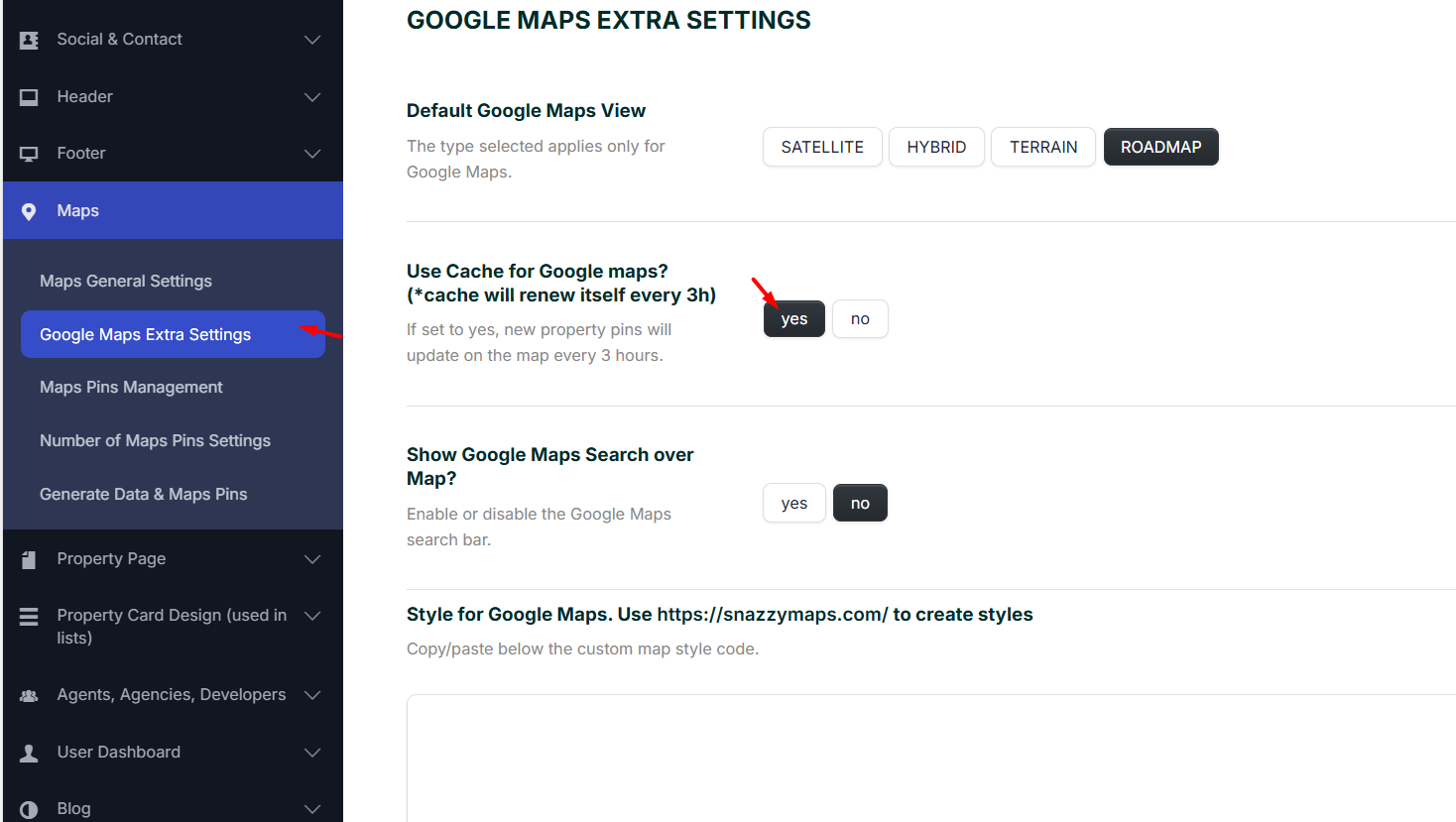
If the option Use Cache for Google Maps? is set to Yes in Theme Options > Maps > Google Maps Extra Settings, you may need to wait up to 3 hours for the new or updated pin to appear.
Read from File Is Enabled

If Read from File is enabled for Google Maps readings, you may need to wait up to 24 hours for all pins to refresh automatically.

You can also use the Generate Pins button to regenerate the pins sooner.

Help article about how Read from File works

Categories or Actions Were Added or Edited

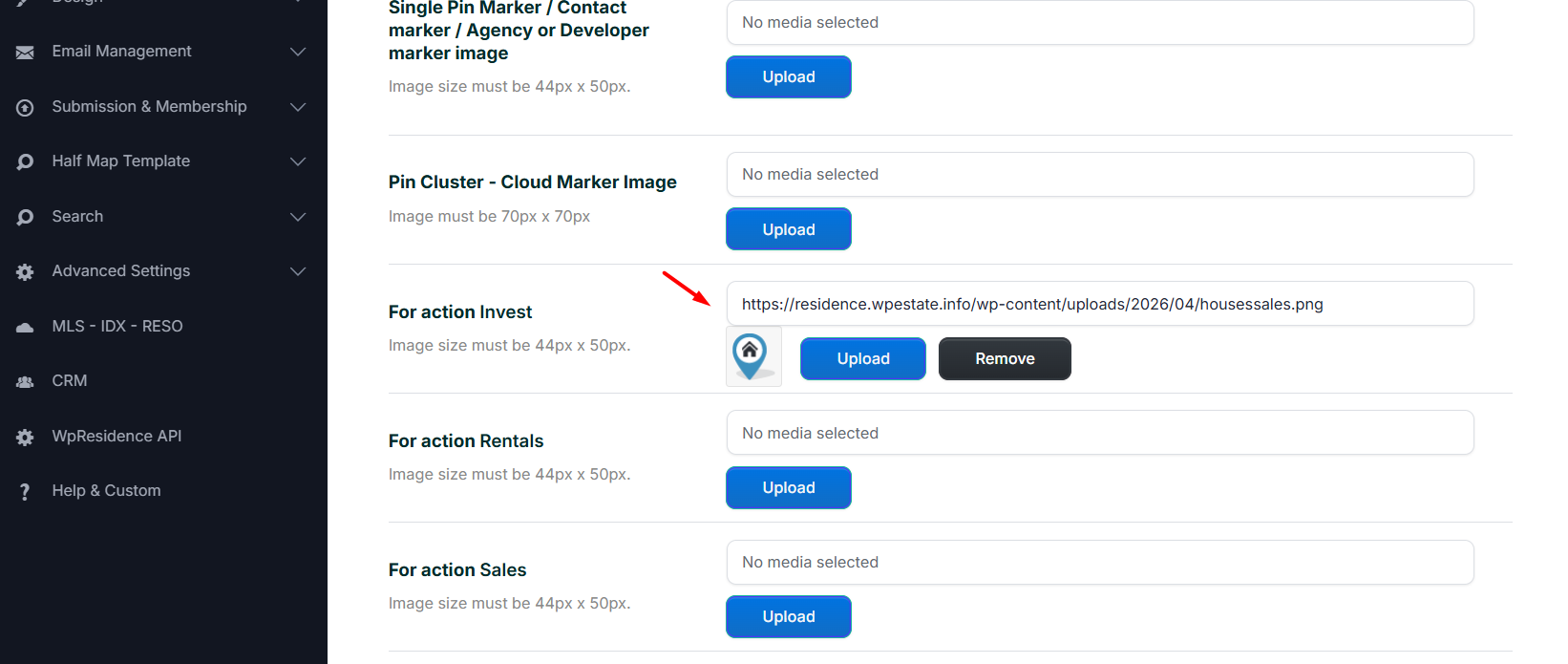
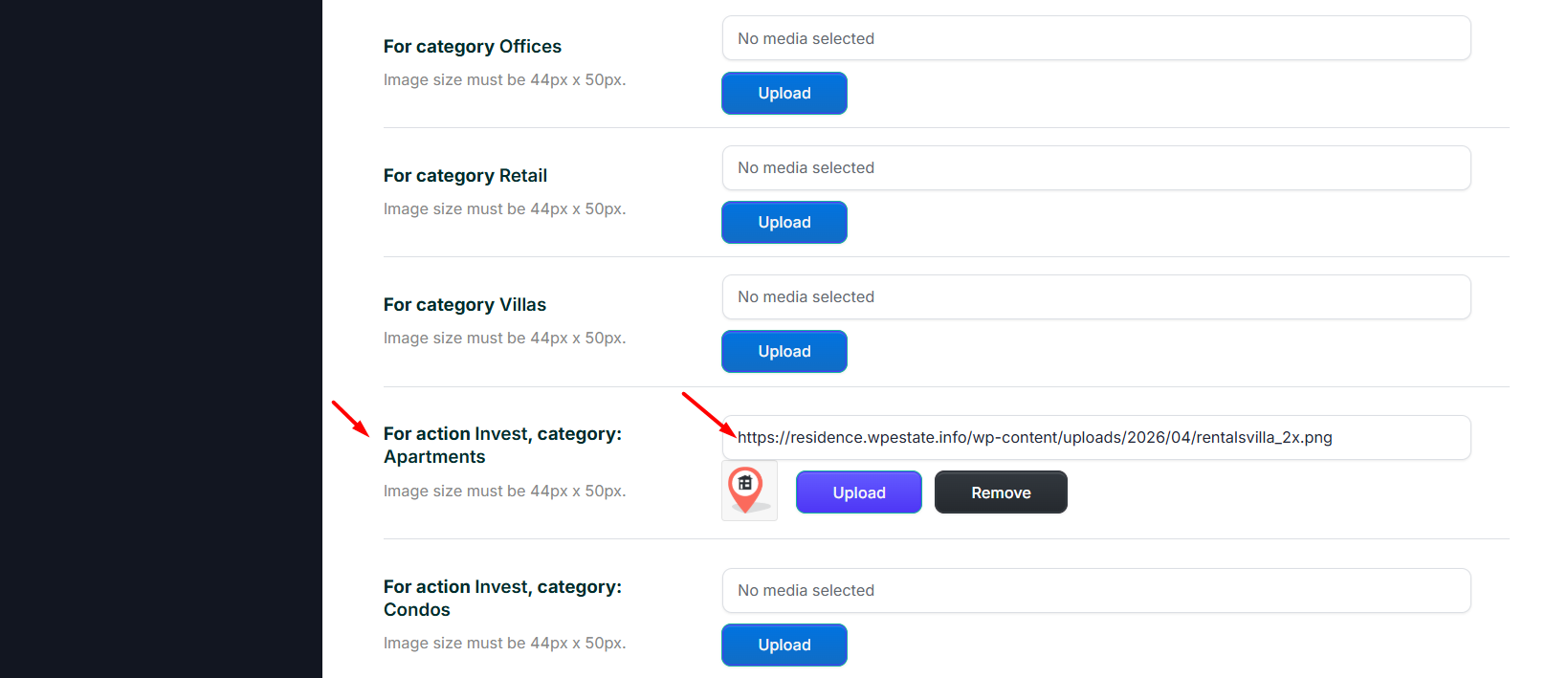
If you add or edit default property categories or actions, you must also upload the corresponding map pins again.

This is required even if you do not use Google Maps as header media, because map pins are still needed by the theme for speed and map display reasons.

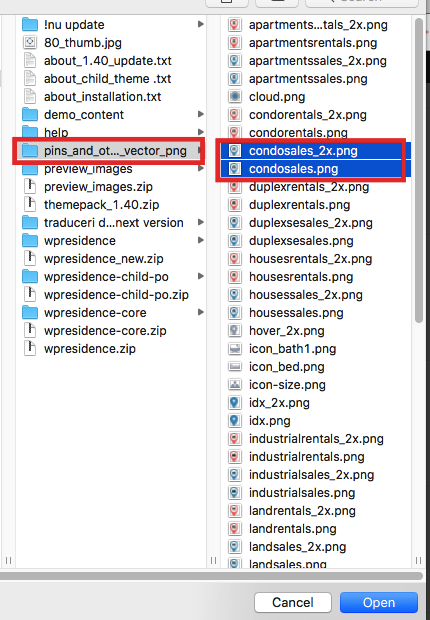
Theme default pins are included in the theme pack in .png format, with both retina and non-retina versions.

Help article for how to add regular pins and retina pins

Help article about speed recommendations
Pin Image Requirements

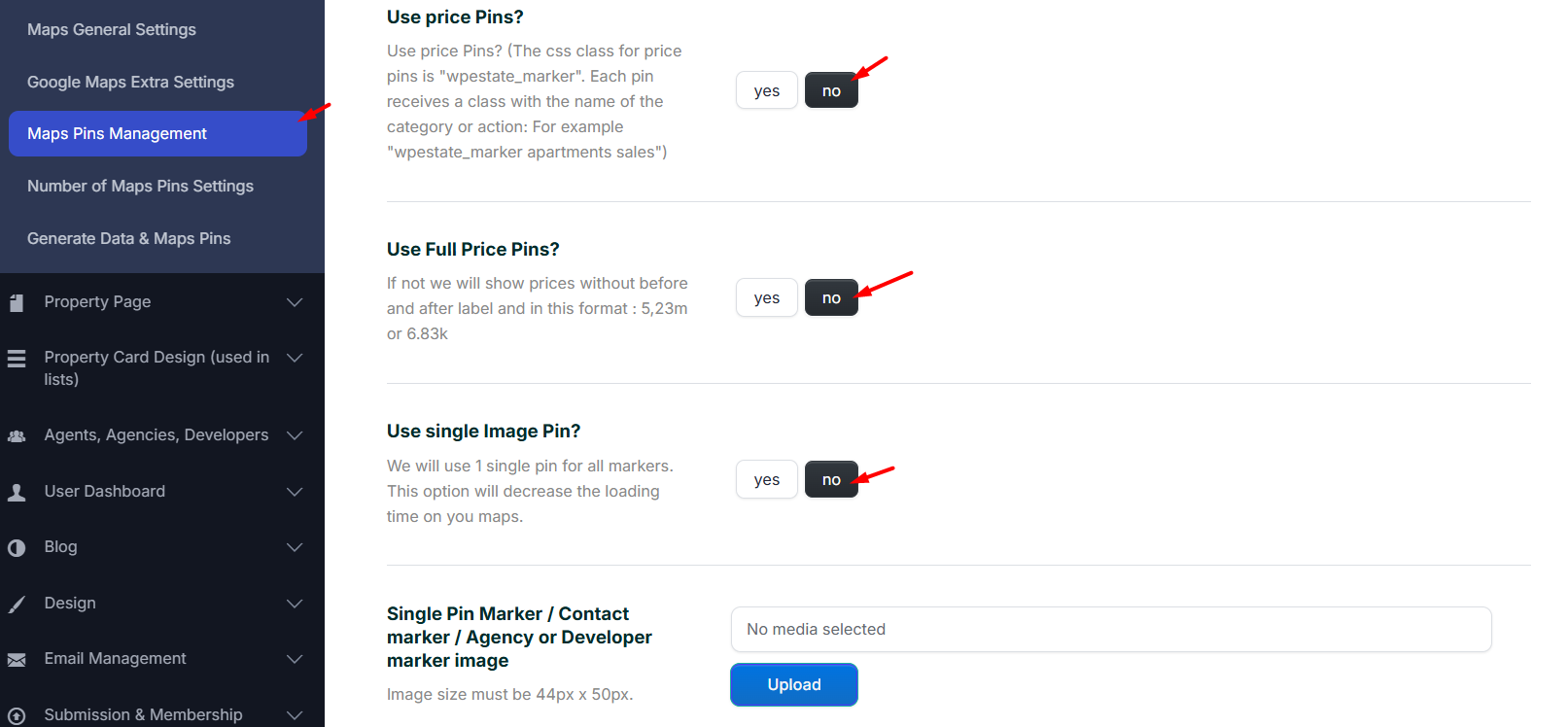
The required pin image size is:

  • 44 px x 50 px

Make sure the uploaded pin images match the required dimensions for correct display.

Add Pins for Categories, Actions, and Combinations

You need to add a pin for:

  • each category
  • each action
  • each category + action combination

The default theme pins are included in the theme pack. To find them, download All Files & Documentation from ThemeForest, unzip the package, and look for the pin images in the included files.

Retina Pins

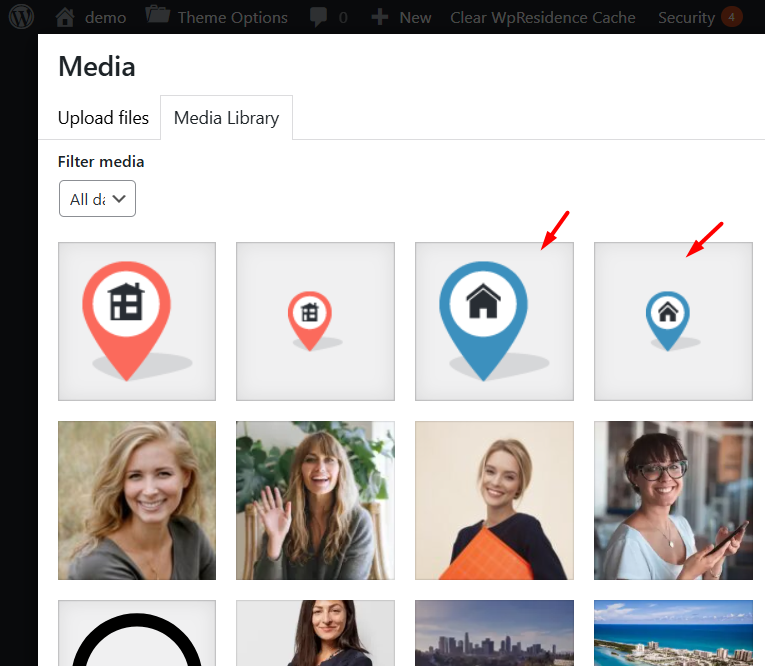
Always upload the retina pin together with the default pin image.

When selecting the pin in the theme settings, choose the non-retina pin, but make sure both the regular and retina versions are uploaded to the Media Library.
Multiple Categories Selection

If a property has multiple categories assigned, the theme does not create separate pins for every category combination.

Pins are generated only for:

  • 1 category
  • 1 action
  • 1 category + 1 action combination

If you assign multiple categories to one property, the theme will use the first category in alphabetical order, together with the assigned action, to determine which pin is attached to that property.

Help article about property taxonomies

05. Maps & Location Settings

Related Articles

  • How to disable Maps for the entire website
  • Technical: Edit Open in Google Maps link with property latitude and longitude
  • Technical: Google Points of Interest on Single Property Map
  • How to change the Maps Preloader

WP Residence Documentation

  • 01. Getting Started
    • How to Get Support
    • Get your buyer license code.
    • Use SSL / https
    • Server / Theme Requirements
  • 02. Installation & Setup
  • 03. Installation FAQ
  • 06. Search & Filtering
    • Advanced Search Display Settings
    • Advanced Search Form
    • Geolocation Search for Half Map
    • Save Search Theme Options
    • Advanced Search Colors
  • 09. Agent, Agency & Developers
  • 08. Property Pages & Layouts
  • 07. Property Lists, Categories & Archive
  • 13. WPResidence Elementor Studio
  • 10. Blog Posts & Blog List
  • 11. Shortcodes
    • Contact Form
    • Featured Agency/Developer
    • Membership Packages
    • Testimonials
    • Google Map with Property Marker
    • Listings per Agent, Agency or Developer
    • Display Categories
    • Agent List
    • Recent Items Slider
    • Recent items
    • List Properties or Articles by ID
    • Featured Agent
    • Featured Article
    • Featured Property
    • Login & Register Form
    • Icon Content Box Shortcode
  • 12. Widgets
  • 04. Theme Options & Global Settings
    • General Settings
    • User Types Settings
    • Appearance
    • Logos & Favicon
    • Header
    • Footer Style and Colors
    • Price & Currency
    • Property Custom Fields
    • Features & Amenities
    • Listing Labels
    • Theme Slider
    • Permalinks
    • Splash Page
    • Social & Contact
    • Map Settings
    • Pin Management
    • How read from file works
    • General Design Settings
    • Custom Colors Settings
    • Header Design & Colors
    • Mobile Menu Colors
    • User Dashboard Colors
    • Print PDF Design
    • Property, Agent, Blog Lists Design Settings
    • Sidebar Widget Design
    • Font management
    • How to add custom CSS
    • Custom Property Card Unit – Beta version
    • Email Management
    • Import & Export theme options
    • reCaptcha settings
    • YELP API Integration
    • iHomefinder Optima Express IDX
    • MEMBERSHIP & PAYMENT Settings
    • Property Submission Page
    • PayPal Setup
    • Stripe Setup
    • Wire Transfer Payment Method
  • 20. Translations & Languages
  • 26. FAQ
  • 10. Pages
  • 11. Header
  • 12. Footer
  • 05. Maps & Location Settings
  • 18. Payments & Monetization
  • Plugins
    • 19. Included Plugins
    • 22. Third Party Plugins – IDX Compatibility
    • 21. Third-Party Plugins – Multi-Language
    • 23. Third party Plugins – Other
  • Technical
    • 24. Technical how to | Custom Code Required
    • 25. Technical: Child Theme

Join Us On

Powered by WP Estate - All Rights Reserved
  • WpEstate
  • WPRESIDENCE
  • Video Tutorials
  • Client Support
  • API