
The Properties List with Top Bar widget allows you to display a curated list of properties in an Elementor page, with optional clickable filters shown above the listings.
This widget is useful when you want to create custom landing pages for specific property groups, such as properties from one city, properties with specific features, or promoted listings for a campaign.
Where to find the widget
- Edit a page with Elementor.
- Search for Properties List with Top Bar.
- Drag the widget into your page.
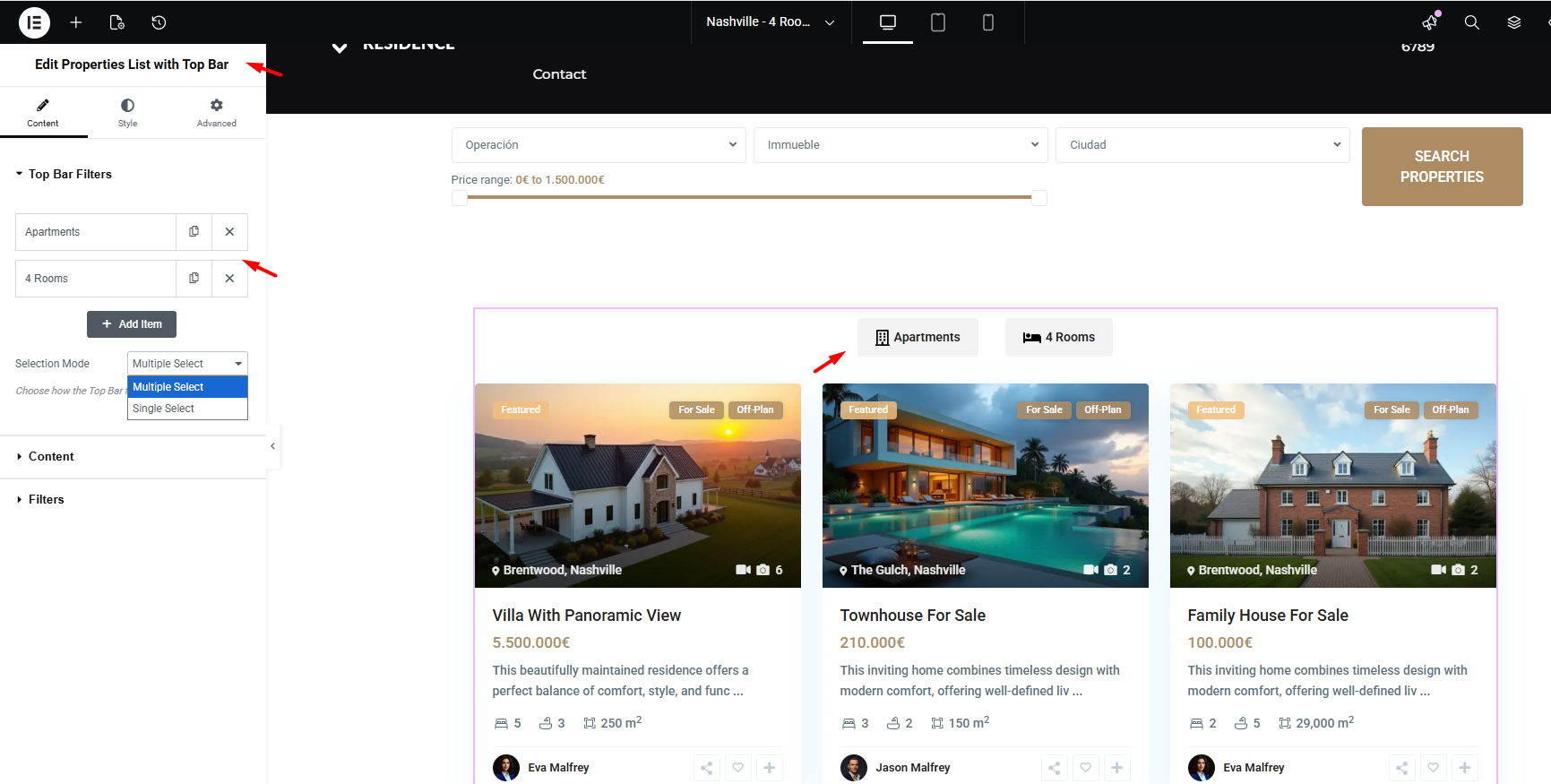
Top Bar Filters
The Top Bar Filters section controls the clickable tabs shown above the property list.
Each tab represents a predefined term, such as a feature, category, city, area, or another available property taxonomy term.
How to add Top Bar items
- Open the Top Bar Filters section.
- Click Add Item.
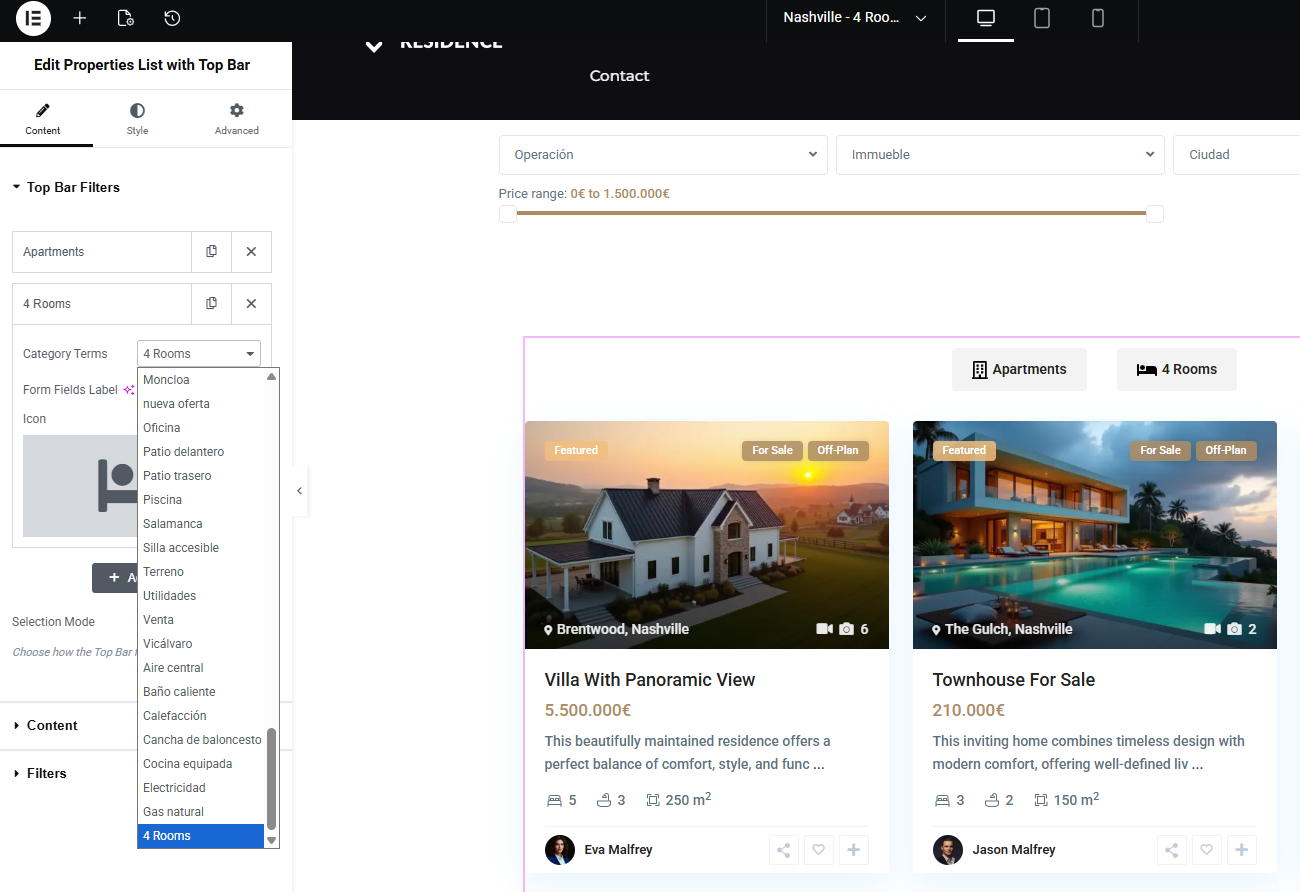
- Select the term you want to use, for example 4 Rooms.
Each item must correspond to an existing taxonomy term already created in your website.
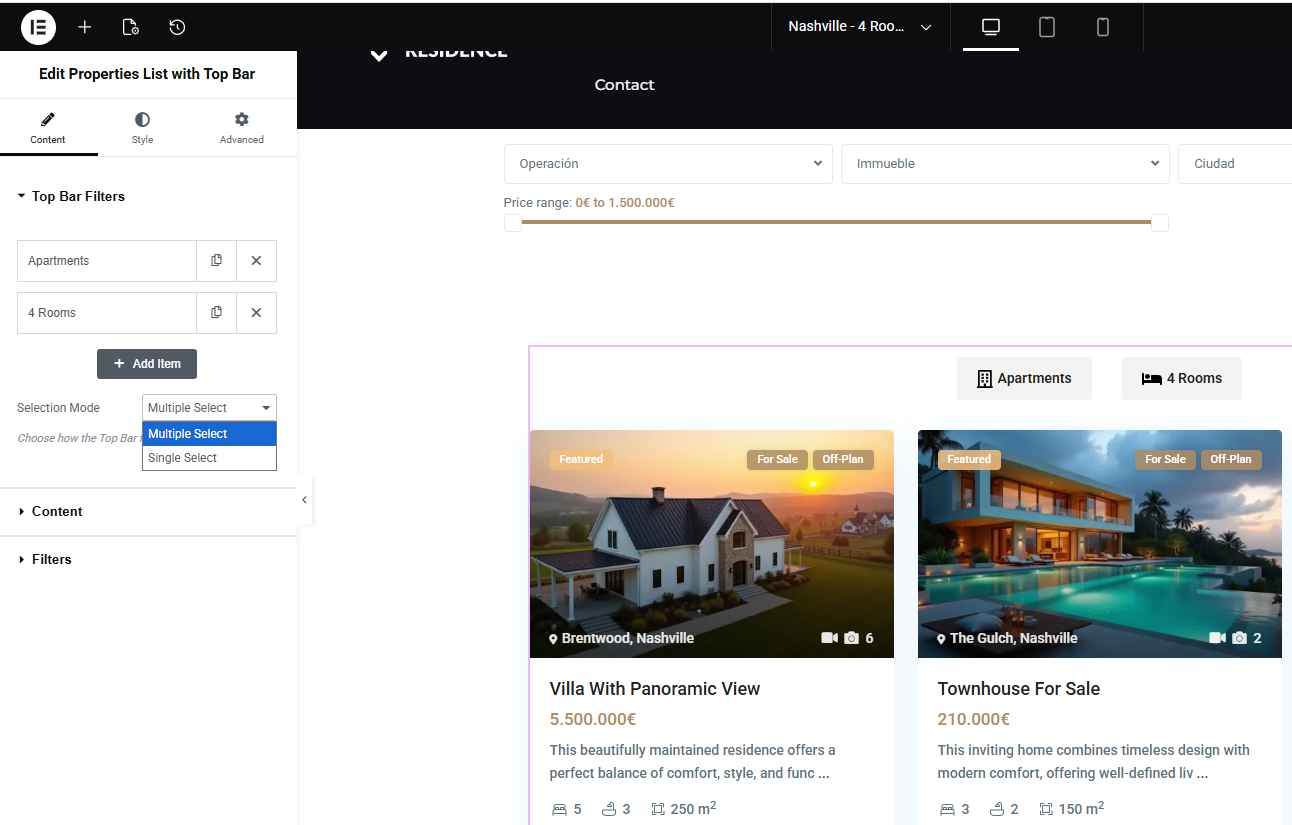
Selection Mode
The Selection Mode controls how visitors can use the Top Bar filters.
- Single Select – only one tab can be active at a time.
- Multiple Select – visitors can combine multiple tabs.
For most use cases, Multiple Select gives visitors more flexibility.
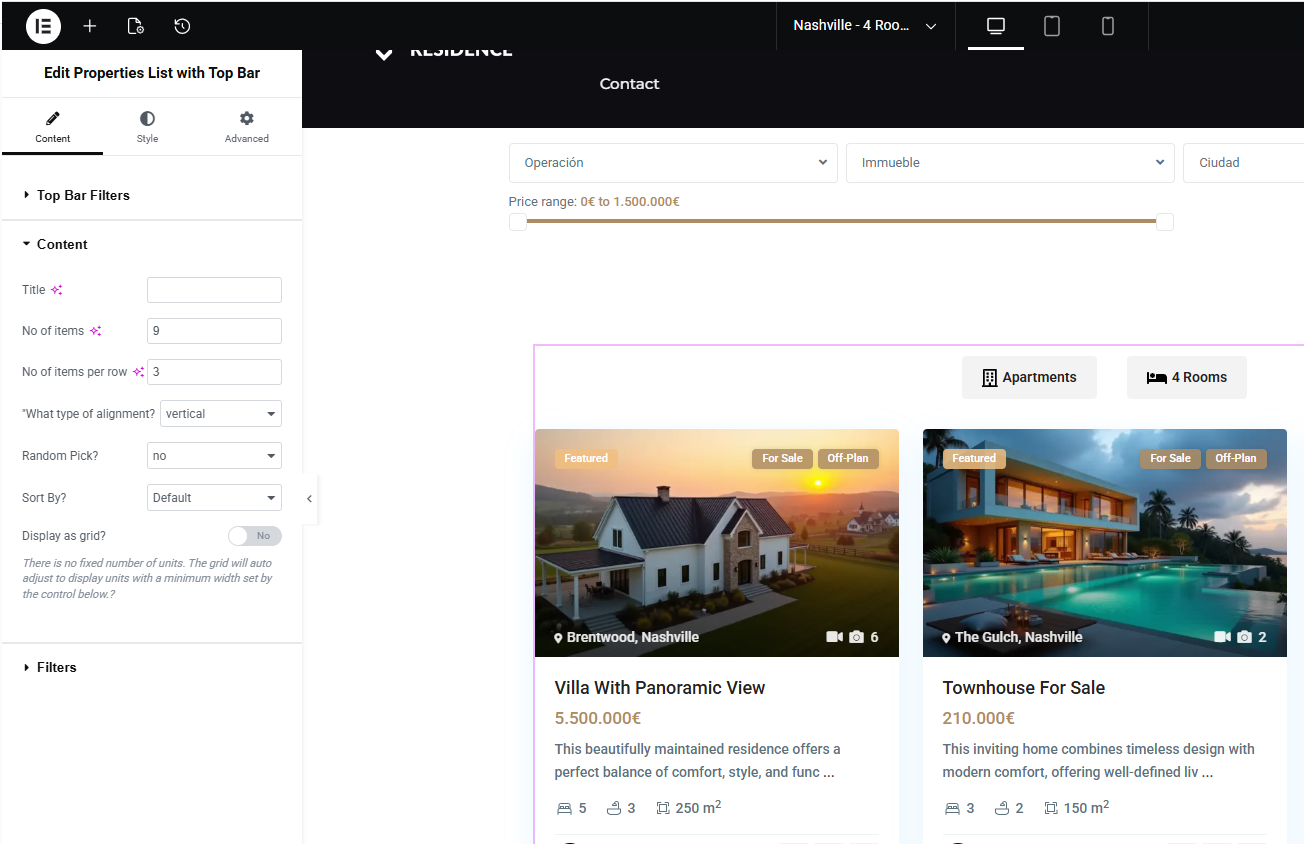
Content settings
The Content section controls how many properties are displayed and how the property list is arranged.
You can manage options such as:
- No of items – total number of properties displayed.
- No of items per row – how many properties show in one row.
- Alignment – controls the widget layout direction.
- Sort By – controls the default order of the properties.
- Display as grid – allows more flexible grid layouts with more items per row.
Fixed Filters
The Filters section controls the permanent filters applied to the property list.
These filters are always active, even before visitors click any Top Bar item.
You can filter properties by available property taxonomies, such as:
- Property Category
- Property Action Category
- City
- Area
- State
- Status
- Features and Amenities
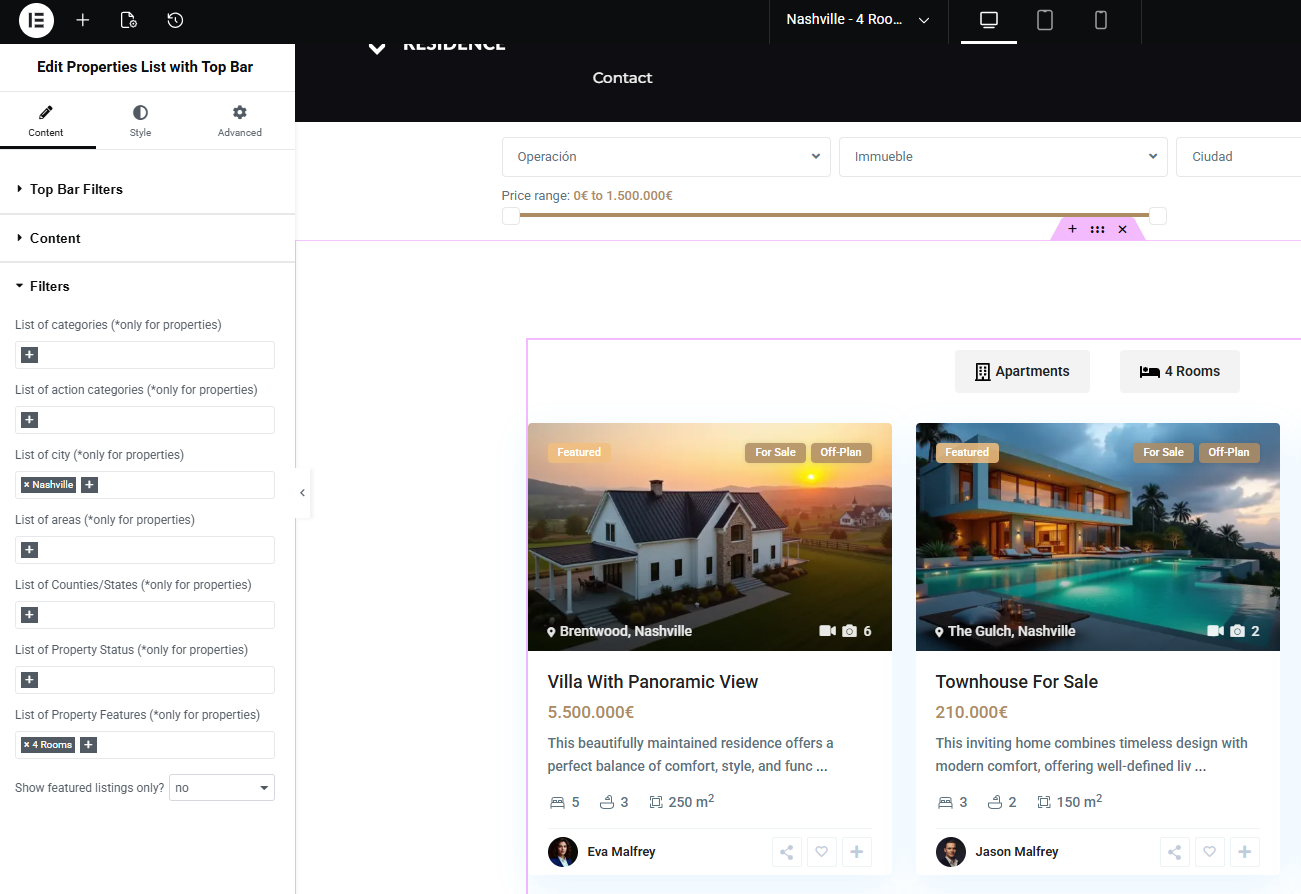
Example: City + 4 Rooms
To create a page that always shows properties from Nashville with 4 Rooms:
- Set List of City to Nashville.
- Set List of Property Features to 4 Rooms.
This creates a static, curated property list based on the filters selected in the widget.
Style settings
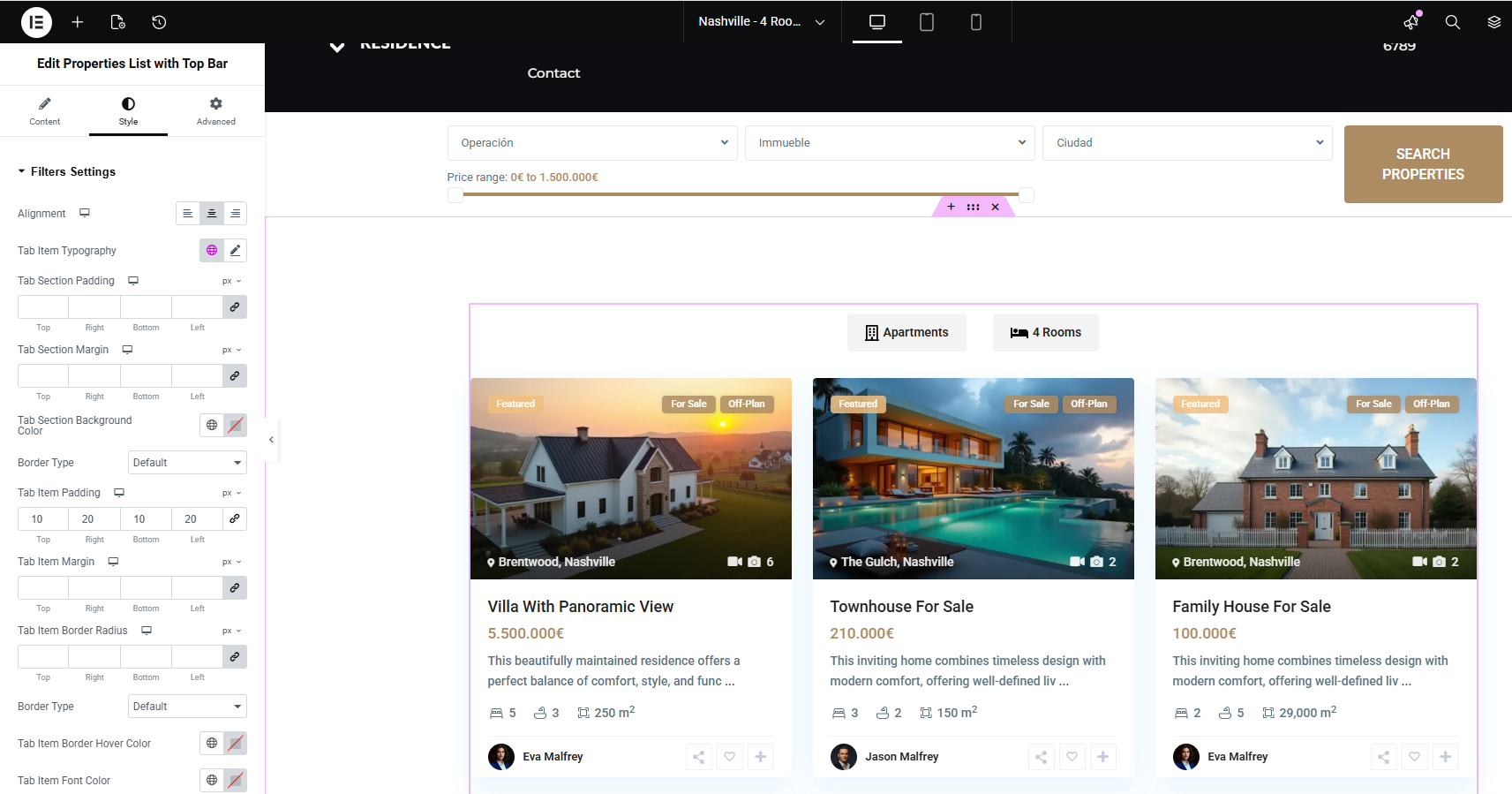
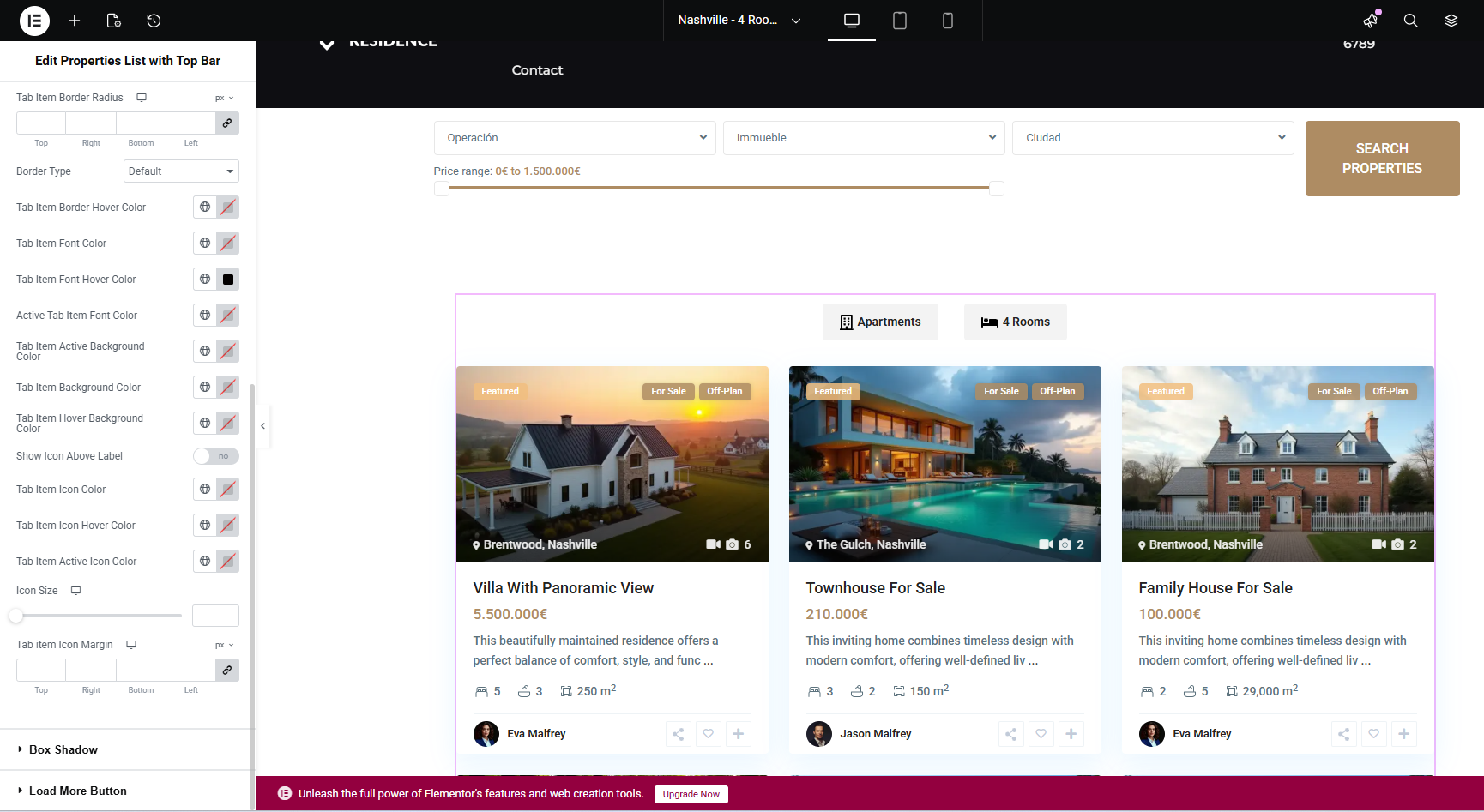
The Style tab controls the visual design of the Top Bar filters and widget elements.
You can manage:
- Alignment
- Typography for tab labels
- Padding and margin
- Background and hover colors
- Icon size and icon colors
Common use case
Question: Can I create a page that shows houses from New York with 4 rooms?
Answer: Yes. You can create a manual Elementor page and use this widget with fixed filters.
Steps
- Create a new page from Pages > Add New.
- Set a custom title and URL slug.
- Edit the page with Elementor.
- Add the Properties List with Top Bar widget.
- Set City to New York.
- Set Property Features to 4 Rooms.
- Save or publish the page.
The page will always display properties that match those widget settings.
When not to use this widget
This widget is best for curated property lists, not for fully dynamic search pages.
Do not use this widget if:
- You need dynamic URLs for every filter combination.
- You want visitors to freely select filters like in the Advanced Search form.
- You want numeric room filters that users can change freely.
- You want the page to behave like the Advanced Search Results page.
For dynamic property search, use the WPResidence Advanced Search options instead.
Important notes
- The widget is added and edited with Elementor.
- Each configuration is tied to the page where the widget is placed.
- To change the filter logic, edit the page with Elementor and update the widget settings.
- The widget does not generate dynamic URLs automatically.
- The widget is designed for curated, controlled listing pages.
- If properties do not show, check that published properties match the selected filters.
- If changes do not show immediately, update the page and clear cache if needed.