WP Residence Help WP Residence Help

  • WpEstate
  • WPRESIDENCE
  • Video Tutorials
  • Client Support
  • API
Home / 30. WPResidence Translate Plugin / How WPResidence Translate Links Translations Together

How WPResidence Translate Links Translations Together

1 view 0

When you translate a post with WPResidence Translate, something has to remember that the French version and the English version are really the same piece of content — only in two languages. That connective tissue is called the translation group, and every group has a unique ID called a trid (short for translation ID). This article explains, in plain English, how translations are linked on a multi-language real estate website. For the database-level internals, see the developer-facing companion article.

Screenshot: Diagram showing three posts — English, French, Spanish — joined by a single trid in the middle

The Mental Model

Think of a translation group as a folder that holds all language variants of a single piece of content:

  • Each language variant is a real WordPress post with its own post ID.
  • All variants share one trid — the folder label.
  • One variant is flagged as the original. The others are translations of it.
  • Each variant has a language code (en, fr, es, ru, ar, etc.).

So a property listed in three languages is really three posts in your WordPress database, all wearing the same trid like a name tag, with one of them marked as the original.

Why This Matters For You

You almost never need to touch the trid directly — the plugin handles it. But understanding the model makes several behaviors obvious:

1. Each Language Version Is Independent

You can edit the French version of a page without touching the English one. Drafts, publish dates, featured images, and custom fields are stored separately per variant.

2. Links Between Variants Are Automatic

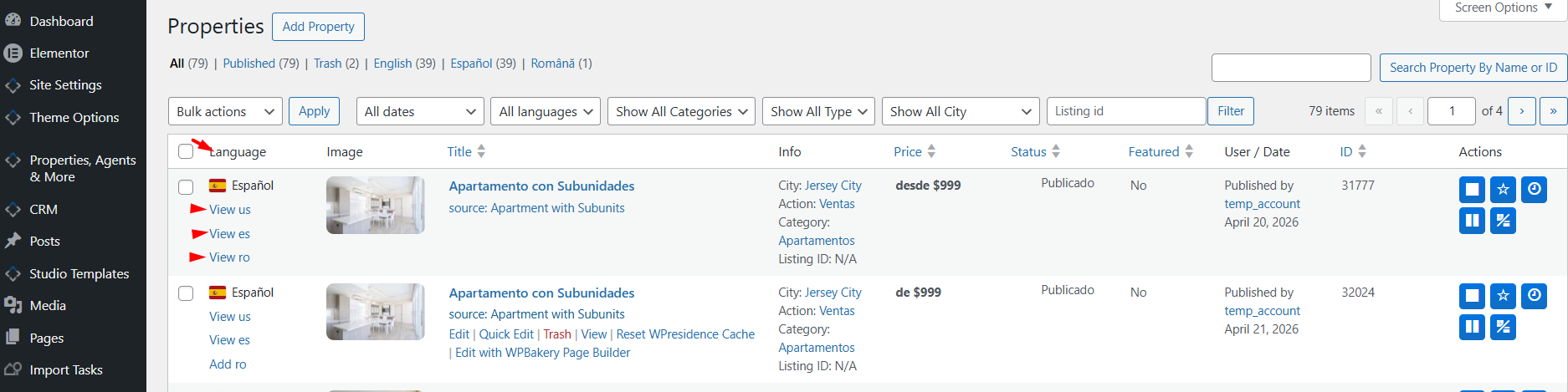
The Language column in the post list, the editor header badge, and the language switcher on the frontend all use the trid to find sister translations. Create a translation from the post list and the linking happens silently in the background.

3. The Frontend Shows the Right Post

When a visitor switches language on the frontend, WPResidence Translate asks: “what is the post in this group that matches the requested language?” It then loads that variant. Same URL pattern, same layout, different language.

4. Deleting a Variant Does Not Break the Group

If you delete the Italian version of a post, the group still holds English, French, and Spanish. The Italian slot simply becomes available again — next time someone clicks the Italian plus icon, a new draft is created and joined to the same group.

How a Group Is Created

A group is born the first time you translate a post. Here is the lifecycle:

  1. You publish a property in English. No group exists yet.
  2. On the post list you click the French flag plus icon.
  3. WPResidence Translate creates a new French draft, assigns a fresh trid, marks the English post as the original of that group, and adds the French post to it.
  4. Later you click the Spanish flag for the same property. A third draft is created and attached to the same trid.

Screenshot: Post list row with Language column showing English (original), French (filled), and Spanish (filled) flags on the same post family

What the Group Remembers About Each Variant

  • Which post is the original.
  • The language code each post is in.
  • The source language the translation came from (so re-translations know where to pull from).
  • Whether that variant needs an update because the original changed after the translation was made.
  • Who was the last translator (their user ID).
  • When the record was last updated.

The “Needs Update” Flag

When you edit the original, WPResidence Translate can mark each translation as needs update. On the post list, those variants show a warning badge next to their flag. This is your prompt to re-open them and either manually refresh the content or re-run auto-translate.

One Group Per Content Type

The linking also remembers what kind of thing the content is (a post, page, property, agent, etc.). This is called the element type. Groups never mix element types — a property group only holds properties; a post group only holds posts.

Terms Use the Same Idea

Taxonomy terms (property categories, locations, features, tags) use the same grouping mechanism. When you translate a category, all language variants of that category share a trid too. This is how a filter on the frontend can match French “Apartment” to English “Apartment” even though they look different.

What Is Not Stored in the Group

The group only links variants together — it is not a copy of your content. Post titles, content, images, and custom fields live in the normal WordPress tables (wp_posts, wp_postmeta). The group only tells WPResidence Translate which posts go together.

Common Questions

Can I merge two posts into one translation group?

Not from the UI directly. The plugin creates the group automatically when you use the Add Translation flow. If you already have two standalone posts that should be linked, re-create one of them using the plus-icon workflow, migrate content over, and delete the orphan.

Can a post belong to two groups?

No. Each post belongs to exactly one translation group for its element type.

Can I change which variant is the “original”?

Yes — the plugin updates the original flag automatically when you link translations, and the source language stored on every row lets the plugin know where auto-translate should pull content from.

What happens if I delete the original?

The group still exists as long as at least one translation remains. The plugin falls back to the earliest available variant as the source language for future re-translations.

In Summary

The trid is the invisible thread that ties language versions of the same content together. You never type a trid yourself — it is allocated and maintained entirely by the plugin. But once you picture the “folder of variants” model, everything else in WPResidence Translate clicks: the language column, the editor header badge, the frontend language switcher, and even translated taxonomy filters all work by asking “which post in this trid matches the current language?”

What To Read Next

  • Translating Posts & Pages — the editor workflow that creates groups.
  • Taxonomy Translation — how terms use the same grouping.
  • Database Schema — a plain-English overview of the six plugin tables.

For the broader picture, visit our multi-language real estate website guide.

30. WPResidence Translate Plugin

Related Articles

  • String Scanner — Developer Guide
  • The String Scanner
  • Gettext Pipeline & MO Files — Developer Guide
  • Gettext & MO Files — Making Translations Appear on the Front End

WP Residence Documentation

  • 01. Getting Started
    • How to Get Support
    • Get your buyer license code.
    • Use SSL / https
    • Server / Theme Requirements
  • 02. Installation & Setup
  • 03. Installation FAQ
  • 06. Search & Filtering
    • Advanced Search Display Settings
    • Advanced Search Form
    • Geolocation Search for Half Map
    • Save Search Theme Options
    • Advanced Search Colors
  • 09. Agent, Agency & Developers
  • 08. Property Pages & Layouts
  • 07. Property Lists, Categories & Archive
  • 13. WPResidence Elementor Studio
  • 10. Blog Posts & Blog List
  • 11. Shortcodes
    • Contact Form
    • Featured Agency/Developer
    • Membership Packages
    • Testimonials
    • Google Map with Property Marker
    • Listings per Agent, Agency or Developer
    • Display Categories
    • Agent List
    • Recent Items Slider
    • Recent items
    • List Properties or Articles by ID
    • Featured Agent
    • Featured Article
    • Featured Property
    • Login & Register Form
    • Icon Content Box Shortcode
  • 12. Widgets
  • 04. Theme Options & Global Settings
    • General Settings
    • User Types Settings
    • Appearance
    • Logos & Favicon
    • Header
    • Footer Style and Colors
    • Price & Currency
    • Property Custom Fields
    • Features & Amenities
    • Listing Labels
    • Theme Slider
    • Permalinks
    • Splash Page
    • Social & Contact
    • Map Settings
    • Pin Management
    • How read from file works
    • General Design Settings
    • Custom Colors Settings
    • Header Design & Colors
    • Mobile Menu Colors
    • User Dashboard Colors
    • Print PDF Design
    • Property, Agent, Blog Lists Design Settings
    • Sidebar Widget Design
    • Font management
    • How to add custom CSS
    • Custom Property Card Unit – Beta version
    • Email Management
    • Import & Export theme options
    • reCaptcha settings
    • YELP API Integration
    • iHomefinder Optima Express IDX
    • MEMBERSHIP & PAYMENT Settings
    • Property Submission Page
    • PayPal Setup
    • Stripe Setup
    • Wire Transfer Payment Method
  • 20. Translations & Languages
  • 26. FAQ
  • 10. Pages
  • 11. Header
  • 12. Footer
  • 05. Maps & Location Settings
  • 18. Payments & Monetization
  • Plugins
    • 19. Included Plugins
    • 22. Third Party Plugins – IDX Compatibility
    • 21. Third-Party Plugins – Multi-Language
    • 23. Third party Plugins – Other
  • Technical
    • 24. Technical how to | Custom Code Required
    • 25. Technical: Child Theme

Join Us On

Powered by WP Estate - All Rights Reserved
  • WpEstate
  • WPRESIDENCE
  • Video Tutorials
  • Client Support
  • API