
WP Residence Help WP Residence Help

  • WPRESIDENCE
  • Video Tutorials
  • Client Support
  • API
Home / Maps & Location Settings, Theme Options & Global Settings / How to find latitude and longitude. How to set Google Maps coordinates.

How to find latitude and longitude. How to set Google Maps coordinates.

8713 views 18

To find the Latitude and Longitude for a location, you can use Google Maps.

  1. Open Google Maps.
  2. Search for the location you want to use.
  3. Right-click on the exact point on the map.
  4. Click the coordinates shown in the menu.
  5. The coordinates will be copied automatically to your clipboard.
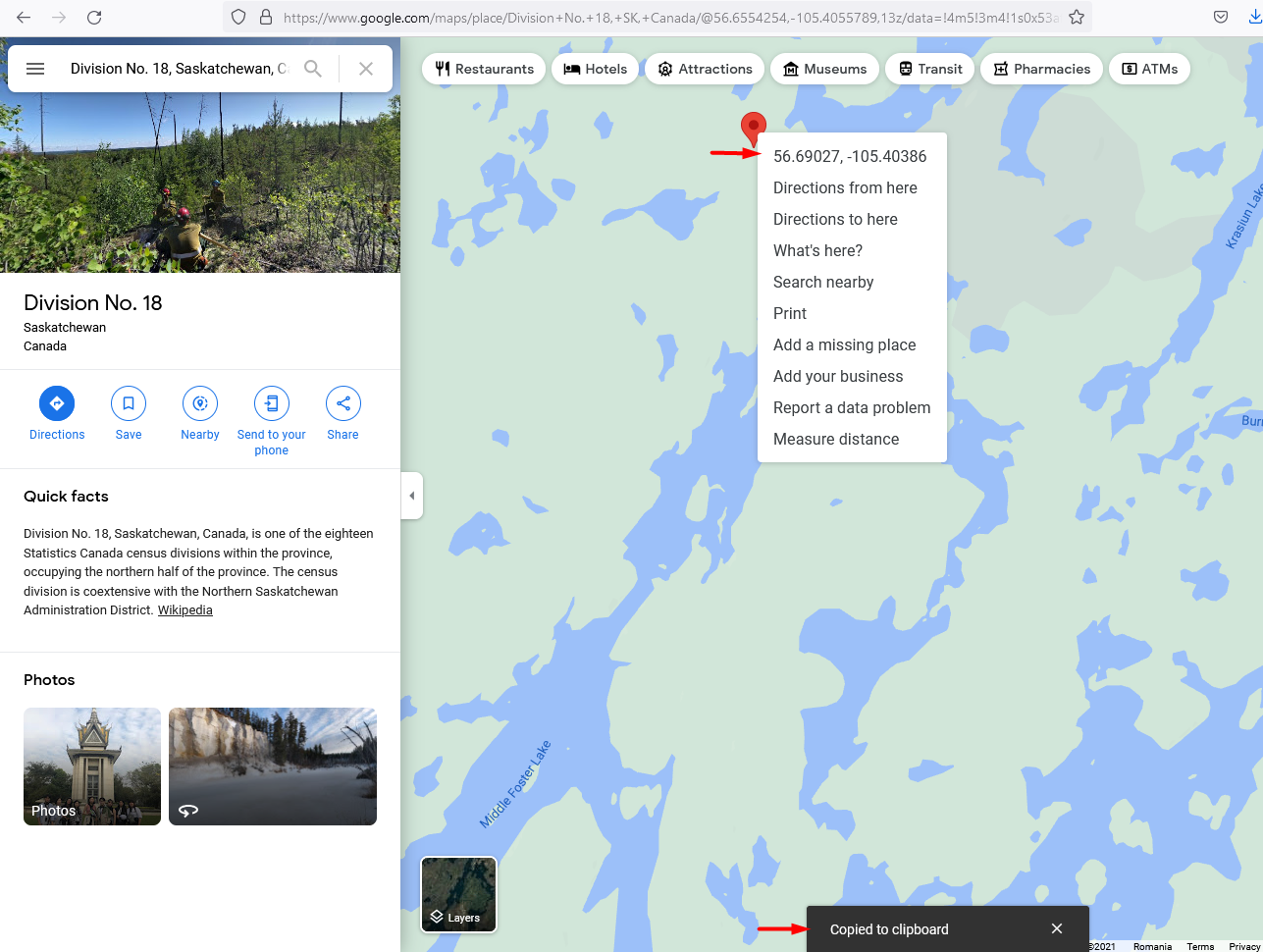

Copy latitude and longitude coordinates from Google Maps

Global Header Map

If you use the global header map, add the default map coordinates in:

Theme Options > Map > Map Settings

Add the coordinates in the following fields:

  • Starting Point Latitude
  • Starting Point Longitude

These coordinates are used as the default map starting point for pages that use the Global Header and have the header media set to Map.

Custom Header Map

If you use a custom map header for a specific page, you must add the coordinates in that page’s custom header options.

The custom page header coordinates will override the global map starting point for that specific page.

Exceptions

Some pages do not use the global starting point coordinates. Instead, they can use the latitude and longitude of the first property shown in the list.

This can apply to pages such as:

  • Advanced Search Results pages
  • Property List pages
  • Agent List pages

This behavior can also depend on whether Use file reading for pins is enabled or disabled.

Maps & Location SettingsTheme Options & Global Settings

Related Articles

  • How to Control Similar Blog Posts
  • ACF – Advanced Custom Fields – Integration with WPResidence
  • Theme Options – Roles (Editor) Permissions Controls
  • Theme Options -> Agent Card Settings
MLSImportWordPress IDX Plugin for MLS ListingsImport MLS listings into your WordPress website, customize your property pages, and keep your inventory updated.Start free 30-day trial →

Help Categories

  • 51 Getting Started
  • 72 Installation & Setup
  • 243 Installation FAQ
  • 18Agent, Agency & Developers
  • 5Blog Posts & Blog Lists
  • 39Elementor Shortcodes Built-In
  • 56FAQ
  • 15Footer
  • 37Header
  • 2IDX & MLSImport
  • 23Maps & Location Settings
  • 21Multi-Language - Third Party Plugins
  • 7Other Third party Plugins
  • 21Pages
  • 4Payments & Monetization
  • 20Property Lists, Categories & Archive
  • 37Property Pages & Layouts
  • 32Search & Filtering
  • 162Technical how to | Custom Code
  • 8Technical: Actions and filters
  • 7Technical: Child Theme
  • 86Theme Options & Global Settings
  • 6Translations & Languages
  • 16WPBakery Shortcodes
  • 50WPEstate Translate Plugin
  • 51WPResidence / WPEstate CRM
  • 50WPResidence 5.0 Documentation
  • 9WPResidence Elementor Studio

Join Us On

Powered by WP Estate - All Rights Reserved
  • WPRESIDENCE
  • Video Tutorials
  • Client Support
  • API