
White Screen or “The Site Is Experiencing Technical Difficulties” Error
If you try to publish or edit a post, page, or property and the website shows a white screen, or if you see the message:
The site is experiencing technical difficulties.
this means WordPress encountered a server-side PHP error and could not complete the request.
This can happen because of a plugin conflict, a PHP fatal error, limited server memory, incomplete updates, or other server configuration issues.
First Check: Activate the WPResidence License
If the white screen happens when saving or editing content, first check if the WPResidence theme license is activated.
Important: The theme license must be activated once after installing WPResidence. This is not required again for future theme updates unless you reset the database and start over.
How to Get the ThemeForest Purchase Code
Log in to ThemeForest with the buyer account used to purchase WPResidence.
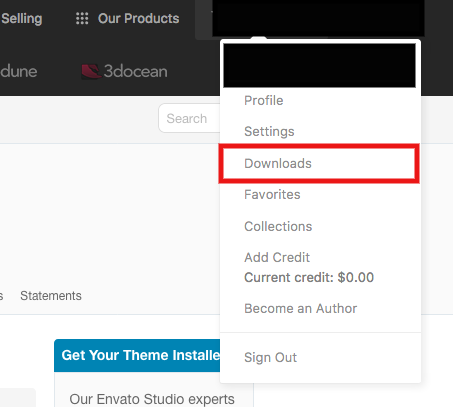
Go to Downloads.
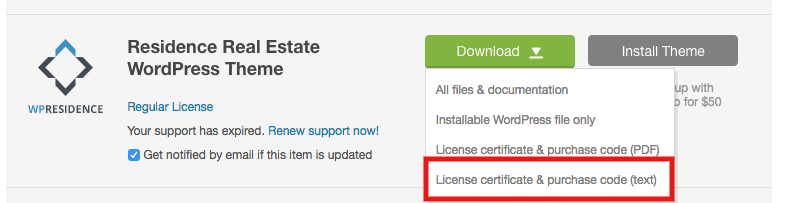
Find your WPResidence purchase and select License Certificate and Purchase Code.
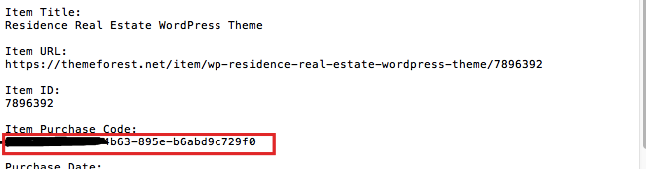
Open the downloaded license text file and copy the purchase code.
How to Activate the License in WPResidence
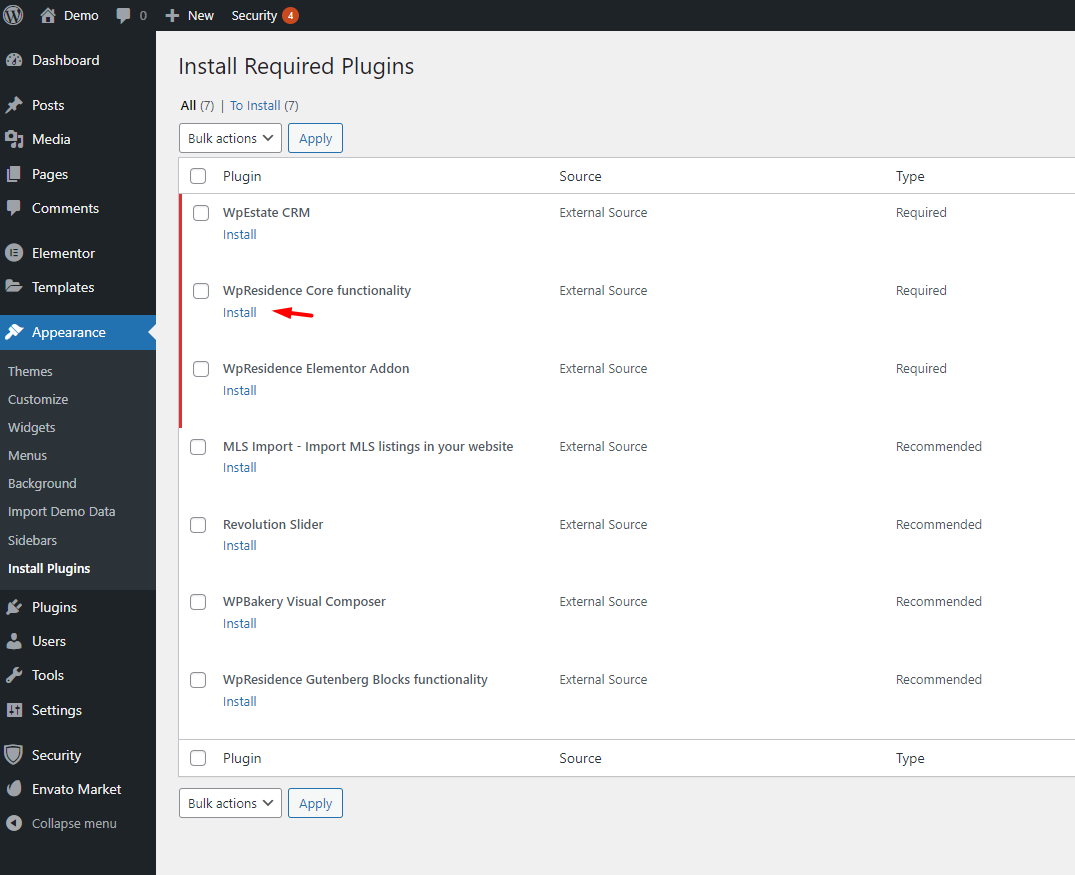
Install the theme and the WPResidence Core Functionality plugin. Activate the plugin
Help article about theme and required plugins installation
Step 3: Open the license panel
Refresh the page, then go to the WPResidence License section.
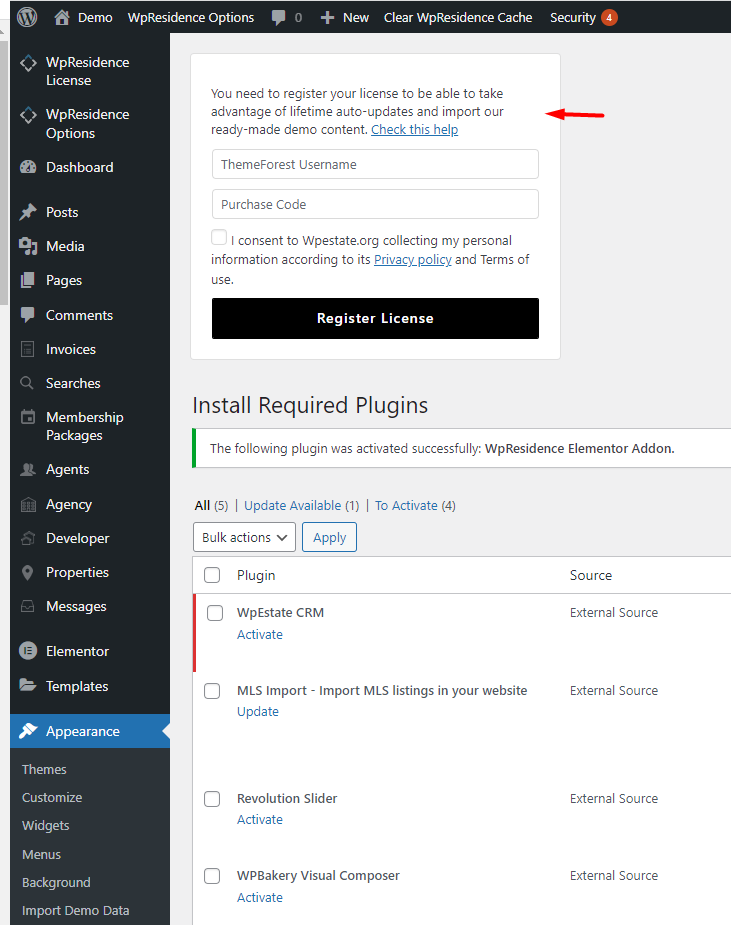
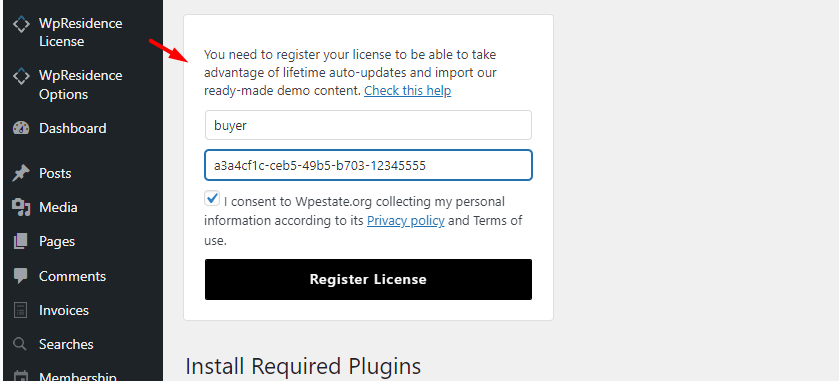
Step 4: Register the license
Fill in the form with your ThemeForest buyer username and license code, then click Register License.
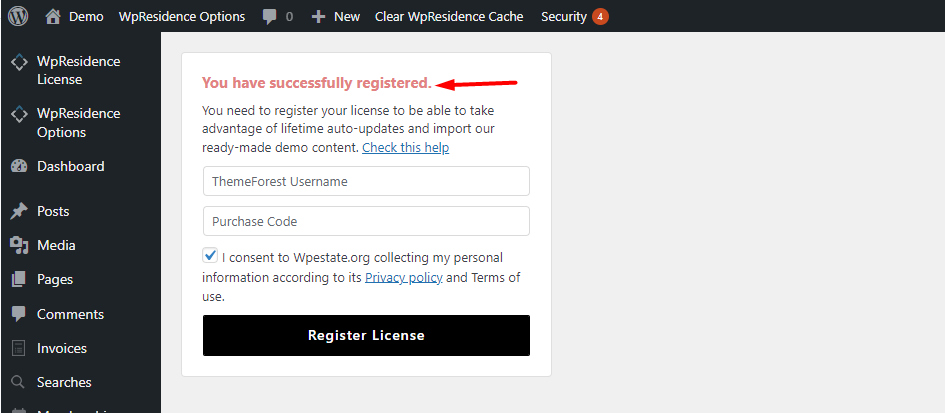
If successful, you will see the message:
You have successfully registered.
About “The Site Is Experiencing Technical Difficulties” Message
This message was introduced by WordPress to hide fatal PHP errors from visitors and help administrators recover the website.
Instead of showing the exact technical error publicly, WordPress may show this generic message and send a recovery email to the site administrator email address.
The recovery email may include a link that allows the administrator to access Recovery Mode and deactivate the plugin or theme that caused the fatal error.
Common Causes
- A plugin conflict
- A plugin fatal error
- A PHP memory limit problem
- An incomplete theme or plugin update
- A PHP version incompatibility
- A custom code error
- A child theme template or function error
- A server configuration issue
Step 1: Check the Recovery Email
Check the inbox for the administrator email address set in:
Settings > General > Administration Email Address
If WordPress sent a recovery email, use the link from that email to access Recovery Mode.
From Recovery Mode, you may be able to deactivate the plugin or theme that caused the fatal error.
Step 2: Deactivate Plugins
If you can access wp-admin, go to Plugins and deactivate all plugins except the required WPResidence plugins.
Then activate the plugins back one by one and test the page again after each activation.
If the error appears after activating a specific plugin, that plugin is likely causing the conflict or fatal error.
Step 3: Deactivate Plugins From FTP or File Manager
If you cannot access wp-admin, connect to the website using FTP, SFTP, or your hosting File Manager.
Go to:
wp-content/Rename the plugins folder from:
pluginsto:
plugins_oldThis will deactivate all plugins.
Then check if the website loads again.
If the website loads, rename the folder back to plugins, then reactivate the plugins one by one from wp-admin to find the one causing the error.
Step 4: Enable WordPress Debug Log
If the cause is not clear, enable WordPress debug logging in wp-config.php.
Open the wp-config.php file from the main WordPress directory and add the following code above this line:
/* That's all, stop editing! Happy publishing. */Add this code:
define( 'WP_DEBUG', true );
define( 'WP_DEBUG_LOG', true );
define( 'WP_DEBUG_DISPLAY', false );
This will save errors in this file:
wp-content/debug.logIt will also prevent errors from being displayed publicly on the front end.
WordPress Debug Documentation
https://developer.wordpress.org/advanced-administration/debug/debug-wordpress/
Step 5: Read the Error Message
After enabling debug logging, open the debug.log file and check the latest fatal error.
If the error points to a plugin path, it may look similar to this:
wp-content/plugins/plugin-name/...In this case, deactivate or remove that plugin and test again.
If the error points to the WPResidence theme path, it may look similar to this:
wp-content/themes/wpresidence/...In this case, make sure the theme is updated correctly, the required WPResidence plugins are updated, and no old child theme template override is causing the issue.
Important: PHP warnings and notices are not the same as fatal errors. A fatal error stops the website from loading. Warnings and notices usually do not stop the theme from working, but they should still be reviewed by a developer if they appear repeatedly.
Step 6: Check PHP Memory Limit
A white screen or technical difficulties message can also appear when the server does not have enough PHP memory to complete the request.
Ask your hosting provider to check and increase the PHP memory limit if needed.
Recommended value:
memory_limit = 256MYou can also try adding this in wp-config.php, above the line shown earlier:
define( 'WP_MEMORY_LIMIT', '256M' );Some hosting providers do not allow this value to be changed from WordPress, so the hosting provider may need to adjust it from the server settings.
Step 7: Check for Incomplete Updates
If the error started after an update, make sure all theme files and required plugins were updated completely.
Check the following:
- WPResidence theme is updated to the latest version.
- Required WPResidence plugins are updated from Appearance > Install Plugins.
- No old files remain from a previous theme version.
- Server cache, object cache, CDN cache, and browser cache were cleared after the update.
Step 8: Check Child Theme Customizations
If you use a child theme, temporarily switch to the main WPResidence theme and test again.
If the error disappears, the issue may come from custom code or an outdated template override inside the child theme.
Common child theme causes include:
- old template files copied from a previous WPResidence version
- custom PHP code in functions.php
- custom code that depends on an old theme function
Final Recommendation
If the website shows a white screen or the technical difficulties message, do not guess the cause.
Check the Recovery Mode email, deactivate plugins, enable the debug log, and review the fatal error path.
If you need help from our support team, please open a ticket and include:
- your site URL
- temporary wp-admin access
- FTP or hosting File Manager access, if available
- a copy of the latest fatal error from wp-content/debug.log
- details about what action triggers the white screen