
WPResidence comes translated into 40+ languages. Set the site language and the theme shows in that language. Use the Loco Translate plugin only when you want to change a translation or add a language that is not included.
Set the site language
- Activate the WPResidence child theme. The included translations are in the child theme. See How to install the child theme.
- Choose your language in Settings > General > Site Language and click Save Changes.
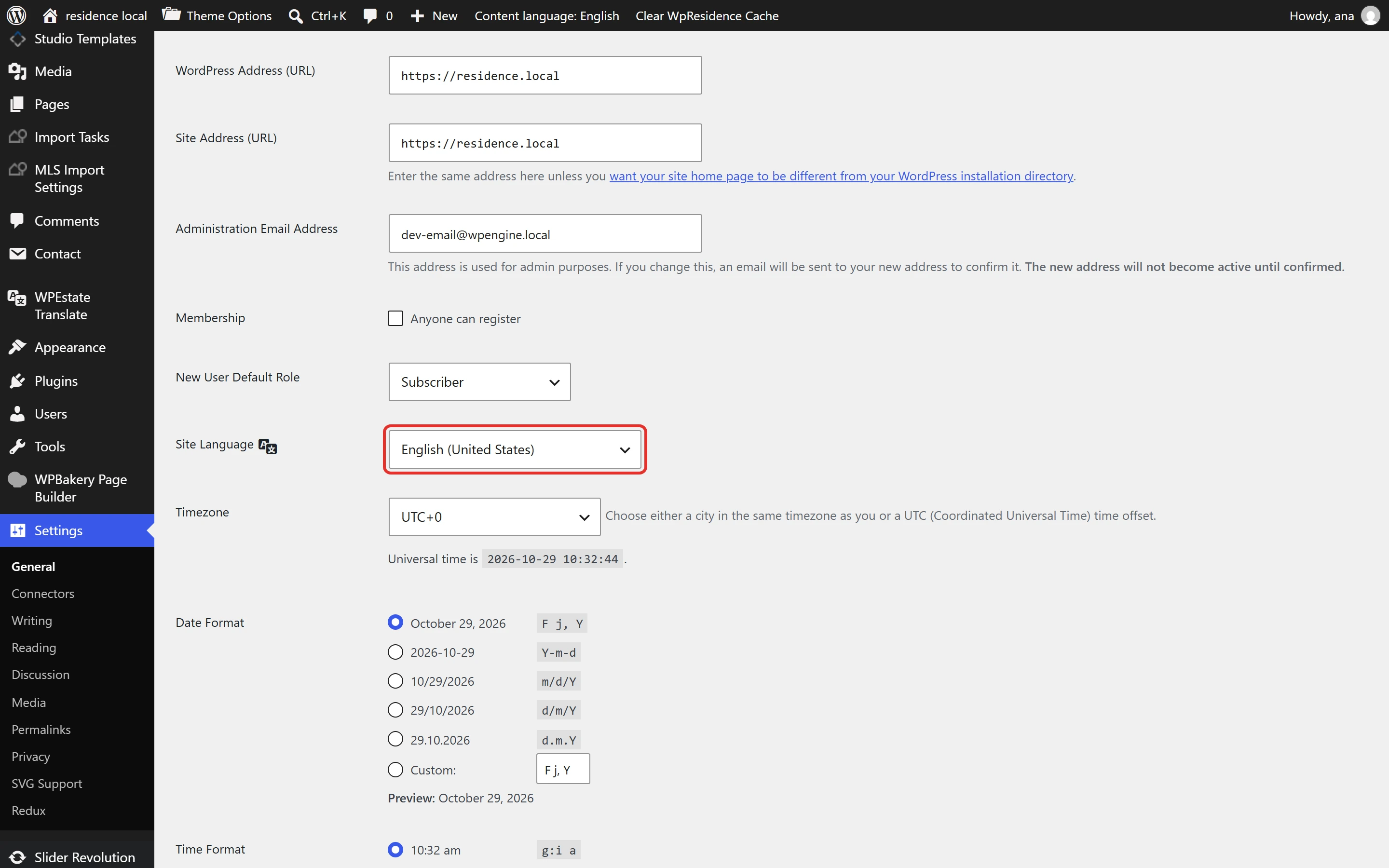
If your language is included, the theme texts now show in that language.
Where each text is translated
| Text | Where to translate it |
|---|---|
| Theme texts: buttons, messages, property cards | Loco Translate > Themes > WpResidence child theme |
| User dashboard, property submission, login, agent, agency and developer texts | Loco Translate > Plugins > WPResidence Theme Core Functionality |
| Property page section titles | Theme Options > Property Page > Listings Labels |
| Custom field labels | Theme Options > General > Property Custom Fields |
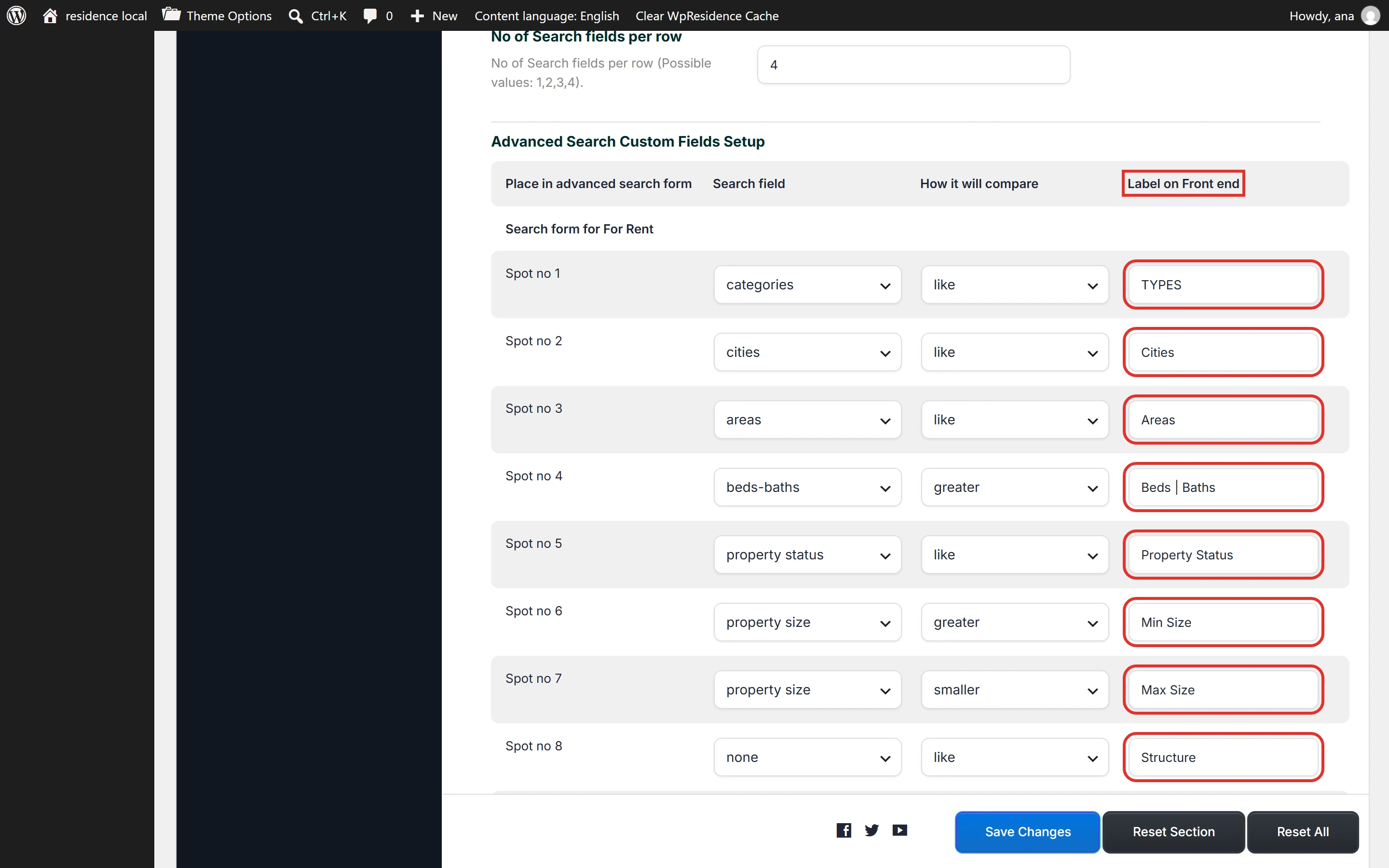
| Search form labels | Theme Options > Search > Advanced Search Form |
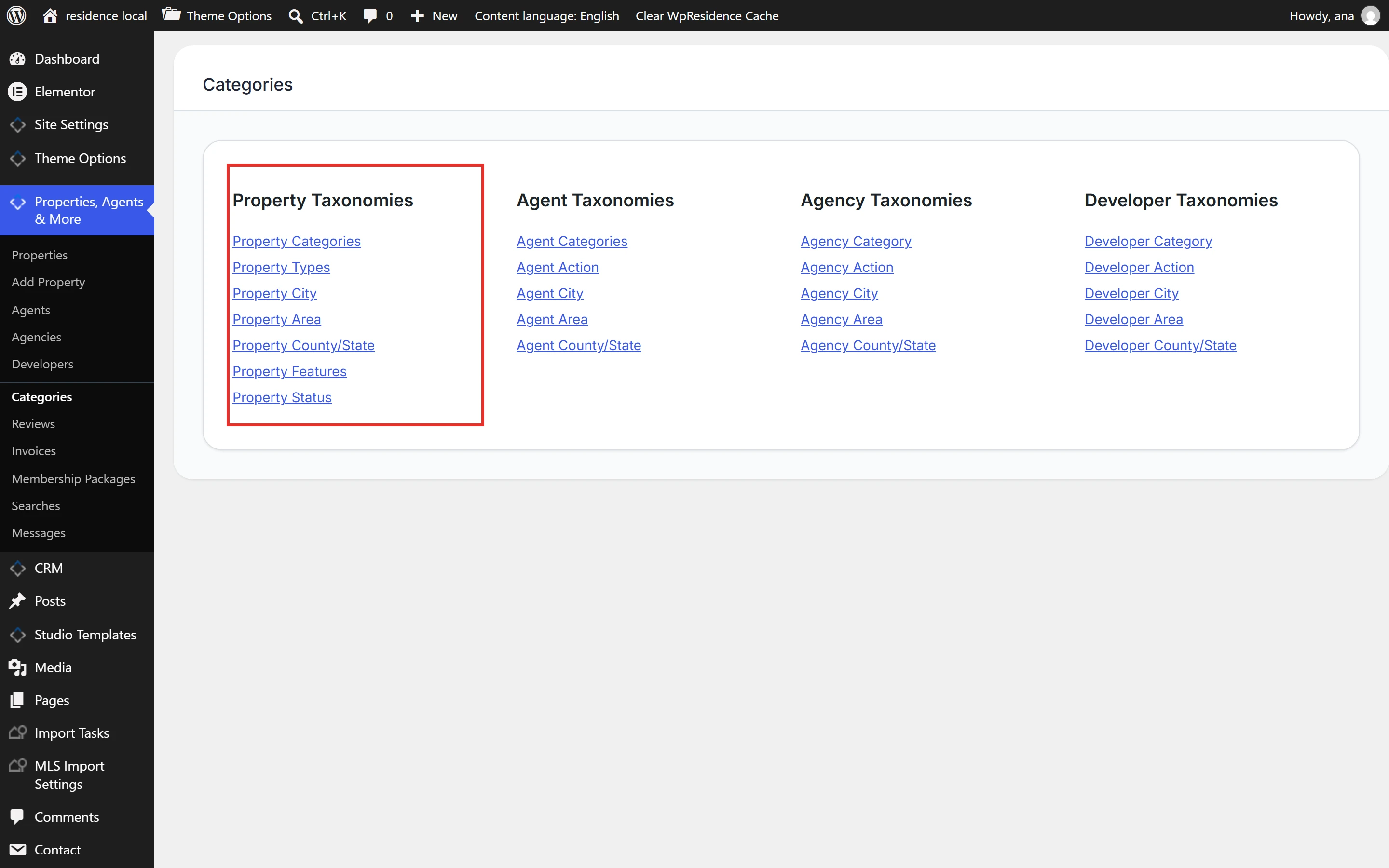
| Categories, types, cities, areas, features and statuses | Properties, Agents & More > Categories |
| Menu items | Appearance > Menus |
| Widget titles | Appearance > Widgets |
| Text added in Elementor or Studio templates | Edit the template in Elementor |
Translate theme texts
- Install Loco Translate from Plugins > Add New Plugin (search for Loco Translate) and activate it.
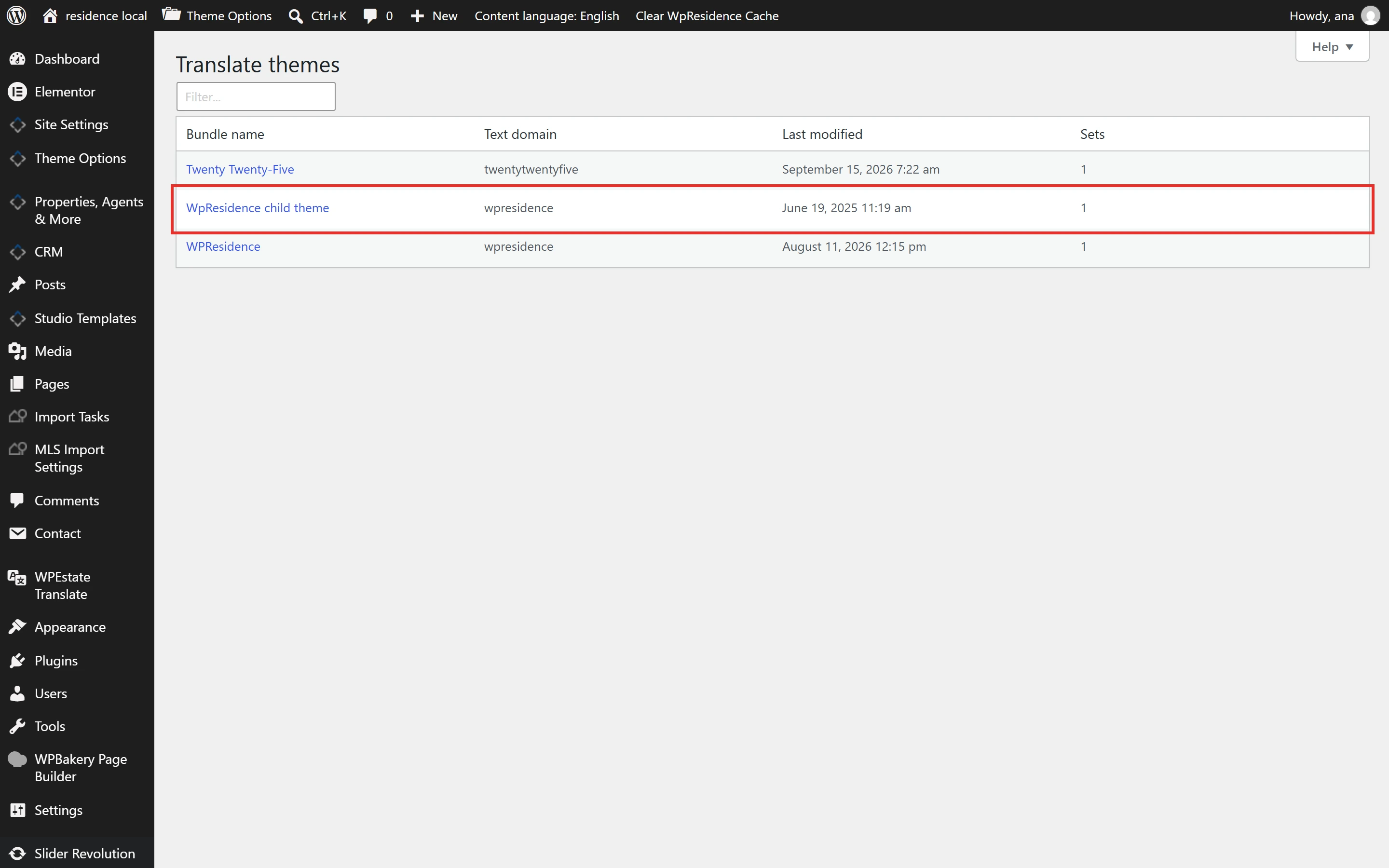
- Open Loco Translate > Themes and click WpResidence child theme.
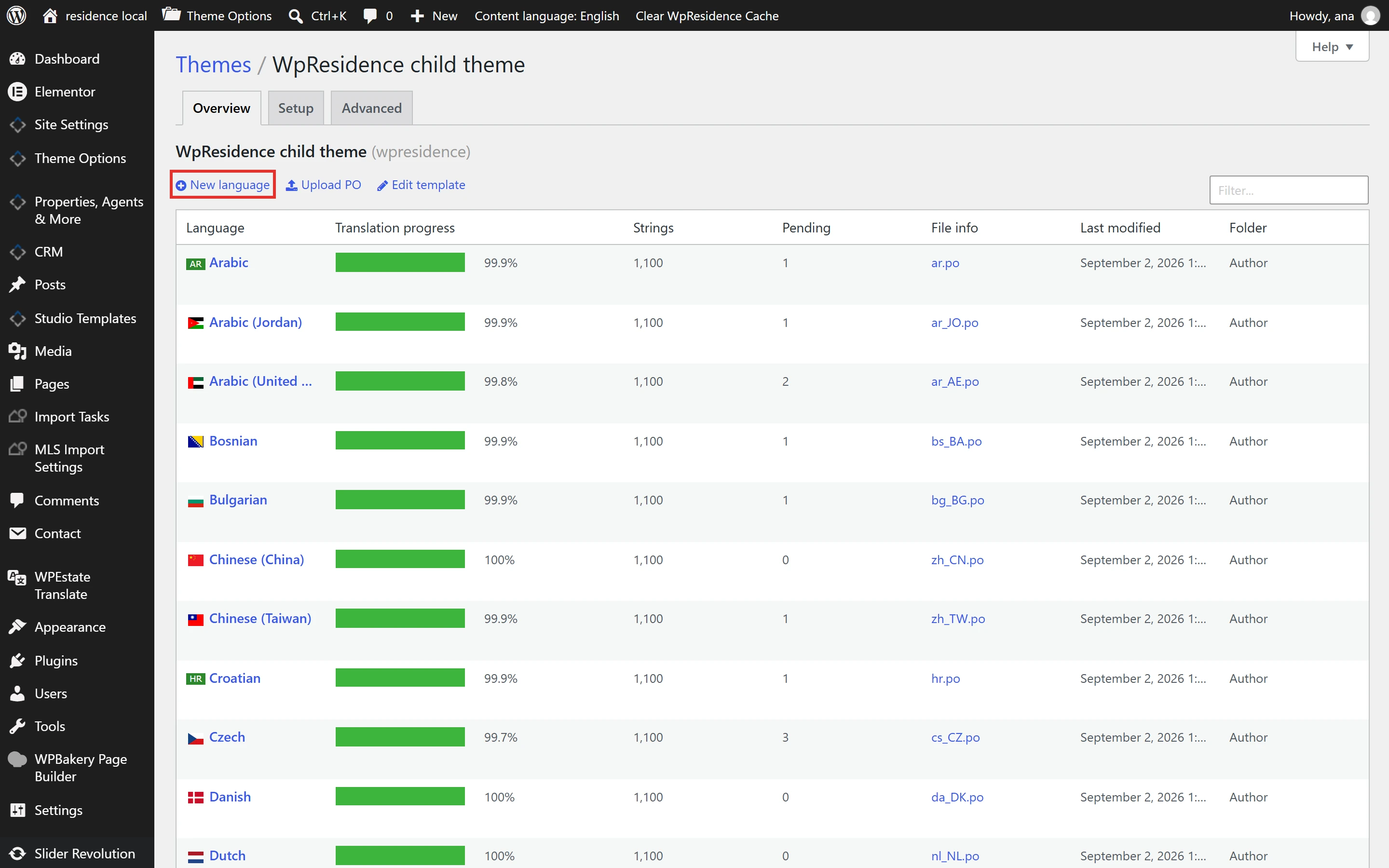
- Click your language. If it is not in the list, click New language, choose the language and click Start translating.
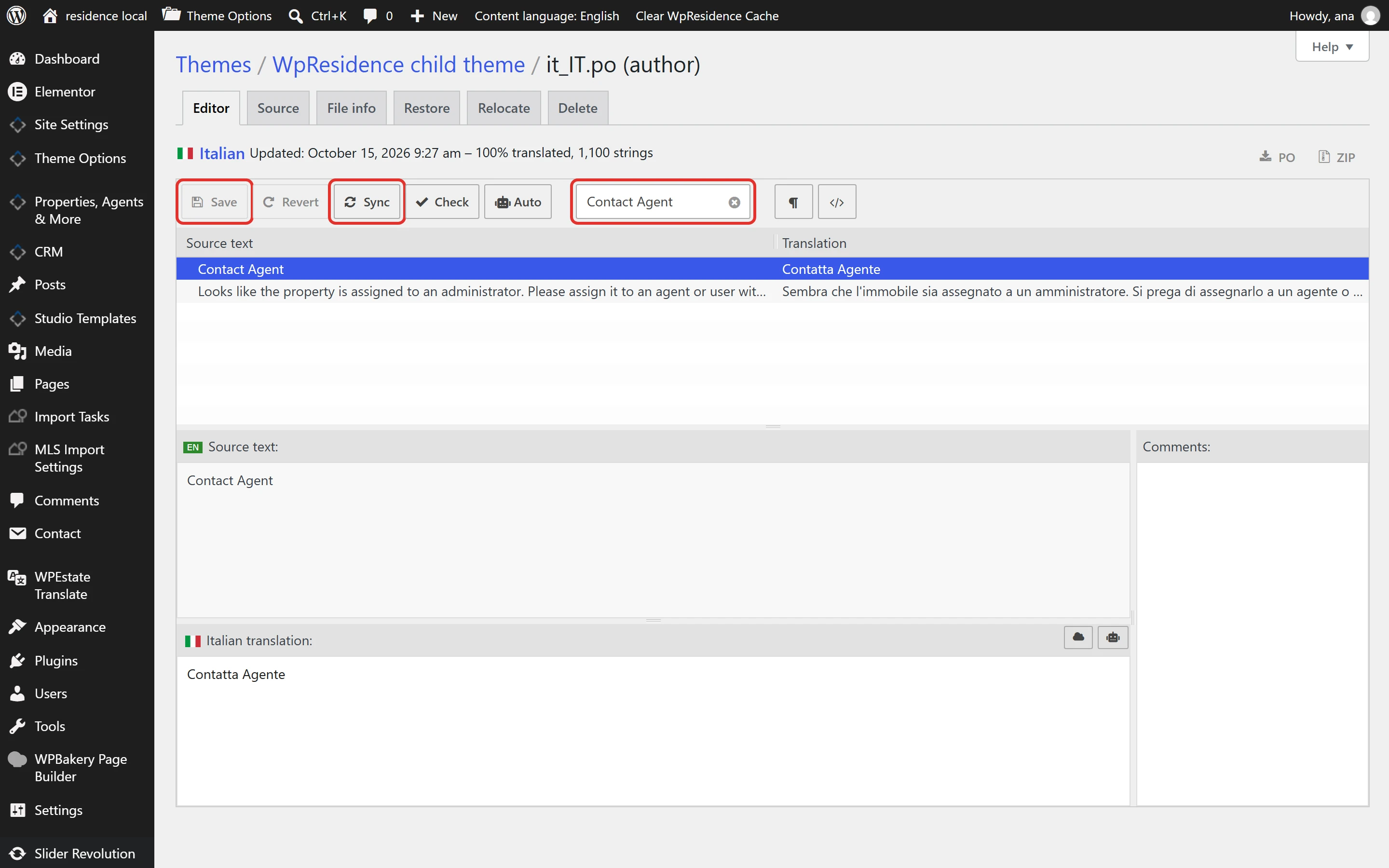
- Find the text: type it in Filter translations and click the row.
- Write the translation in the translation box at the bottom.
- Click Save.
Translations in the child theme are kept when you update the theme.
Translate WPResidence Core texts
The user dashboard, submission, login, agent, agency and developer texts come from the WPResidence Theme Core Functionality plugin. If you cannot find a text in the theme file, look here.
- Open Loco Translate > Plugins and click WPResidence Theme Core Functionality.
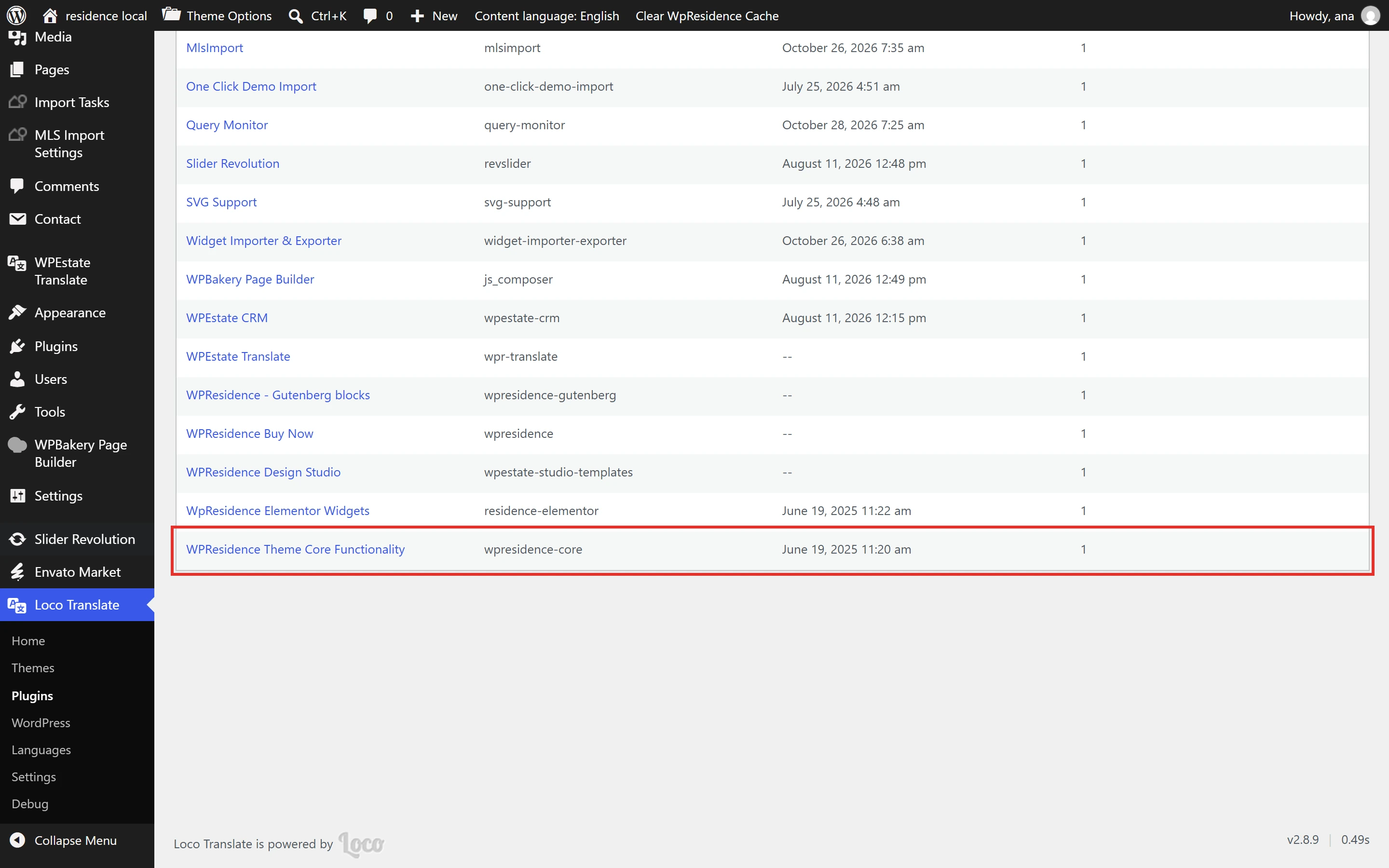
- Click New language, choose your language and keep the location languages/loco/plugins/ selected. Click Start translating.
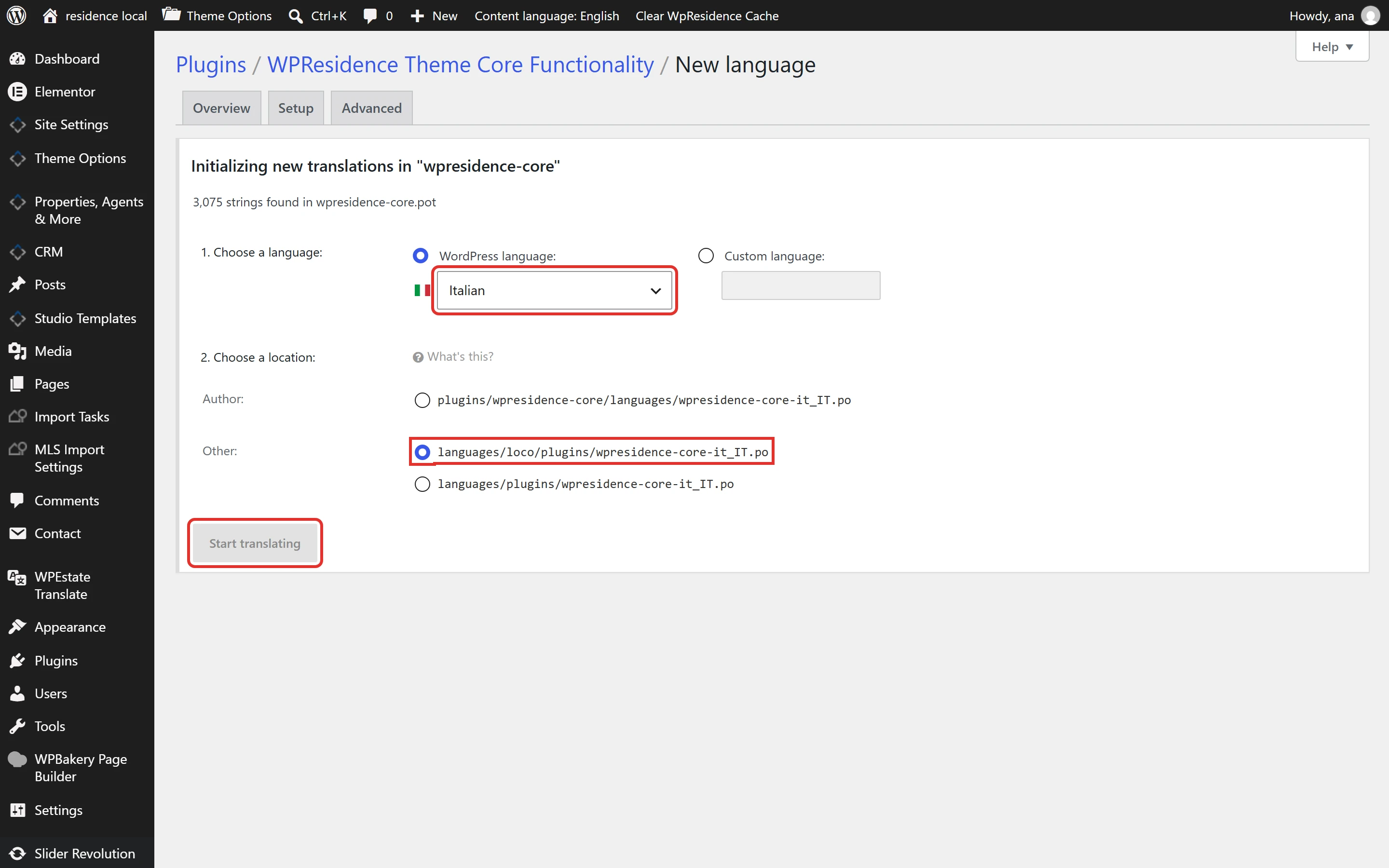
- Find the text, translate it and click Save, the same way as for the theme.
Files in languages/loco/plugins/ are kept when the plugin updates. Files inside the plugin folder (plugins/wpresidence-core/languages/) are replaced by every update.
Texts you edit in wp-admin
These texts are saved the way you type them, so Loco Translate does not show them. Write them in your language where they were added.
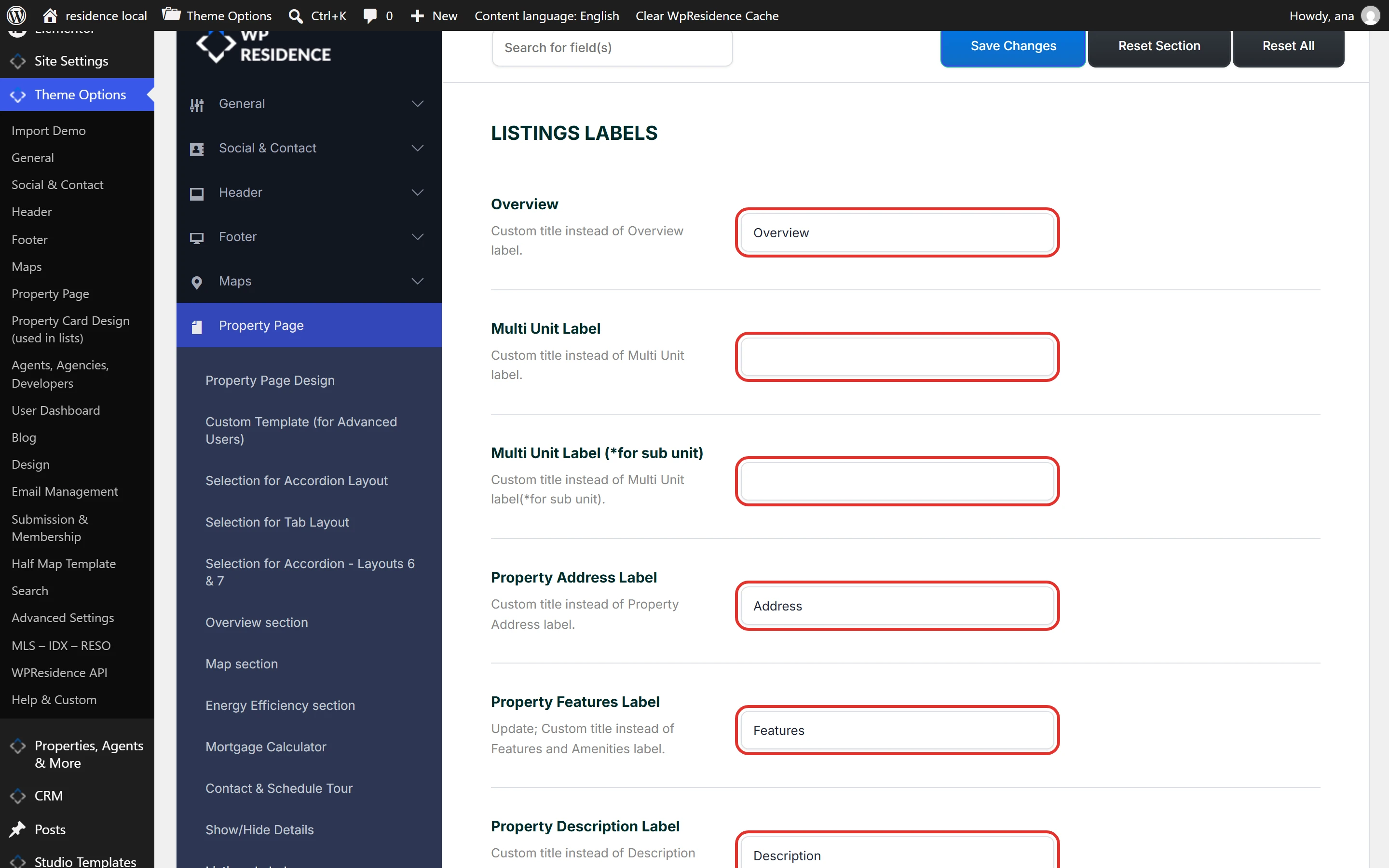
Property page section titles
Edit the titles, such as Overview or Address, in Theme Options > Property Page > Listings Labels.
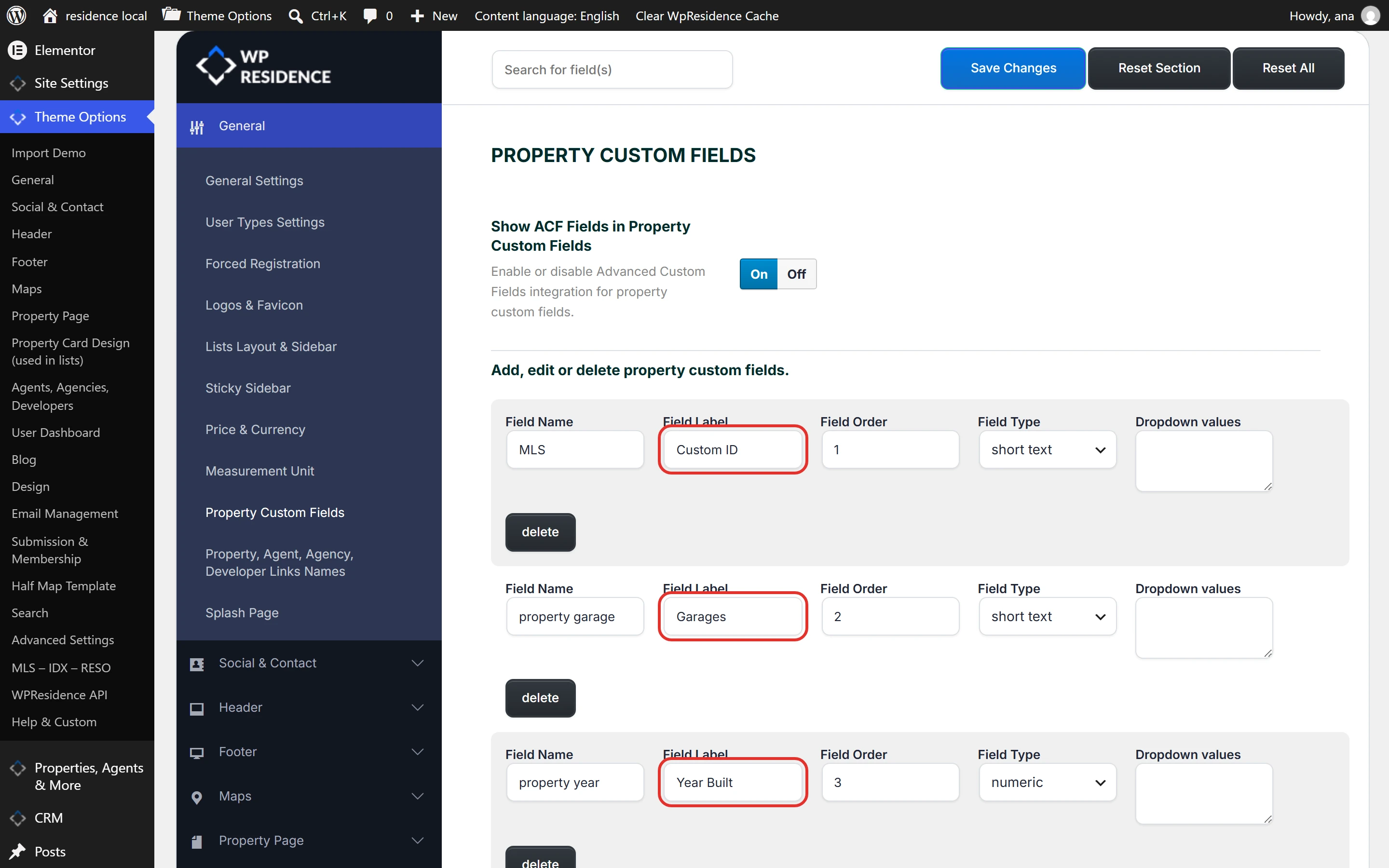
Custom field labels
Edit the Field Label of each field in Theme Options > General > Property Custom Fields.
Search form labels
Edit the Label on Front end of each field in Theme Options > Search > Advanced Search Form.
Categories, cities, areas, features and statuses
Open Properties, Agents & More > Categories, click the list you need (for example Property City), edit the Name of each item and click Update. Leave the slug as it is: it is part of the page address.
Menus, widgets and Elementor text
Edit menu items in Appearance > Menus, widget titles in Appearance > Widgets, and text added in Elementor or Studio templates in the Elementor editor.
After a theme or plugin update
New versions add new texts. Open your language in Loco Translate, click Sync, translate the new texts and click Save. Do this for the child theme and for WPResidence Theme Core Functionality. More details: How to update the .po translation after a theme update.
User role labels
The role names User, Agent, Agency and Developer are translated in Loco Translate. Search for them in the child theme file first, then in WPResidence Theme Core Functionality.
Multi-language websites with WPEstate Translate
Loco Translate translates the theme and plugin texts for the site language. For a site in several languages with a language switcher, use the WPEstate Translate plugin. The two work together:
- Main language: set it in Settings > General > Site Language and translate its texts with Loco Translate, as shown above. Labels saved in Theme Options are typed in the main language.
- Other languages: add them in WPEstate Translate > Languages. Their texts come from the .po files of each language, for example pt_BR.po in the child theme and wpresidence-core-pt_BR.po. In WPEstate Translate > Theme & Plugins Strings you check those translations, fill in what is missing and translate the Theme Options labels, then click Generate translation files.
- Pages, properties, agents, categories and menus are translated with WPEstate Translate, not with Loco Translate.
Full guide: Multi Languages with WPEstate Translate. For the strings screen: Translating Theme and Plugin Strings.
The front end still shows English
- Check the site language in Settings > General > Site Language.
- Check that the child theme is active in Appearance > Themes.
- Check the other file. A text missing from the child theme file may be in WPResidence Theme Core Functionality.
- Check where the text was added. Theme Options labels, categories, menus, widgets and Elementor text are edited in wp-admin, as shown above.
- Clear all caches: cache plugin, hosting, CDN and the browser.
If it still shows English, open a ticket at care.wpestate.org with your site URL and a wp-admin login.