
“Are You Sure You Want to Do This?” Error During Theme Installation
If you see the following message when installing WPResidence from Appearance > Themes > Add New > Upload Theme:
this usually means the theme upload was interrupted or blocked by the server configuration.
In most cases, this happens because the server upload limit is smaller than the theme zip file size.
Why This Happens
WordPress uploads the theme zip file through your hosting server. If the server does not allow large enough uploads, WordPress cannot complete the installation and may show this message instead of installing the theme.
The most important server value to check is:
upload_max_filesizeFor WPResidence, this value should be at least 64MB.
We also recommend checking the full server requirements here:
Theme WordPress server requirements
Important: upload_max_filesize is a server/PHP setting. If you do not know how to change it, please contact your hosting provider and ask them to increase it to at least 64MB.
Recommended PHP Values
Please ask your hosting provider to check and adjust these PHP values if needed:
- upload_max_filesize: 64MB or higher
- post_max_size: 64MB or higher
- memory_limit: 256MB or higher
- max_execution_time: 300 or higher
Note: post_max_size should be equal to or higher than upload_max_filesize. If upload_max_filesize is 64MB but post_max_size is lower, the upload may still fail.
How to Check the Maximum Upload Size in WordPress
You can check the maximum upload size from the WordPress Import screen.
Go to Tools > Import.

Run the WordPress importer.
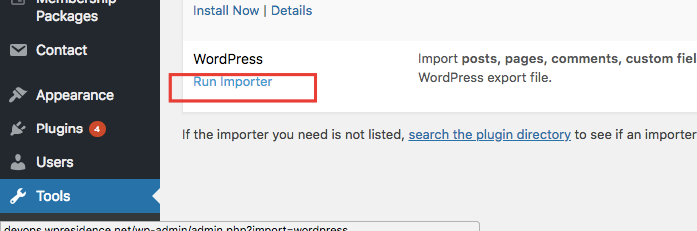
Check the maximum upload size displayed on the page.
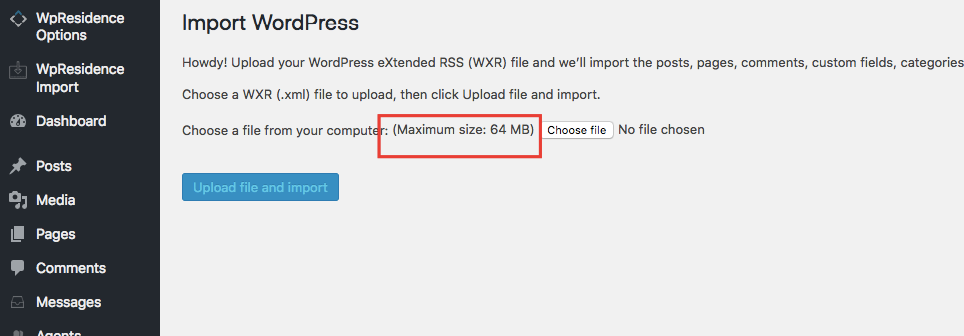
If the value is 64MB or higher, you should be able to install the theme from wp-admin.
Make Sure You Upload the Correct Theme File
When installing the theme from wp-admin, make sure you upload only the installable theme zip file.
Do not upload the full ThemeForest package if it contains documentation, demo files, child theme, plugins, or other folders.
If you downloaded the full package from ThemeForest, unzip it first and look for the installable theme file.