
How to Access Contact Form Settings
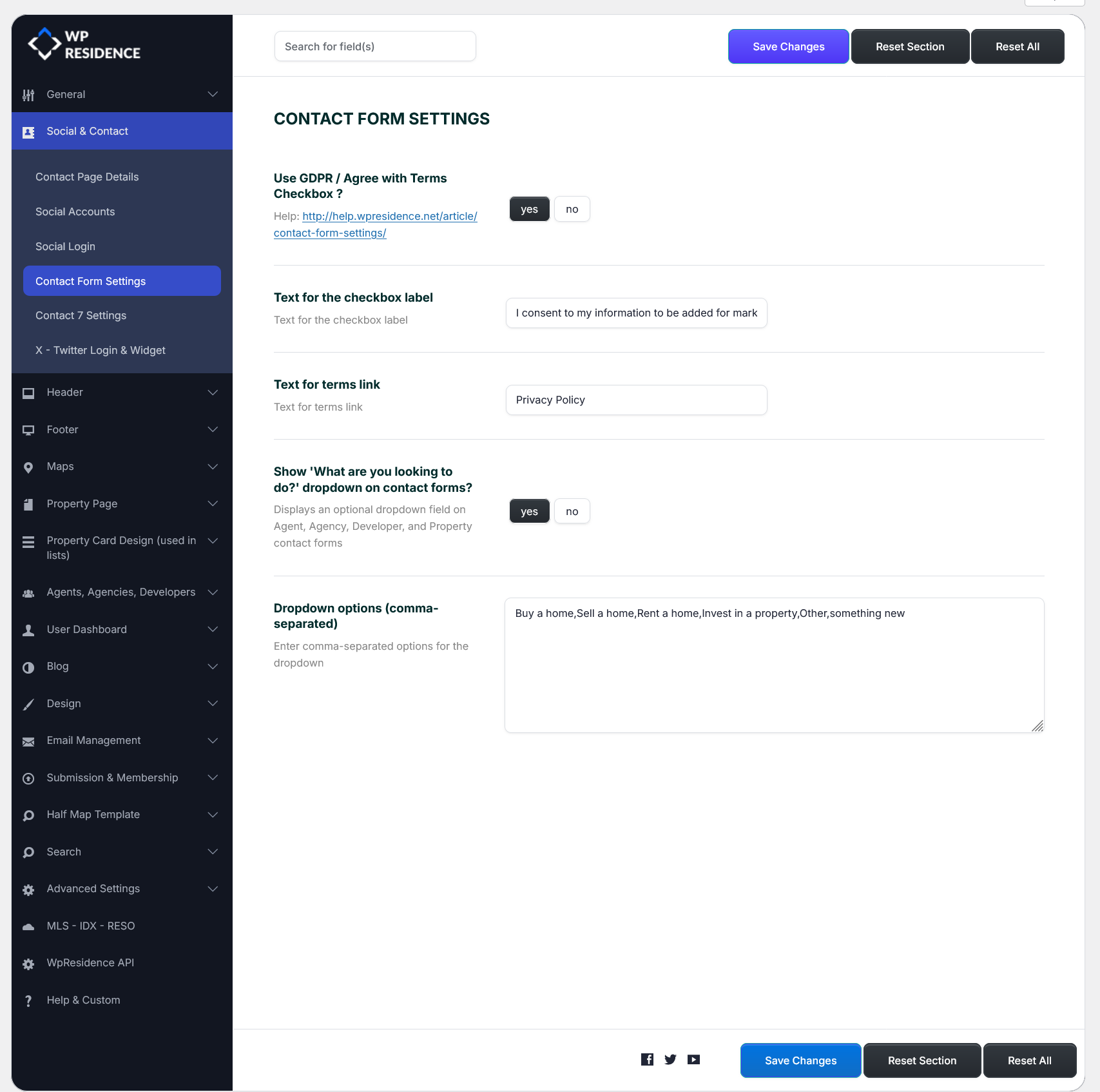
To manage the contact form options, go to Theme Options > Social & Contact > Contact Form Settings.
From this panel, you can manage:
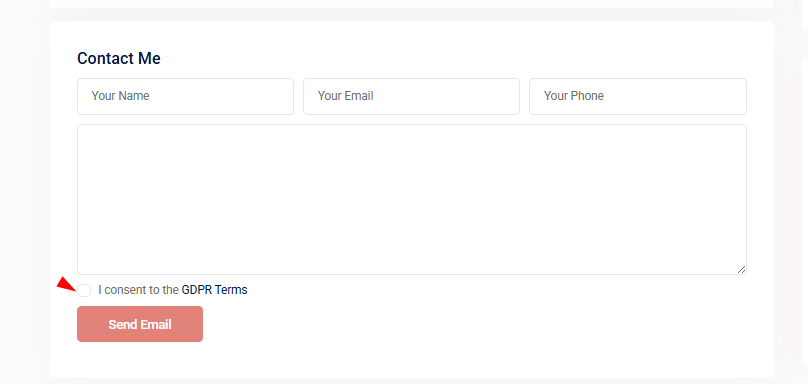
- the GDPR or Terms consent checkbox
- the checkbox label text
- the terms link text
- the optional contact form dropdown
- the dropdown options shown in theme contact forms
How to Enable GDPR Checkbox on Contact Forms
In Theme Options > Social & Contact > Contact Form Settings, use the option Use GDPR / Agree with Terms Checkbox? and set it to Yes.
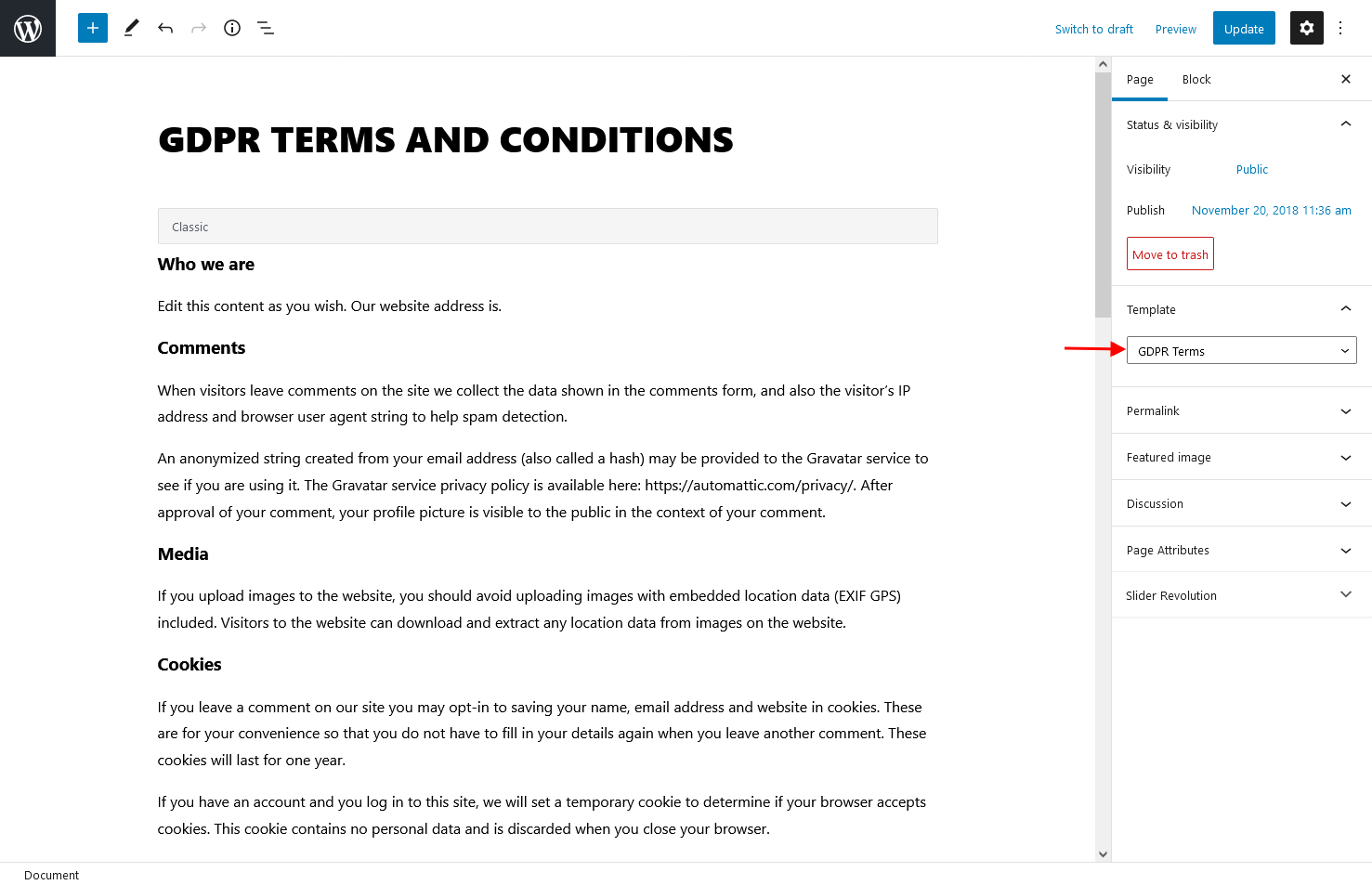
If you enable this option, you should create a Privacy Policy or GDPR page that users can open from the contact form checkbox link.
You can create this page with the GDPR Terms template.
How to Set the Checkbox Label and Terms Link
After enabling the GDPR checkbox, you can customize the text shown in the form.
Text for the checkbox label
This field controls the message shown next to the consent checkbox.
Example:
I consent to my information to be added for marketing purposes
Text for terms link
This field controls the clickable link text that opens the Privacy Policy or GDPR page.
Example:
Privacy Policy
These options help you match the wording to your website and legal requirements.
Where the GDPR Checkbox Appears
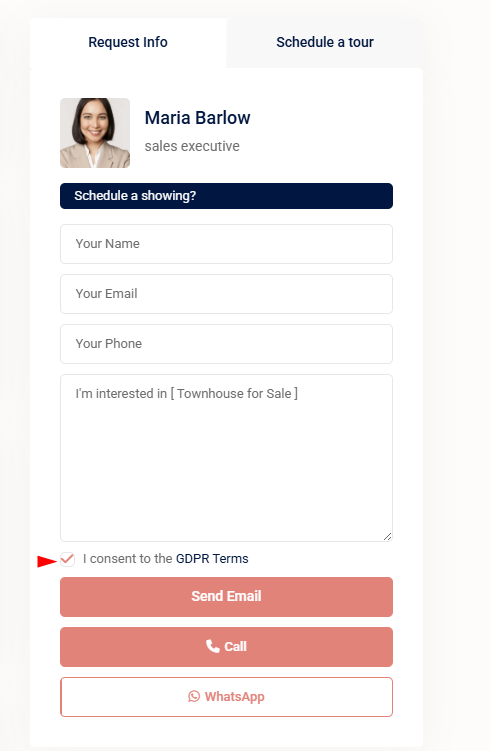
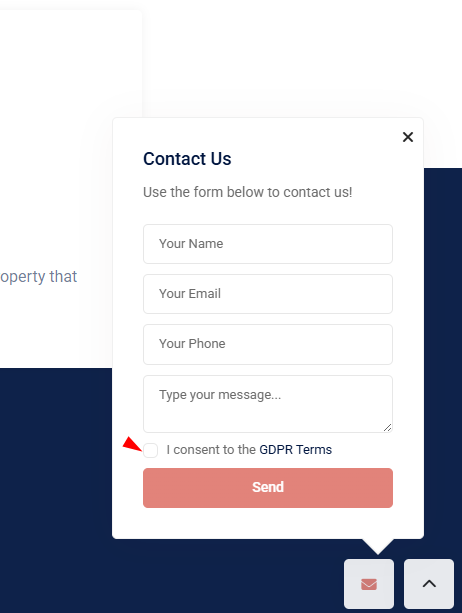
When enabled, the GDPR consent box appears in the theme contact forms, including:
- Agent contact form
- Footer contact form
- Contact page form
- Agency contact form
- Developer contact form
- Property contact form
Agent contact form
Footer contact form
Contact page form
How to Enable the Contact Form Dropdown
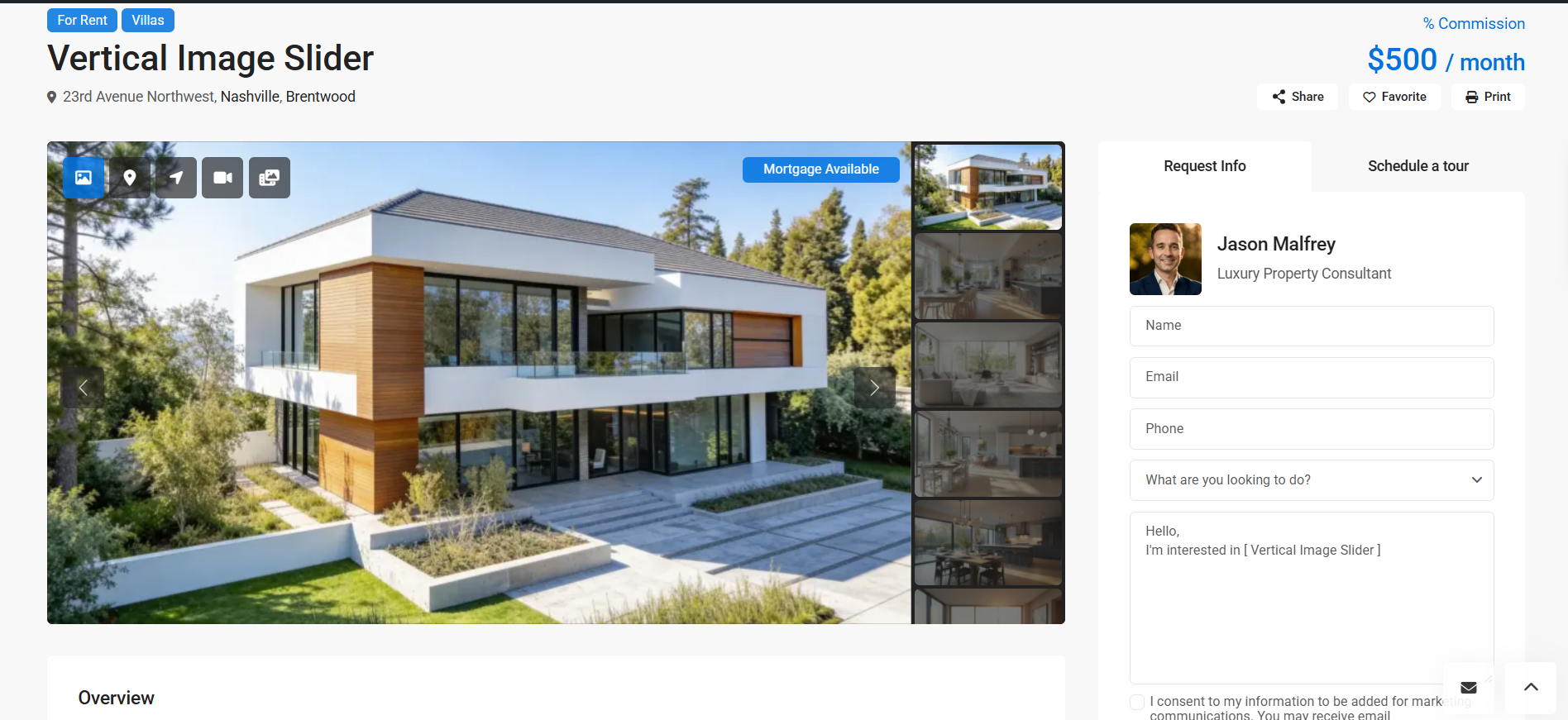
In version 5.6.0, the Contact Form Settings section also includes the option Show “What are you looking to do?” dropdown on contact forms?
If you set this option to Yes, an extra dropdown field will be added to the theme contact forms for:
- Agent contact forms
- Agency contact forms
- Developer contact forms
- Property contact forms
This is useful if you want visitors to choose a contact reason before sending the message.
Typical use cases include:
- buying a home
- selling a home
- renting a home
- investing in a property
- general inquiries
How to Add Dropdown Options
Once the dropdown option is enabled, you can define the choices shown to users in the field Dropdown options (comma-separated).
Add each option separated by a comma.
Example:
Buy a home, Sell a home, Rent a home, Invest in a property, Other, Something new
These values will appear as selectable options in the dropdown field on the contact forms.
This lets you customize the contact form to better match your business type and the actions you want visitors to choose from.
Which Forms Use These Settings
These settings apply to the default theme contact forms.
This includes the standard forms used in:
- Contact page template
- Agent pages
- Agency pages
- Developer pages
- Property pages
- Footer contact areas that use the default theme contact form
If you use a custom form built separately with the Contact Form Builder Elementor widget, that form has its own widget settings and can be configured independently.