
Splash page overview
The Splash Page is a special page template that can display a full-screen intro page with an image, video, or image slider.
The Splash Page settings are managed from:
Theme Options → General → Splash Page
Before configuring the options, you must first create a page that uses the Splash Page template.
Create the Splash Page
Go to Pages → Add New and create a new page.
In the page settings, select the Splash Page template, then publish the page.
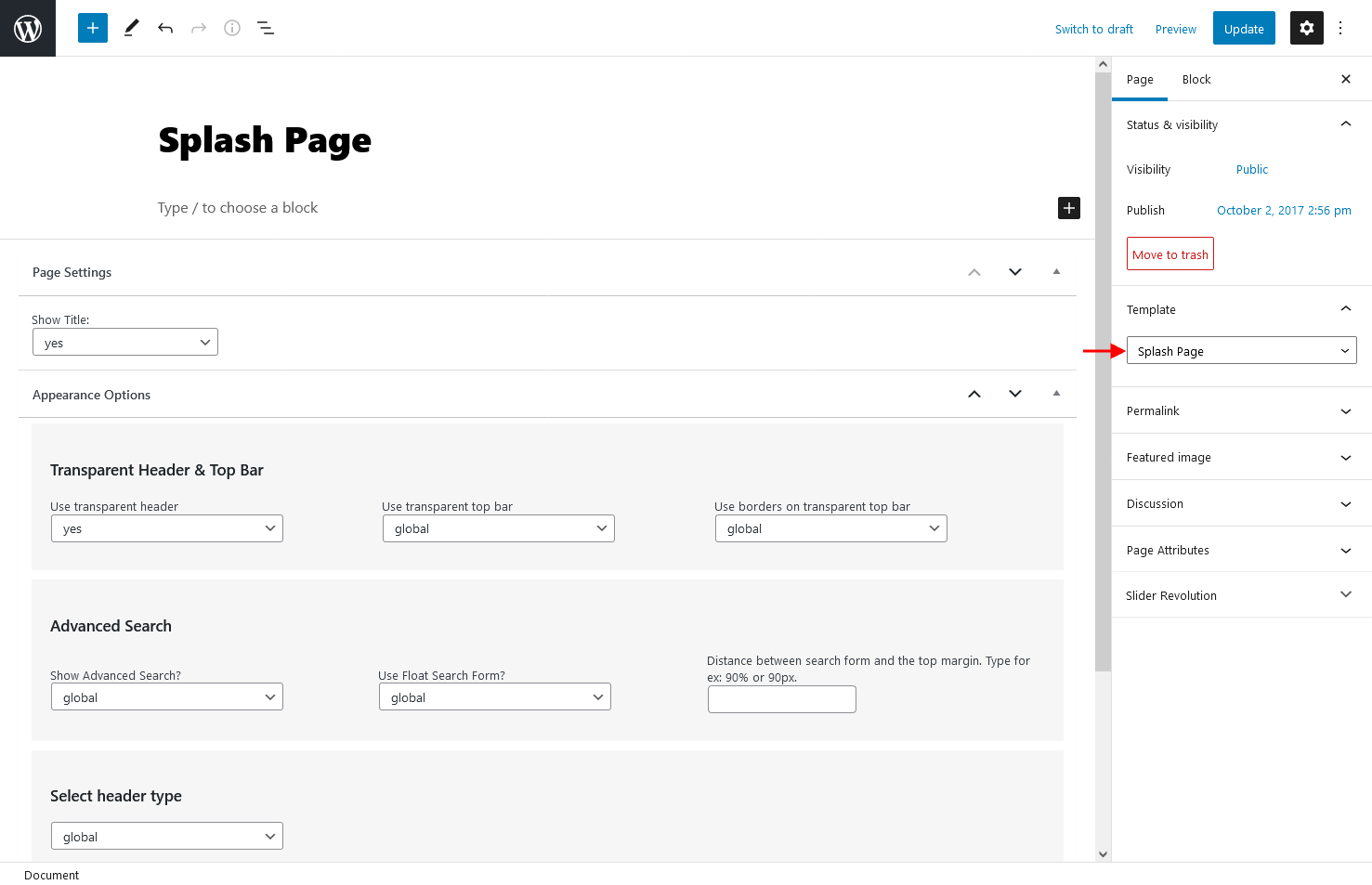
Open the Splash Page settings
Go to:
Theme Options → General → Splash Page
From Select the splash page type, choose how the splash page background should be displayed.
Available options:
- Image
- Video
- Image Slider
Splash Page type: Image
Select Image if you want to use one static background image.
Upload the image in one of these formats:
- .png
- .jpg
- .gif
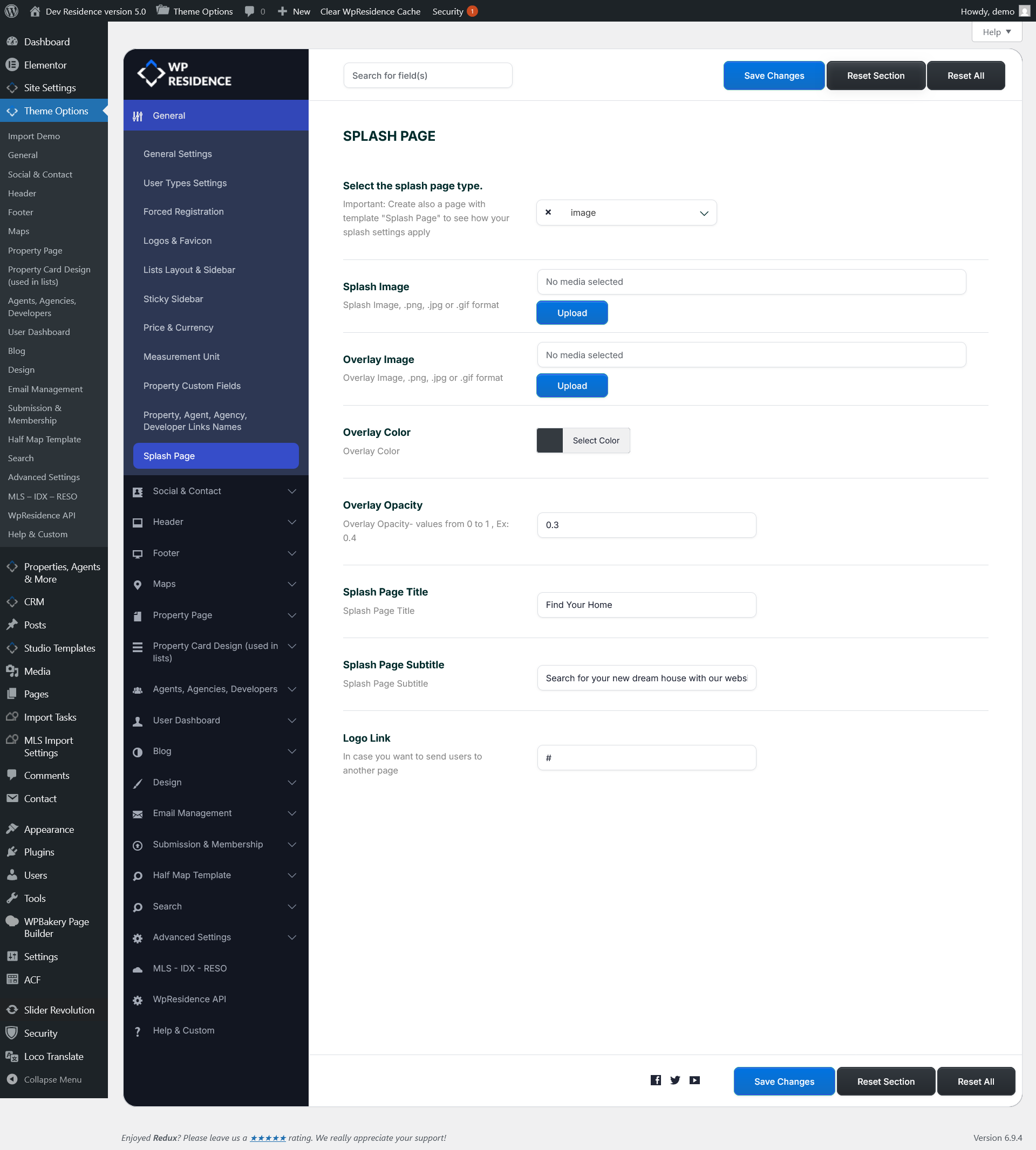
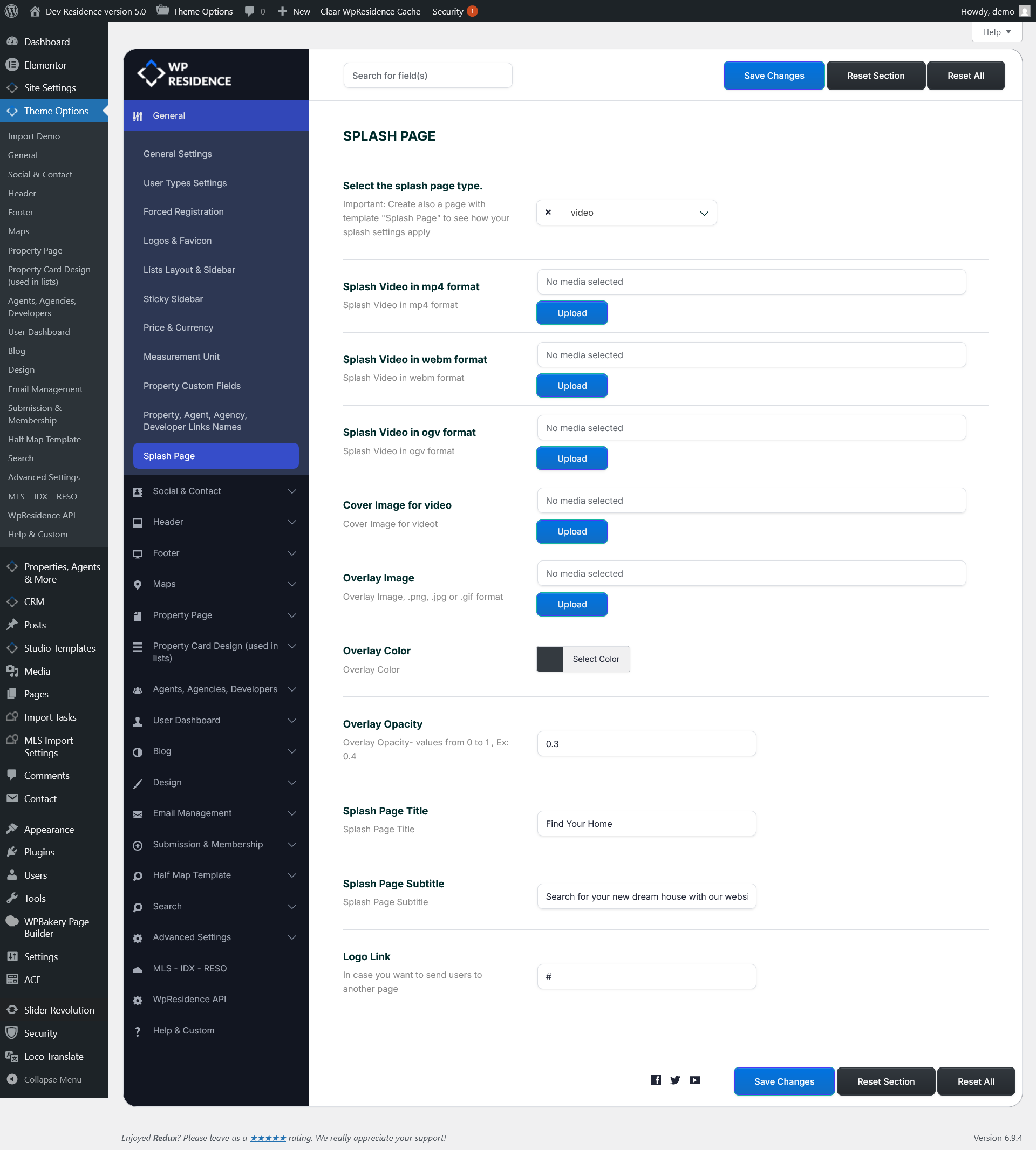
Splash Page type: Video
Select Video if you want to use a video background.
You can upload the video in these formats:
- MP4
- WEBM
- OGV
You can also upload a Cover Image for video. This image is used before the video loads or when the browser cannot autoplay the video.
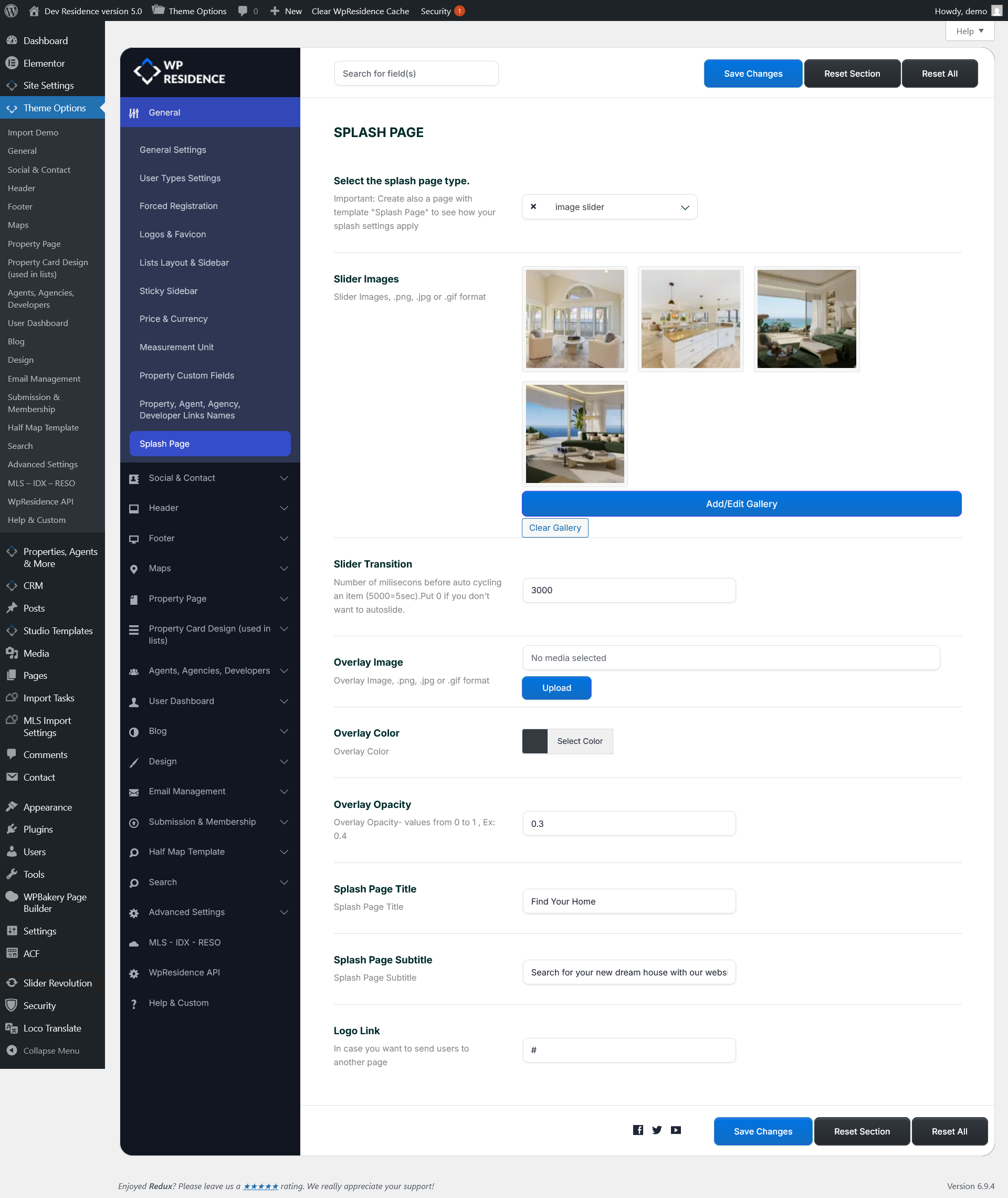
Splash Page type: Image Slider
Select Image Slider if you want the splash page background to rotate through multiple images.
Use Add/Edit Gallery to upload or select the slider images.
Use Slider Transition to control how fast the images change.
- The value is added in milliseconds.
- 3000 means 3 seconds.
- 5000 means 5 seconds.
- Use 0 if you do not want the slider to auto-slide.
Overlay settings
The overlay options help you make the title and subtitle easier to read over the image, video, or slider.
You can configure:
- Overlay Image – upload an overlay image in .png, .jpg, or .gif format.
- Overlay Color – choose a color that will be placed over the background media.
- Overlay Opacity – set the opacity value from 0 to 1.
Example opacity values:
- 0 means no visible overlay.
- 0.3 means a light overlay.
- 0.7 means a stronger overlay.
- 1 means full opacity.
Title, subtitle, and logo link
You can add the main text shown on the Splash Page from these fields:
- Splash Page Title
- Splash Page Subtitle
- Logo Link
Use Logo Link if you want the logo to send users to another page when clicked.
Splash Page widgets
The Splash Page has a dedicated widget area.
Go to:
Appearance → Widgets
Then edit the Splash Page widget area.
