
The Activity section of the WPResidence real estate CRM is your chronological audit trail. Every note added, every form filled, every email sent, every deal moved between stages, every task completed — all of it lands in the timeline automatically.
This article explains what gets logged, how to read the timeline, and how to use it to improve follow-up.
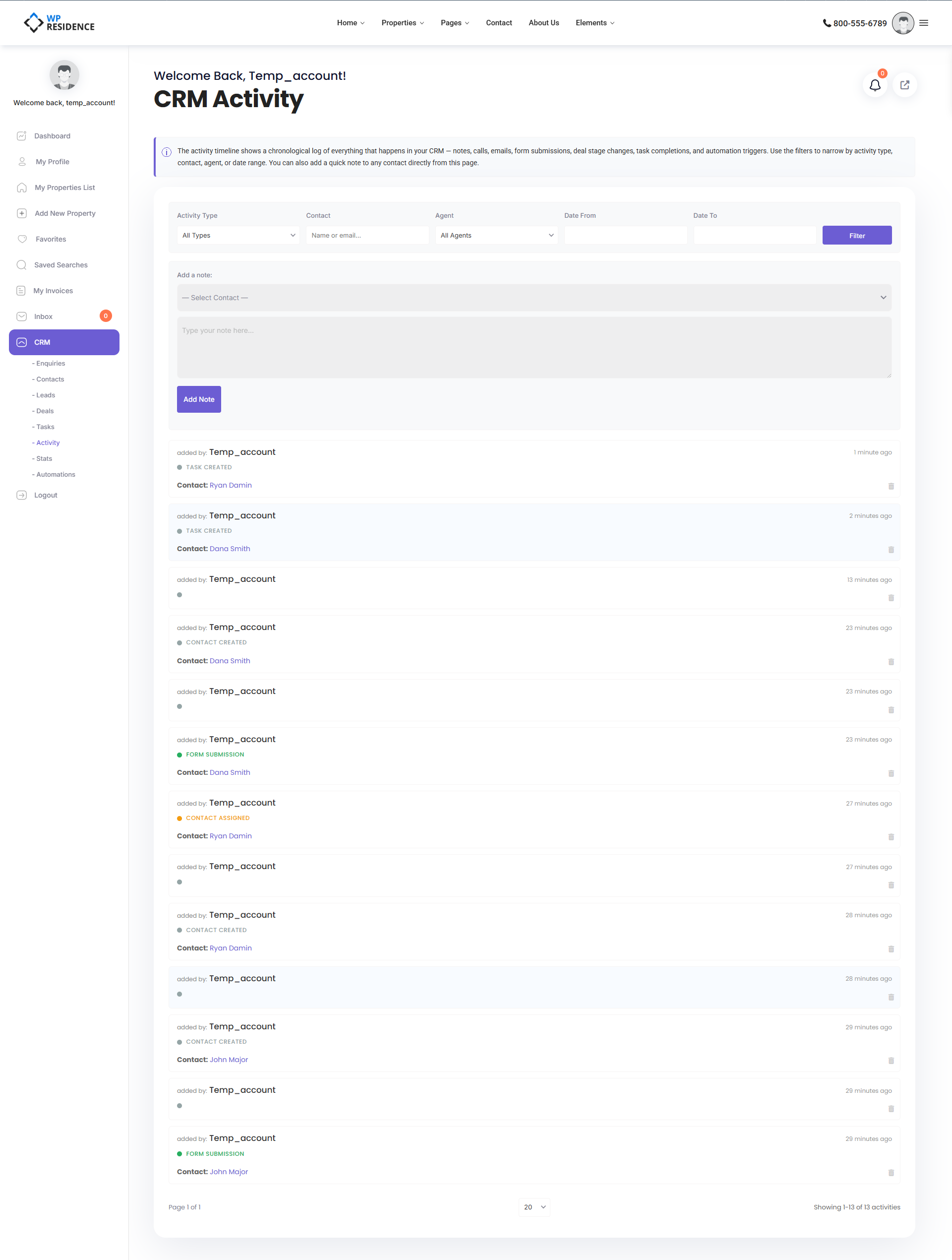
Two Views
Site-Wide Timeline
Click CRM → Activity. You see every activity across the system, most recent first. Admins see all events; agents see events tied to their own contacts and deals.
Per-Contact or Per-Deal Timeline
Open any contact detail page or deal detail page. The timeline on that page is pre-filtered to show only events connected to that record. This is where you will spend most of your time — one glance tells you everything that has ever happened with that client.
What Gets Logged
The CRM records the following activity types automatically:
| Type | When it fires |
|---|---|
| Note | You add a note to a contact, lead, or deal. |
| Form submission | A prospect submits a form on your website. |
| Email sent | You send a notification or matching-listing email. |
| Call | You log a phone call. |
| Contact created | A new contact is added. |
| Lifecycle changed | A contact moves from one lifecycle stage to another. |
| Status changed | Generic status change on an entity. |
| Deal created | A new deal is started. |
| Deal stage changed | A deal moves in the pipeline. |
| Deal won / Deal lost | A deal closes. |
| Task created / completed | Task lifecycle events. |
| Property matched | The matching engine finds listings for a contact. |
| Listing email sent | You email matching listings to a contact. |
| Contact assigned | A contact is (re)assigned to an agent. |
| Viewed listing | A tracked contact opens a property page. |
| Automation triggered | An automation rule fires. |
Adding a Note Manually
On any contact or deal detail page, use the Add Note input. Type what you want to remember, hit save, and it appears instantly in the timeline with your name and a timestamp. Notes are the main way humans add context the system cannot detect automatically.
Filtering the Timeline
The site-wide Activity page lets you filter by:
- Activity type (single or multiple)
- Date range
- Contact or deal
- Assigned user
- Free-text search (across subject and message)
Reading a Timeline Entry
Each entry shows:
- The activity type (as an icon or label).
- A subject — a one-line summary.
- A message — the longer details if any.
- Who performed the action.
- When it happened.
- Links to the related contact, deal, task, or listing.
Using the Timeline to Improve Follow-up
- Before every call, open the contact’s timeline to see the last interaction. Never make a “cold” warm call.
- After every call, add a note. Even a one-liner beats nothing.
- At week’s end, scan the site-wide timeline for prospects with no activity for 7+ days — the Automations module can do this for you, but a manual scan catches what rules miss.
- Before a meeting, review the prospect’s viewed listings and matching properties history.
What Triggers Activity Entries
Most activity rows are created without you doing anything:
- Submitting a form on the public site creates a form submission activity.
- Changing a deal’s stage creates a deal stage changed activity.
- An automation firing creates an automation triggered activity.
Manual additions (notes, logged calls, emails) come from you or your teammates.
Activity and Webhooks
Form submission activities also dispatch webhooks, which is how external tools (Zapier, Make, custom CRMs, HubSpot) can mirror your timeline in real time. See the HubSpot CRM integration guide and the Webhooks article for how this is configured.