
The Featured Agent Elementor widget allows you to showcase one selected agent in a custom Elementor page section.
Use this widget when you want to highlight specific agents on a homepage, landing page, team section, agency page, or any page built with Elementor.
Where you can use the Featured Agent widget
The Featured Agent widget can be used on pages edited with Elementor.
For example, you can use it on:
- Homepage sections
- Team pages
- Landing pages
- Agency presentation pages
- Custom pages created with Elementor
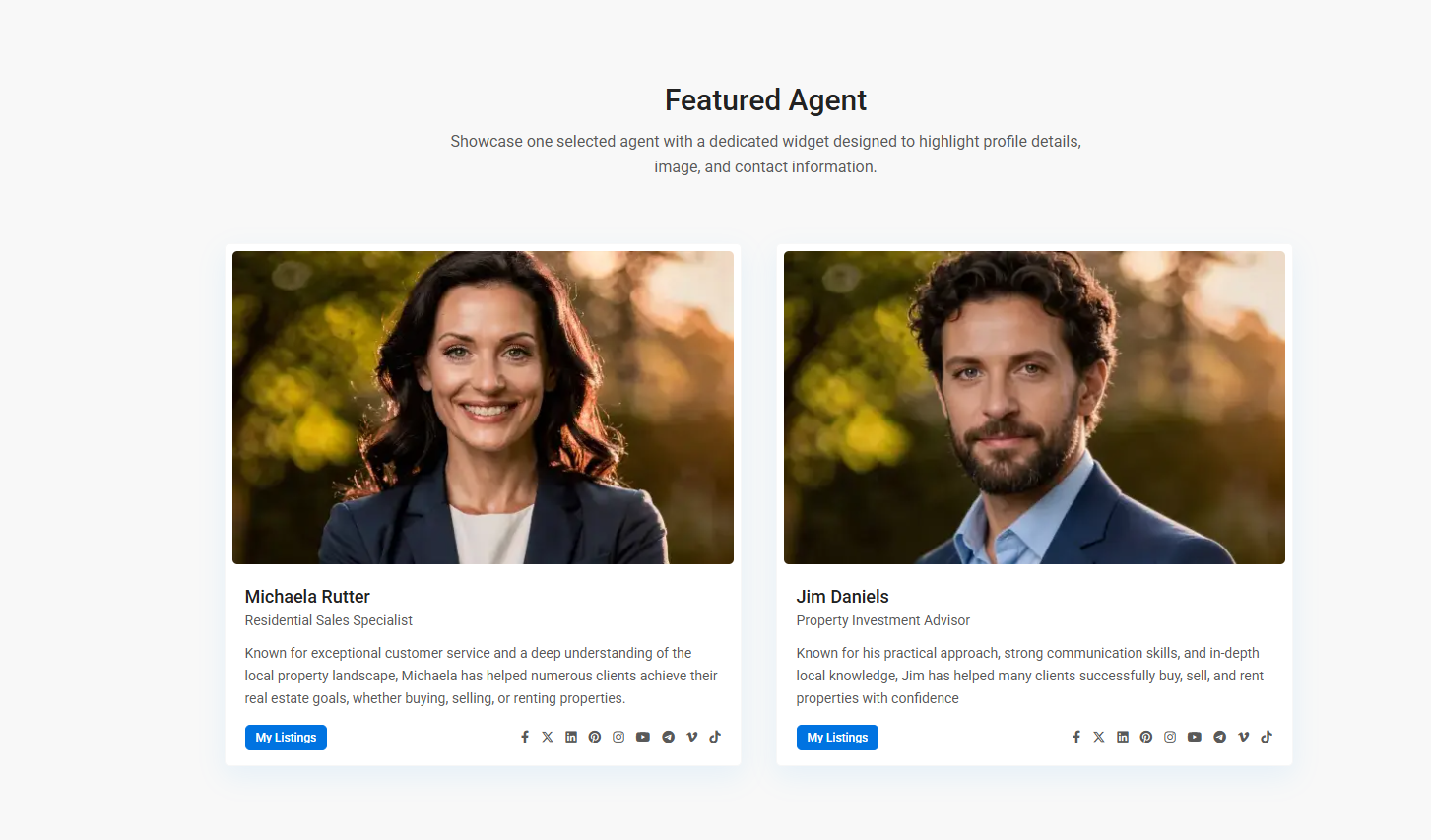
The widget is designed to highlight one selected agent with profile image, name, position, description, contact details, social links, and a My Listings button.
Prepare the Agent profile
Before adding the widget, make sure the agent profile exists and is published.
Go to:
WP Admin > Properties, Agents & More > Agents
Edit the agent profile and check the following details:
- Featured Image – used as the agent image in the widget.
- Agent Details – first name, last name, position, and related profile details.
- Agent Contact – email, phone, mobile/WhatsApp, address, and social links.
After editing the agent profile, click Save or Update.
Add the Featured Agent widget in Elementor
- Edit the page with Elementor.
- Add a new section or choose an existing section.
- Search for the Featured Agent widget.
- Drag the widget into the page layout.
- Use the widget settings to select the agent you want to display.
- Click Update or Publish when finished.
Example of the Featured Agent widget displayed on the front end:
Example of the Featured Agent widget settings in Elementor:
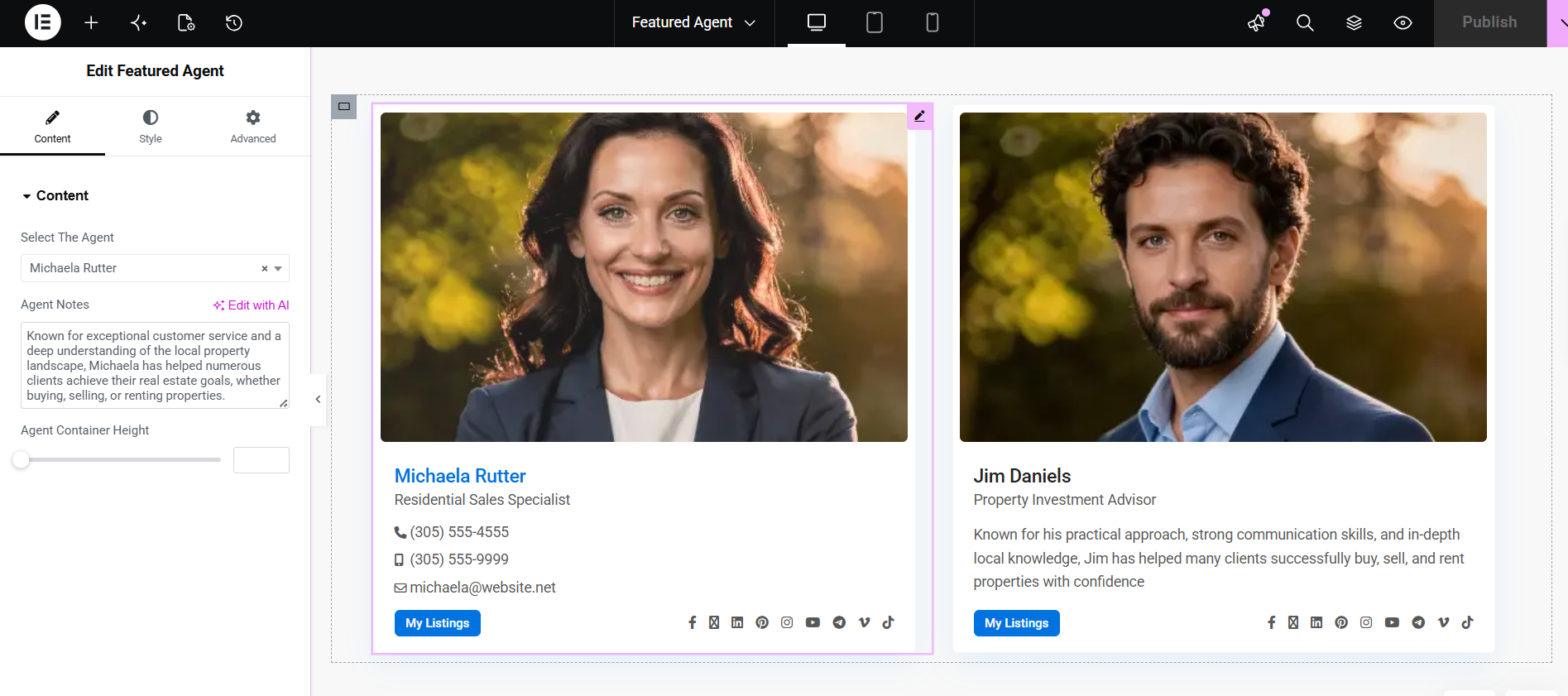
Featured Agent widget settings
Select The Agent
Use Select The Agent to choose which agent profile should be displayed in the widget.
Only existing published agent profiles can be selected.
Agent Notes
Use Agent Notes to add a custom description for the selected agent.
This text is displayed inside the Featured Agent card and can be used to introduce the agent, highlight their experience, or describe their market expertise.
Agent Container Height
Use Agent Container Height to adjust the widget height.
This is useful when you place multiple Featured Agent widgets side by side and want the cards to have a balanced height.
Style and Advanced tabs
The Elementor Style and Advanced tabs can be used to adjust design details such as spacing, margins, padding, responsive behavior, and other Elementor styling options.
Show multiple featured agents
The Featured Agent widget displays one selected agent at a time.
To show more than one featured agent, add multiple columns or containers in Elementor, then add one Featured Agent widget in each column.
For example:
- Add a two-column Elementor section.
- Add one Featured Agent widget in the first column.
- Add another Featured Agent widget in the second column.
- Select a different agent in each widget.
This allows you to create a custom featured agents section, like in the example below.
Important notes
- The Featured Agent widget works with Elementor.
- The widget displays one selected agent profile.
- The agent must be published before it can be selected.
- The agent image comes from the Agent profile featured image.
- The phone, email, position, and social links come from the Agent profile settings.
- The Agent Notes field is added directly in the Elementor widget.
- The My Listings button links to that agent’s listings.
- If you do not see updated details, clear cache and refresh the page.