
The WPResidence real estate CRM supports CSV import and export for contacts, leads, enquiries, deals, and tasks. Bring in a spreadsheet of existing contacts, or pull your CRM into a spreadsheet for analysis — both paths work.
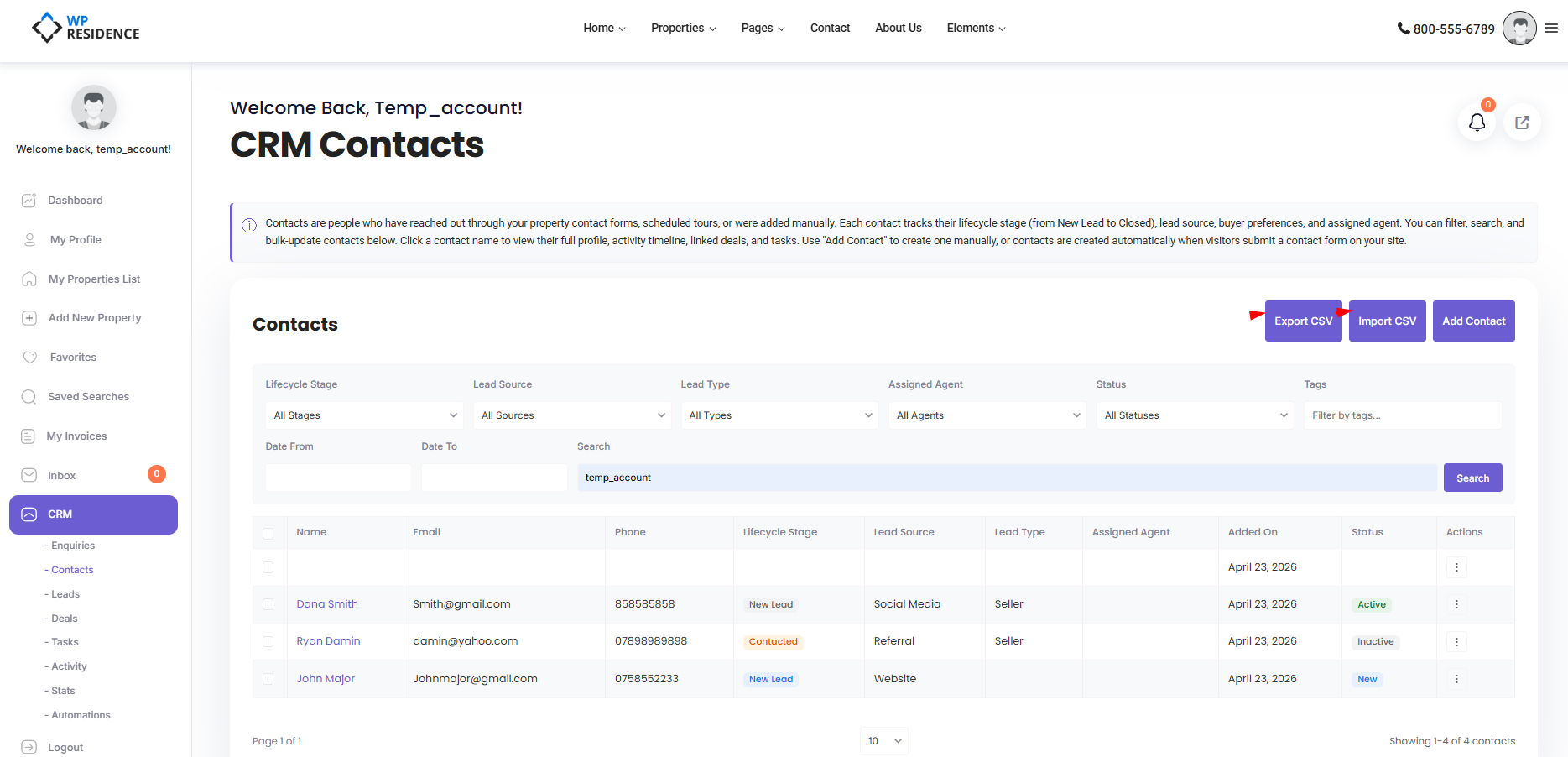
Export
On any list page (Contacts, Deals, Tasks) click the Export CSV button. The CRM generates a UTF-8 CSV with a Byte Order Mark (BOM) so Excel opens it with correct character encoding, regardless of language.
What gets exported
The currently visible scope — admins get everything, agents get only their own records. Filters applied on the list also apply to the export.
Columns
| Entity | Columns |
|---|---|
| Contacts | contact_id, first_name, last_name, email, phone, mobile, address, city, state, zipcode, country, status, created_at |
| Deals | deal_id, contact_id, handler_agent_id, deal_title, deal_stage, deal_value, property_id, expected_close_date, created_at |
| Tasks | task_id, user_id, assigned_to, task_title, task_status, task_type, task_priority, due_date, created_at |
Import
Import is for administrators only. Three steps: upload, map columns, run import in batches.
Step 1: Upload
Click Import CSV on a list page. Select a .csv or .txt file. The CRM reads the first 5 rows for preview and shows them so you can confirm the structure is correct.
Step 2: Map Columns
The CRM auto-maps common column names — email, e-mail, First Name, Last Name, Phone, Tel, Zip, etc. — to the correct database fields. Any column it cannot resolve is marked unmapped and you can set it manually.
Step 3: Duplicate Strategy
Choose what to do when an imported email matches an existing contact:
- Skip — ignore the row, keep the existing contact untouched.
- Update — merge the imported row’s fields into the existing contact.
Step 4: Run Import
The import processes 100 rows per batch and reports progress as it goes. The final summary shows:
- Imported — new rows created.
- Updated — existing rows merged.
- Skipped — rows bypassed due to duplicate-skip choice.
- Errors — rows that failed, with a reason per row.
CSV Format Tips
- UTF-8 encoding. The importer handles the BOM; any UTF-8 encoded CSV will import correctly.
- Email is the deduplication key. If you do not include email, every row creates a new contact.
- Quote values containing commas. Standard CSV rules.
- One header row. The first row is read as column names.
Column Name Aliases
The auto-mapper understands these variations (case-insensitive):
| You write | Mapped to |
|---|---|
| name, firstname, first_name | first_name |
| lastname, last_name, surname | last_name |
| email, e-mail, mail | |
| phone, tel, telephone | phone |
| cell, mobile | mobile |
| zip, postcode, zipcode | zipcode |
Use Cases
- Migration from another CRM. Export contacts from the old system, import here.
- Import a purchased contact list. Make sure you have consent before importing and emailing anyone.
- Export to a spreadsheet for reporting. The stats page shows trends; a spreadsheet lets you slice.
- Backup. Regular exports are a lightweight backup of your data.
Best Practices
- Test on 10 rows before importing 10,000.
- Pause automations before large imports — a welcome-email rule will flood inboxes.
- Run a backup of the full site before a large import.
- Tag imported contacts immediately with the import date and source for traceability.