
If emails are not received from the theme, the first thing to verify is whether standard WordPress emails are working correctly.
This is important because theme emails depend on the same server email functionality. If WordPress itself cannot send emails, theme emails will not work either.
Quick Menu
- 1. Start with standard WordPress email tests
- 2. Check email content in Theme Options
- 3. Verify the sender email
- 4. Check with your hosting provider
- 5. Use an SMTP plugin if needed
- 6. Hosting-specific recommendations
- 7. Recommendations for cloud hosting
- 8. Final conclusion
1. Start with standard WordPress email tests
Before checking theme settings, test if your website can send standard WordPress emails.
The 2 most important tests are:
Test 1: Password recovery email
Use the standard WordPress Lost your password? function from the login page and check whether you receive the reset email.
If this email is not received, it usually means the server mail function is not working correctly.
Test 2: New user account email
Create a test user from Users in wp-admin and select the option to send the account details by email.
If this email is also not received, this confirms that the issue is not theme-specific and should be checked first at server level.
Why these tests matter
These are both standard WordPress email functions. If they fail, the problem is usually related to one of these:
- the hosting mail function is disabled
- the sender email is not accepted by the server
- the mail server needs SMTP configuration
- the receiving email server rejects the message
Only after these standard WordPress emails work correctly should you continue testing theme emails.
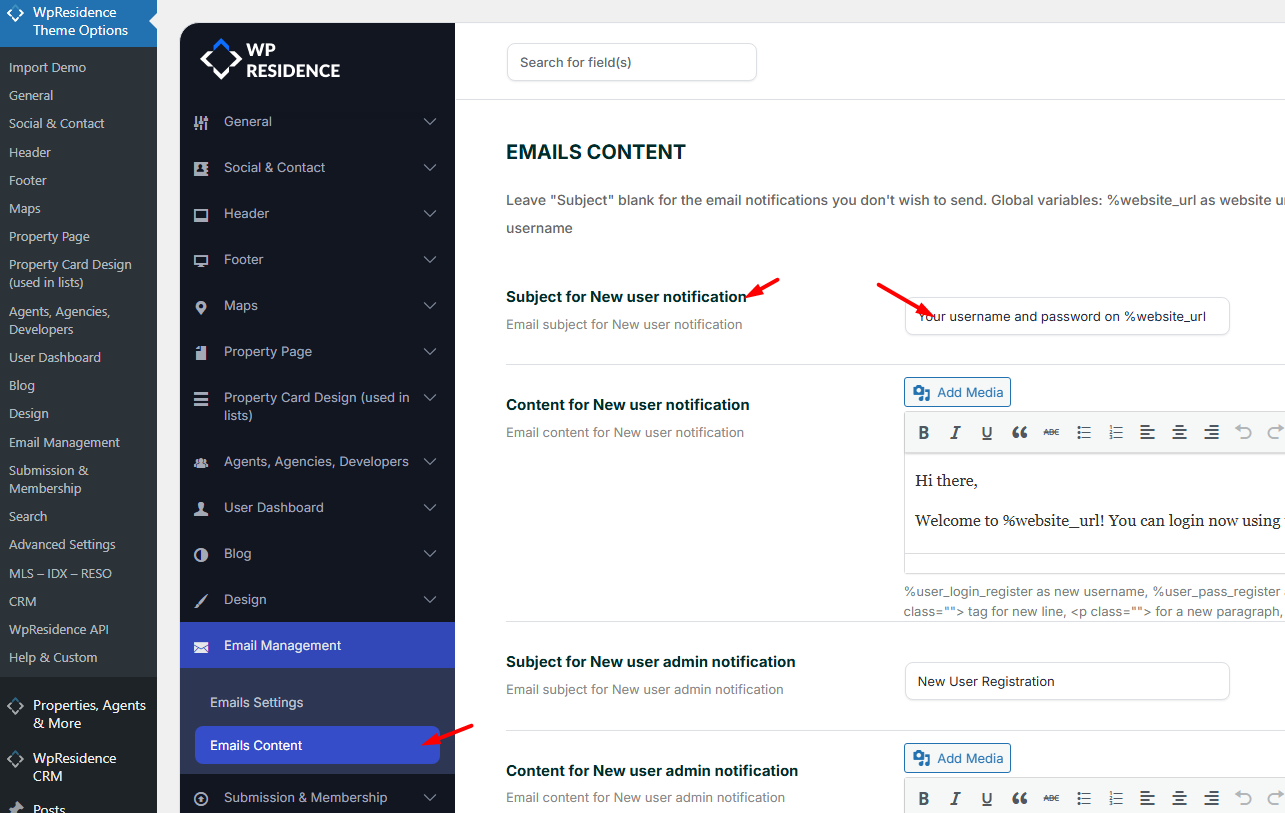
2. Check email content in Theme Options
Before testing theme emails, make sure the email templates in Theme Options contain a valid subject and message content.
Some emails may appear not to work simply because the template is incomplete.
3. Verify the sender email
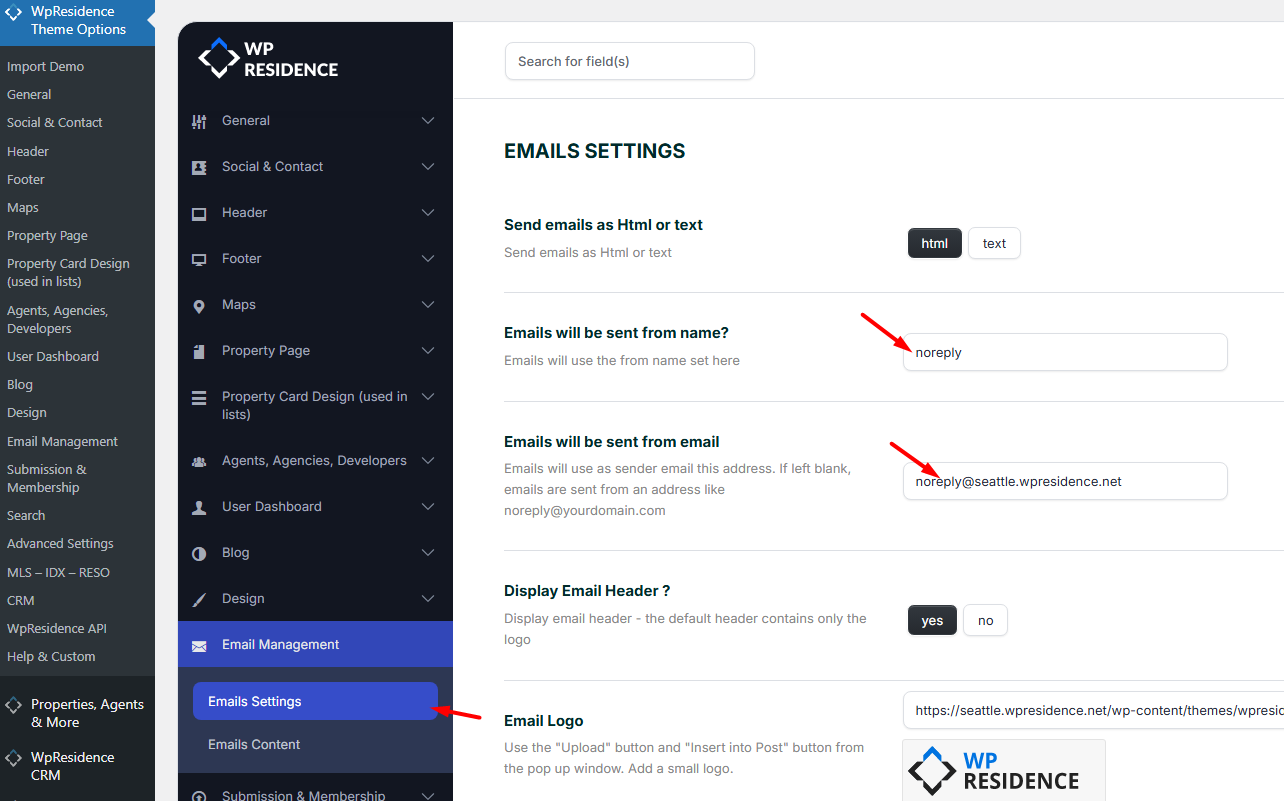
The sender email used by the theme must be recognized by the hosting mail server.
Our theme uses noreply@yourdomain.com as a default sender email address. On some hosting providers, this will not work unless that email address actually exists on the server.
You should either create that email account on your hosting server, or change the sender email in Theme Options to a real email address that already exists on your domain.
For example, if your hosting accepts office@yourdomain.com or info@yourdomain.com, use that same email address in the theme sender email setting.
Important
A working password recovery email can also help confirm which sender email is accepted by the server. If the reset password email is received, note which sender email is recognized by the server and use the same sender email in Theme Options.
4. Check with your hosting provider
If the standard WordPress emails are not being received, the next step is to contact your hosting provider.
Ask them to verify:
- whether the PHP mail function is enabled
- whether outgoing email is allowed on the server
- whether the sender email address is valid and accepted
- whether there are email delivery errors in the server logs
- whether SMTP is required instead of the default mail function
- whether any firewall, spam rule, or server restriction is blocking email delivery
Also test with a general email address
Try receiving emails on a general external email account such as Gmail.
If emails are not received there either, the issue is most likely on the sending side.
If emails are sent but not received only on a specific mailbox, ask hosting to check the domain email setup and MX records.
5. Use an SMTP plugin if needed
Some hosting providers require SMTP authentication for WordPress emails.
In these cases, installing an SMTP plugin can solve the issue.
A commonly used plugin is Post SMTP – https://wordpress.org/plugins/post-smtp/
What to do
Install the plugin and complete the setup wizard with the SMTP details provided by your hosting company.
In many cases, you will need:
- SMTP host
- SMTP port
- email address
- password
- authentication type
- encryption type
Helpful note
An SMTP plugin can also provide an email log. This is very useful because it shows whether WordPress is trying to send emails and what error the server returns.
This information can help your hosting provider identify the exact issue faster.
6. Hosting-specific recommendations
BlueHost
For BlueHost, we recommend checking the following:
- use a real email address from your domain instead of the default noreply email if needed
- try SMTP with port 587 instead of 465
- test different authentication methods if required by server setup
- confirm the exact SMTP details with BlueHost support
In some cases, the setup that worked for clients was:
- sender email created on the domain
- the same email used in WordPress and theme email settings
- SMTP configured through Post SMTP
- port 587 instead of 465
GoDaddy
GoDaddy may also require a valid sender email address and proper mail server recognition.
If standard WordPress emails such as password recovery work, but theme emails do not, make sure:
- the sender email in Theme Options matches the sender email recognized by the server
- the sender email is a real mailbox configured on the hosting account
- no plugin changes have overridden the working configuration
For example, if a reset password email works from a specific sender email, use that same sender email in the theme email settings.
HostGator
If changing the theme sender email is not enough, try the following:
- use an email address from the same domain as your website
- set that same email in WordPress General Settings
- use an SMTP plugin with the same mailbox credentials
7. Recommendations for cloud hosting
Many cloud hosting providers do not include email sending functionality by default.
In these cases, you may need to use a third-party transactional email service.
One option is SendGrid, which offers a free plan with limited daily sending volume:
https://sendgrid.com/en-us/free
If your hosting does not offer mail functionality, you may be able to use a service like SendGrid together with an SMTP plugin.
For a general WordPress setup example, this article may help:
https://kinsta.com/knowledgebase/sendgrid-wordpress/
From the theme side, the sender email configured in the email service must also be added to Theme Options as the sender email.
8. Final conclusion
To sum up, the email requirements are always these:
- the server must be able to send WordPress emails
- the sender email must be recognized and accepted by the server
- if the hosting requires SMTP, it must be configured correctly
The recommended troubleshooting order is:
- test the standard WordPress password recovery email
- test sending a new user account email from wp-admin
- if those fail, contact hosting and ask them to verify the mail function
- if those work, set the same recognized sender email in Theme Options
- test theme emails again
- if needed, configure SMTP with your hosting details
Once standard WordPress email functionality is working correctly, theme emails should work as well. If theme emails still do not work after the server email issue is resolved, further investigation is needed for the specific form or email setup being used.