
Note:
- The plugins bundled with WPResidence are included for all WPResidence customers, so you do not need to purchase separate plugin licenses to use them.
- Some bundled premium plugins, such as WPBakery, Revolution Slider, or Ultimate Addons, may display license or activation notices inside WordPress. These notices apply only if you purchased those plugins directly from their authors. You can ignore these messages when using the versions bundled with the theme.
- Updates for bundled plugins are provided through WPResidence theme updates. After updating the theme, update the required plugins from Appearance → Install Plugins or from the WordPress admin update notice.
- If you have issues installing or updating a bundled plugin, open a ticket in our private support system and we will guide you: https://care.wpestate.org/
What Plugins Are Included with WPResidence
- WPResidence Core Functionality is mandatory. This plugin enables the theme’s core features and Theme Options. Install and activate this plugin before activating your license.
Optional plugins included with the theme (install only what you need):
- One Click Demo Import is used only for demo import. You can remove it after the import is completed. Demo import requires license activation.
- WPResidence Studio is optional and helps you build and assign custom templates using Elementor Free. Use it to create templates for properties and other post types, create custom headers and footers, and import pre-built Elementor sections from demos without importing a full demo.
- WPEstate CRM is optional and adds CRM features for managing leads and contacts from your website. It is commonly used with agent and agency workflows.
- WPResidence Elementor Widgets is optional and required only if you want to use WPResidence widgets inside Elementor. Elementor itself is installed separately from the WordPress repository: https://wordpress.org/plugins/elementor/
- WPResidence Gutenberg Blocks Functionality is optional and recommended if you want to build pages using Gutenberg and WPResidence blocks, without a page builder.
- WPBakery Page Builder is an optional bundled premium plugin. It is used by many older demo layouts and WPBakery-based pages.
- Ultimate Addons for WPBakery Page Builder is an optional bundled premium addon that adds extra WPBakery elements. Install it only if you use WPBakery and need those elements.
- Revolution Slider is an optional bundled premium plugin used to create sliders for header media. Install it only if you need Revolution Slider.
How to Install Plugins
The standard installation method is through the notice shown in the WordPress admin after you install and activate WPResidence. Follow the on-screen prompts to install, activate, or update the required plugins.
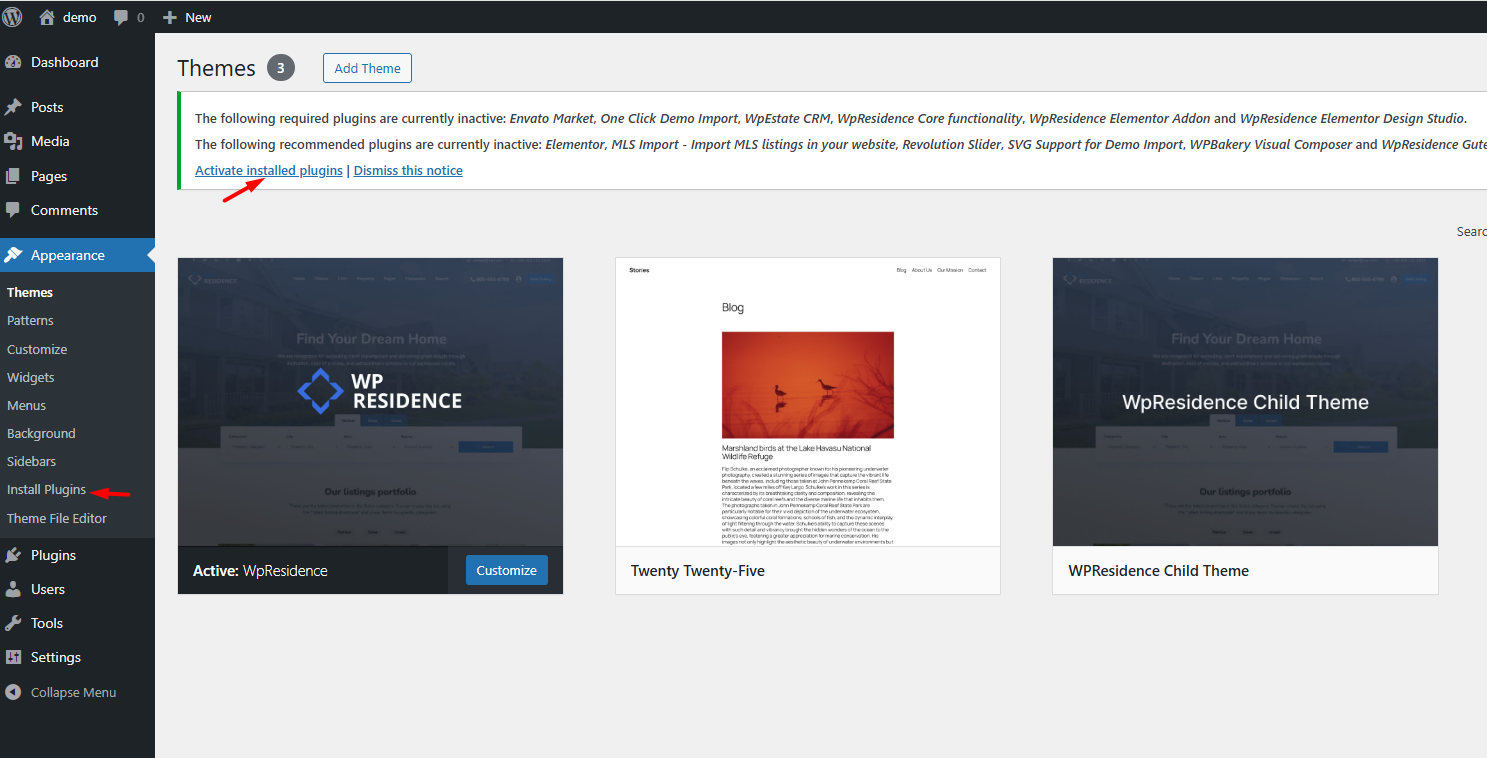
Install from Plugins > Add New (Manual Method)
Sometimes the bundled plugin auto-installer may fail, usually because of hosting limits or blocked server requests. If that happens, you can install the plugins manually using the plugin .zip files included in the theme package. 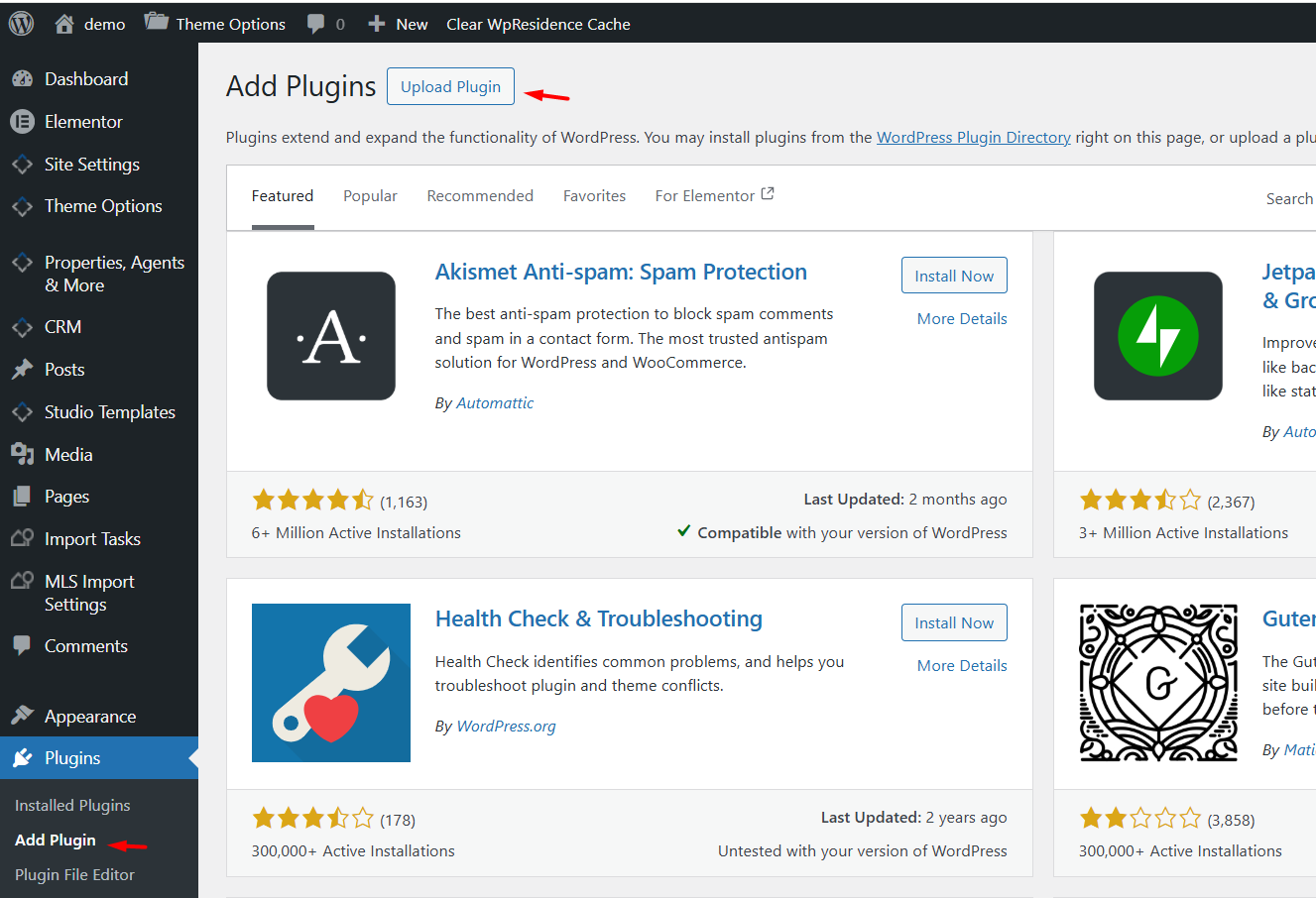
If the auto-installer fails, go to Plugins → Add New → Upload Plugin and upload the plugin .zip file from the theme package plugins folder.
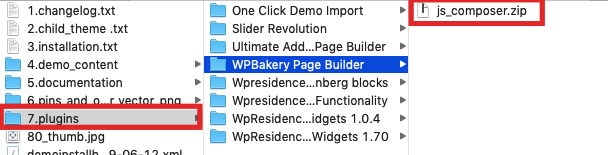
Settings to Check After Plugins Are Installed and Activated
WPBakery Page Builder Design Options: 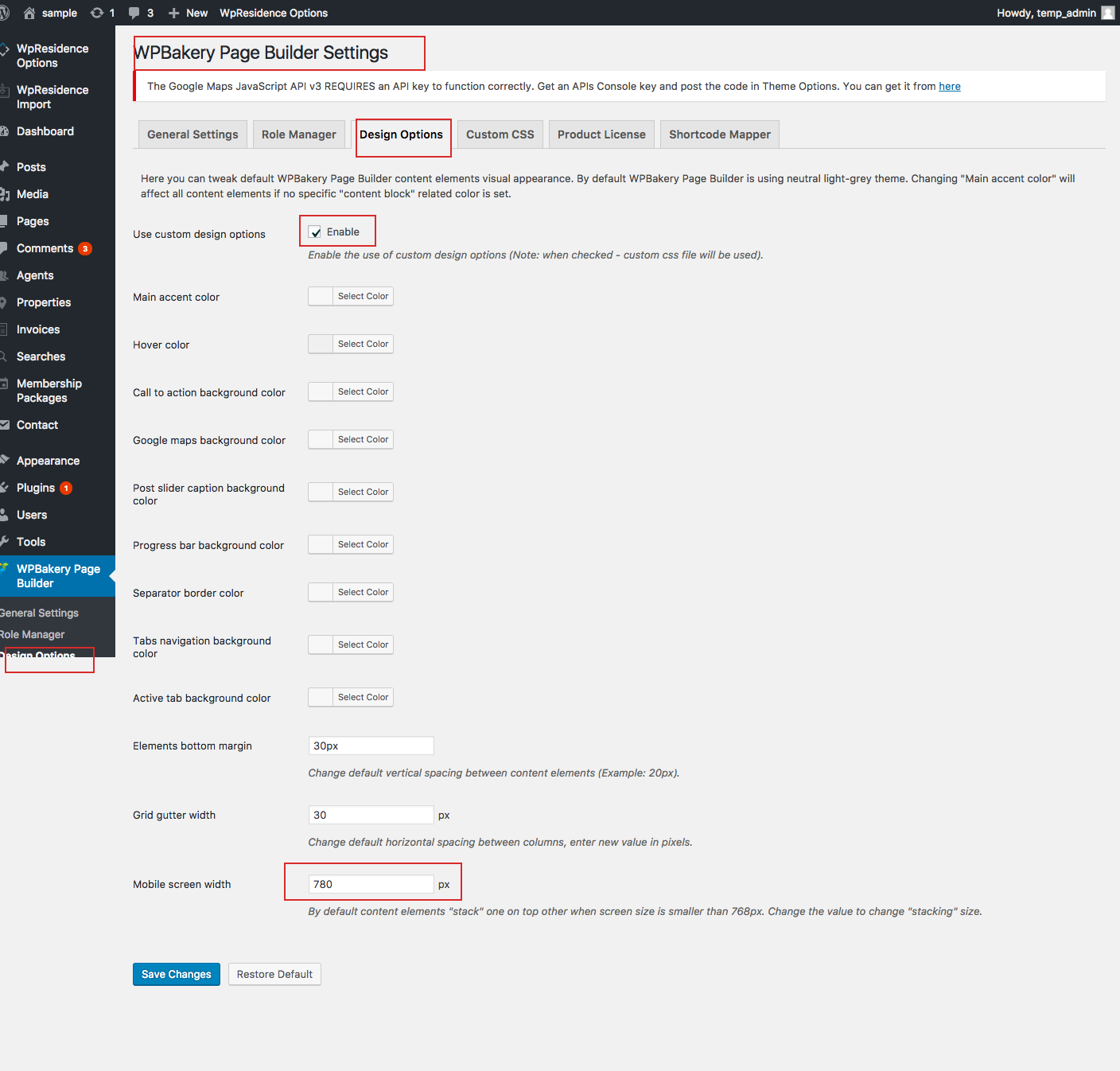
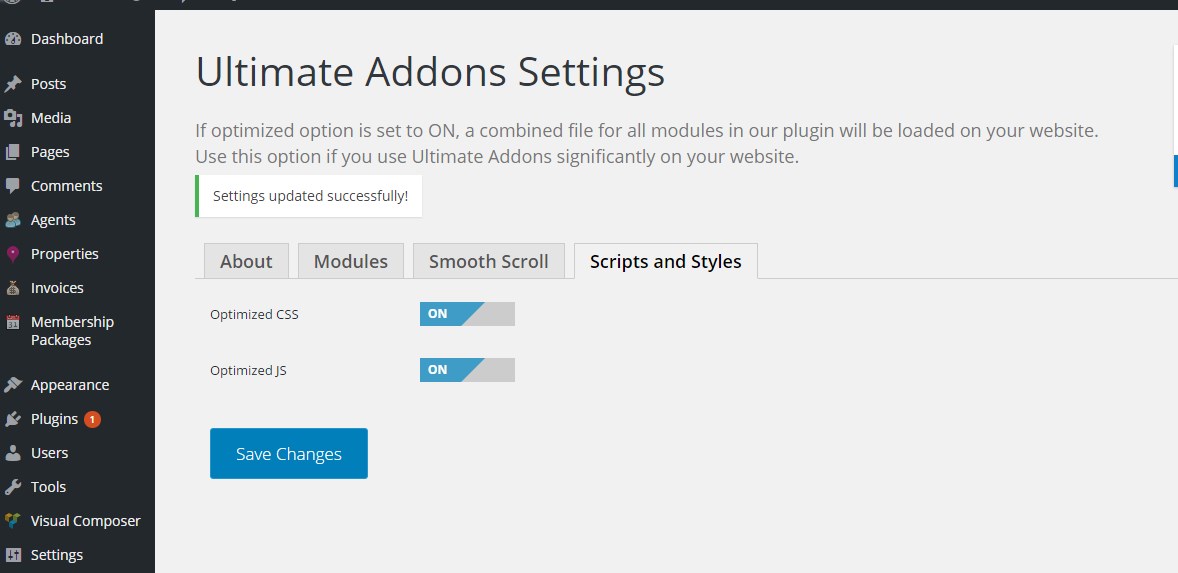
Ultimate Addons Settings: Make sure Scripts and Styles are set as shown in the image below:
FAQ: Plugin Install Fails with “Download Failed. Forbidden”
If you see this message when installing a required plugin:
An error occurred while installing Wp Residence Core Functionality: Download failed. Forbidden
This usually means the theme is active, but the server is blocking WordPress from downloading the plugin package.
In most cases, this is caused by a hosting security rule, firewall, ModSecurity, or another server configuration that blocks external download requests from wp-admin.
What to Check First
- Make sure the theme is installed and activated correctly, then try again from Appearance > Install Plugins.
- Check that your server meets the recommended requirements and that cURL is enabled.
- Temporarily disable any security or firewall plugins, then try the plugin installation again.
- Ask your hosting provider to check whether ModSecurity, a firewall rule, or another security layer is returning a 403 Forbidden response when WordPress tries to download the bundled plugin.
- Confirm that WordPress can write to the /wp-content/plugins/ folder and that there are no file permission restrictions on the server.
- As a workaround, the plugins can be installed manually from the theme package.
If the Issue Continues
Please contact your hosting provider and send them the exact error message. Ask them to verify that external download requests from your WordPress admin are allowed and not blocked by server security rules.
If your hosting provider confirms there is no block and the problem still persists, please open a support ticket and include a temporary wp-admin login and a screenshot of the full error message so we can check further:
https://care.wpestate.org/