
Before reading this help file you may want to check this video. It explains how to change the theme fonts and more and may be easier to understand.
Watch Video on Youtube
Fonts overview
WPResidence allows you to customize the typography used across the theme.
You can set different font options for headings, paragraph text, and menu text.
Where to find the font settings
Go to:
Theme Options → Design → Fonts
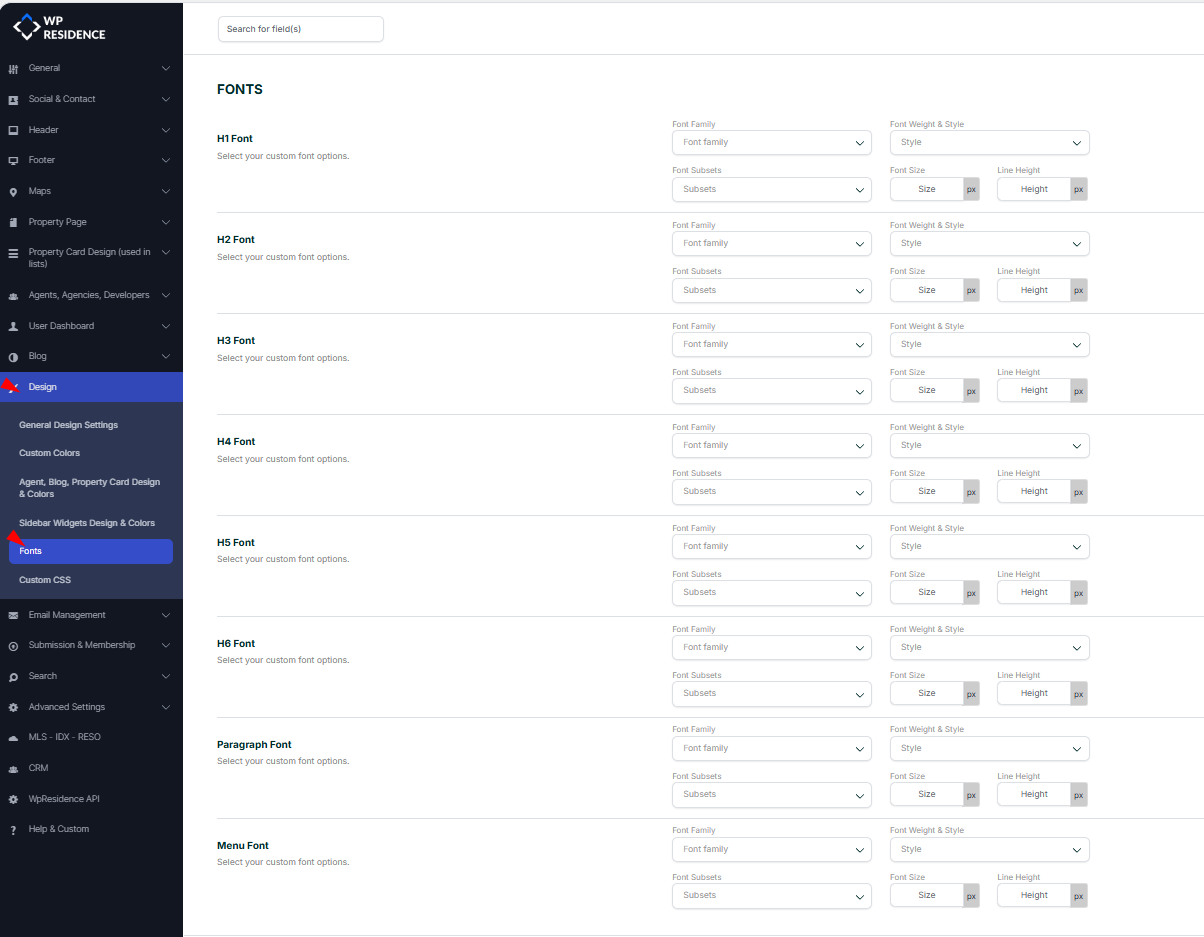
Font areas you can customize
The Fonts section lets you customize typography for:
- H1 Font – used for main page headings.
- H2 Font – used for second-level headings.
- H3 Font – used for third-level headings.
- H4 Font – used for fourth-level headings.
- H5 Font – used for fifth-level headings.
- H6 Font – used for sixth-level headings.
- Paragraph Font – used for regular text content.
- Menu Font – used for the main menu text.
Font options explained
Each font area includes the same type of controls:
- Font Family – select the font family you want to use.
- Font Weight & Style – select the font weight or style, such as regular, bold, italic, or other available variants.
- Font Subsets – select the font subset when needed, depending on the language used on your site.
- Font Size – add the font size in pixels. Use numbers only.
- Line Height – add the line height in pixels. Use numbers only.
For example, if you add 18 in the font size field, the theme will apply 18px.
Important notes
- Leave a field blank if you want to keep the theme default value for that option.
- Only use numbers in the Font Size and Line Height fields.
- After changing font settings, click Save Changes.
- If the new fonts do not show right away, clear the theme cache and browser cache.
Tip: Avoid using too many different font families on the same website. For a clean design, it is usually better to use one font for headings and one font for paragraph/menu text.