
This FAQ explains what to do if the video header imported with a WPResidence demo stops working, changes, or no longer shows the same video as the demo website.
Demo videos are added only as sample content. They are used to show how the design works. They should be replaced with your own video before using the website as a live production site.
Why the Demo Video Can Stop Working
Some WPResidence demos use a video header on the homepage.
The video can stop working or look different if the video was loaded from a third-party source, such as Vimeo or YouTube.
This can happen because:
- The video owner changed the video privacy settings.
- The video was removed from the third-party platform.
- The external video link changed.
- The third-party platform changed how the video can be embedded.
- The demo website was updated with another sample video.
WPResidence does not control videos hosted on third-party accounts. Because of this, demo videos cannot be guaranteed to stay available forever.
Is the Demo Video Part of the Theme?
No. The demo video is sample content.
It is added to show how the homepage video header design works. It is not included as permanent media for a live website.
For a live website, replace the demo video with a video you control.
This is the safest setup because the video will not depend on a third-party demo link that may change later.
Where to Replace the Homepage Video
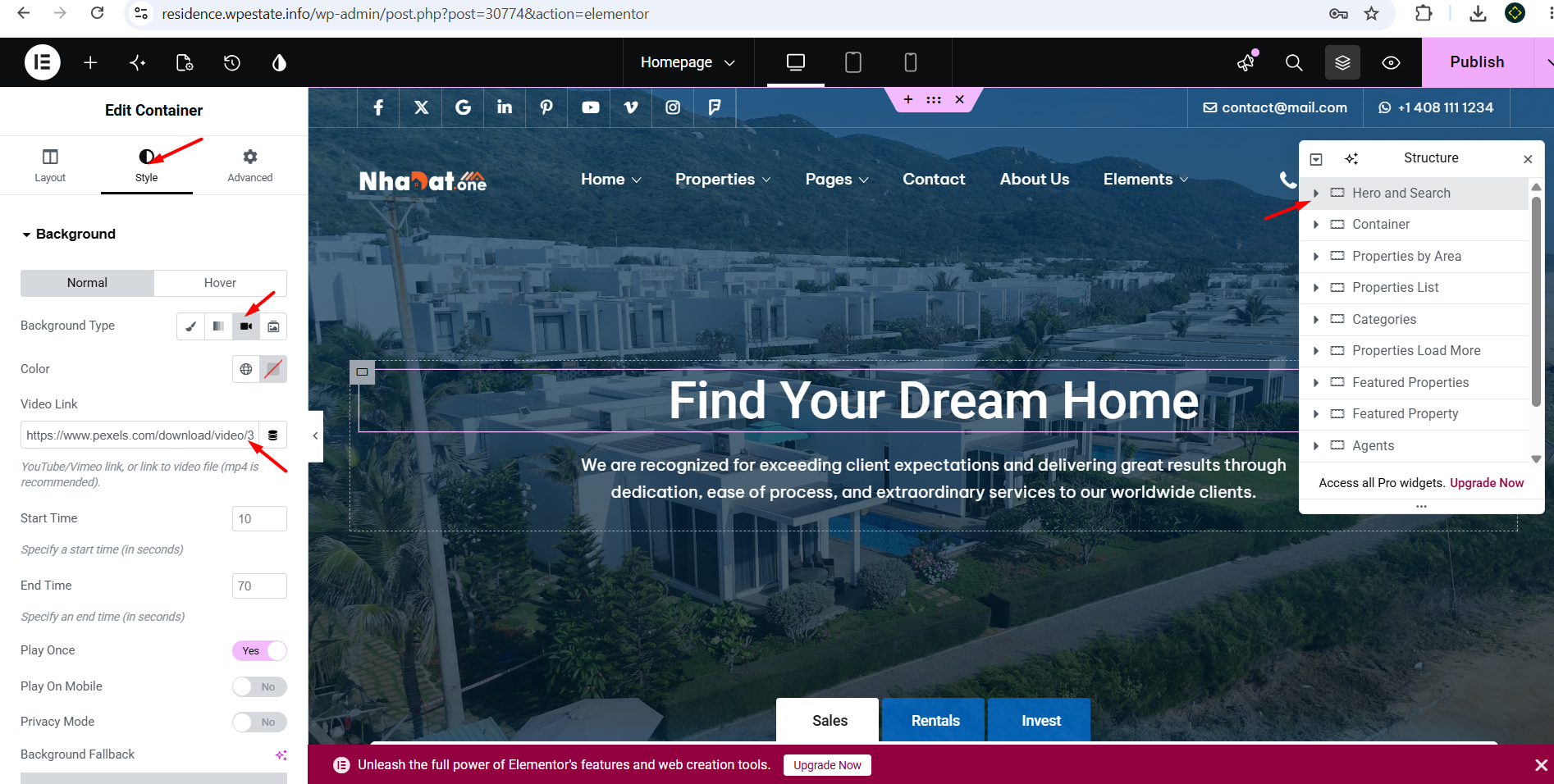
If the video header is added with Elementor, edit the homepage with Elementor.
Go to:
Pages > All Pages
Edit the homepage, then click:
Edit with Elementor
Select the section that contains the video header.
Go to:
Style > Background > Background Type > Video
Replace the old video link with your new video link.
After replacing the video link:
- Click Update in Elementor.
- Clear the WPResidence cache, if used.
- Clear cache from any cache plugin, server cache, or CDN.
- Clear browser cache.
- Check the homepage again.
What Video Link Should I Use?
For the most stable setup, use a video file or video link that you control.
You can use:
- A video uploaded to your WordPress Media Library.
- A video uploaded to your own server.
- A video hosted on your CDN.
- A video from your own Vimeo or YouTube account.
- A direct video link from a stock video source, if allowed by that source.
For Elementor background videos, an MP4 file link is usually the most stable option.
Using Free Stock Videos
If you do not have your own video, you can use a free stock video source.
One option is Pexels Videos:
https://www.pexels.com/videos/
Before using any video, check the license terms from that website and make sure the video can be used on your site.
After downloading the video, you can upload it to your WordPress Media Library, server, or CDN, then use the video file link in the Elementor Background Video field.
Recommended Video Setup
For a homepage video header, we recommend:
- Use your own video or a video file you are allowed to use.
- Use a short video, usually 10 to 30 seconds.
- Compress the video before uploading it.
- Use MP4 format.
- Avoid very large video files, because they can slow down the homepage.
- Add a fallback background image for mobile or slow connections.
- Test the page on desktop, tablet, and mobile.
Important Notes
- Demo videos are sample content and should be replaced on live websites.
- WPResidence cannot guarantee that a Vimeo, YouTube, or external demo video will remain available forever.
- If the demo video changes on the demo website, this does not mean the theme is broken.
- If your site still uses the old demo video link, replace it with your own video link.
- If the video is added with Elementor, edit the homepage section and replace the video URL from the Elementor background settings.
- After changing the video, clear all cache and test again.