
The WPResidence real estate CRM integrates with HubSpot out of the box. Every contact you create, every deal you open, every stage change you make in the WPResidence CRM is pushed to HubSpot in real time. If you already run HubSpot as your central sales platform, this is how you keep the two in sync without double data entry.
For full architectural detail and use cases, also see the HubSpot CRM integration page.
What Gets Synced
| When | What the CRM does |
|---|---|
| A contact is created in WPResidence | Creates (or updates) a HubSpot contact, matched by email. |
| A contact is updated | PATCHes the matching HubSpot contact. |
| A deal is created | Creates a HubSpot deal, associates it to the contact. |
| A deal stage changes | Updates the HubSpot deal’s stage using your stage map. |
| A deal value changes | Updates the HubSpot deal’s amount. |
Setup
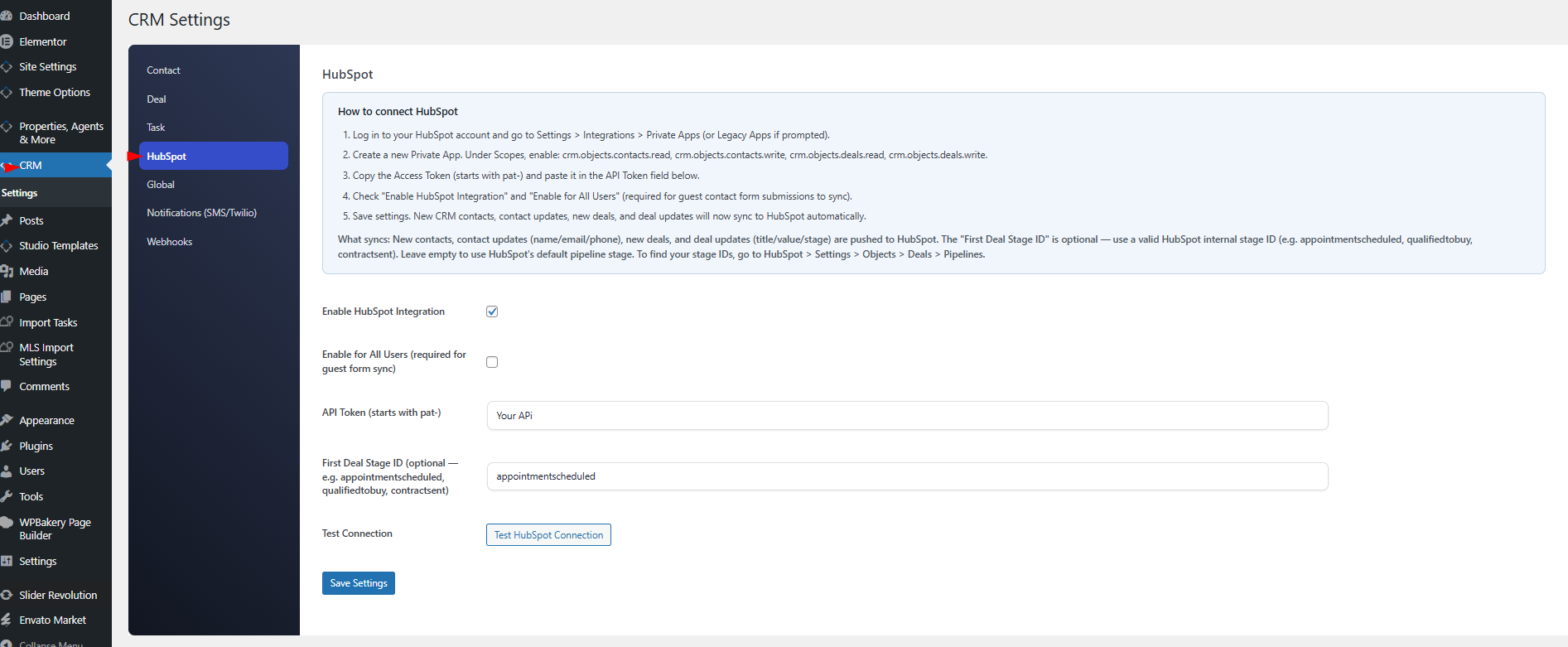
- In HubSpot, create a Private App with the following scopes: contacts (read + write) and deals (read + write).
- Copy the Private App access token.
- Go to CRM Settings → HubSpot.
- Paste the token into API Token.
- Enable the HubSpot Integration master switch.
- Optionally enable Sync for All Users to sync contacts from guest form submissions (not just admins).
- Save.
Testing the Connection
Use the Test Connection button on the HubSpot settings tab. The CRM runs four checks:
- Read contacts.
- Read deals.
- List pipelines and count stages.
- Create a test contact, then delete it.
The result message details which checks passed and pinpoints any failures (authentication, missing scope, network error).
Stage Mapping
Every CRM deal stage must be mapped to a HubSpot pipeline stage ID. HubSpot uses internal IDs like appointmentscheduled or closedwon rather than display names.
Configure the mapping in the HubSpot settings tab. A typical map:
| CRM stage | HubSpot stage ID |
|---|---|
| New | appointmentscheduled |
| Viewing Scheduled | qualifiedtobuy |
| Offer Made | presentationscheduled |
| Negotiation | decisionmakerboughtin |
| Closed Won | closedwon |
| Closed Lost | closedlost |
Set the First Stage setting to the HubSpot stage ID that new deals should land in if no explicit mapping exists.
Contact Field Mapping
| CRM field | HubSpot property |
|---|---|
| First name | firstname |
| Last name | lastname |
| email (dedupe key) | |
| Mobile | phone |
| City | city |
| State | state |
| Country | country |
Duplicate Handling
The CRM searches HubSpot by email before creating a contact. If a matching HubSpot contact exists, the CRM PATCHes it instead of creating a duplicate. Empty CRM fields do not overwrite existing HubSpot values — sync is non-destructive.
Which Direction Is the Sync?
Currently the sync is one-way: WPResidence CRM → HubSpot. Changes made in HubSpot do not flow back into the WPResidence CRM.
Troubleshooting
- “Auth failed”: your token is wrong or expired. Generate a fresh one.
- “Missing scope”: the Private App does not have contacts or deals scope enabled. Add them in HubSpot.
- Deal not appearing: check that your stage mapping includes the current stage.
- Contacts syncing but not deals: check the First Stage setting is a valid HubSpot stage ID.
Best Practices
- Enable Sync for All Users if you want website form submissions to push to HubSpot, not just admin-created contacts.
- Test with a handful of contacts before enabling on a busy site.
- Build reports in HubSpot — the WPResidence Stats page is your local view; HubSpot is your cross-channel analytics.