
Property matching is one of the highest-value features in the WPResidence real estate CRM. You capture a buyer’s preferences once — price, beds, baths, size, location, property type — and the system surfaces every listing that fits them, and can email them the matches in a branded email, any time you want.
Capturing Buyer Preferences
On the contact detail page, fill in the Buyer Preferences section:
- Minimum and maximum price.
- Minimum and maximum bedrooms.
- Minimum and maximum bathrooms.
- Minimum and maximum area (square feet/meters).
- Preferred locations (cities or areas).
- Preferred property type and status.
Once saved, the contact has a “match profile”. The more fields you fill in, the tighter the matches.
Auto-Pre-Fill from Form Submissions
When a form submission includes a property ID (for example, a “contact agent about this listing” form), the CRM automatically populates the contact’s buyer preferences using that listing’s attributes:
- Property type and location from the listing.
- Bedrooms and bathrooms copied directly.
- Price range set to 80%–120% of the listing’s price.
- Area range set to 80%–120% of the listing’s size.
This saves you from hand-entering preferences every time a prospect shows interest in a specific property.
Running a Match
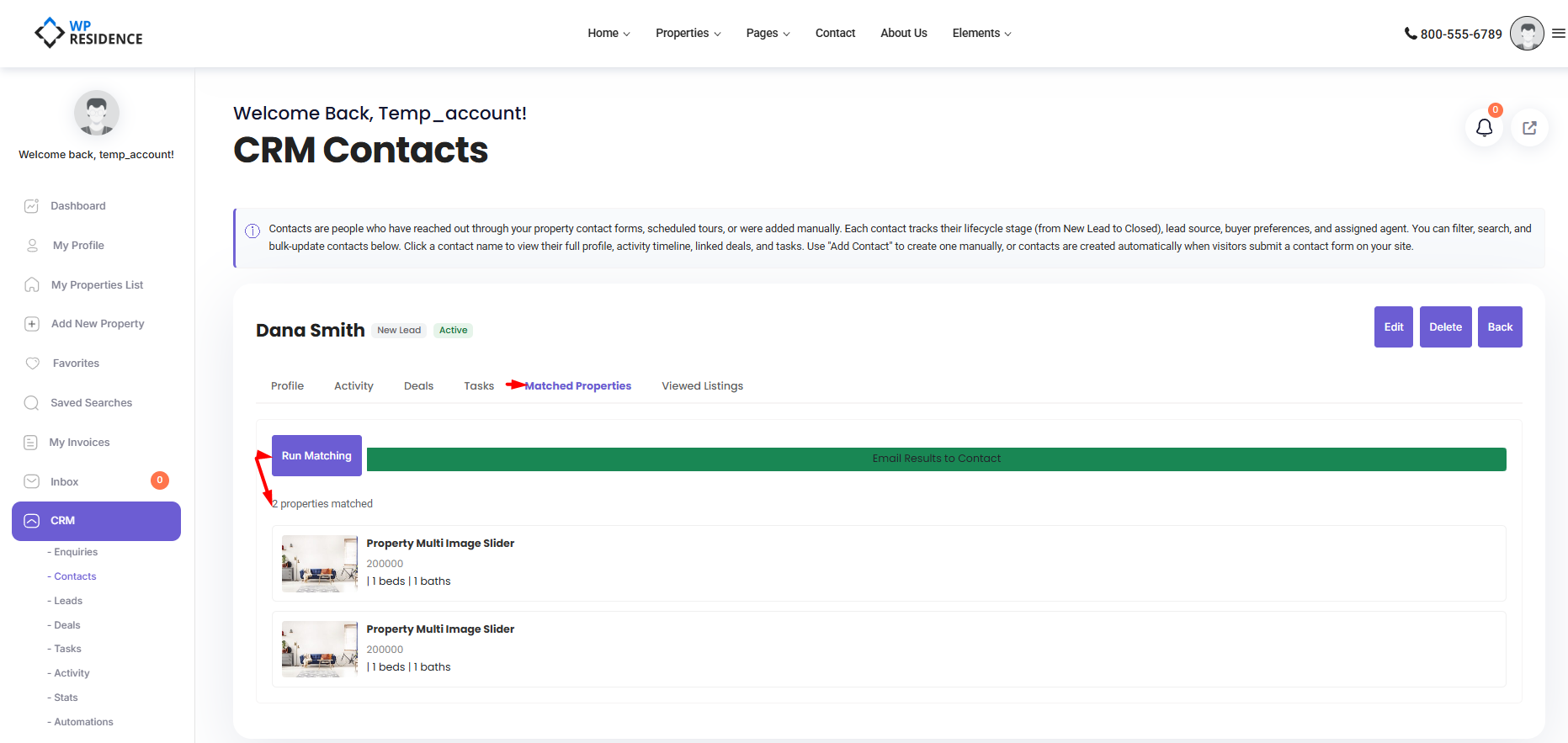
On the contact detail page, find the Matching Properties panel. Click Run Match. The CRM queries your live listing database using the contact’s preferences and returns a paginated list of matches with thumbnails, price, beds, baths, and area.
Emailing Matches to a Contact
From the match results panel, click Email These Listings. The CRM builds a branded HTML email with a property card for each match and sends it to the contact’s email address. The subject line, header, and footer come from your CRM settings.
A listing_email_sent activity is recorded on the contact timeline so you and your team can see exactly what was sent and when.
Automatic Matching
Two built-in automations handle matching without you lifting a finger:
- On new listing published — the CRM scans all contacts with buyer preferences and sends each one the new listing if it matches.
- Weekly re-match — a weekly job re-runs matching on every active contact with preferences.
Both rules ship paused. Turn them on in the Automations section when you are ready.
Matching with Viewed Listings
The CRM also tracks which listings a contact actually viewed. If a contact views 3+ listings in 24 hours, there is a default automation that creates a “strong interest” follow-up task. Combined with matching, this gives you a near-real-time signal of who to call today.
Best Practices
- Ask for preferences early. A contact with buyer preferences is 10x easier to service.
- Keep ranges realistic. Super-tight ranges miss good matches; super-wide ranges spam your buyer with noise.
- Review the matching email template. Have an administrator customize the subject and wrapper so it sounds like you.
- Watch the activity log. If a contact has never opened any listing email, consider changing the approach.
Privacy
Buyer preferences and match history are visible to admins and to the assigned agent. If the contact ever asks what you have on file, show them — under most privacy rules, they have a right to see it.