
Notes are the human memory of your real estate CRM. They are the one-liners after a phone call, the context after a viewing, the reminders about a client’s preferences that the system cannot detect on its own.
This article explains where to add notes, how they are organized, and how to use them to build an accurate, useful history.
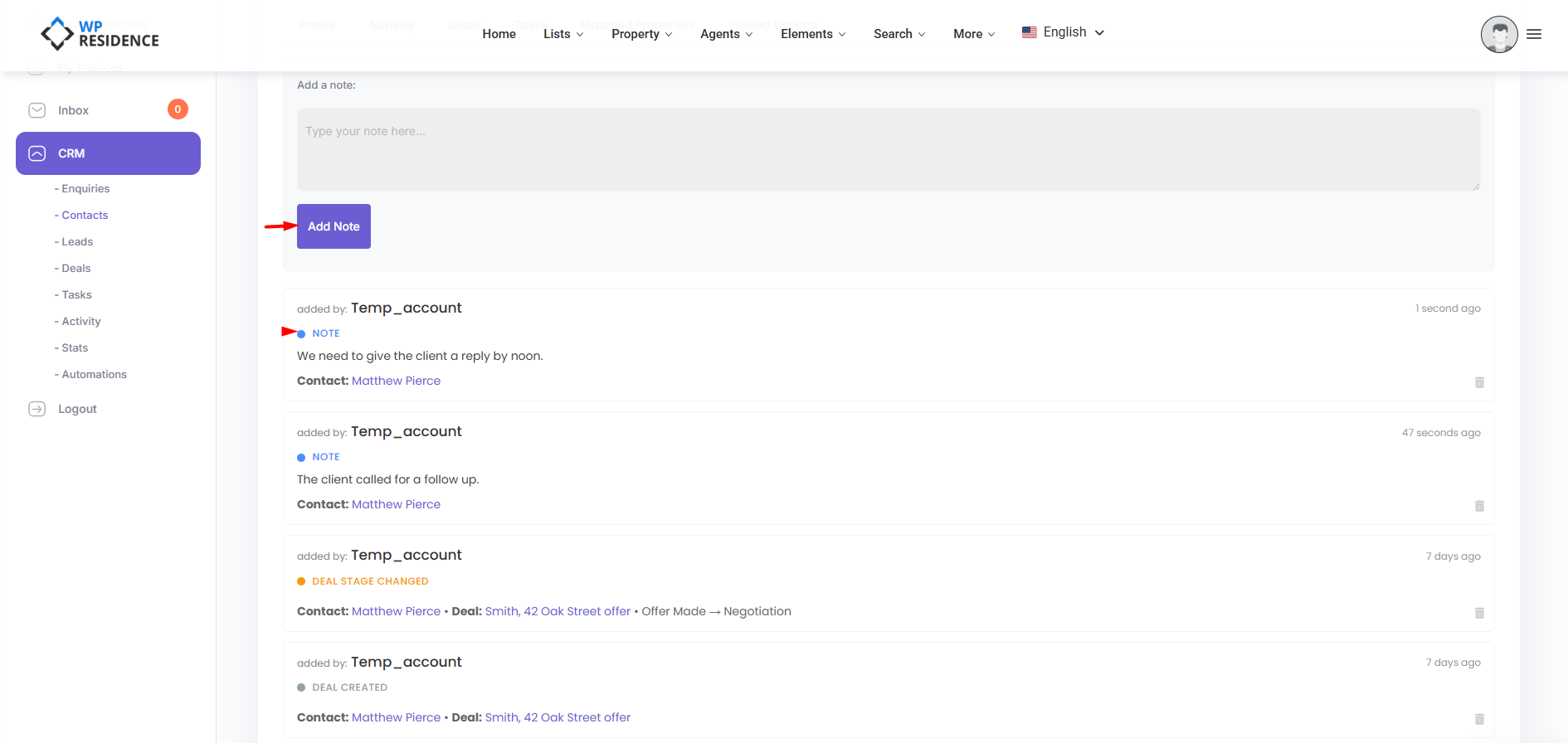
Where Notes Live
Notes attach to any of five entity types:
- Contacts
- Leads
- Enquiries
- Deals
- Tasks
Each entity has a notes area on its detail page where you can type and save a note.
Adding a Note
- Open a contact, lead, deal, enquiry, or task.
- Find the Add Note input on the detail page.
- Type your note.
- Save.
The note appears instantly in the notes list, stamped with your name and the current timestamp. It also appears in the Activity timeline for that record.
Reading Notes
Notes on a record are listed newest-first. Each note shows:
- Author (WordPress display name).
- Timestamp.
- The note text.
By default 20 notes per record are shown; older notes can be loaded on demand.
Deleting a Note
You (as the note author) or an administrator can delete a note. Other users cannot delete someone else’s note. Deletion is permanent — there is no undo.
Who Sees Notes
Notes are visible to anyone who can see the parent record. If an agent can see the contact, they can see all notes on that contact, regardless of who wrote them. Do not put information in a CRM note that you wouldn’t want your whole team to read.
For information only you should see, use the contact’s Private Note field on the contact detail page instead. That field is limited by ownership.
Notes vs Activity Log
Every note you add is also recorded in the Activity timeline as a note-type activity. That means the timeline shows a unified feed of notes + system events (form submissions, deal moves, emails sent). The dedicated notes area on each record is just a filtered, note-only view.
Best Practices
- Log every call. Even a two-word note is better than none.
- Start with the date if the timestamp ambiguous. If you’re logging a call that happened yesterday, say so.
- Attribute sources. If information came from the prospect vs. a colleague, say which.
- Keep it factual. Notes are reviewable by the whole team and can potentially be discoverable in legal contexts.
Notes and Automations
Adding a note is a trigger event in the Automations engine. A popular rule: when a note is added to a contact in the “New Lead” stage, auto-promote them to “Contacted”. See the Automations article.