
The Automations module of the WPResidence real estate CRM lets you build rules that run themselves. When a new lead arrives, auto-create a follow-up task. When a deal sits in Negotiation for two weeks, ping the agent. When a contact has no activity for 30 days, send a re-engagement email. That kind of thing.
Automations is an administrator-only section. Agents do not see it in the CRM sidebar.
Opening the Automations Section
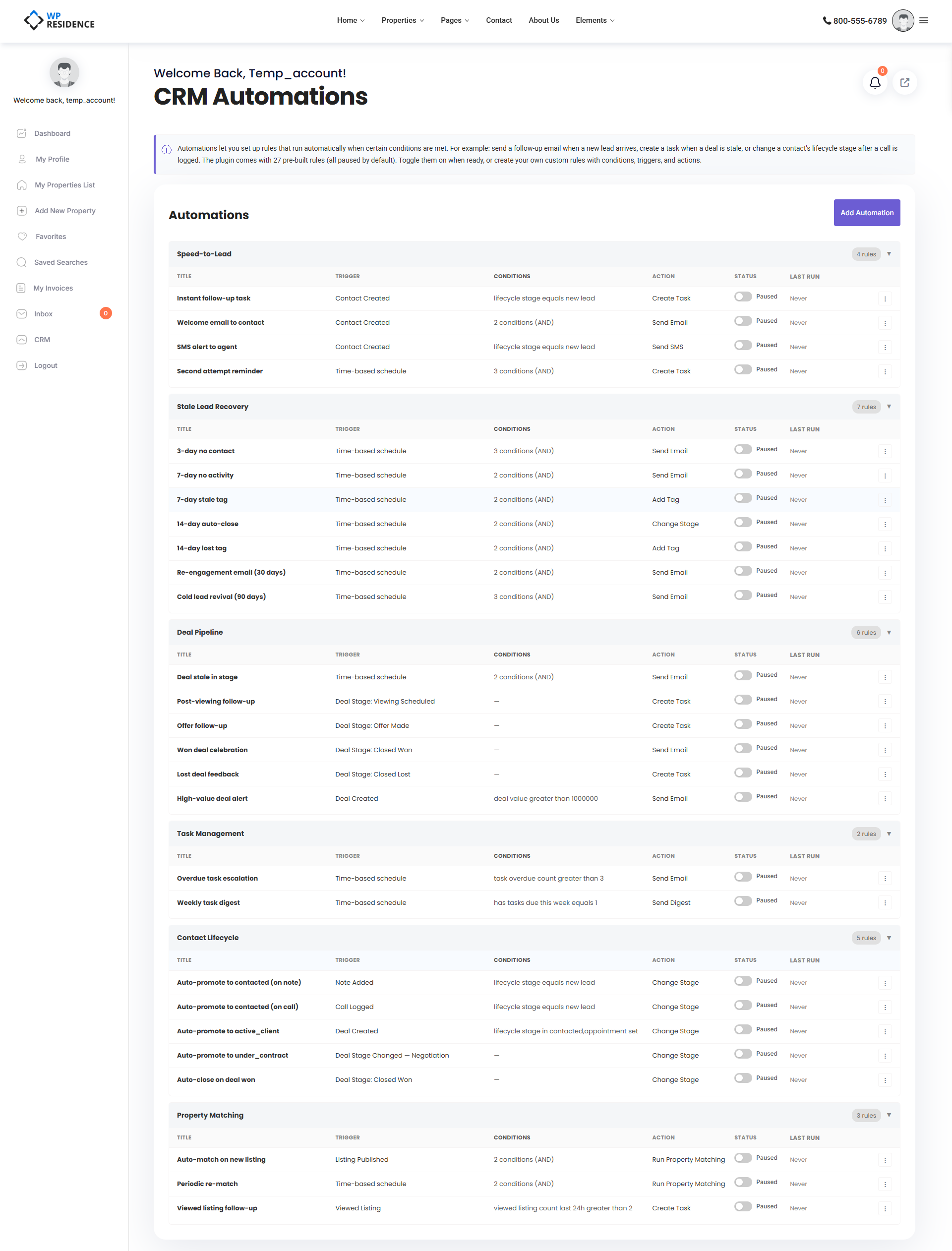
Click CRM → Automations. You will see a list of rules, each with its title, trigger, action, and an active/paused toggle. The plugin ships with 27 default rules — all paused on first activation, so nothing runs unexpectedly. Turn on the ones you want.
The Three Parts of Every Rule
- Trigger — what event makes the rule evaluate.
- Conditions — optional filters that must all be true for the rule to fire.
- Action — what actually happens when it fires.
Trigger Types
Event-based
Fires in real time when a specific CRM event happens. Examples:
- A new contact is created.
- A deal’s stage changes.
- A contact views 3+ listings in 24 hours.
- A call is logged.
Time-based
Runs every hour in a batch. The rule scans all active contacts and fires on ones that match its conditions. Examples:
- Contact has been in New Lead stage for 3+ days.
- Contact has 0 activities in the last 7 days.
- Deal has been stuck in the same stage for 14+ days.
Conditions
The condition builder supports 18 fields and 10 operators (equals, not equals, greater than, less than, contains, is empty, in, etc.). Conditions are combined with AND — every condition must be true for the rule to fire.
Common fields: lifecycle_stage, lead_source, lead_type, assigned_agent_id, days_since_created, days_since_last_activity, tags_contain, deal_value, task_overdue_count, viewed_listing_count_last_24h.
Actions
Eight action types are available:
| Action | What it does |
|---|---|
| Send email | Emails contact, assigned agent, or admin with a templated body. |
| Send SMS | Sends a Twilio SMS with a templated body. |
| Change stage | Updates the contact’s lifecycle stage. |
| Create task | Inserts a task with title, type, priority, and a “due in N days” offset. |
| Assign agent | Sets the contact’s assigned agent. |
| Add tag | Appends a tag to the contact’s tags (no duplicates). |
| Run matching | Runs the property matching engine and optionally notifies the agent. |
| Send digest | Emails the agent a weekly digest of tasks due this week. |
The 27 Default Rules
The plugin ships with ready-to-use rules in four categories. All start paused.
Speed-to-Lead (4 rules)
Instant follow-up task, welcome email, SMS alert to agent, second-attempt reminder.
Stale Lead Recovery (7 rules)
3-day no-contact alert, 7-day stale tag, 14-day auto-close, 30-day re-engagement email, 90-day cold-lead revival, and more.
Deal Pipeline (6 rules)
Stale-in-stage alert, post-viewing follow-up task, offer follow-up task, won-deal celebration email, lost-deal feedback task, high-value deal admin alert.
Task Management (2 rules)
Overdue escalation, weekly task digest.
Contact Lifecycle Auto-Progression (5 rules)
Auto-promote on note, on call logged, on deal created, on deal entering negotiation, on deal won.
Property Matching (3 rules)
Auto-match on new listing published, periodic re-match, viewed-3+-listings follow-up task.
Creating a Custom Rule
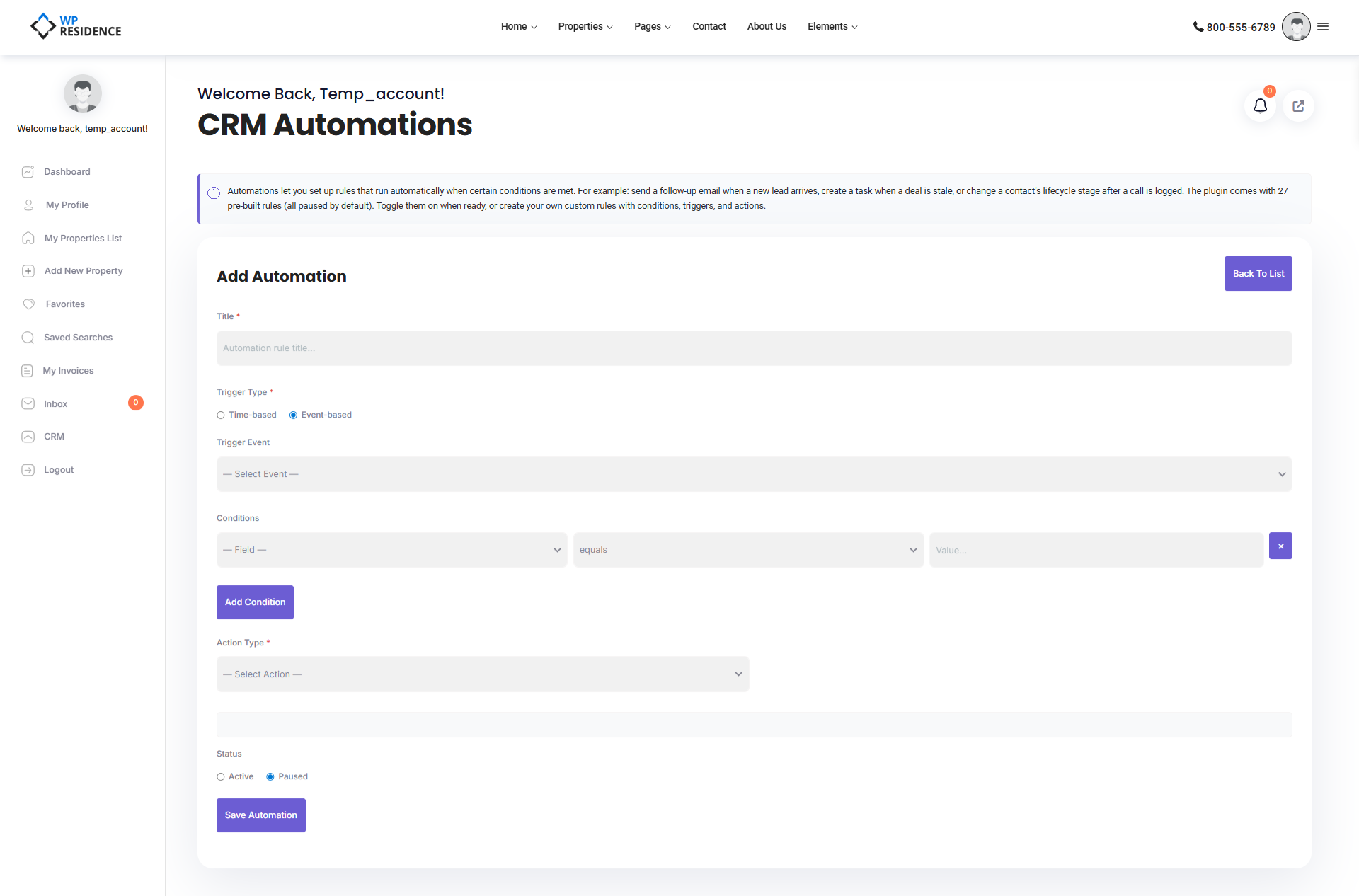
- Click Add Automation.
- Name it (descriptive names pay off later).
- Pick the trigger type and event.
- Add conditions if needed.
- Pick the action type and fill its configuration.
- Save and toggle active.
Testing a Rule
Create a test contact and manually trigger the event (for event-based rules). For time-based rules, wait for the next cron run (hourly) or manually trigger via WP-CLI.
Pausing vs Deleting
Use the toggle to pause a rule you might want again. Only delete rules you are certain you no longer need — the 27 defaults can be re-seeded only by reactivating the plugin.
Best Practices
- Start small. Turn on one or two rules at a time so you can see their effect.
- Name rules clearly. “7-day stale lead — tag” beats “Rule 5”.
- Watch your email reputation. Automation-sent emails count against sending limits.
- Pause before big changes. If you are bulk-importing contacts, pause your welcome emails first.