
WP Residence Help WP Residence Help

  • WpEstate
  • WPRESIDENCE
  • Video Tutorials
  • Client Support
  • API
Home / 13. WPResidence / WPEstate CRM / Managing Tasks in the WPResidence CRM

Managing Tasks in the WPResidence CRM

10 views 0

Tasks are the fuel of a productive real estate practice. Every phone call you need to make, every viewing, every piece of paperwork — the Tasks section of the WPResidence real estate CRM keeps them visible, due-date-sorted, and accountable.
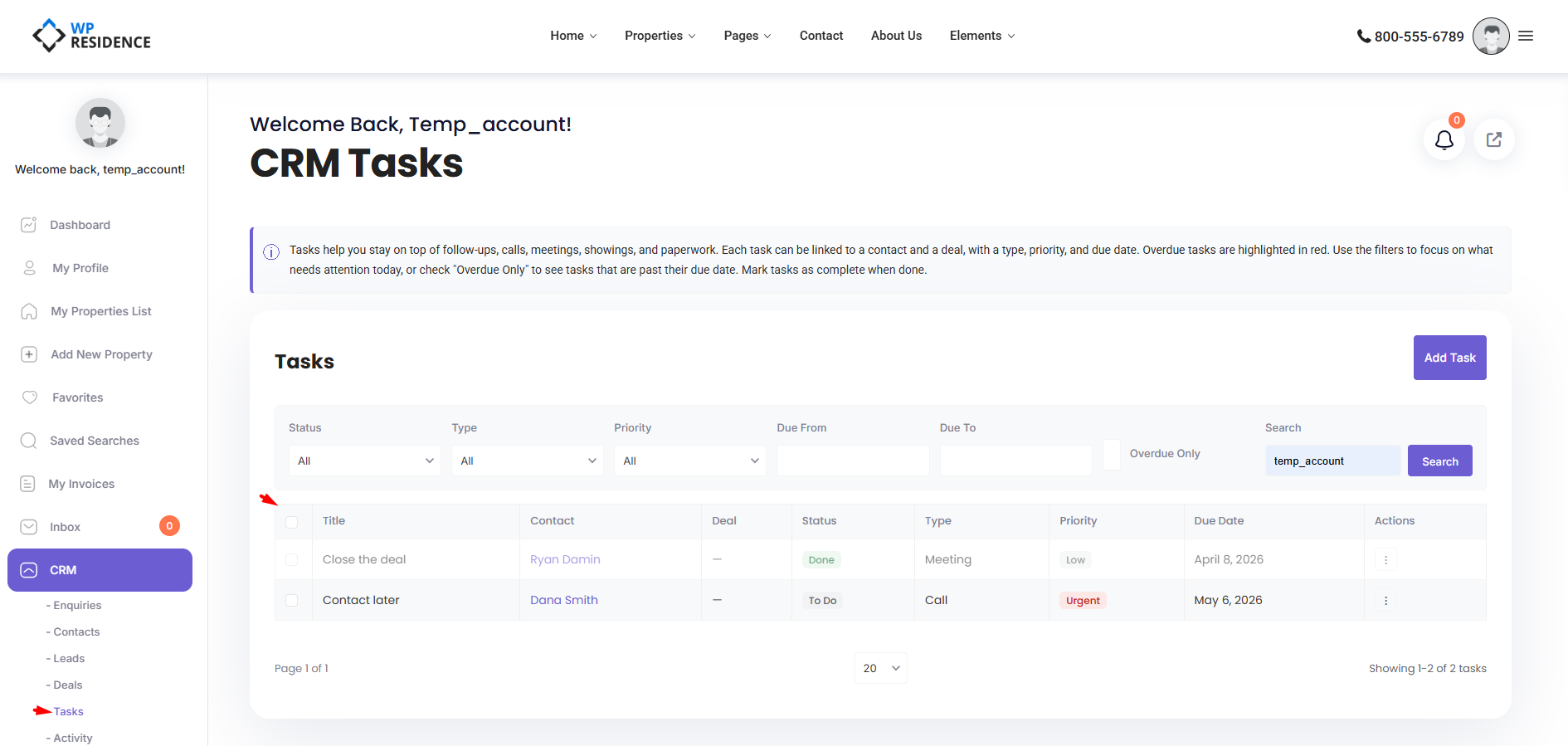
Opening the Tasks Section

Click CRM → Tasks in the sidebar. Admins see every task; agents see tasks they own or are assigned to.

Creating a Task

  1. Click Add Task.
  2. Enter a title.
  3. Pick a task type.
  4. Set priority and due date.
  5. Link the task to a contact or a deal (optional but recommended).
  6. Assign it to yourself or a teammate.
  7. Save.

Task Types

Default options: Call, Email, Meeting, Showing, Follow Up, Paperwork, Other.

Priorities

Low, Medium, High, Urgent.

Statuses

To Do, In Progress, Done.

All three lists are customizable by your administrator in CRM Settings.

The Task List

The list view shows: title, type, priority, due date, linked contact/deal, assignee, and status. Click a row to open and edit.

Filters

Seven filters help you narrow the list:

  • Status
  • Type
  • Priority
  • Date range
  • Free-text search
  • Overdue-only toggle
  • Linked contact or deal

Overdue Tasks

A task is overdue when its due date is before today AND the status is not Done. Overdue rows are visually highlighted, and the count shows on the Stats dashboard in red when greater than zero. Your administrator can configure a daily overdue email alert to push reminders automatically — see the Email Notifications article.

Completing a Task

Open the task and change the status to Done, or use the inline complete action in the list. Completing a task stamps the exact time, logs a task_completed activity in the timeline, and can trigger webhooks or automations.

Bulk Actions

Select multiple tasks and choose Mark Complete or Delete. Ideal for end-of-week cleanup.

Best Practices

  • One task, one action. “Call Smith re. 42 Oak offer” is a task. “Close Smith deal” is not — break it down.
  • Always link to a contact or deal. Unlinked tasks fall off the radar.
  • Use priority sparingly. If everything is Urgent, nothing is.
  • Review the overdue list every morning. Close or reschedule, don’t let it rot.

Tasks and Automations

Tasks are often created automatically by automations. A new lead can auto-create a “First contact call” task. A deal moving to Offer Made can auto-create a “Follow up on offer” task. Read the Automations article to set up rules like these.

International Use

Task titles and descriptions accept non-Latin characters. Due dates respect your site’s date format.

13. WPResidence / WPEstate CRM

Related Articles

  • WPResidence CRM Security Model — Developer Reference
  • CRM Security and Data Privacy
  • WPResidence CRM Installation and Updates — Developer Reference
  • Installing and Updating the WPResidence CRM

WP Residence Documentation

  • 01. Getting Started
    • How to Get Support
    • Get your buyer license code.
    • Use SSL / https
    • Server / Theme Requirements
  • 02. Installation & Setup
  • 03. Installation FAQ
  • 06. Search & Filtering
    • Advanced Search Display Settings
    • Advanced Search Form
    • Geolocation Search for Half Map
    • Save Search Theme Options
    • Advanced Search Colors
  • 09. Agent, Agency & Developers
  • 08. Property Pages & Layouts
  • 07. Property Lists, Categories & Archive
  • 14. WPResidence Elementor Studio
  • 10. Blog Posts & Blog List
  • 11. Shortcodes
    • Contact Form
    • Featured Agency/Developer
    • Membership Packages
    • Testimonials
    • Google Map with Property Marker
    • Listings per Agent, Agency or Developer
    • Display Categories
    • Agent List
    • Recent Items Slider
    • Recent items
    • List Properties or Articles by ID
    • Featured Agent
    • Featured Article
    • Featured Property
    • Login & Register Form
    • Icon Content Box Shortcode
  • 12. Widgets
  • 04. Theme Options & Global Settings
    • General Settings
    • User Types Settings
    • Appearance
    • Logos & Favicon
    • Header
    • Footer Style and Colors
    • Price & Currency
    • Property Custom Fields
    • Features & Amenities
    • Listing Labels
    • Theme Slider
    • Permalinks
    • Splash Page
    • Social & Contact
    • Map Settings
    • Pin Management
    • How read from file works
    • General Design Settings
    • Custom Colors Settings
    • Header Design & Colors
    • Mobile Menu Colors
    • User Dashboard Colors
    • Print PDF Design
    • Property, Agent, Blog Lists Design Settings
    • Sidebar Widget Design
    • Font management
    • How to add custom CSS
    • Custom Property Card Unit – Beta version
    • Email Management
    • Import & Export theme options
    • reCaptcha settings
    • YELP API Integration
    • iHomefinder Optima Express IDX
    • MEMBERSHIP & PAYMENT Settings
    • Property Submission Page
    • PayPal Setup
    • Stripe Setup
    • Wire Transfer Payment Method
  • 20. Translations & Languages
  • 26. FAQ
  • 10. Pages
  • 11. Header
  • 12. Footer
  • 05. Maps & Location Settings
  • 18. Payments & Monetization
  • Plugins
    • 19. Included Plugins
    • 22. Third Party Plugins – IDX Compatibility
    • 21. Third-Party Plugins – Multi-Language
    • 23. Third party Plugins – Other
  • Technical
    • 24. Technical how to | Custom Code Required
    • 25. Technical: Child Theme

Join Us On

Powered by WP Estate - All Rights Reserved
  • WpEstate
  • WPRESIDENCE
  • Video Tutorials
  • Client Support
  • API