
Deals are the active transactions in your real estate CRM. Every offer being negotiated, every signed contract moving to closing, every potential sale — all of them live in the Deals section, organized into a visual pipeline that shows exactly where your revenue is.
Two Views: Pipeline Board and List
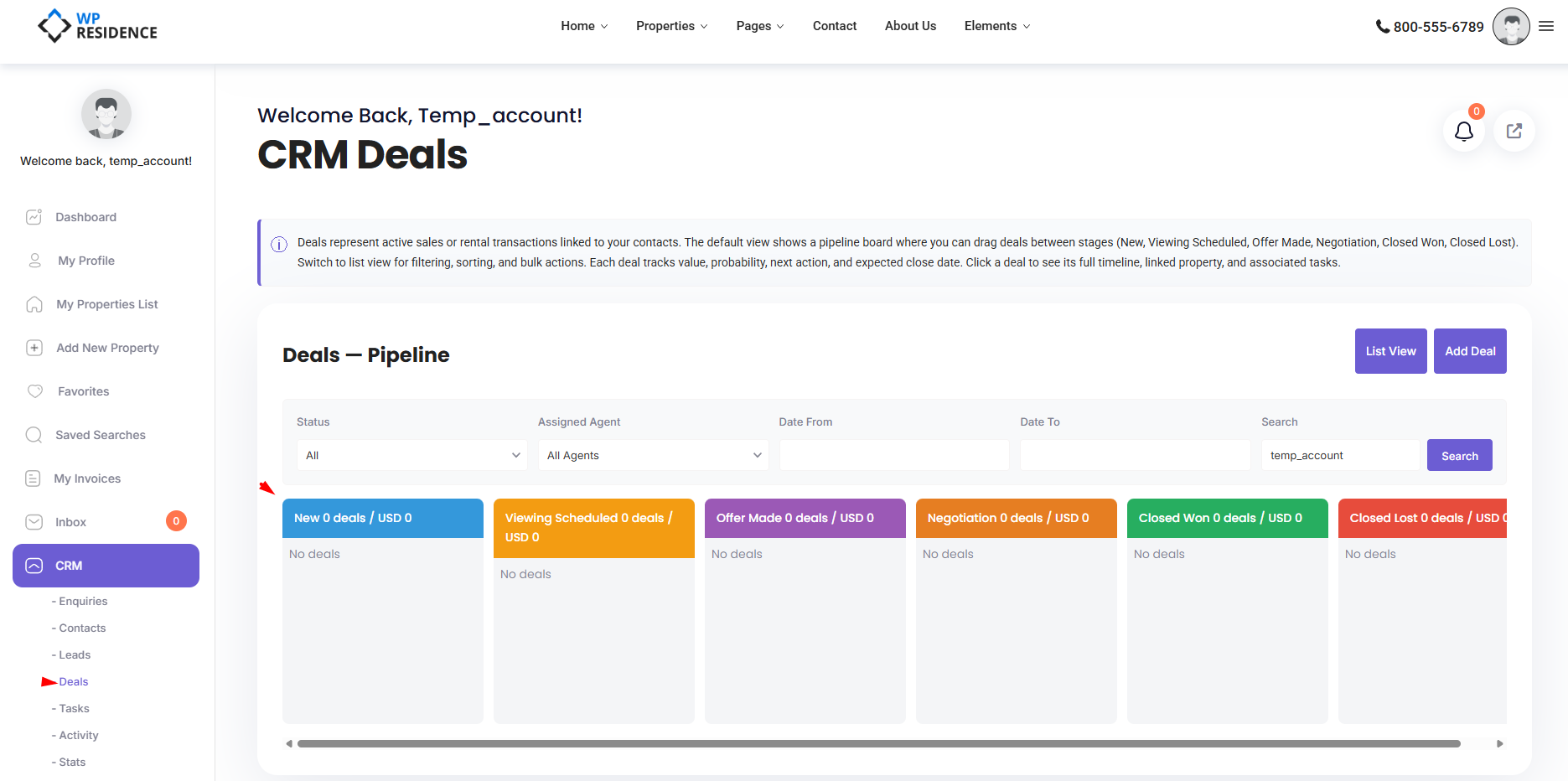
Open CRM → Deals. By default you see the pipeline board — a kanban-style view with one column per stage. Add ?view=list to the URL or click the list toggle to switch to a tabular view with filters, sorting, and bulk actions.
The Pipeline Board
Each stage is a column. Each deal is a card showing the title, value, contact, and linked property. Cards are colored per stage. Drag a card from one column to another to change its stage — the status updates automatically.
Default Stages
| Stage | Color | Status it implies |
|---|---|---|
| New | Blue (#3498db) | Open |
| Viewing Scheduled | Orange (#f39c12) | Open |
| Offer Made | Purple (#9b59b6) | Open |
| Negotiation | Dark orange (#e67e22) | Open |
| Closed Won | Green (#27ae60) | Won |
| Closed Lost | Red (#e74c3c) | Lost |
Your administrator can rename, add, or remove stages and change colors in CRM Settings.
Adding a Deal
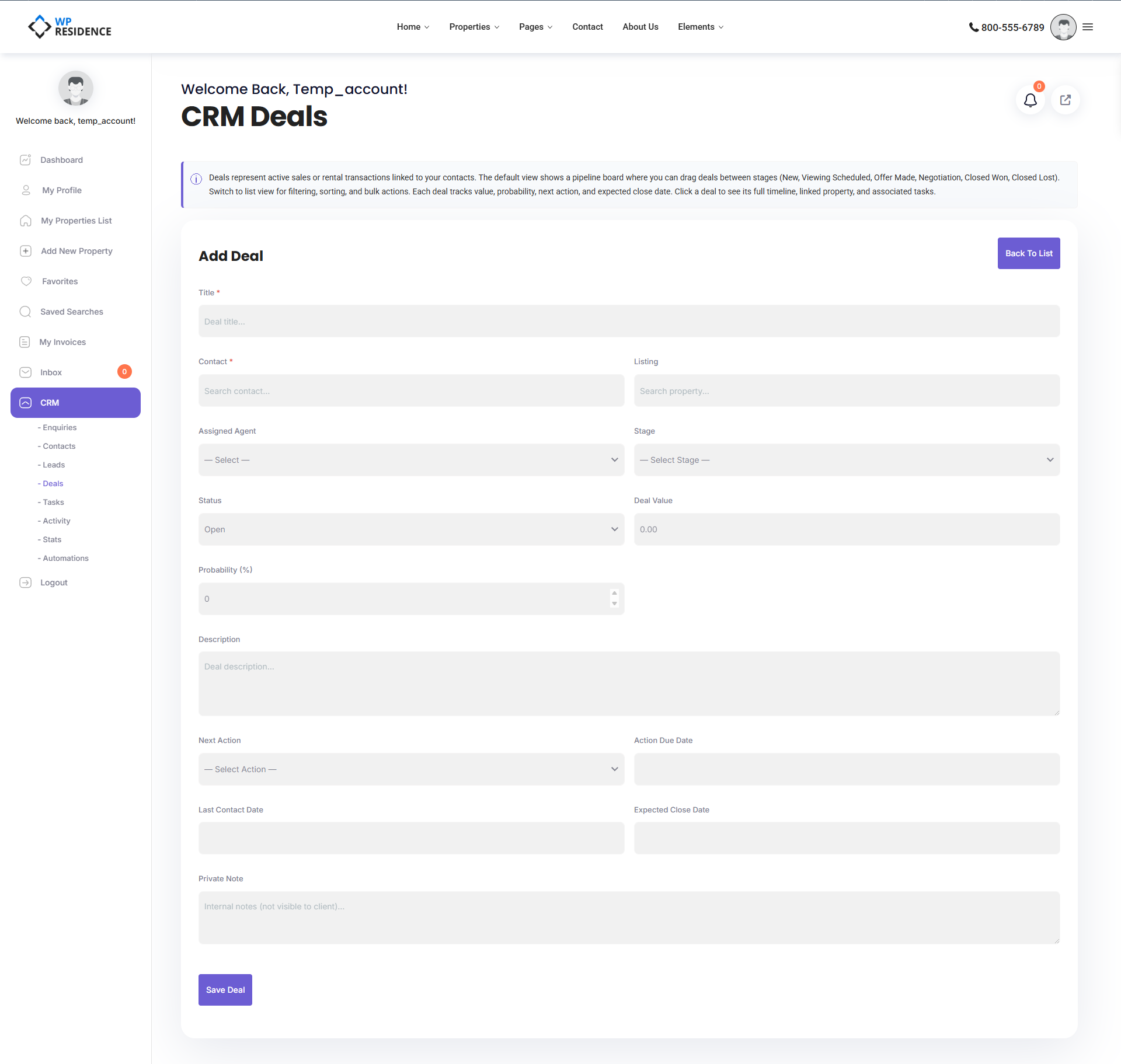
- Click Add Deal.
- Enter the deal title (for example: “Smith — 42 Oak Street offer”).
- Link the contact (required).
- Link a listing (optional but recommended).
- Enter the deal value and probability.
- Pick the starting stage.
- Optionally set the next action and its due date.
- Save.
Deal Value and Probability
Value is in your site’s default currency. Probability runs from 0 to 100 (common values: 10, 25, 50, 75, 90, 100). The Stats page uses value × probability to calculate your weighted pipeline.
Next Action
Each deal has a “next action” field — the single thing you are going to do next. Default options: Call, Email, Meeting, Send Listing, Schedule Viewing, Send Offer, Follow Up, Other. Combined with an action due date, this keeps your pipeline moving.
Deal Detail Page
Click any deal to open the detail page. From there you can:
- See the full activity timeline for the deal.
- Attach tasks and notes.
- Change the stage directly.
- See the linked contact and property.
- Record a stage change, which automatically logs to the timeline.
Moving a Deal Forward
The simplest way: drag the card to the next column on the pipeline board. If the new stage is Closed Won, the deal’s overall status flips to Won. If it is Closed Lost, the status flips to Lost. Otherwise the status stays Open.
Closed Won deals trigger a celebration email (if your administrator has enabled it), record a deal won activity, and feed into your Stats reports.
Filtering and Searching
The list view supports filtering by stage, status, handler agent, contact, listing, date range, and free-text search. Admins see all deals; agents see only the deals they own or are assigned to.
Bulk Actions
In the list view you can select multiple deals and bulk delete them or bulk change their stage. Useful when cleaning up stale pipeline.
Automations Tied to Deals
Stage changes are one of the most powerful triggers in the Automations module. Typical rules include: create a follow-up task when a deal moves to Viewing Scheduled; email the client when stage becomes Closed Won; alert the admin if a deal is over a threshold value. See the Automations article for how to configure these.
HubSpot Sync
If your site has HubSpot integration enabled, every deal insert or update is pushed to HubSpot, including stage changes and value. See the HubSpot CRM integration guide.
Best Practices
- Don’t skip stages. Even if you jump from New straight to Offer Made, drag through the middle column to make the timeline accurate.
- Set next-action due dates. The overdue view on Stats is driven by them.
- Mark lost deals explicitly. A lost deal is a future re-engagement opportunity — don’t delete it.
- Keep deal titles short and consistent. “Contact name — property address” works well.