
The WPResidence CRM is a complete real estate CRM built directly into your WPResidence website. Instead of juggling spreadsheets, email inboxes, and separate tools, you get one frontend dashboard where enquiries, contacts, leads, deals, tasks, activity, and stats all live together.
This article is an introduction to the CRM as a whole: what each section is for, how to move between them, and how the pieces fit together. Every individual section (Contacts, Leads, Deals, etc.) is covered in its own dedicated help article.
What Is the WPResidence CRM?
The CRM is a plugin that ships with WPResidence and runs on the frontend of your site (not in the WordPress admin). Your agents log in, open the dashboard, and manage their pipeline from the same branded interface your buyers and sellers see.
Key ideas to keep in mind:
- Login required. The CRM dashboard is only visible to logged-in users who have dashboard access.
- Scoped data. Regular agents see only the records they own. Administrators see everything.
- Admin-only sections. Automations are restricted to administrators.
- Automatic setup. The first time the plugin runs, it auto-creates the pages you need (CRM home, Contacts, Leads, Enquiries, Deals, Tasks, Activity, Stats, Automations).
Accessing the CRM
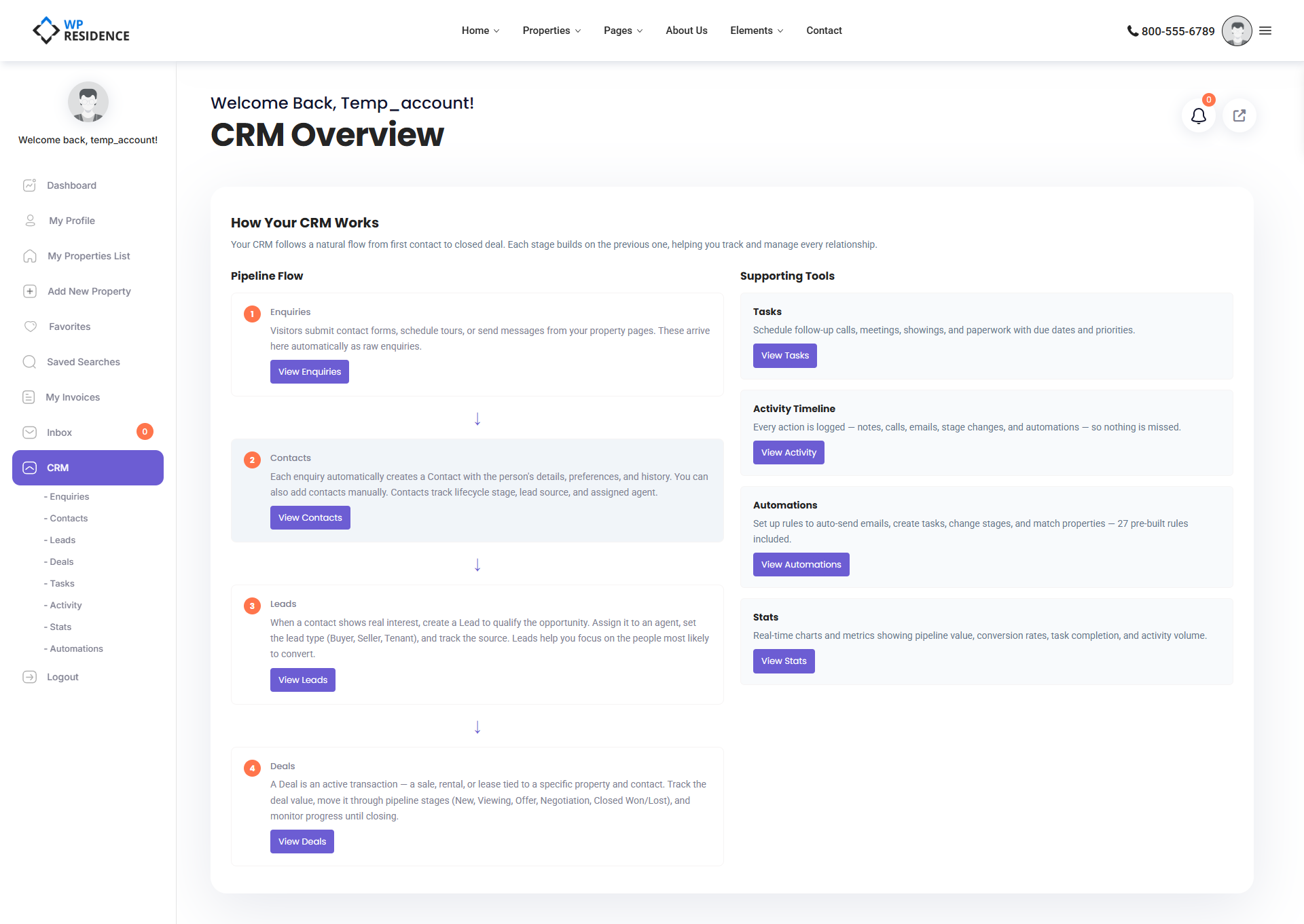
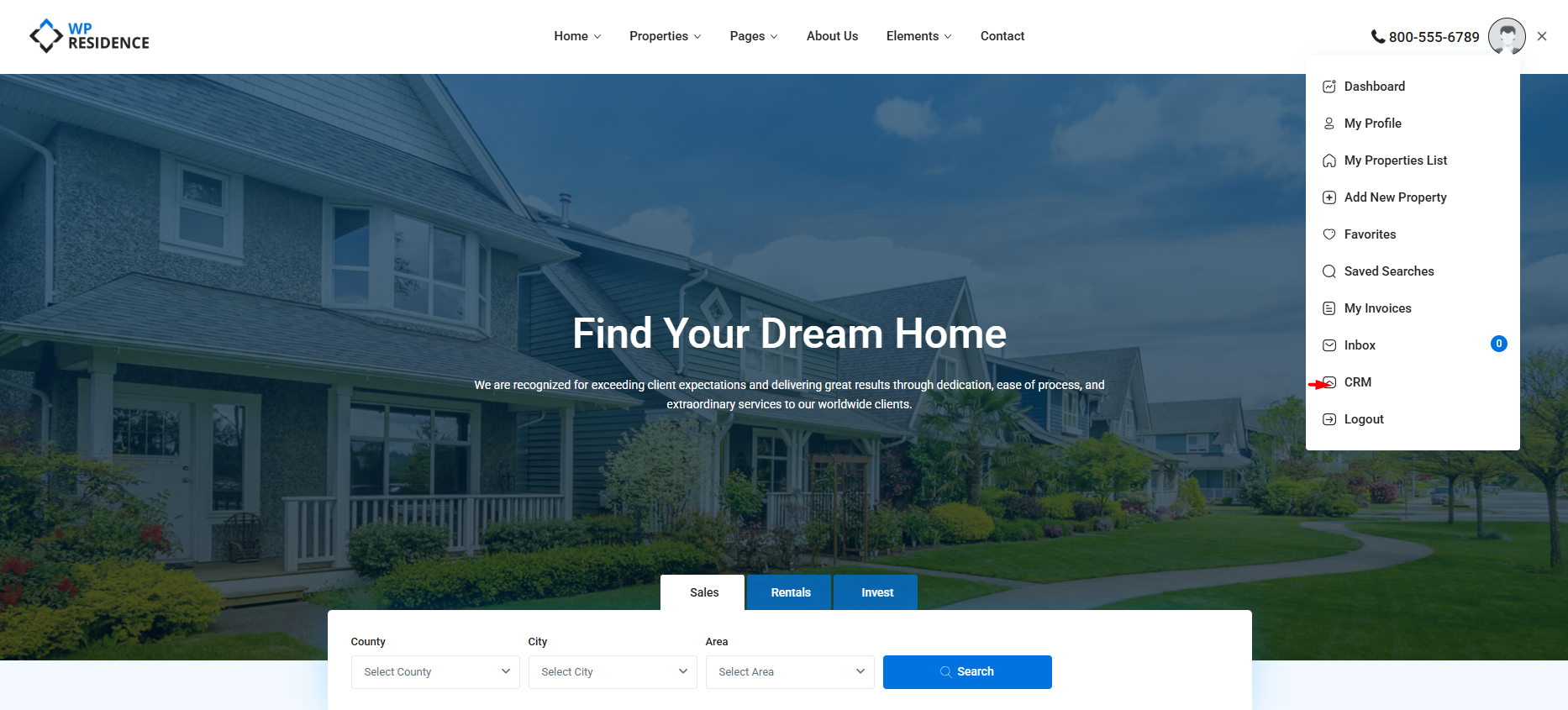
From any logged-in dashboard page, open the main user menu. You will see a CRM entry. Clicking it takes you to the CRM Overview page titled “How Your CRM Works.” This is the landing view — a visual pipeline diagram showing how enquiries flow into contacts, contacts become leads, leads convert to deals, and deals close.
Mobile Access
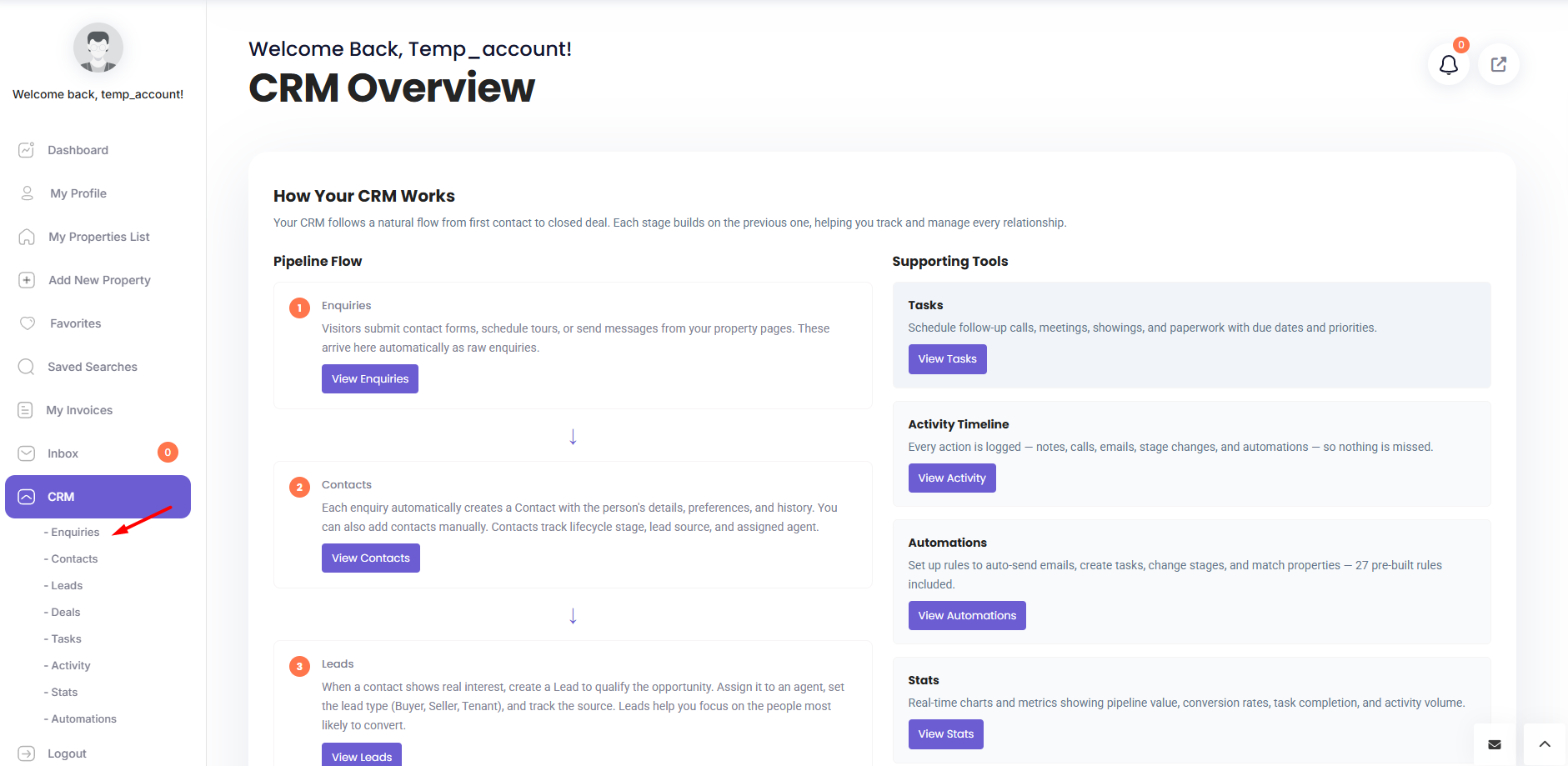
On mobile devices, the CRM submenu is hidden by default to save space. Tap the CRM entry and the submenu expands, showing all sections.
The Eight Sections
The CRM dashboard has a sidebar submenu with the following sections. Each one is a self-contained workspace with its own list view, filters, and add/edit forms.
| Section | What it is for |
|---|---|
| Enquiries | The inbox of incoming property enquiries — phone calls, walk-ins, emails, website forms. |
| Contacts | Your master address book — every person you have dealt with, buyer or seller. |
| Leads | Qualified prospects actively working with you, with buying or selling criteria attached. |
| Deals | Active transactions moving through pipeline stages toward won or lost. |
| Tasks | Calls, viewings, follow-ups, and reminders assigned to you or your team. |
| Activity | A chronological timeline of everything that has happened across the CRM. |
| Stats | Charts and KPIs — conversion rates, pipeline value, activity volume. |
| Automations | Rules that fire automatically when something happens (admin-only). |
How the Pieces Fit Together
The CRM Overview page shows a flow diagram of how records move through the system. Understanding this flow is the fastest way to learn the CRM.
1. Enquiry Comes In
A prospect reaches out — usually by filling in a form on your website, but also by phone, walk-in, or referral. The moment an enquiry is saved in the CRM, the system checks whether the person already exists in your Contacts by email. If yes, the enquiry is linked to that contact. If no, a brand-new contact is created automatically.
2. Contact Becomes a Lead
Once you know a contact is seriously looking to buy, sell, rent, or list, you create a Lead for them. A lead carries their search criteria — price range, bedrooms, location, property type — so you can match them to listings.
3. Lead Becomes a Deal
When a lead commits to a specific property, you promote them to a Deal. Deals are the active transactions you are trying to close. They move through pipeline stages (for example: offer made, under contract, closing) until they are won or lost.
4. Tasks and Activity Tie It All Together
At every step, you can create Tasks (call this person Tuesday, schedule a viewing Friday) and the system logs every change in the Activity timeline. Stats roll everything up into KPIs so you can see how you and your team are performing.
Your First Day With the CRM
A practical order to learn the CRM:
- Open the CRM Overview page and read the pipeline diagram.
- Click Enquiries and add one manual enquiry to see how the form works.
- Open Contacts — you should see the contact that was auto-created from that enquiry.
- Create a Lead for that contact with buying criteria.
- Promote the lead to a Deal linked to one of your listings.
- Add a Task to remind yourself to follow up.
- Open Activity and Stats to see everything you just did.
In under 15 minutes, you have walked the entire pipeline end to end.
Permissions at a Glance
- Regular agents see only the contacts, leads, deals, and tasks they own.
- Administrators see every record in every section.
- Automations is an admin-only section. Agents do not see it in the menu.
International Use
The CRM fully supports non-Latin characters — Cyrillic, Arabic, Chinese, Greek, and any other script. Names, cities, messages, and notes are stored and searched safely regardless of language.
Where to Go Next
Each section of the CRM has its own in-depth help article. Start with Enquiries to understand how new business enters the system, then work your way through Contacts, Leads, Deals, and Tasks. For advanced users, the Automations article explains how to let rules do the repetitive work for you.
If you want to connect the CRM to external tools, we also cover HubSpot integration in a dedicated guide — see HubSpot CRM integration for WPResidence.
To learn more about the full feature set, visit the WPResidence real estate CRM page.