WP Residence Help WP Residence Help

  • WpEstate
  • WPRESIDENCE
  • Video Tutorials
  • Client Support
  • API
Home / 03. Installation FAQ / WPResidence Search Form Fields Missing After Demo Import

WPResidence Search Form Fields Missing After Demo Import

10 views 0

CONTENT

  • Overview
  • Symptoms
  • Before You Start
  • Part A: Fix in Elementor Search Form
  • Part B: Fix in Theme Options Advanced Search
  • Part C: Validate on the Front End
  • Recommended Troubleshooting Order
  • Best Practices
  • Reference Video

WPResidence Search Form Fields Missing After Demo Import

After importing a WPResidence demo, the Property Search form may appear in Elementor, but the fields or tabs may be missing or not mapped correctly on the front end.

This is a known post-import behavior and is usually caused by internal ID differences between the original demo content and the content created on your website during import.

This guide explains how to fix the search form step by step in:

  • Elementor Search Form widget
  • Theme Options > Search > Advanced Search Form

Symptoms

  • The search title, such as Search, appears, but the fields are missing on the front end
  • Search tabs appear, but the fields inside the tabs are empty or incorrect
  • The fields look correct in the Elementor editor, but not on the live page
  • After saving, some fields reset and need to be selected again

Part A: Fix in Elementor Search Form

Step 1. Open the page in Elementor

Go to Pages and open the page used for the homepage or search page.

Click Edit with Elementor.

Locate the Property Search Form widget. If your search form uses tabs, locate the full search block and each tab inside it.

Step 2. Check the widget settings tab by tab

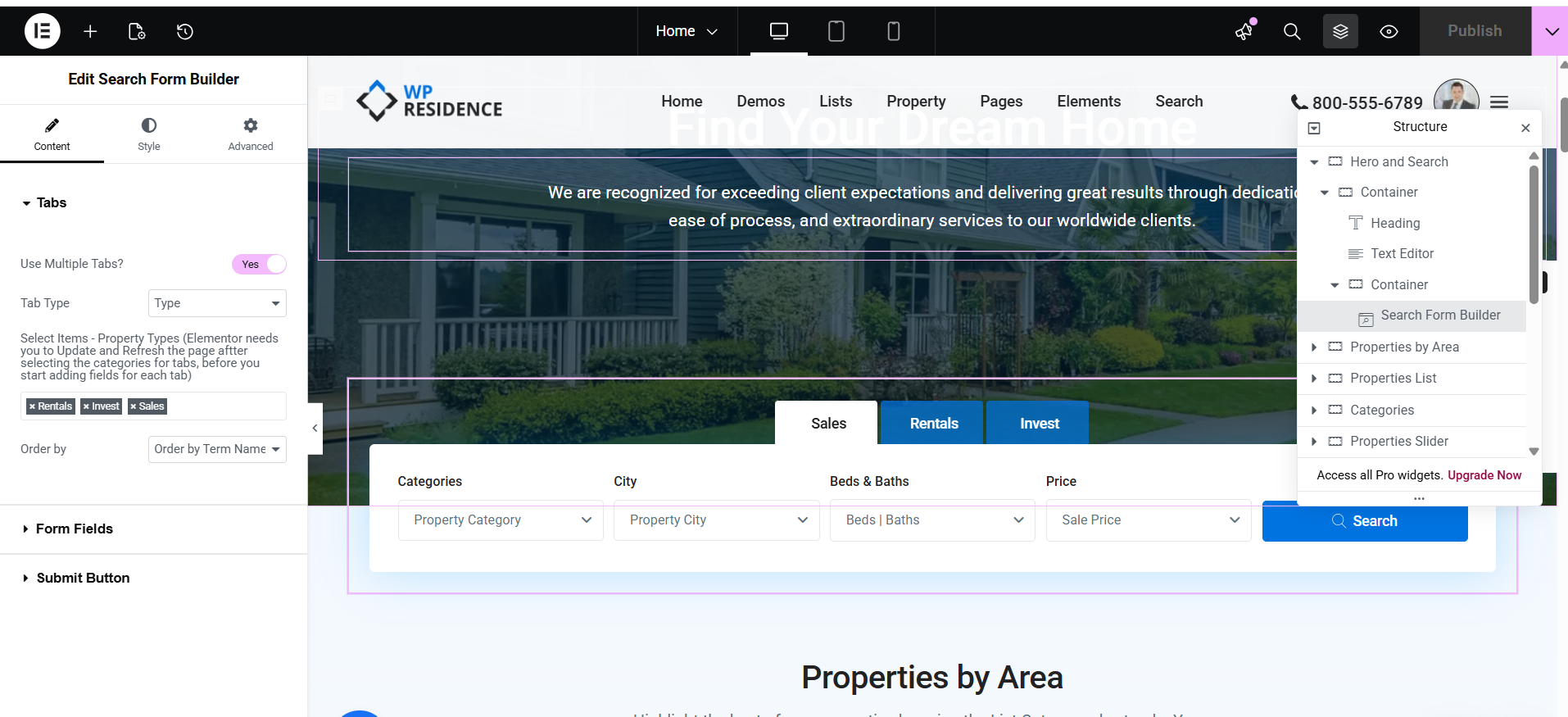
If tabbed search is enabled, review each tab separately.

  • Open the settings for the first tab
  • Check the selected search type or layout
  • Verify that the correct search configuration is selected
  • If your version allows field group assignment, re-select the assigned field groups

Repeat the same check for every tab.
Step 3. Re-select the fields manually

Save. Refresh the page.

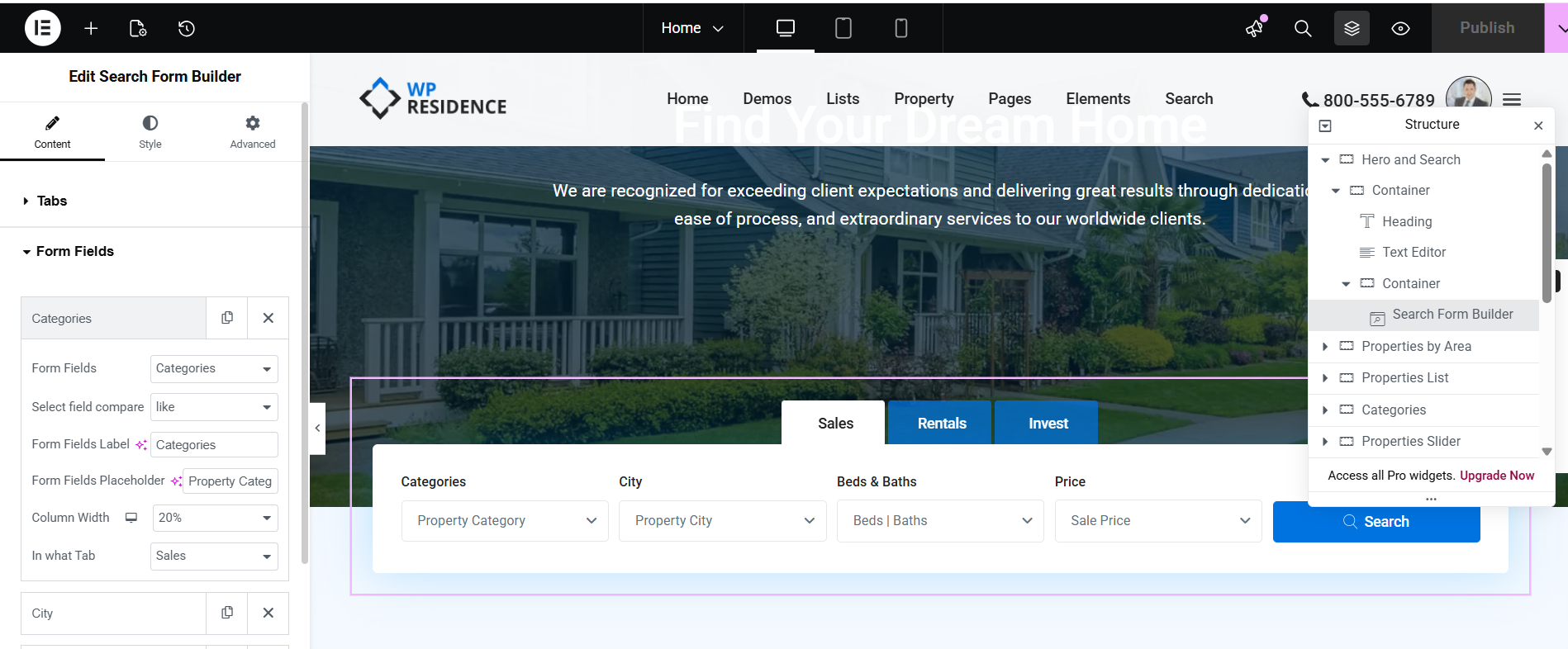
Inside each search section, reassign the fields one by one.

For example, select again the fields you want to use, such as:

  • Type
  • Category
  • City
  • Area
  • Price
  • Beds
  • Baths
  • Status


Step 4. Update the Elementor page

Click Update in Elementor.

Refresh the front end and check the search form again.

If one tab still does not display correctly, return to Elementor and re-select the fields again for that specific tab.

Help to modify the Elementor Search Form Builder – https://help.wpresidence.net/article/property-search-form-builder-for-elementor/

Part B: Fix in Theme Options Advanced Search

Step 1. Open Advanced Search settings

Go to Theme Options > Search > Advanced Search Form.

This is where the global search field mapping is controlled for the theme.

Step 2. Rebuild the search field mapping

Check the search form style and search type used by your demo.

For each enabled search field position or row:

  • Re-select taxonomy filters such as Category, Type, City, Area, or Status
  • Save the settings.

This step is important because, after demo import, the saved field mapping may not point correctly to the newly imported search setup.

Step 3. Verify which fields are enabled

Make sure that all fields you expect to see on the front end are actually enabled in the search settings.

  • Check that the field is selected in the correct position
  • Check that it is not hidden or disabled
  • Check that the placeholder or label is not blank if your setup depends on it

Step 4. Save the options

Click Save Changes.

Wait a few seconds for the settings to save completely.

Help – https://help.wpresidence.net/article/1-18-advanced-search-type-6/ 


Reference Video

You can also follow the official Portland demo walkthrough here:

Portland Demo Video Tutorial

If you still need help after following these steps, please contact our private support and send your website URL together with temporary wp-admin access so we can check the setup directly.

03. Installation FAQ

Related Articles

  • cURL Errors in WordPress – What They Mean and What to Check
  • Elementor editor returns Page not Found or There has been a critical error on this website
  • How to Disable WordPress Image Compression and Preserve Original Quality
  • How to update to WordPress 6.7 and Elementor 3.26 in WpResidence Theme

WP Residence Documentation

  • 01. Getting Started
    • How to Get Support
    • Get your buyer license code.
    • Use SSL / https
    • Server / Theme Requirements
  • 02. Installation & Setup
  • 03. Installation FAQ
  • 06. Search & Filtering
    • Advanced Search Display Settings
    • Advanced Search Form
    • Geolocation Search for Half Map
    • Save Search Theme Options
    • Advanced Search Colors
  • 09. Agent, Agency & Developers
  • 08. Property Pages & Layouts
  • 07. Property Lists, Categories & Archive
  • 13. WPResidence Elementor Studio
  • 10. Blog Posts & Blog List
  • 11. Shortcodes
    • Contact Form
    • Featured Agency/Developer
    • Membership Packages
    • Testimonials
    • Google Map with Property Marker
    • Listings per Agent, Agency or Developer
    • Display Categories
    • Agent List
    • Recent Items Slider
    • Recent items
    • List Properties or Articles by ID
    • Featured Agent
    • Featured Article
    • Featured Property
    • Login & Register Form
    • Icon Content Box Shortcode
  • 12. Widgets
  • 04. Theme Options & Global Settings
    • General Settings
    • User Types Settings
    • Appearance
    • Logos & Favicon
    • Header
    • Footer Style and Colors
    • Price & Currency
    • Property Custom Fields
    • Features & Amenities
    • Listing Labels
    • Theme Slider
    • Permalinks
    • Splash Page
    • Social & Contact
    • Map Settings
    • Pin Management
    • How read from file works
    • General Design Settings
    • Custom Colors Settings
    • Header Design & Colors
    • Mobile Menu Colors
    • User Dashboard Colors
    • Print PDF Design
    • Property, Agent, Blog Lists Design Settings
    • Sidebar Widget Design
    • Font management
    • How to add custom CSS
    • Custom Property Card Unit – Beta version
    • Email Management
    • Import & Export theme options
    • reCaptcha settings
    • YELP API Integration
    • iHomefinder Optima Express IDX
    • MEMBERSHIP & PAYMENT Settings
    • Property Submission Page
    • PayPal Setup
    • Stripe Setup
    • Wire Transfer Payment Method
  • 20. Translations & Languages
  • 26. FAQ
  • 10. Pages
  • 11. Header
  • 12. Footer
  • 05. Maps & Location Settings
  • 18. Payments & Monetization
  • Plugins
    • 19. Included Plugins
    • 22. Third Party Plugins – IDX Compatibility
    • 21. Third-Party Plugins – Multi-Language
    • 23. Third party Plugins – Other
  • Technical
    • 24. Technical how to | Custom Code Required
    • 25. Technical: Child Theme

Join Us On

Powered by WP Estate - All Rights Reserved
  • WpEstate
  • WPRESIDENCE
  • Video Tutorials
  • Client Support
  • API