
What the Shortcode Section Is
WPResidence allows you to embed shortcodes from third-party plugins directly into individual property pages.
This makes it possible to add:
- Booking forms
- Availability calendars
- Contact or inquiry widgets
- Any plugin feature that provides a shortcode
The shortcode content is added per property, meaning you can display different shortcodes on different property listings if needed.
What You Need Before You Start
Before adding a shortcode to a property page, make sure that:
- The third-party plugin you want to use is installed and activated
- The plugin provides a valid shortcode (most plugins show this in their settings or documentation)
- You have access to edit the property or the property template
WPResidence does not generate these shortcodes itself. It only provides the area where they can be displayed.
Add a Shortcode to the Default Property Page
To add a shortcode to a single property using the default property template, follow these steps:
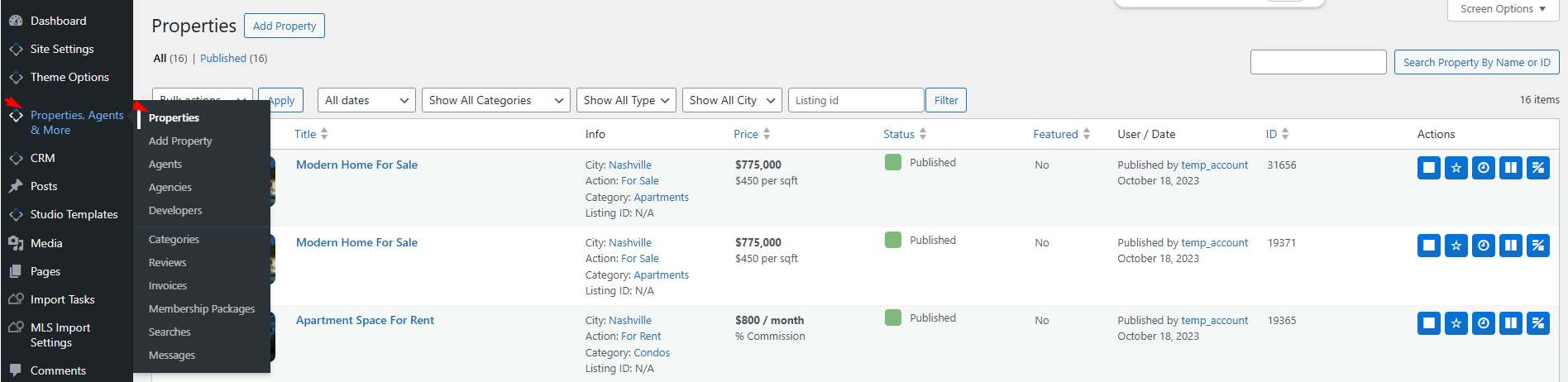
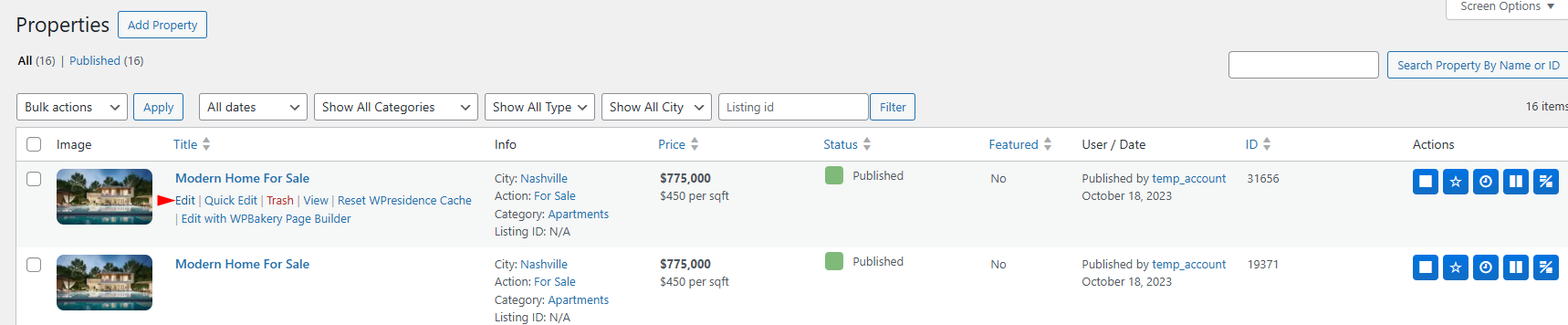
- Go to Properties → All Properties
- Edit the property where you want to add the shortcode
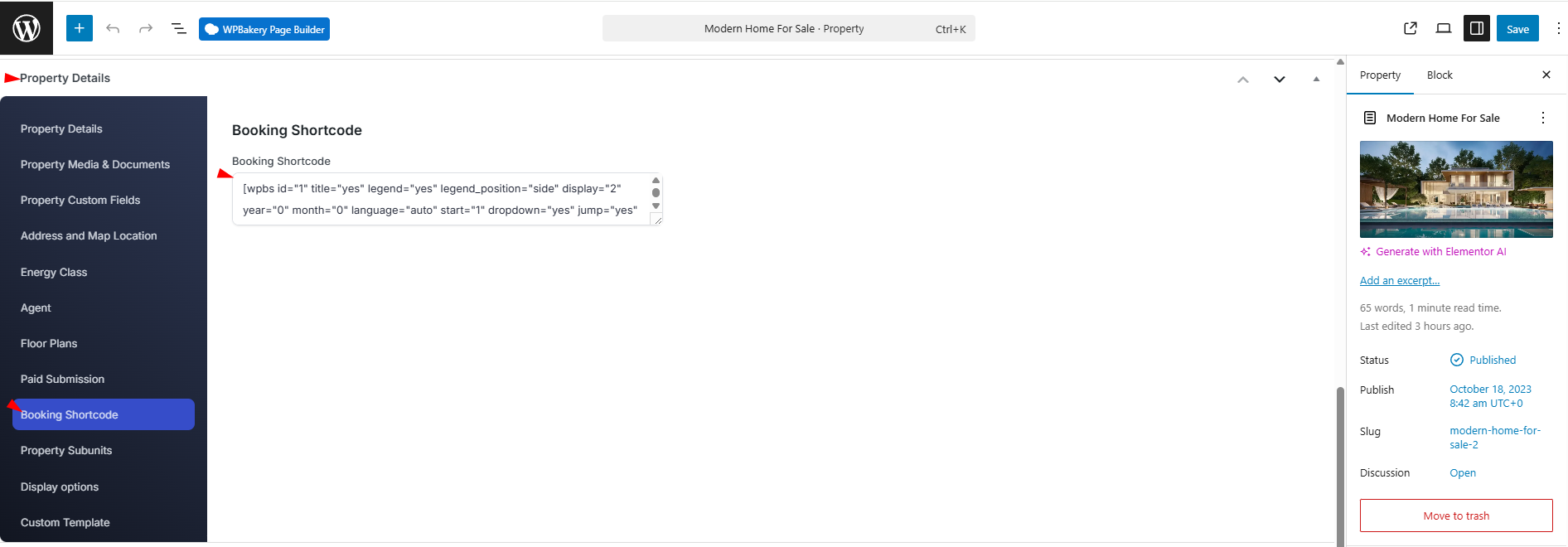
- Scroll down to the Property Details section
- Locate the Booking / Shortcode field
- Paste the shortcode provided by your plugin into this field
- Save or update the property
The shortcode you add here will be displayed only on this specific property.
Make Sure the Shortcode Is Visible on the Property Page
If you are using a default property layout (such as Accordion layout), you must also make sure the shortcode section is enabled.
Go to:
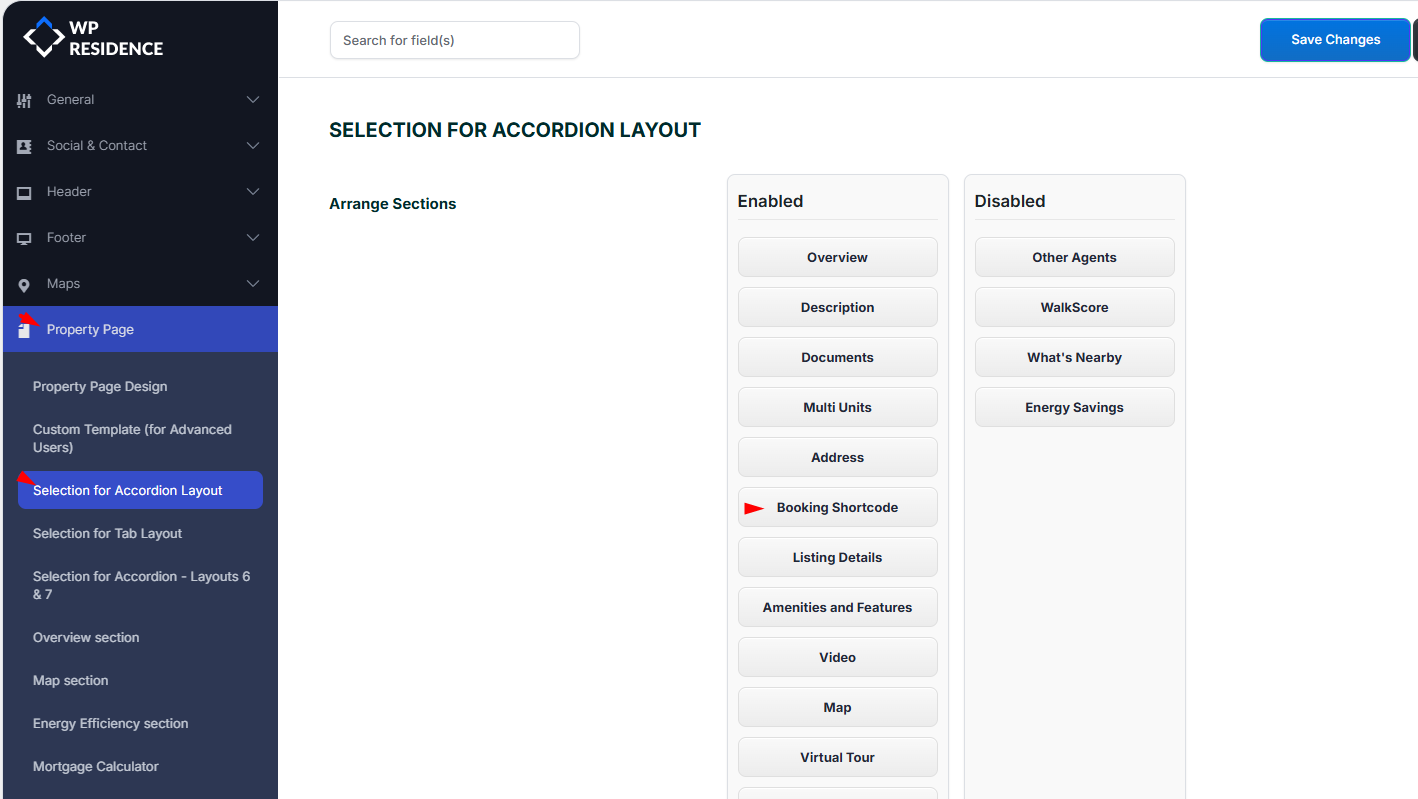
Theme Options → Property Page
Depending on the layout you use:
- Open the layout configuration (for example, Accordion layout)
- Locate the element called Booking Shortcode
- Make sure it is added to the Enabled column
If the shortcode element is not enabled here, the content will not be displayed on the frontend, even if the shortcode is added to the property.
Add a Shortcode to a Custom Elementor Property Template
If you are using a custom property template created with Elementor, the shortcode must be added inside the template itself.
Follow these steps:
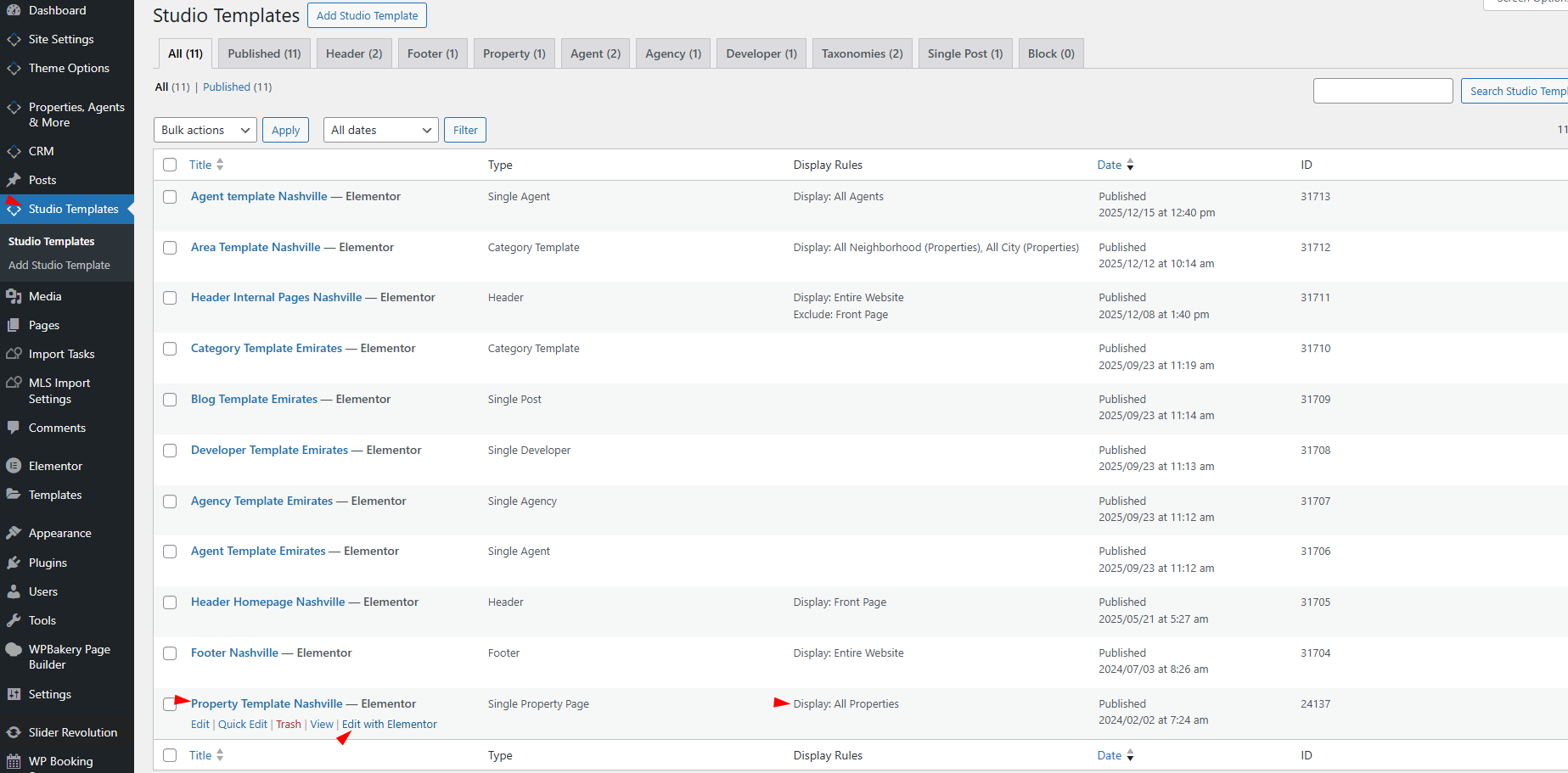
- Go to WPResidence Studio → Templates
- Edit your Property Template settings and assign it to display on properties (for example, all properties)
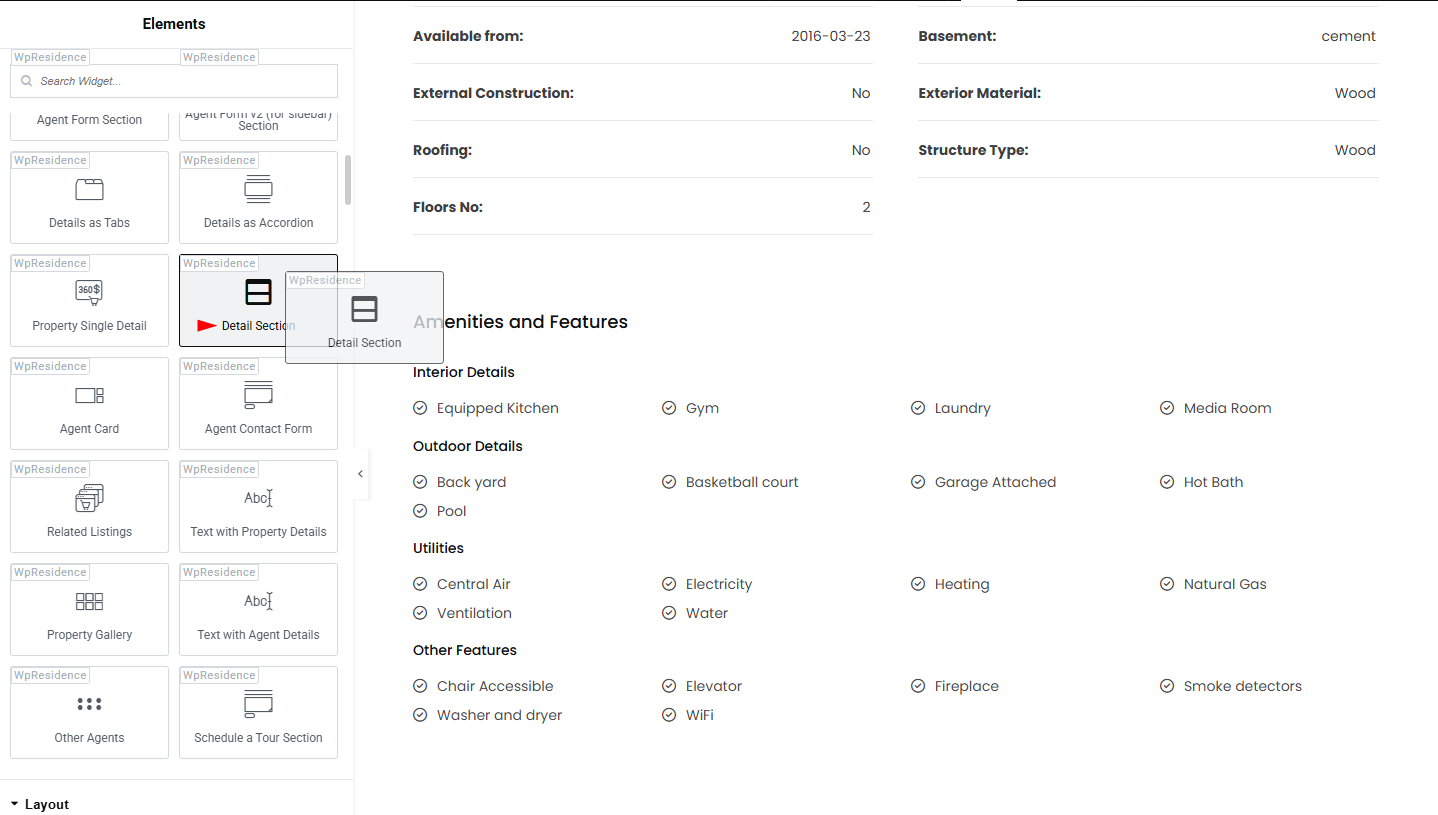
- Edit the same template with Elementor
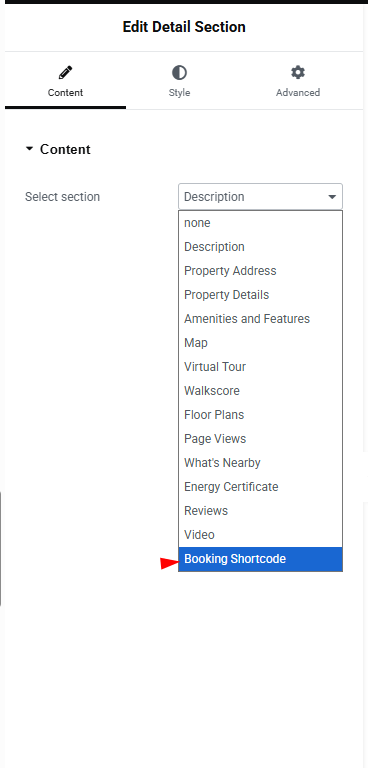
- Add the Details Section widget to the page
- From the widget dropdown options, select Booking Shortcode
- Save the template
Once saved, the shortcode added at property level will be displayed automatically on all properties that use this custom template.
Important Notes and Use Cases
- The shortcode content is stored per property, not globally
- You can use different shortcodes on different properties
- This works with any third-party plugin that provides a shortcode
- The same shortcode field works for both default and Elementor-based property templates
This feature is ideal for booking plugins, rental calendars, availability checkers, or any plugin that needs to be embedded directly on a property page without custom coding.