
Two Jetpack settings are known to break WPResidence on the front end. They look unrelated to the theme, so they are easy to miss. If your buttons stopped working, or your property images will not upload, check these first.
Both were confirmed on a live customer site running WPResidence on WordPress.com hosting with Jetpack active.
Problem 1: buttons do nothing and the submit form will not move to the next step
What you see
The Login and Register buttons do nothing when clicked. On the property submission page, the Next button does not move you past the Description step. Nothing appears to be broken visually, the buttons are simply dead.
The cause
Jetpack Site Accelerator serves your CSS and JavaScript from Jetpack’s own network instead of from your server. When it does this, the WPResidence theme scripts stop arriving on the page. The buttons are still in the HTML, but the JavaScript that makes them work never loads.
You can confirm it yourself. Open your home page, press Ctrl+U to view the source, then search for control.js. On a healthy site you will find it. If it is missing, along with ajaxcalls.js and wpestate_login_register.js, this is your problem.
The fix
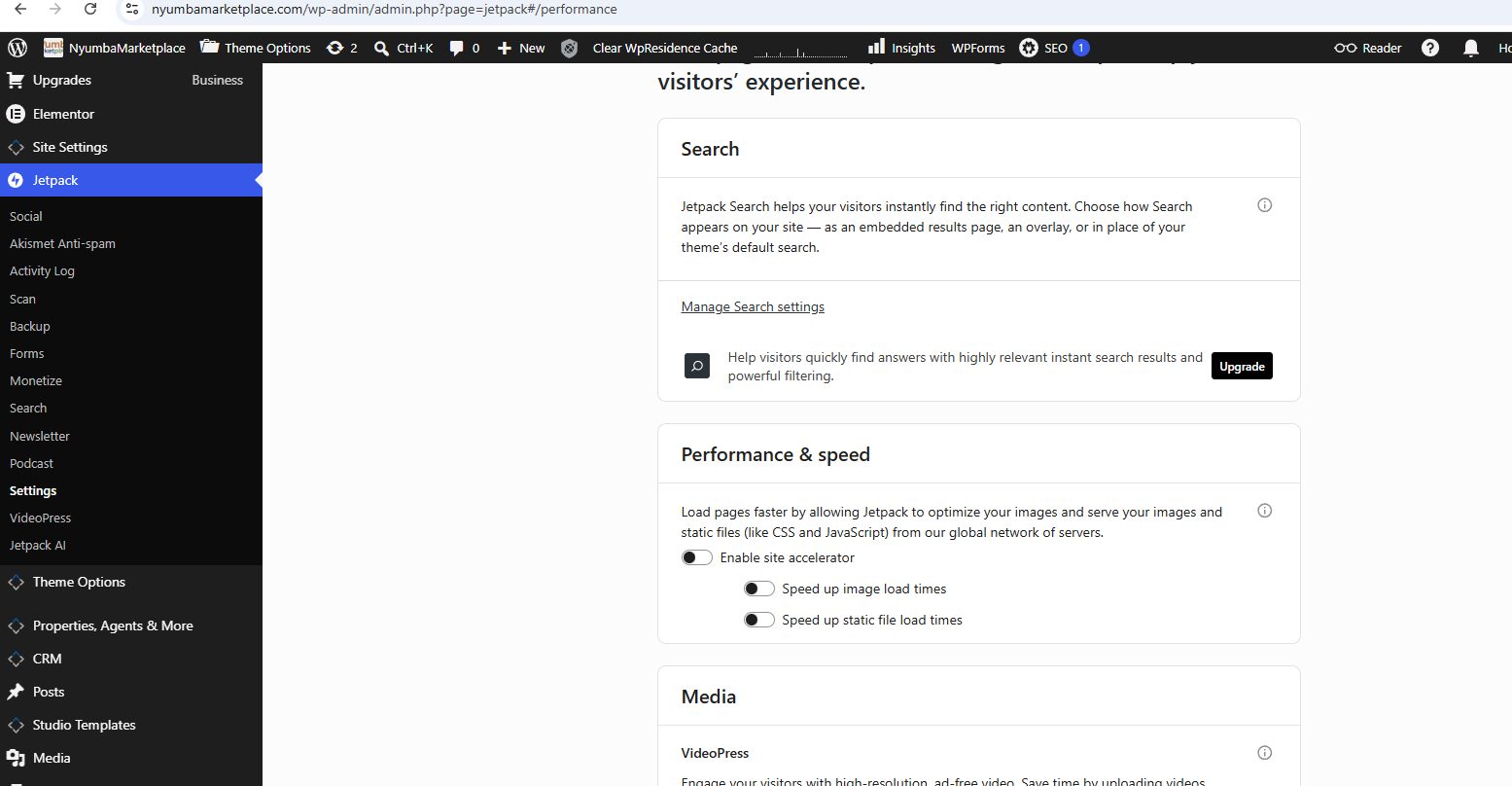
Open your WordPress admin, then go to Jetpack, then Settings, then the Performance tab.
Find the Performance & speed box.
Turn off Enable site accelerator, and turn off both options under it, Speed up image load times and Speed up static file load times.
Clear your site cache, then reload your home page and test the buttons again.
Problem 2: property images will not upload, HTTP Error
What you see
On the property submission page, every image reaches 100 per cent and then fails with the same message:
photo.jpg (19.1 mb) 100%   Error: -200, Message: HTTP Error., File: photo.jpg
1.jpg (40 kb) 100%         Error: -200, Message: HTTP Error., File: 1.jpg
manhattan.jpg (73 kb) 100% Error: -200, Message: HTTP Error., File: manhattan.jpg
Check this first, it saves a lot of time
Look at the smallest file that failed. In the example above a 40 KB file failed in exactly the same way as a 19 MB one.
That single comparison rules out every file size limit at once. If a tiny file fails too, the problem is not upload_max_filesize, not post_max_size, and not the theme’s own size setting. Raising your PHP limits will not help. The upload request itself is being refused before it reaches the theme.
The cause
Jetpack’s carousel gallery feature hooks into the media pipeline. On some hosts it makes the upload request fail, and the uploader reports this only as the generic message Error -200 HTTP Error.
The fix
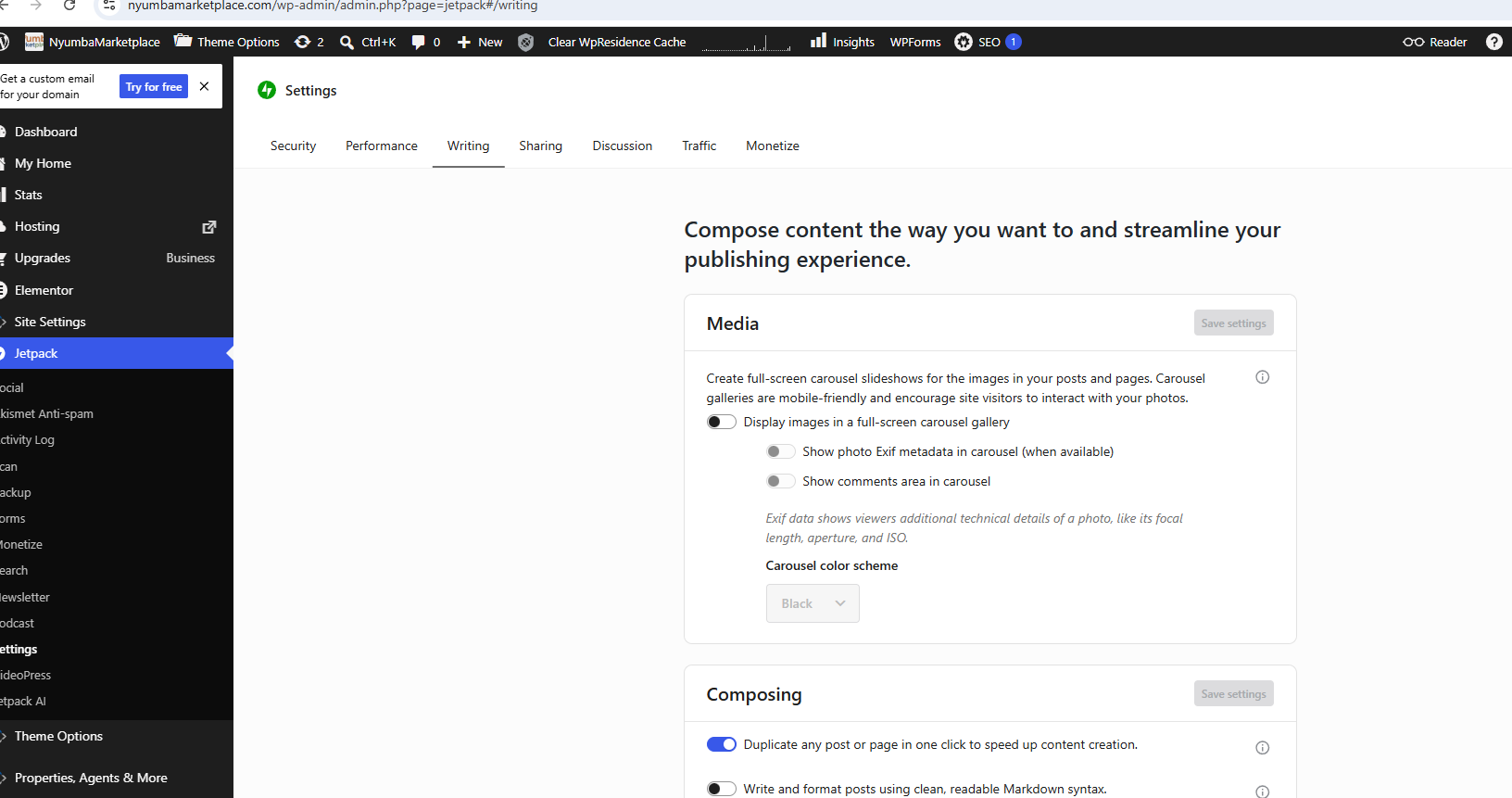
Open your WordPress admin, then go to Jetpack, then Settings, then the Writing tab.
Find the Media box at the top.
Turn off Display images in a full-screen carousel gallery, and turn off Show photo Exif metadata in carousel under it.
Reload the submission page and upload an image again.
If the upload still fails after that
Error -200 only means the upload request did not come back correctly. It does not say why. To find out, open the submission page, press F12, open the Network tab, then upload an image again. Find the admin-ajax.php row and read its Status column.
403 means the security token was rejected. The token is created when the page loads, so this happens when a cached copy of the page is served, or when the page has been left open for a long time. Clear your cache, reload the page, and upload straight away.
502 or 503 means your server had a problem. This is a hosting matter, please contact your host.
404 means admin-ajax.php is being blocked or redirected, usually by a firewall or a security plugin. Ask your host to allow it.
200 but the upload still fails means another plugin is changing the response. Deactivate your optimisation and security plugins one at a time and test after each.
Why Jetpack is the first thing to check
Jetpack broke the same site twice, in two completely different ways, through two settings that do not mention the theme at all. One is called a speed setting and one is called a gallery display setting, and neither sounds like it would stop a button working or stop a photo uploading.
So on any site running Jetpack, if the WPResidence front end misbehaves, turn the Jetpack optimisation and media features off first and test, rather than last. It is free to test and easy to undo.
The same idea applies to other optimisation plugins. Here is the equivalent check for LiteSpeed Cache: How to disable LiteSpeed Cache options to verify the theme functionality.