
Media Thumbnails Are Not Displaying Correctly
If you notice that media thumbnails are not displaying correctly in the admin area, the first thing you should check is the WordPress Media settings.
In some cases, you may also see browser console errors such as:
Uncaught TypeError: Cannot read properties of undefined (reading 'url')This error can appear when WordPress cannot find the expected thumbnail image size for a media file.
Check WordPress Thumbnail Settings
In your WordPress admin panel, go to:
wp-admin > Settings > Media
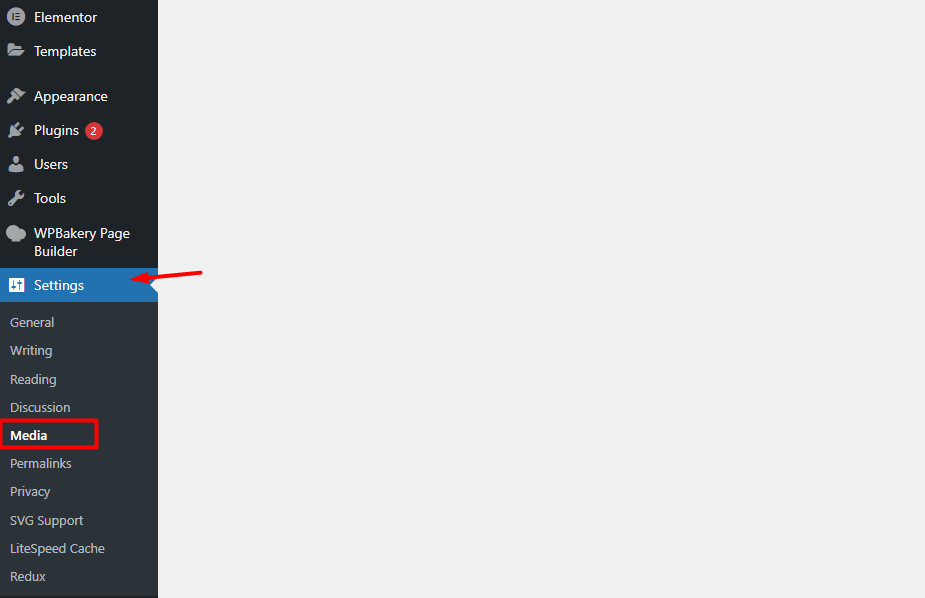
WPResidence uses the default WordPress image thumbnails generated through the Media settings.
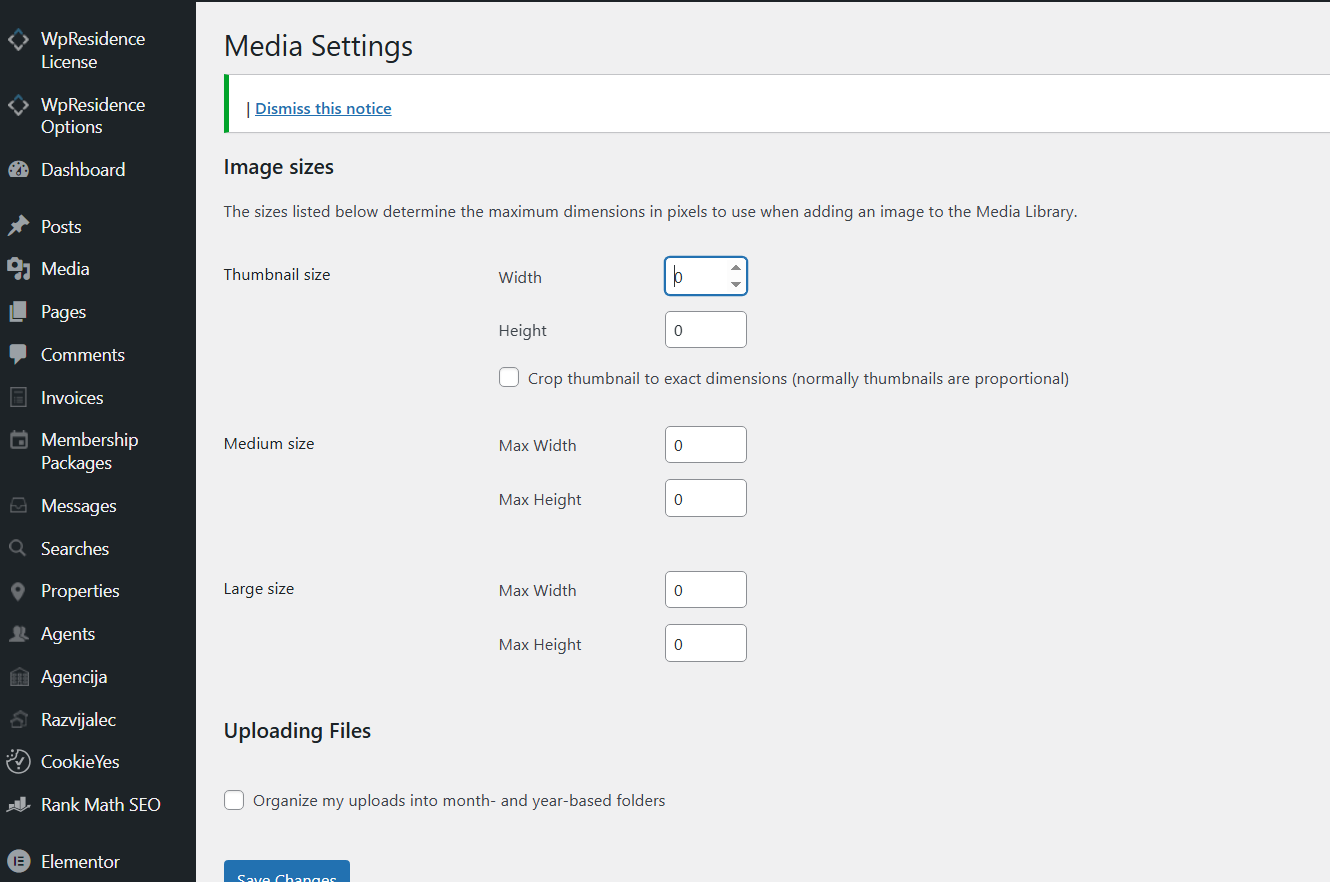
If these thumbnail sizes are missing, set to 0, or not generated, images may not display correctly in the admin interface.
Use Valid Thumbnail Sizes
Your Media settings must use valid image size values. Do not set thumbnail, medium, or large image sizes to 0.
Setting any of these values to 0 prevents WordPress from generating that image size. Add values higher than 0 for the image sizes you want WordPress to generate.
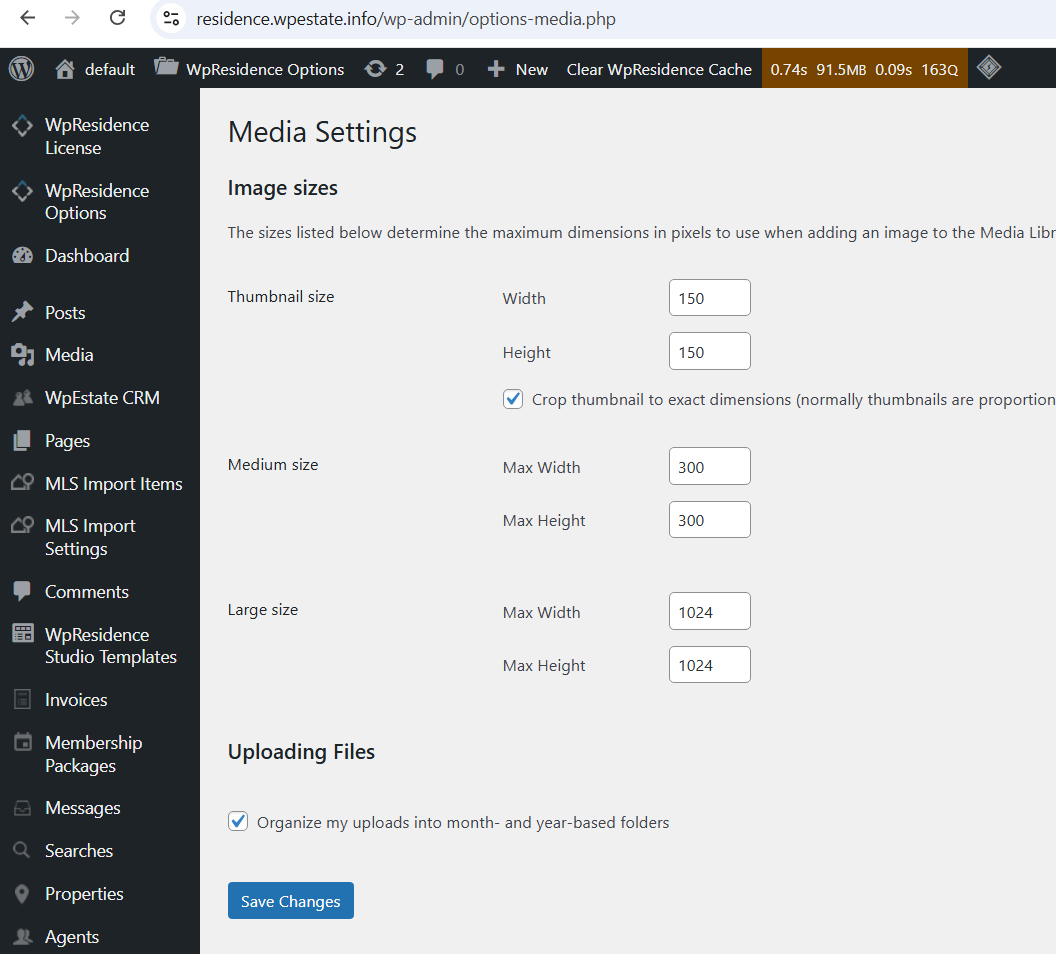
For example, you can use the standard WordPress-style values:
- Thumbnail size: 150 x 150
- Medium size: 300 x 300
- Large size: 1024 x 1024
Regenerate Thumbnails for Existing Images
After changing the Media settings, existing uploaded images will not automatically receive the missing thumbnail sizes.
You must regenerate thumbnails for the images already uploaded to your website.
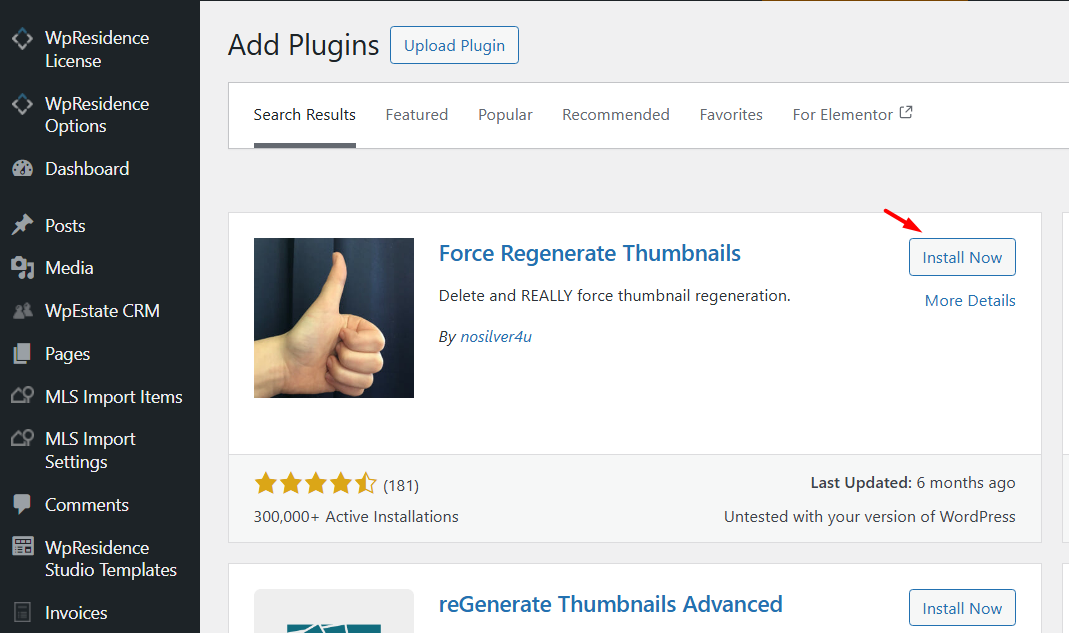
The easiest way to do this is by using a thumbnail regeneration plugin, such as Force Regenerate Thumbnails, from the WordPress plugin repository.
Important Note
Changing the Media settings only affects new images uploaded after the change. For images already uploaded before the change, thumbnail regeneration is required.
After regenerating thumbnails, clear your website cache, server cache, CDN cache if used, and browser cache. Then check the admin area again.