
The WPResidence real estate CRM sends six kinds of email notifications automatically. Each one can be edited, enabled, or disabled per your preferences. This article explains what each notification does, where to customize it, and how placeholders work.
The Six Notification Events
| Event | When it fires | Default recipient |
|---|---|---|
| New contact | A contact is created (manually or via form). | Assigned agent |
| Contact assigned | A contact’s assigned agent changes. | New assigned agent |
| Deal stage changed | A deal moves from one pipeline stage to another. | Assigned agent |
| Deal won | A deal’s stage becomes Closed Won. | Assigned agent |
| Task overdue | Daily cron at 8am: any task past due and not done. | Task owner |
| Task due today | Daily cron: tasks due today and not done. | Task owner |
Where to Customize Emails
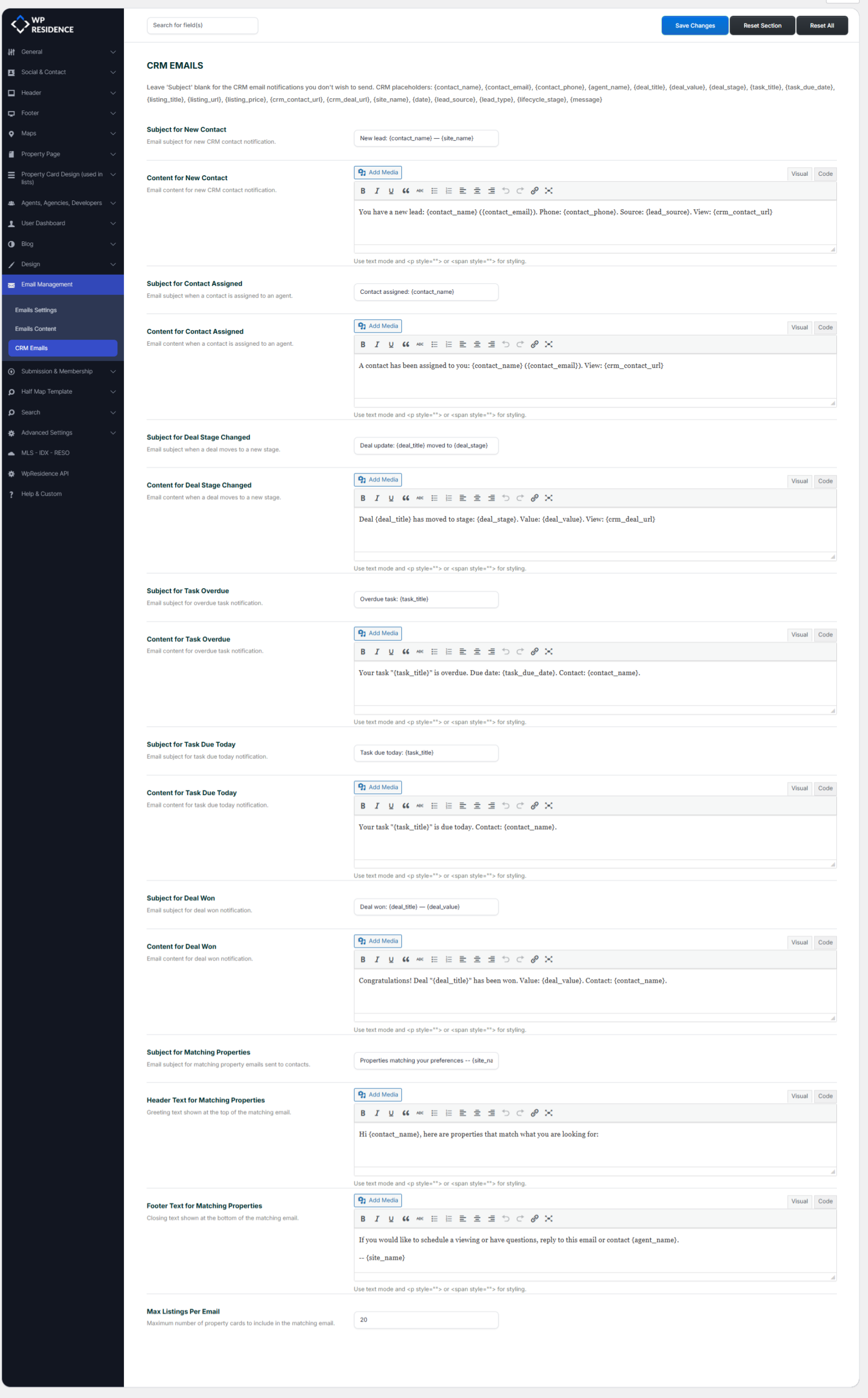
Go to WordPress Admin → Theme Options → Email Management → CRM Emails. For each event, you can set:
- Email subject.
- Email body (HTML supported).
Leaving either field empty disables the notification for that event.
Placeholders You Can Use
20 placeholders are available in both the subject and the body. The CRM replaces them at send time with the current record’s data.
| Placeholder | Resolves to |
|---|---|
{contact_name} |
Full contact name |
{contact_email} |
Contact email |
{contact_phone} |
Mobile or phone |
{agent_name} |
Assigned agent’s name |
{lifecycle_stage} |
Current stage |
{lead_source} |
Lead source |
{lead_type} |
Buyer / Seller / etc. |
{listing_title} |
Linked listing title |
{listing_url} |
Linked listing URL |
{listing_price} |
Linked listing price (formatted) |
{deal_title} |
Deal name |
{deal_value} |
Deal amount (formatted) |
{deal_stage} |
Current deal stage |
{task_title} |
Task title |
{task_due_date} |
Task due date |
{message} |
Original message from a form |
{crm_contact_url} |
Dashboard link to the contact |
{crm_deal_url} |
Dashboard link to the deal |
{site_name} |
Your site name |
{date} |
Today’s date |
Example Subject Templates
- New contact:
New lead: {contact_name} from {lead_source} - Deal won:
🎉 Deal won: {deal_title} — {deal_value} - Task overdue:
You have overdue tasks on {site_name}
Email Template Wrapping
Every CRM email is wrapped in your theme’s branded email template, so headers, footers, colors, and logos match the rest of your customer communications. If your site is configured for plain-text email (via the Email Type theme option), the wrapper is skipped and you get a plain-text message.
Daily Task Reminders
The task_overdue and task_due_today emails are batched: each agent gets one email per event per day, listing all their overdue or due-today tasks. This avoids flooding inboxes when several tasks are due at once.
Disabling a Specific Notification
Clear either the subject or body field for that event. The CRM only sends a notification if both fields have content.
Test Emails
There is no built-in “send test email” button for CRM notifications — create a real test contact or deal and verify the email arrives.
Best Practices
- Keep subjects short and scannable.
- Include
{crm_contact_url}or{crm_deal_url}in every body so the recipient can click straight to the record. - Match your tone. These emails represent you.
- Test on your own email before rolling to the team.