
WP Residence Help WP Residence Help

  • WpEstate
  • WPRESIDENCE
  • Video Tutorials
  • Client Support
  • API
Home / 29. WPResidence CRM / Bulk Actions in the WPResidence CRM

Bulk Actions in the WPResidence CRM

1 view 0

Bulk actions let you operate on many records at once. Delete 200 stale contacts, reassign a portfolio of deals to a new agent, mark 50 tasks complete — all from the same list view you already use. This article covers every bulk action available in the WPResidence real estate CRM.
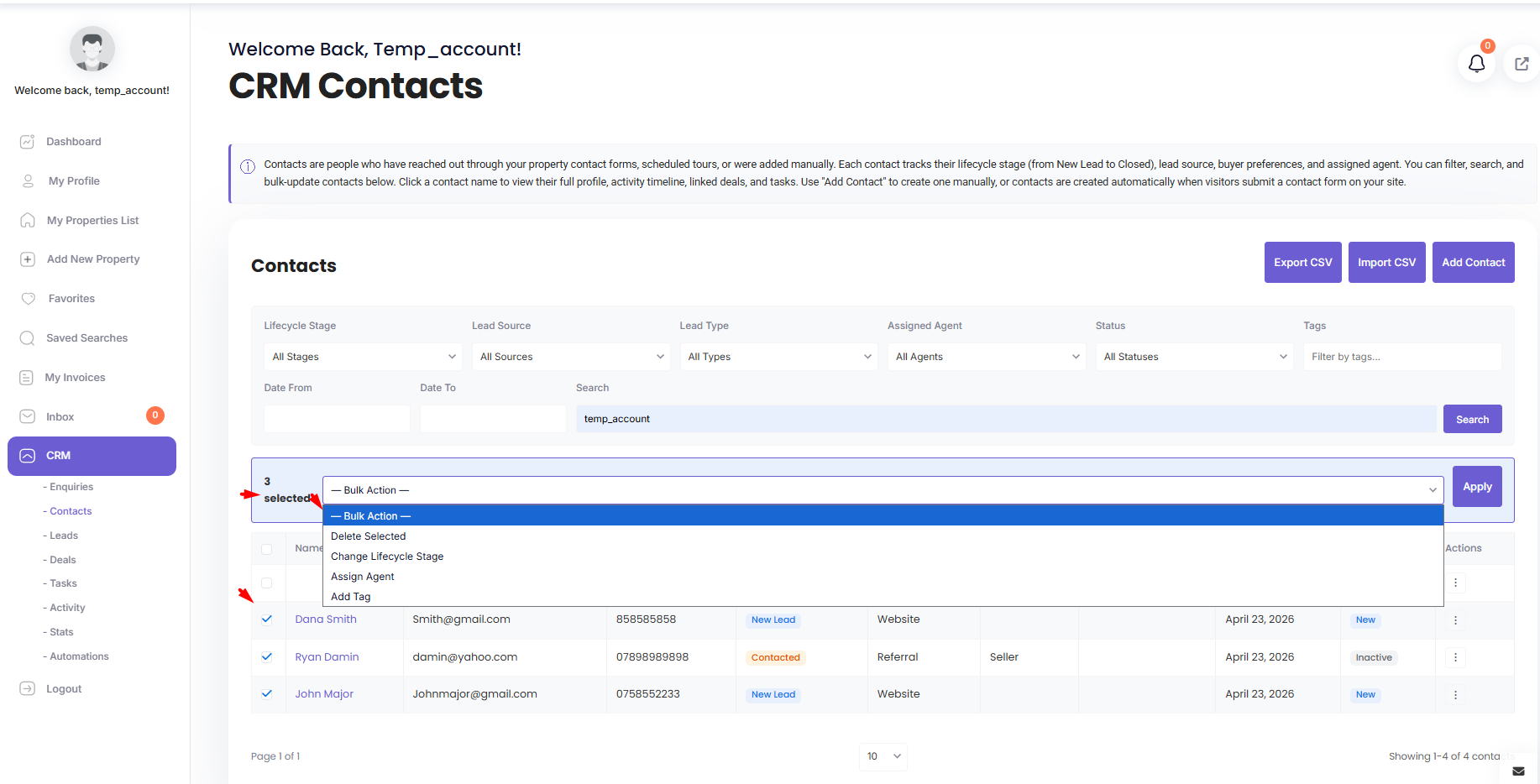
Screenshot of the CRM contacts list with multiple checkboxes selected

How It Works

  1. Open a list page (Contacts, Leads, Enquiries, Deals, Tasks, Activity).
  2. Check the boxes next to the rows you want to act on. Use the header checkbox to select all rows on the page.
  3. Open the bulk action dropdown above or below the list.
  4. Pick an action and click Apply.
  5. Confirm. The system reports how many rows were affected.

Contacts

Four bulk actions available:

Action Effect
Delete Permanently remove the selected contacts. Their deals, tasks, notes, and activities remain.
Change lifecycle stage Move all selected contacts to a new lifecycle stage (e.g., mass-promote from New Lead to Contacted).
Assign agent Reassign all selected contacts to a single agent.
Add tag Append a tag to every selected contact. Duplicate tags are automatically prevented.

Deals

Action Effect
Delete Remove selected deals.
Change stage Move all selected deals to a new pipeline stage.

Tasks

Action Effect
Delete Remove selected tasks.
Mark complete Set status to Completed and stamp the current timestamp on completed_at.

Leads and Enquiries

Both support bulk delete and bulk status update.

Activities

Only bulk delete is supported. Activities are append-only records — editing them would break the audit trail.

When to Use Bulk Actions

  • CSV import cleanup. After a big import, tag the new contacts with the source name and assign them to the responsible agent.
  • Agent departures. Reassign a leaving agent’s entire portfolio in one click.
  • Campaign tagging. Select contacts matching a filter (e.g., lifecycle stage = New Lead), apply a campaign tag.
  • End-of-quarter cleanup. Close or delete truly stale deals and leads.

Permission Notes

  • Admins can bulk-act on anything they can see (i.e., everything).
  • Agents can only bulk-act on records they own or are assigned to. If you select a row you don’t own, it will be silently skipped and the affected count will be lower than expected.

Safety

  • Bulk delete is permanent. There is no trash or undo. Export to CSV first if you are not 100% sure.
  • Automations can fire on bulk updates. Changing 200 contacts’ lifecycle stage could trigger 200 emails. Pause relevant automations before large operations.
  • Webhooks can fire in bulk. External systems linked by webhook will receive one event per row.

Best Practices

  • Filter first, then bulk. Get the list down to exactly what you want before selecting.
  • Test on one row first, then do the rest in bulk.
  • Export the selection to CSV before bulk-deleting, just in case.
29. WPResidence CRM

Related Articles

  • WPResidence CRM Security Model — Developer Reference
  • CRM Security and Data Privacy
  • WPResidence CRM Installation and Updates — Developer Reference
  • Installing and Updating the WPResidence CRM

WP Residence Documentation

  • 01. Getting Started
    • How to Get Support
    • Get your buyer license code.
    • Use SSL / https
    • Server / Theme Requirements
  • 02. Installation & Setup
  • 03. Installation FAQ
  • 06. Search & Filtering
    • Advanced Search Display Settings
    • Advanced Search Form
    • Geolocation Search for Half Map
    • Save Search Theme Options
    • Advanced Search Colors
  • 09. Agent, Agency & Developers
  • 08. Property Pages & Layouts
  • 07. Property Lists, Categories & Archive
  • 13. WPResidence Elementor Studio
  • 10. Blog Posts & Blog List
  • 11. Shortcodes
    • Contact Form
    • Featured Agency/Developer
    • Membership Packages
    • Testimonials
    • Google Map with Property Marker
    • Listings per Agent, Agency or Developer
    • Display Categories
    • Agent List
    • Recent Items Slider
    • Recent items
    • List Properties or Articles by ID
    • Featured Agent
    • Featured Article
    • Featured Property
    • Login & Register Form
    • Icon Content Box Shortcode
  • 12. Widgets
  • 04. Theme Options & Global Settings
    • General Settings
    • User Types Settings
    • Appearance
    • Logos & Favicon
    • Header
    • Footer Style and Colors
    • Price & Currency
    • Property Custom Fields
    • Features & Amenities
    • Listing Labels
    • Theme Slider
    • Permalinks
    • Splash Page
    • Social & Contact
    • Map Settings
    • Pin Management
    • How read from file works
    • General Design Settings
    • Custom Colors Settings
    • Header Design & Colors
    • Mobile Menu Colors
    • User Dashboard Colors
    • Print PDF Design
    • Property, Agent, Blog Lists Design Settings
    • Sidebar Widget Design
    • Font management
    • How to add custom CSS
    • Custom Property Card Unit – Beta version
    • Email Management
    • Import & Export theme options
    • reCaptcha settings
    • YELP API Integration
    • iHomefinder Optima Express IDX
    • MEMBERSHIP & PAYMENT Settings
    • Property Submission Page
    • PayPal Setup
    • Stripe Setup
    • Wire Transfer Payment Method
  • 20. Translations & Languages
  • 26. FAQ
  • 10. Pages
  • 11. Header
  • 12. Footer
  • 05. Maps & Location Settings
  • 18. Payments & Monetization
  • Plugins
    • 19. Included Plugins
    • 22. Third Party Plugins – IDX Compatibility
    • 21. Third-Party Plugins – Multi-Language
    • 23. Third party Plugins – Other
  • Technical
    • 24. Technical how to | Custom Code Required
    • 25. Technical: Child Theme

Join Us On

Powered by WP Estate - All Rights Reserved
  • WpEstate
  • WPRESIDENCE
  • Video Tutorials
  • Client Support
  • API