
Most records in your real estate CRM arrive without you ever having to type them. Every time a visitor submits a contact form on your WPResidence site, the CRM receives the submission, matches it against an existing contact (or creates a new one), records an enquiry, and logs the event to the activity timeline.
This article explains which forms feed the CRM, what data ends up where, and how the auto-match logic works.
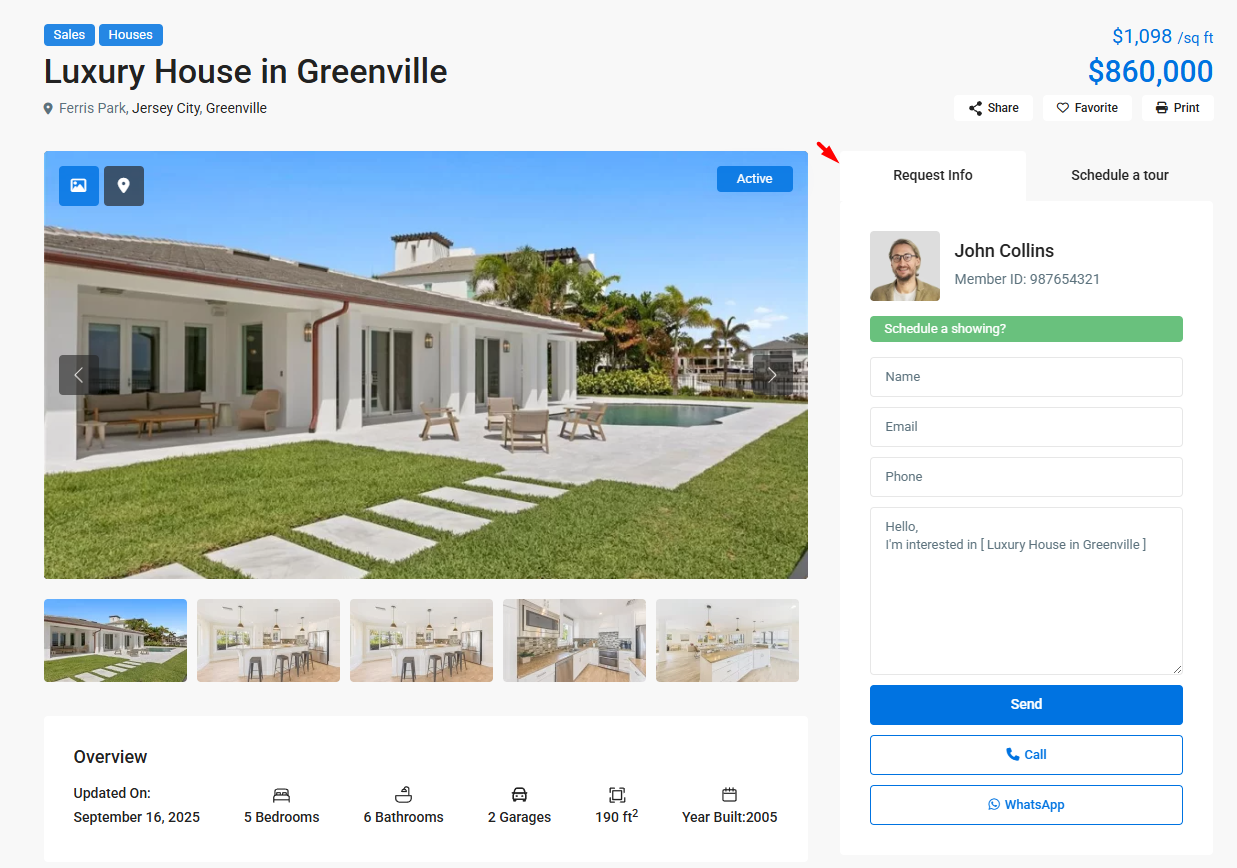
Forms That Feed the CRM
Every major contact form in the WPResidence theme creates a CRM record automatically:
| Form | Creates enquiry type |
|---|---|
| Property contact form (single property page) | Property Inquiry |
| Schedule tour / viewing form | Schedule Tour |
| Contact page form | General Question |
| Agent page form | Property Inquiry |
| Footer contact form | General Question |
No configuration is required. As long as the CRM plugin is active, submissions route to it automatically.
What Happens When a Form Is Submitted
- The form is validated (email required and syntactically valid).
- The CRM searches the contacts database for a match on the email address.
- If a match is found, the existing contact is used. The contact’s data is merged (newer phone, address, etc.), not overwritten.
- If no match is found, a new contact is created. Name is split into first and last name on the first space, and the lifecycle stage is set to New Lead.
- A tracking cookie is set on the visitor’s browser so their future property page views are tied to this contact.
- An enquiry record is created with the appropriate type.
- A form_submission activity is recorded.
- If the form was submitted on a property page, the contact’s buyer preferences are auto-populated from that property’s attributes.
- Downstream hooks fire — email notifications, SMS alerts, HubSpot sync, webhooks, and automations all get their chance to respond.
Who the Lead Gets Assigned To
The CRM picks an owner in this order:
- If the form includes an agent ID (for example, the form on an agent’s profile page), the lead is assigned to that agent.
- Else if a property ID is included, the lead is assigned to the property’s listing author.
- Otherwise, the lead is assigned to the site administrator.
Buyer Preferences Auto-Fill
When the form submission includes a property ID, the CRM fills the contact’s buyer preferences:
- Property type and location copied from the listing.
- Bedrooms and bathrooms copied directly.
- Price range set to 80%–120% of the listing’s price.
- Area range set to 80%–120% of the listing’s size.
These are only populated for fields the contact has not already filled — existing preferences are never overwritten.
How to Tell If a Contact Came From a Form
Check the contact detail page:
- Lead source will be set to website.
- Lifecycle stage will start at New Lead.
- The activity timeline will show a form_submission entry with the form type and linked property.
GDPR and Consent
The theme’s GDPR consent checkbox (if enabled) gates the form submission. If the visitor does not check the consent box, the submission is blocked before the CRM ever sees it. The CRM itself does not force consent.
Best Practices
- Review the contact detail page for each new contact — the auto-filled data is a starting point, not the last word.
- Use the “Attribution” part of the activity timeline (source, landing page URL, property) to understand where demand is coming from.
- If you find duplicates, check whether prospects are submitting with different email addresses. The CRM only deduplicates by email.
Related Articles
See the Contacts, Enquiries, and Activity articles for how each record type looks after creation. See the HubSpot CRM integration guide for pushing auto-created contacts into HubSpot.