
How to make submission free, with no membership or paid listing
Use this setup if you want users to submit properties for free, without membership packages or paid listing submission.
Go to:
Theme Options > Submission & Membership > Membership Settings
Set Enable Paid Submission to No, then save the changes.
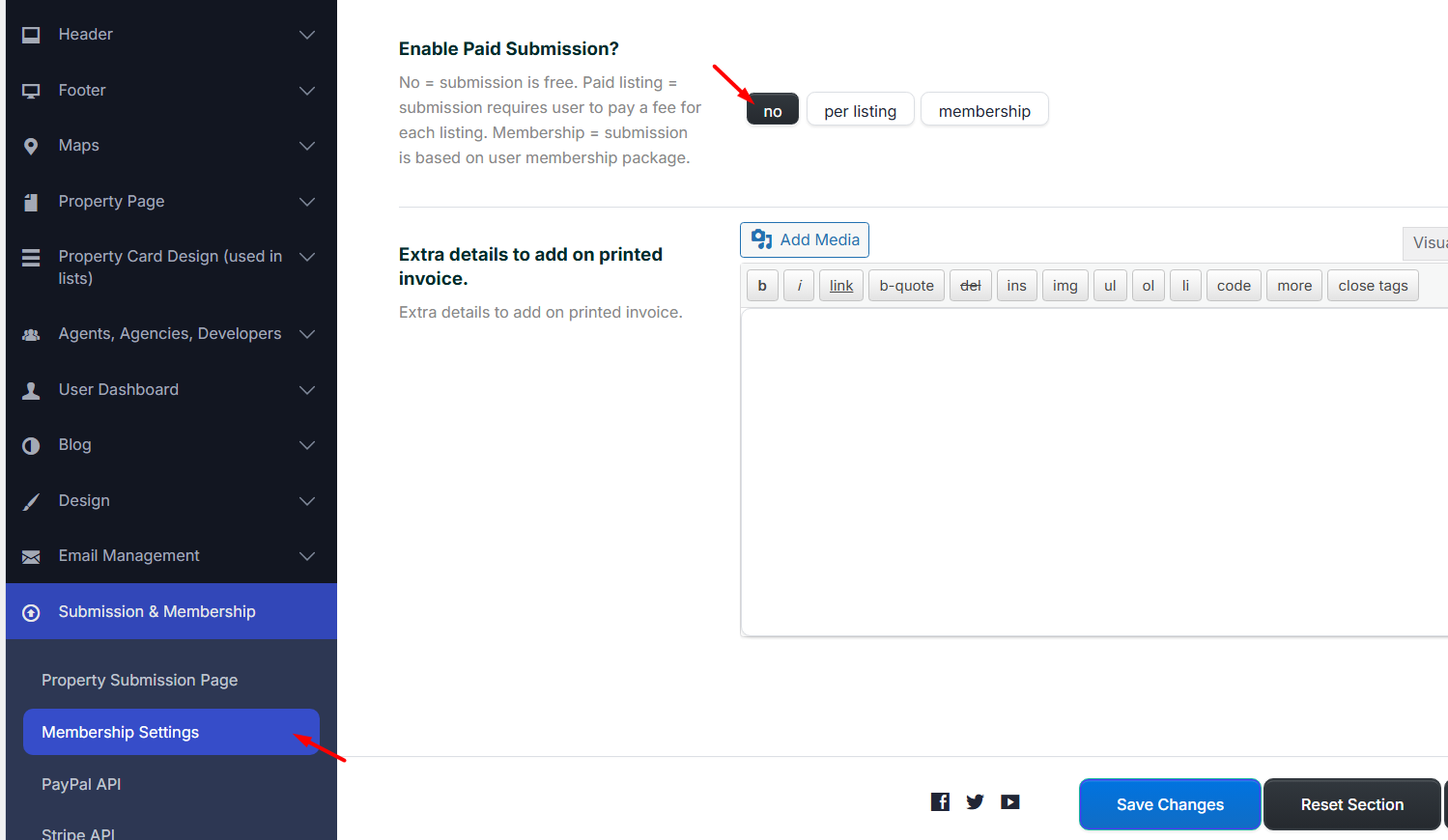
If the website was previously using membership or paid submission, some properties may already be set to the custom status Expired. Changing Enable Paid Submission to No does not automatically publish those expired properties again.After switching to free submission, you must publish the expired properties again from the property list.
Why properties can become Expired
When membership or paid submission is enabled, WPResidence checks if the user package is still valid.
Listings can be moved to Expired when:
- The user package expired.
- The package renewal payment failed.
- The user package allows fewer published listings than the user currently has.
When properties are set to Expired, they no longer appear on the front end and property lists can show the message:
There are no more listings.
If you do not want to use membership packages or paid submission, disable paid submission and then publish the expired properties again.
How to publish expired properties again
Go to:
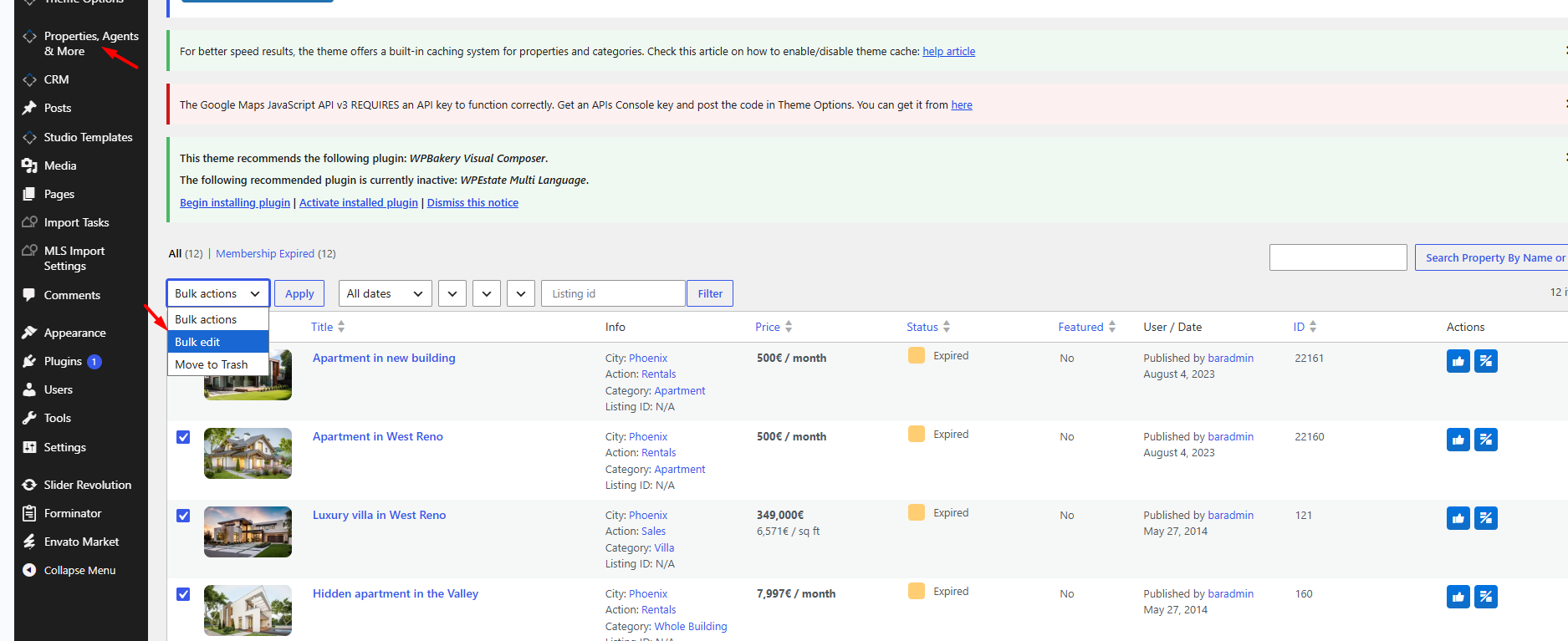
WP Admin > Properties, Agents & More > Properties
If you see a filter named Membership Expired, click it to see the expired listings.
You can publish listings in two ways.
Option 1: Approve or publish one property at a time
In the property list, use the quick approve/publish icon from the Actions column for each expired property.
This is useful when you only need to publish a small number of listings.
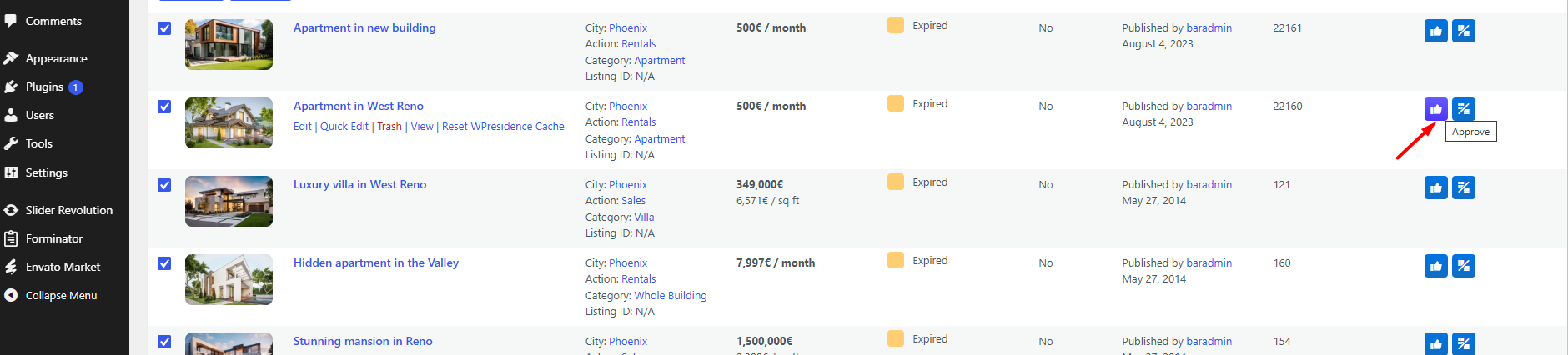
Option 2: Publish multiple properties with Bulk Edit
Use Bulk Edit when you need to publish several expired listings at once.
- Go to WP Admin > Properties, Agents & More > Properties.
- Select the properties you want to publish.
- From the Bulk actions dropdown, select Bulk edit.
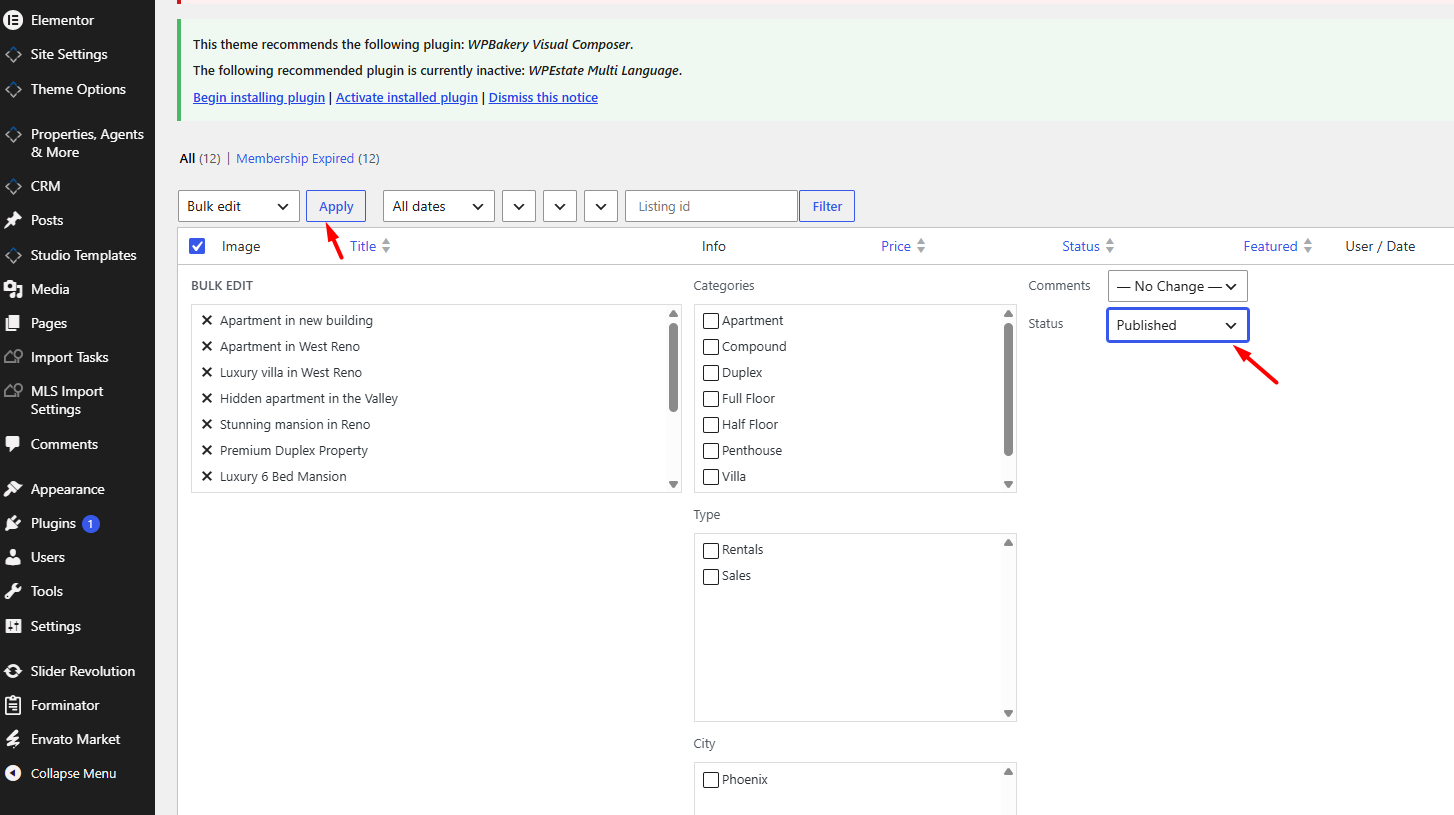
- Click Apply.
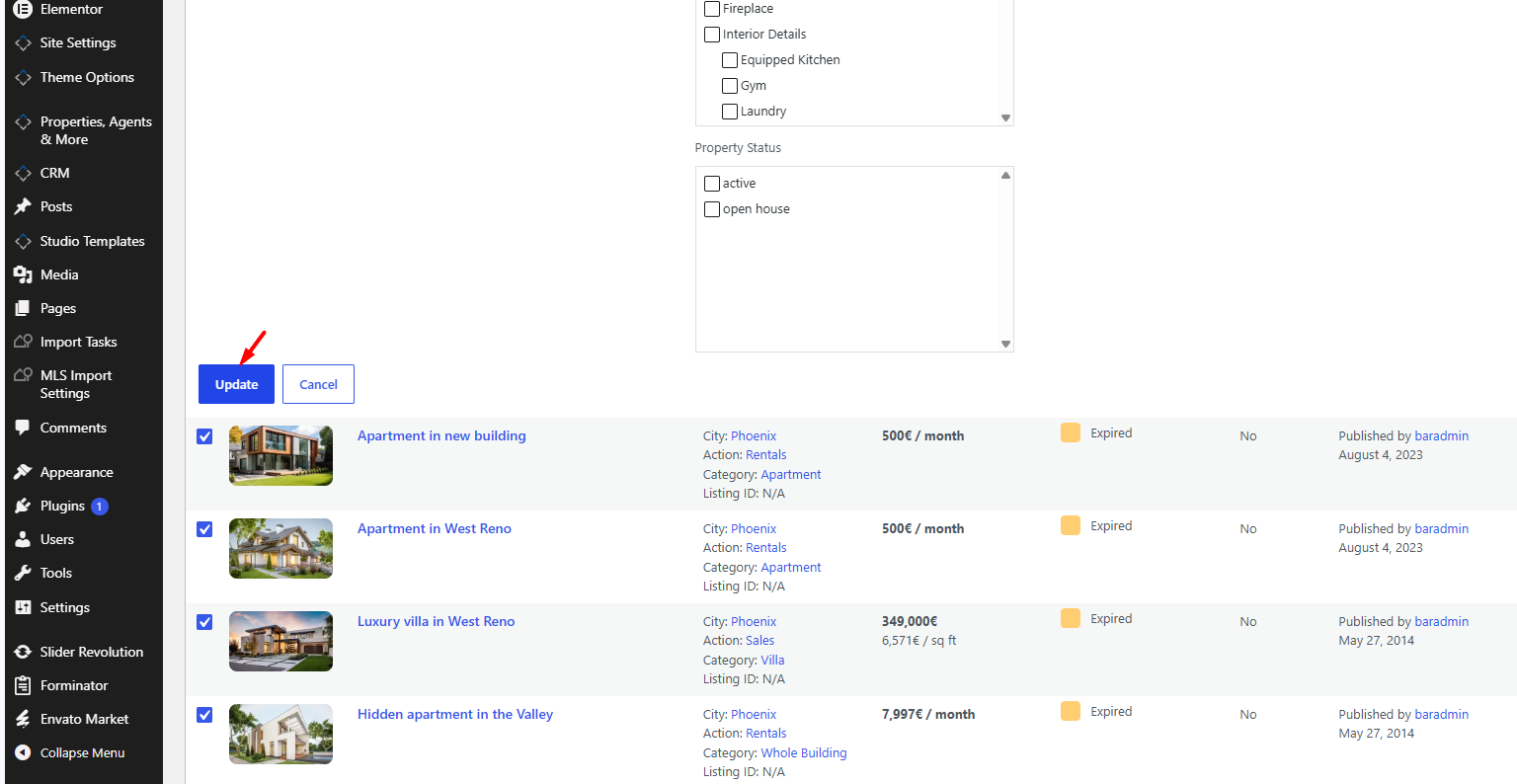
- In the Bulk Edit panel, find the Status dropdown.
- Select Published.
- Click Update.
Bulk Edit applies only to the selected properties on the current page. If you have more expired listings on other pages, repeat the same steps for each page.
After publishing the properties
After the properties are published again:
- Check the property list on the front end.
- Clear WPResidence cache if theme cache is enabled.
- Clear any cache plugin, server cache, or CDN cache if used.
- Confirm that the properties are visible again in property lists, search results, and archive pages.
Other submission settings you can manage
You can also manage these related options: